Pearla Revela · Tutorial
Design multiple deliverables from one photo or video
Share the image edit, then give each version its own crop, typography and color.
A landscape cover, a vertical poster and a clean image can all start from the same photograph. Each needs its own composition: a title that works across a wide frame may need different sizing, placement and color in a tall one.
Pearla Revela lets you build those versions as branches of one editing graph. Develop and retouch the source once, then give each deliverable its own crop, Text nodes and output settings. The same approach works for video, including still covers taken from the clip.
We’ll build a clean photo output, a landscape cover and a vertical poster, then apply the structure to video. Use your own image, wording and delivery sizes. The layouts and colors below are starting points for the exercise.
1 Set up the shared image and the branches
Start with a photograph that has space for typography as well as the main subject. Complete the raw development, color work and retouching you want all versions to share.
Choose View → Show Node Canvas (⌥⌘N). An Output is the final node on a branch; it describes the file that branch will export. A Splitter sends the same picture down several branches.
Place the split after the shared work
- Find the existing Output node.
- If a Splitter already feeds it directly, use that Splitter.
- Otherwise, right-click the Output and choose Insert Before → Splitter.
- Select the existing Output, open its Output tab, and give it a descriptive name for the clean image, such as Clean.
- Set its format, color space and resolution for that deliverable. Resolution → Source uses the image dimensions arriving at the output.
An earlier Splitter may already exist in the graph. Use the one after the work you want to share: a branch does not inherit edits placed on a different path.
For this exercise, keep the common image free of text and leave the final crops to the individual branches. We’ll build this arrangement:
Shared development and retouching
→ Splitter
   ├─ Clean output
   ├─ Landscape crop and rendering
   │  → Landscape title and subtitle
   │  → Landscape output
   └─ Vertical crop and rendering
      → Vertical title and subtitle
      → Vertical output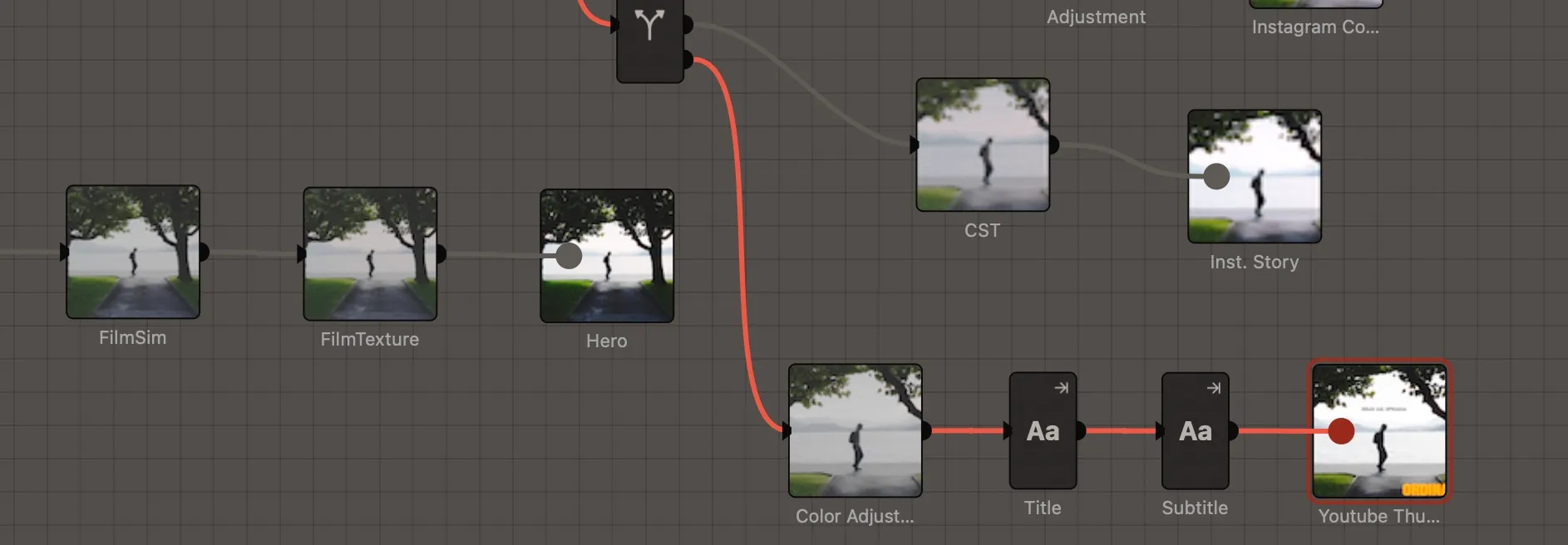
Here is one possible design plan:
| Deliverable | Composition | Typography |
|---|---|---|
| Clean image | Original framing, with the shared grade | No text. |
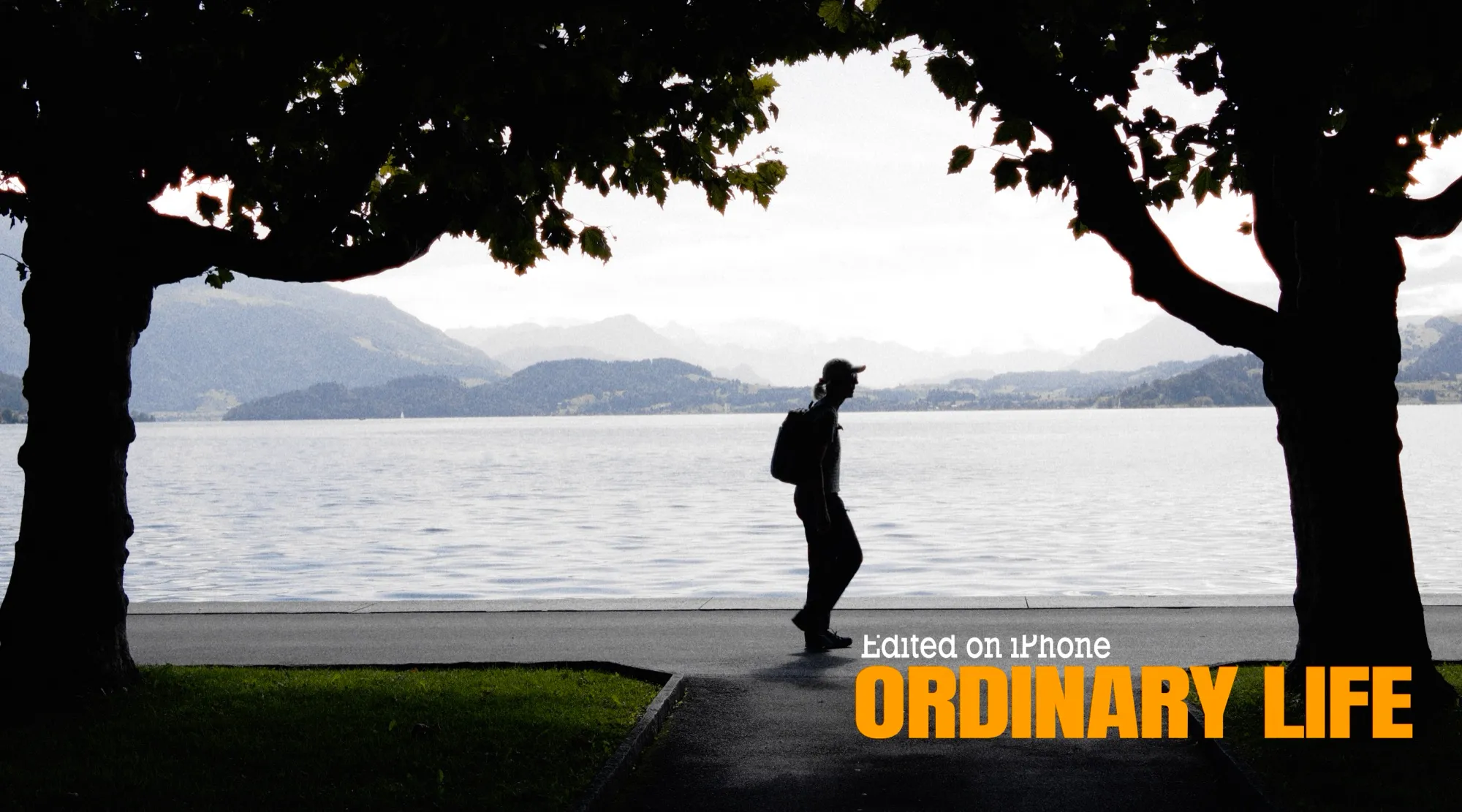
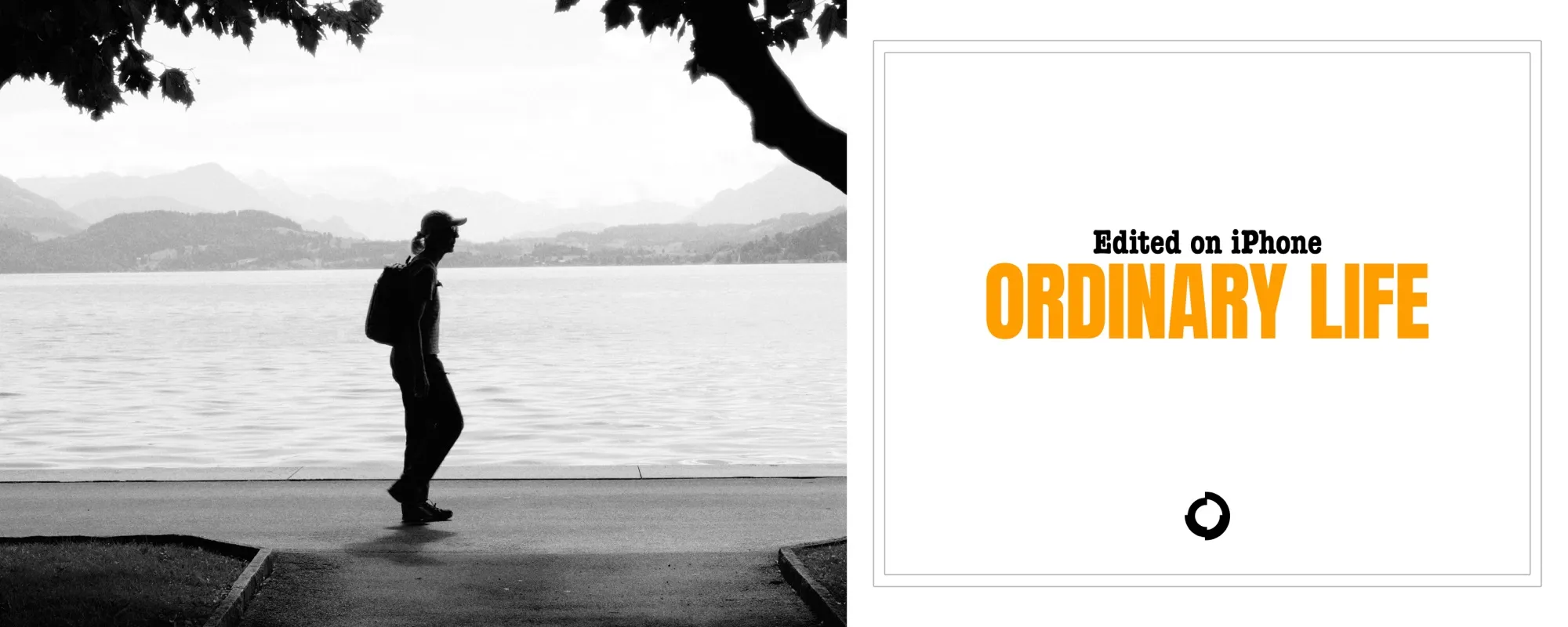
| Landscape cover | Wide crop with space beside or below the subject | Orange headline, smaller white subtitle, aligned toward the lower right. |
| Vertical poster | Tall crop with deliberate space for the headline | Ivory headline on two lines, smaller orange subtitle above it. |
These versions share the source and common adjustments. Their text nodes are separate, so changing one layout will not move or recolor another.
2 Build the landscape cover
Add the output and compose the image
- Right-click the prepared Splitter and choose Add Branch.
- Select the new Output and name it for the landscape deliverable, such as Landscape cover.
- Double-click it to show that branch in the loupe.
- Right-click it and choose Insert Before → Adjustment.
- Select the Adjustment, open Transform, and choose 16:9. If necessary, press X to switch the crop to landscape orientation.
- Position the crop with room for both the subject and the text, then press Return.
- Select the Output and set the delivery size. For this example, use Resolution → Size, Width 1920 and Height 1080, with sRGB and JPEG.
Those dimensions are an example, not a requirement. The important order is to compose the crop first, then lay out the text inside that composition. Adding a crop after the text could cut into the lettering.
Finish the image rendering before adding type
For this design, render the photograph into its display color space before adding the text. That lets you choose a film tone mapping profile for the picture while keeping the lettering outside that treatment.
- Right-click the landscape Output and choose Insert Before → CST. It should sit after the crop Adjustment.
- Select the CST and open its Node tab.
- Leave Input → Inherit and check the space arriving from the shared edit. In a usual PWG workflow, it reads Pearla Wide Gamut.
- Set the CST’s Output to sRGB, matching this example’s final Output.
- For a PWG-to-sRGB conversion, select Tone Mapping → Pearla and choose your Profile.
If the shared edit already converts the picture to sRGB, you can add the text after that conversion without introducing another tone mapping stage. Check the arriving space rather than forcing the CST’s Input to a space the picture is not in.
The order for the designed branch is now crop → image rendering → text → Output. With an SDR conversion upstream, the final Output’s Tone mapping row is absent; the rendering has already happened.
Add the headline
- Right-click the landscape Output and choose Insert Before → Text. The new Text node should follow the CST.
- In the Text tab, replace the default word with your headline.
- Keep single-line mode for this wide layout.
- Under Typography, choose Family, Weight and Size to suit the design.
- Under Fill, click Colour and choose an orange, or another accent color appropriate to your image.
- Drag the text box in the loupe to its position. For this example, place it toward the lower right with a clear margin from the edges.
- Drag a corner handle to size the headline. In single-line mode, the type scales with the box.
A single-line box fits itself to the wording. Use the normal corner drag to preserve proportions; holding Shift stretches the letters.
Add a separately styled subtitle
- Right-click the same Output and choose Insert Before → Text again.
- Enter a short subtitle, credit or descriptive line.
- Choose a smaller type size and set Fill → Colour to white.
- Position it above the headline and align the two boxes visually.
Each Text node has its own typography, fill and position. Separate nodes let you change the subtitle’s style without changing the headline. You can rename the node cards (for example, Headline and Subtitle) to make the graph easier to read.
Select another node, or press ⇧⌘H, to hide the text-box overlays and inspect the design. Check the words against the actual image: move them to a quieter area or add a restrained shadow or background plate if contrast is insufficient.
The text’s position and size are measured in pixels of the picture at the Text node, before the final output resize. Use the finished output as your visual reference rather than assuming a type-size value corresponds directly to export pixels.
3 Make a vertical version with its own layout and colors
Return to the shared Splitter and create another branch. Starting there gives you the common image edit without the landscape branch’s crop or lettering.
Compose the tall frame
- Right-click the Splitter and choose Add Branch.
- Name the new Output for the vertical version, such as Vertical poster.
- Double-click it to show it in the loupe.
- Insert an Adjustment before it, open Transform, and choose 9:16. Press X if needed to make the crop tall.
- Position the subject and leave space for the title, then accept the crop.
- Set the Output to 1080 × 1920 for this example, with sRGB and JPEG.
- If the branch still carries PWG, add and configure an sRGB CST after the crop, as you did for the landscape version.
Now design the typography for the tall composition. It needs its own line breaks, scale and spacing.
Reuse the words, then change the design
- Right-click the landscape headline’s Text node and choose Copy Node.
- Right-click the vertical Output and choose Paste Node Before. This makes a separate Text node on the vertical branch, after its CST.
- Double-click the vertical Output to restore its preview, then select the pasted Text node.
- In the Text tab, switch to multi-line mode.
- Add a line break where the headline should divide. Set the horizontal alignment to center for this example.
- Resize the text box to fit the tall composition and drag it into place. In multi-line mode, resizing the box changes wrapping; use Typography → Size to change the letter size.
- Change Fill → Colour to ivory or another color that works against this crop.
If a red + appears at the box’s lower-right corner, some text does not fit. Enlarge the box, reduce the type size or adjust Line Height until all the wording is visible.
Copy and paste the subtitle into this branch in the same way. Move it above the new headline, adjust its size, and change its fill to orange. You now have a different hierarchy and color arrangement using the same wording.
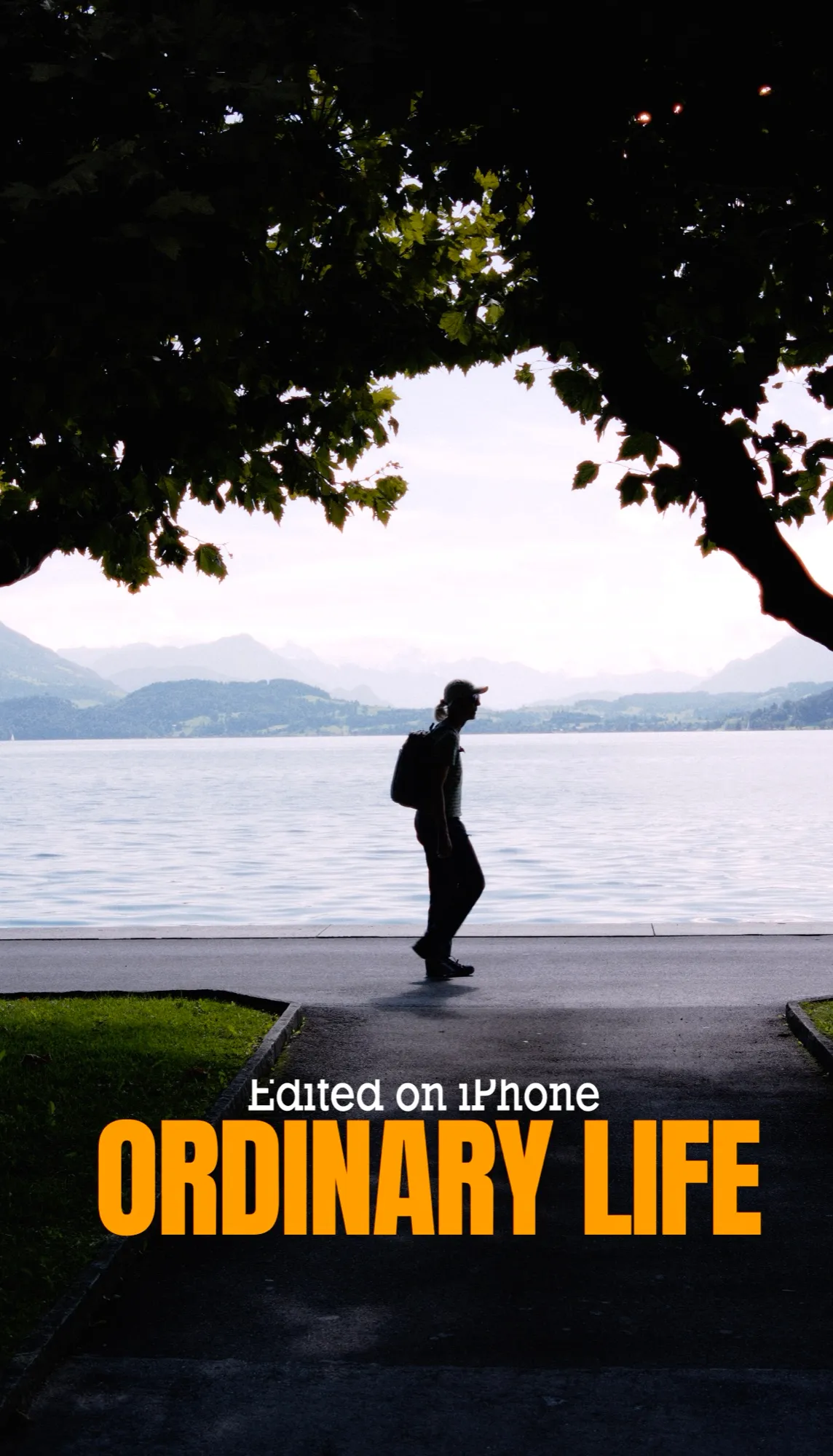
The copies are independent: a later wording change on the landscape headline does not update the vertical headline automatically. Review the text on both versions when the copy changes.
Compare the designed versions
Double-click each Output in turn. Check the crop, the relationship between text and subject, the line breaks and the margins. The landscape and vertical versions should each look deliberately composed.
Then double-click the clean Output. It still receives the shared development and retouching, with no lettering from the other branches.
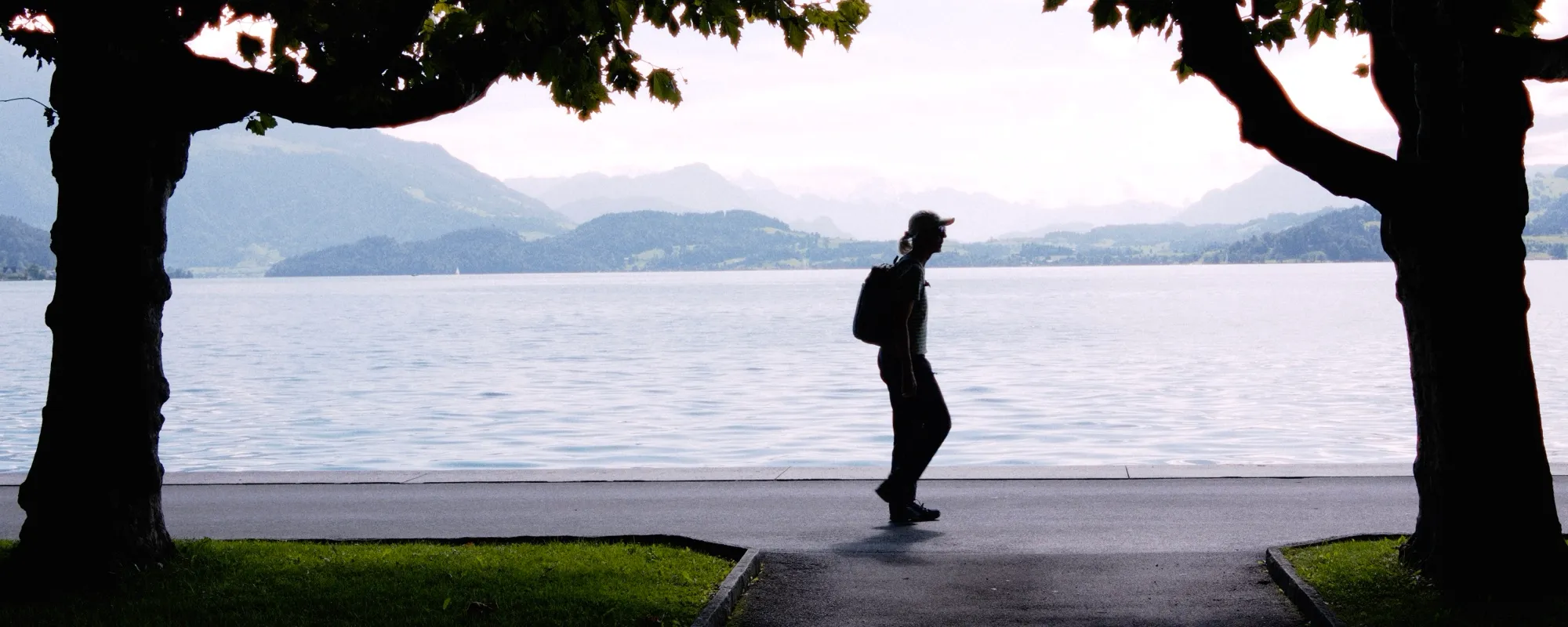
For an alternative treatment, you could choose a monochrome profile on one branch’s CST while retaining colored text after it. Keep color adjustments and tone mapping before the Text nodes when you want them to affect the photograph alone.
4 Apply the same approach to video and cover stills
A video uses the same branch structure: shared development, color work and retouching, followed by a crop, rendering and text for each deliverable.
Open a clip, prepare its shared edit, and place a Splitter after that work. On a clip, its menu offers Add Output → Video and Add Output → Frame.
Create landscape and vertical movie versions
- Use the existing Output for a clean movie, with Kind → Video and settings appropriate to your delivery.
- From the Splitter, choose Add Output → Video for the landscape title version.
- Build its crop, CST where needed, headline and subtitle in the same order as the photo example.
- Set its movie delivery options. Web · H.264 1080p is one example preset for a Rec.709, 1920 × 1080 MP4.
- Add another Video output for the vertical version. Reels · H.264 is an example preset for Rec.709, 1080 × 1920 MP4.
- Give that branch its own 9:16 crop and separately positioned and colored Text nodes.
For these Rec.709 examples, use Rec.709 as the branch CST’s destination too. Output presets set delivery settings; they do not set Tone mapping or Profile. Review the rendering on each branch as well as its format, size and audio.
Play both versions through. Text is rendered in the same position and style on every frame; it is not animated and does not track the subject. Place it where it stays readable as the image moves, and check that the subject remains inside each crop throughout the shot.
To shorten just one movie version, select its Output and drag the in and out dots on the playback scrubber. Those dots control that output’s range within the shared input trim. The Range section in the Output tab shows the result.
Give the clip its own cover design
- Move the playhead to the frame you want for the cover.
- Right-click the shared Splitter and choose Add Output → Frame.
- Name it for its purpose, such as Cover still, and choose its still-image delivery settings.
- Check Timecode on the Output tab. The Frame output stores the playhead position where you created it.
- Add its own crop and image rendering, then paste or create Text nodes after them.
- Adjust the title’s layout and colors for the still cover, independent of the movie versions.
To choose another frame later, move the playhead and click Set beside Timecode. Moving the playhead alone does not change the stored frame. Review the lettering against the newly selected image before exporting.
Because the cover branches from the shared Splitter, it receives the common grade and retouching without inheriting another branch’s crop or text.
5 Review and export the complete set
Before exporting, double-click each Output and check the finished deliverable. In particular, look for missing or overflowing text, inconsistent wording, insufficient contrast and cropping at the edges. For movies, also review the duration, audio and readability through the shot; for a cover still, check its stored timecode.
You can test the shared structure with a small change to an upstream adjustment: every connected version should receive it while retaining its own layout. Undo the test if you do not want to keep it.
Export every version
- In the browser grid, select just the photo or clip you want to deliver.
- Choose Catalogue → Export → All Outputs, or use Export → All Outputs from its right-click menu.
- Check the source, output names and file count. The photo exercise produces three files; the video setup produces a clean movie, two titled movies and a cover still.
- Choose a Destination.
- Decide whether to enable One folder per output.
- Choose how to handle Files already there, then click Export.
With One folder per output enabled, each version gets its own folder and the files inside use the source’s name. Otherwise, filenames combine the source and output names. Distinct output names make the delivered set easier to identify.
Skip them leaves existing filenames untouched, even if the edit has changed. Choose Replace them to update an earlier delivery, or use a new destination to retain both sets.
To export only one version, use Export… on that Output’s tab or Export from its card’s menu. Active Output in the catalog export menu writes the version shown in the loupe for each selected asset; All Outputs writes the whole set.
Watch progress from the exports button in the window’s title band. After export, inspect the files at their delivered sizes, especially the smallest text. If you revise the shared image or one layout, queue a new export: output settings are copied into the job when it is queued.