Pearla Revela · Tutorial
Frequency Separation for photos and video
Retouch a portrait, apply the technique to a video frame, and track the result through the shot.
Pearla Revela brings frequency separation into your raw editing workflow for both photos and video. Refine skin tones and clean up texture directly in the editing graph. For video, automatic tracking carries the retouch with the subject, with manual corrections available wherever the track needs help.
This walkthrough starts with a portrait photo, then applies the same process to a short portrait clip. Choose your own images; a clear view of the face makes a useful starting point.
1 Retouch a photo
Frequency separation lets you work on skin tone and texture independently. In Revela, the Tone band corresponds to the low-frequency layer used for color and tonal transitions; Texture corresponds to the high-frequency layer used for pores and fine detail. A single node separates and recombines them for you.
We’ll clean up a few small blemishes, then soften uneven tonal transitions while preserving the face’s natural modeling.
Add Frequency Separation to your raw edit
- Open your portrait and establish the exposure and white balance in Develop.
- Choose View → Show Node Canvas (
⌥⌘N). - In a simple graph, right-click the Output node and choose Insert Before → Frequency Separation.
- Select the new node and open its Frequency Separation tab.
Your retouch is now part of the same graph as your raw development and color adjustments. You can return to those settings as you work, without exporting the photo to a separate retouching application.
If your graph already includes added grain or other texture effects, place Frequency Separation before those effects so you can work on the image’s original detail.
Set the separation for this portrait
Start with Method → Gaussian and the default Radius in the Separation section.
- Zoom in until you can judge the skin texture, then select View → Tone.
- Adjust Radius until fine skin texture is separated out of Tone while the larger transitions and facial structure remain recognizable.
- Select View → Texture to inspect the detail on its own.
- Return to View → Both to see the complete portrait.
The appropriate radius depends on the scale of detail in the image. Revela scales its default with image width (8 px on a 6,000-pixel-wide image), but choose it by looking at the skin rather than copying a fixed number. Increasing Radius moves more medium-sized detail into Texture; it does not increase the strength of the retouch.
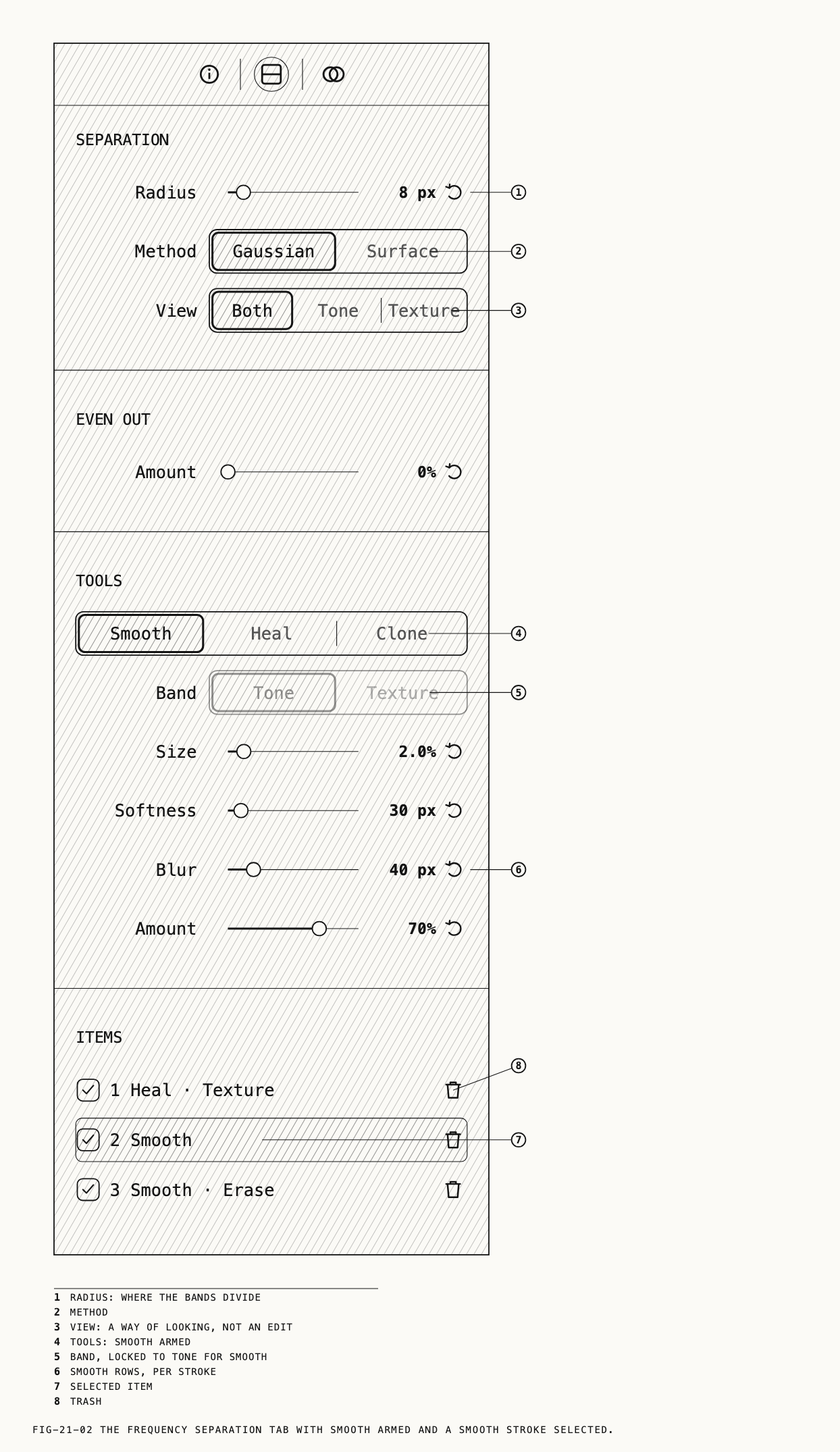
Tone and Texture views are inspection aids. They do not change the exported image.
Clean up a small blemish
Begin with one small texture repair so you can see how the tools behave.
- With View → Both selected, choose Heal under Tools.
- Set Band → Texture.
- Set Size just large enough to cover the blemish, with a feathered edge.
- Click the blemish to place a spot. For an elongated repair, drag a short stroke.
- Inspect the result and the source area Revela chose. Drag the source marker to a clean patch if necessary.
Sample skin with a similar pore size and direction. Resample as you move from cheek to forehead or under-eye areas, where the texture differs. Clone is also available when you want to copy the sampled detail directly.
You can choose a source before placing a repair by Option-clicking (⌥-click) a clean area. That source remains active for subsequent repairs until you clear the source anchor with Esc.
Check the combined image after the texture repair. If a color mark remains, refine it on Tone in the next pass. Enlarging a texture repair will not resolve an underlying tonal variation.
If healing near a hard edge produces a halo, try Separation → Method → Surface and check the sampled source again.
Refine uneven skin tones
Now work on a small patch of uneven tone, such as a transition across the cheek.
- Choose Smooth. Its Band setting locks to Tone, leaving Texture untouched.
- Set Size to fit the area you want to blend and Softness for a gentle edge.
- Start with a modest Amount and paint a short stroke within that tonal area.
- Select the stroke and adjust Blur and Amount until the transition looks natural.
Blur controls the scale of tonal variation being blended; Amount controls how strongly it is blended. Keep strokes within similar lighting. Work separately around the nose, under the eyes and along the jaw, preserving the transitions that give the face its shape.
To change an earlier stroke, select it in the picture or in Items first. With nothing selected, the controls set the next stroke’s values. Option-drag with Smooth to erase smoothing from an area; the erasure appears as a separate item.
For a tonal patch that needs a sampled repair, choose Heal or Clone with Band → Tone. Return to View → Both if the band selector is locked by a single-band view.
Judge the finished portrait
Press ⇧⌘H to hide the editing overlays, then inspect the portrait close up and at its intended viewing size. Check the texture for repeated patterns and the face for flattened highlights or shadows. Pores can remain visible even when the tonal work is too strong.
Use the checkboxes in Items to compare individual repairs. To compare the whole retouch, right-click the node and choose Disable Node, then enable it again. Reduce a Smooth stroke’s Amount or Blur where needed.
You now have a portrait retouch inside your raw edit. If you want to export the photo, select its Output node and use Export… on the Output tab. Next, we’ll use the same tools on a moving image.
2 Retouch a video frame
Open a short portrait clip and pause on a clear frame where the face and the areas you want to retouch are visible. This is your starting image: make the same judgments about skin texture and tonal transitions that you made on the photo.
- Establish the clip’s base exposure and color using its input controls.
- Open the node canvas, right-click the Output, and choose Insert Before → Frequency Separation. As with the photo, place it before added texture effects if you have them.
- Select the node and open Frequency Separation.
- Set Radius while inspecting Tone and Texture. Judge it for this frame rather than reusing the photo’s value.
- Return to View → Both. Use Heal → Texture for a small blemish, then Smooth for any uneven tonal transitions.
- Stay on this frame while you refine the initial retouch.
The first stroke enables tracking and establishes the anchor frame: the frame where you placed the retouch. Analysis starts when you run the tracking controls in the next section.
All spots and strokes on one Frequency Separation node share a single track. Keep the repairs for this face together. If you need to retouch a second person moving independently, use a separate node for them.
3 Track the retouch through the video
With the Frequency Separation node selected, open Tracking at the foot of its tab.
Check what Revela will follow
Confirm that Track motion is enabled, then check Follow:
- Face follows a face and deforms the retouch as it turns. Revela selects it automatically when a face is found under the retouch. A thin white outline shows which face it is following.
- Region moves the retouch as a rigid piece. Use it for a region that does not need facial deformation.
For this portrait exercise, check that Face is following the intended subject. If the status says No face found, return to the anchor frame and inspect the face and the position of the retouch before proceeding.
Run the analysis in both directions
- Click Track forward. The playhead advances while Revela analyzes the movement.
- When the pass finishes, return to the anchor by clicking the small white dot on the tracking lane above the scrubber.
- If your anchor is partway through the clip, click Track backward to analyze the earlier frames too.
- Play through the shot with the retouch visible.
Use Stop tracking to stop a pass. The one-frame tracking buttons are useful when you want to inspect a short section closely.
Watch the repaired areas as the face turns, changes expression or passes behind something. The analysis can be automatic; the review still needs your eye.
The lane helps you find places to check. Solid lavender marks tracked frames. Amber marks possible drift. Dashes mark frames not yet tracked or a lost run inside the analyzed span; the status helps distinguish them.
If the retouch stays attached to the face and looks consistent through the shot, it is ready for the final review. If it slips, you can correct the track without rebuilding the retouch.
4 Correct tracking, if needed
Reposition a drifting retouch
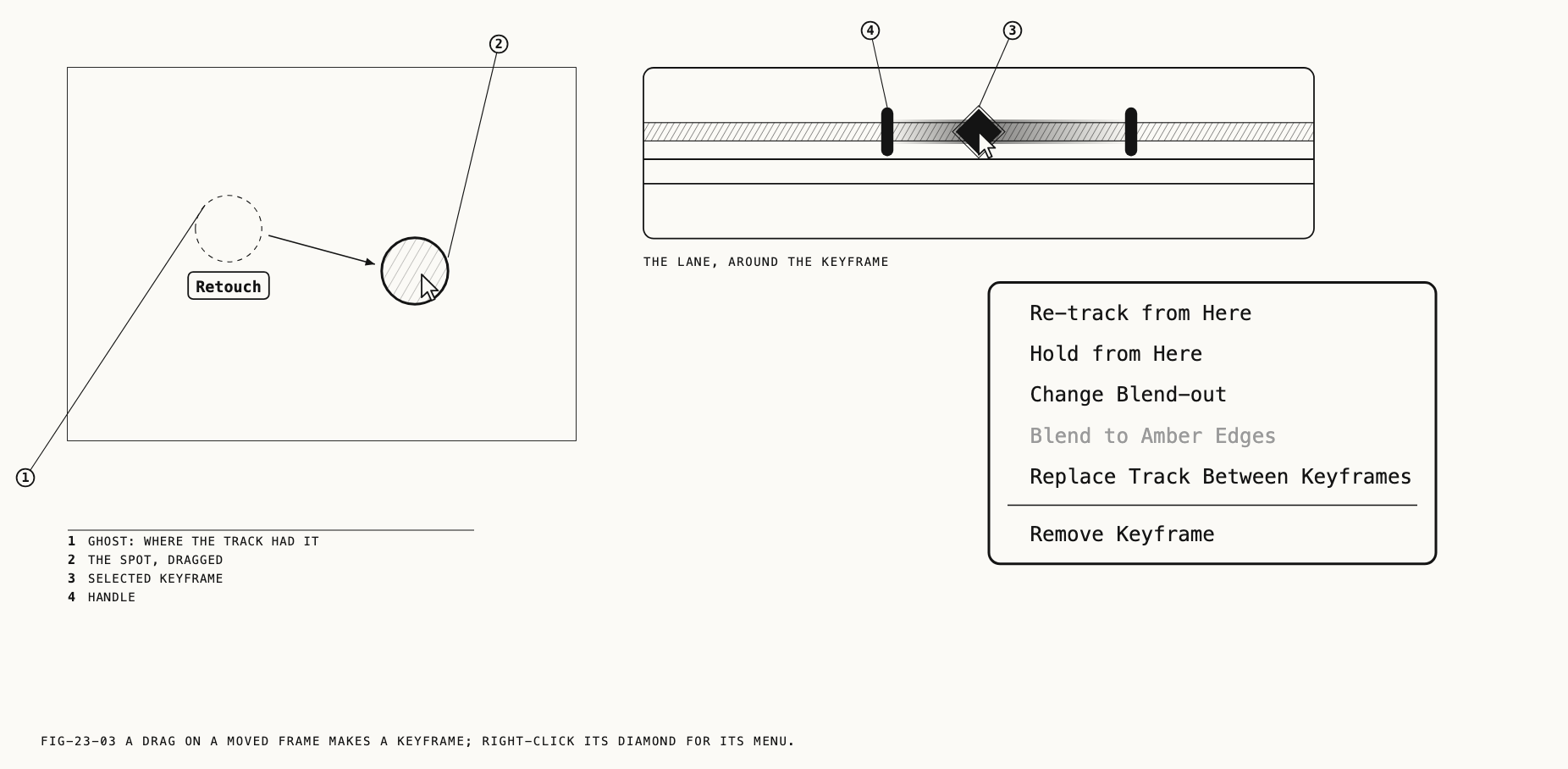
Find a frame where the retouch has slipped. Choose a frame other than the anchor: dragging on the anchor edits the original repair, while dragging on another frame creates a tracking correction.
- Pause on the affected frame.
- Drag an existing repair back into position on the face.
- Look for the red keyframe diamond on the tracking lane.
That keyframe fixes the placement on this frame. Because the node shares one track, dragging one repair normally corrects the whole retouch. If only one stroke needs moving, choose Correct This Stroke Only from its marker menu before dragging.
Carry the correction across a short stretch
A new keyframe fixes its own frame; it does not automatically adjust neighboring frames in an otherwise tracked section. If the drift lasts several frames:
- Correct a frame near the middle of the drifting stretch.
- Right-click its diamond and choose Change Blend-out.
- Set Before (frames) and After (frames) to blend the correction over that stretch.
- Scrub across both ends and adjust the window until the movement is continuous.
When available, Blend to Amber Edges sets the correction window to reach the trusted frames around an amber or lost run.
Re-track from a corrected position
If the track goes wrong from one point onward, correct the first bad frame. Right-click that keyframe and choose Re-track from Here.
Revela analyzes the movement again from your corrected position to the next keyframe or the end of the retouch’s lifetime. Your existing correction keyframes remain in place. Play through the new result before making further changes.
Handle a face turning away or being covered
Leave On loss → Fade selected for a useful starting behavior: the retouch fades out when the tracker loses the subject and returns when it finds it again. Hold keeps the retouch visible at a fixed position through the gap, so use it only when that suits the shot.
For an obstruction such as a hand over the cheek, explicitly hide the retouch while the skin is covered:
- Drag along the tracking lane to select the obstructed frames.
- Right-click the selected range and choose Hide Through This Range.
- Review where the retouch disappears and returns.
Adding a correction keyframe inside a lost run bridges that gap and overrides Fade or Hold. Use a hidden range when the retouch should be absent, rather than correcting it onto the obstruction.
If the retouch is needed for only part of the shot, drag the end caps on its lane to set its lifetime.
Review and export
Play the full section you intend to deliver. Check the retouch at normal playback speed as well as on paused frames: it should remain attached to the subject, with no jumps at corrections or hidden ranges.
Select the intended Output node and use Export… on the Output tab. If an incomplete-tracking alert appears, choose Wait and finish the analysis first; unanalyzed ranges can export with static repair positions.