Pearla Revela · Tutorial
Sync across Macs with Pearla Revela
A step-by-step guide to syncing folders between Macs through a Pearla Revela repository.
Start a project on your desktop Mac, then carry on with it on your MacBook. Revela’s repositories let you share selected folders between Macs, keeping their subfolders, edits and ratings in sync. You choose which folders each Mac uses and how much it downloads.
Follow these steps with a folder you want to share and a repository name of your choice. The illustrations use Japan 2026 as an example photo folder, Maya Cloud as an example repository, and House looks as an example kit. These names are only examples. The same process works for a third Mac or more.
Before you begin: what goes where?
There are three parts to the setup:
| Part | What it does |
|---|---|
| Catalog | Keeps track of your folders, edits, ratings and other library information. Each Mac opens its own catalog. |
| Store | Holds the original photo and video files used by that Mac’s catalog. |
| Repository | Holds the folders and resources you choose to share, in a place your Macs can reach. Revela creates and manages it. |
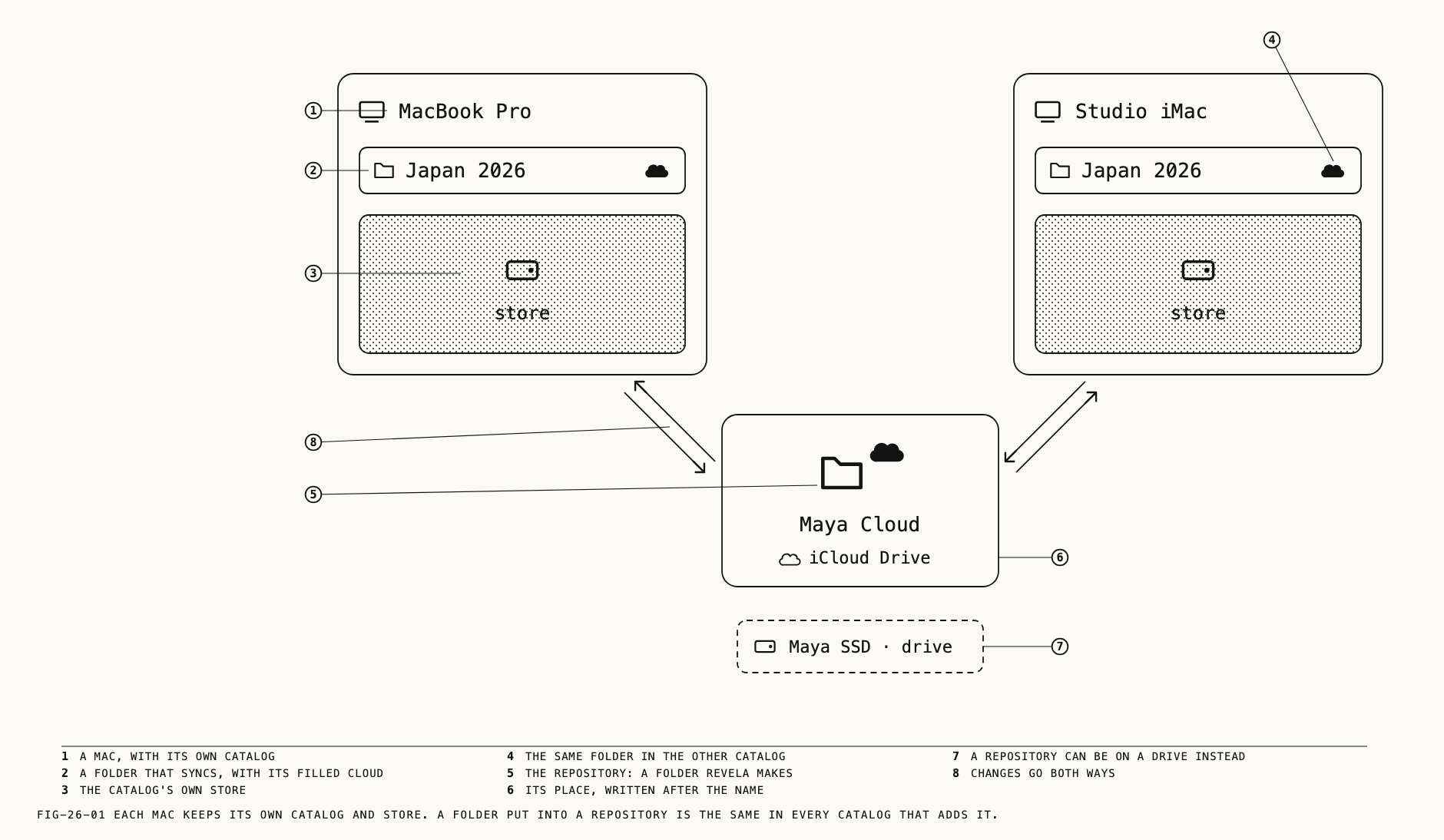
Have Revela open with a catalog on each Mac, and choose an existing photo folder on the Mac where you want to begin. For a first run, a small folder makes it easier to follow progress.
1 Choose a place both Macs can reach
A repository can live in:
- iCloud Drive or another cloud-sync folder available on both Macs.
- A network share that both Macs can open.
- An external drive that you connect to each Mac when it needs to sync. Use a Mac-formatted drive such as APFS; Revela refuses drives formatted for both Mac and Windows.
Choose the location that suits how you work, and make sure it has room for the photos you plan to share. The illustrations show iCloud Drive as an example.
Choose a location whose access permissions suit you: anyone who can open it can see the repository’s contents, and anyone who can change it can connect a catalog and make changes. The repository has no separate access controls.
2 Create the repository on your first Mac
On the Mac that already has the photo folder you want to share:
- Choose Catalogue → Repositories.
- Click New Repository….
- In Name, enter a name of your choice for the repository.
- Beside Kept on, click Choose… and select the location you chose in Step 1.
- Click Create.
Revela creates a folder with your chosen repository name inside that location. Leave its contents to Revela; you do not need to copy photos into it in Finder.
3 Put your photo folder in the repository
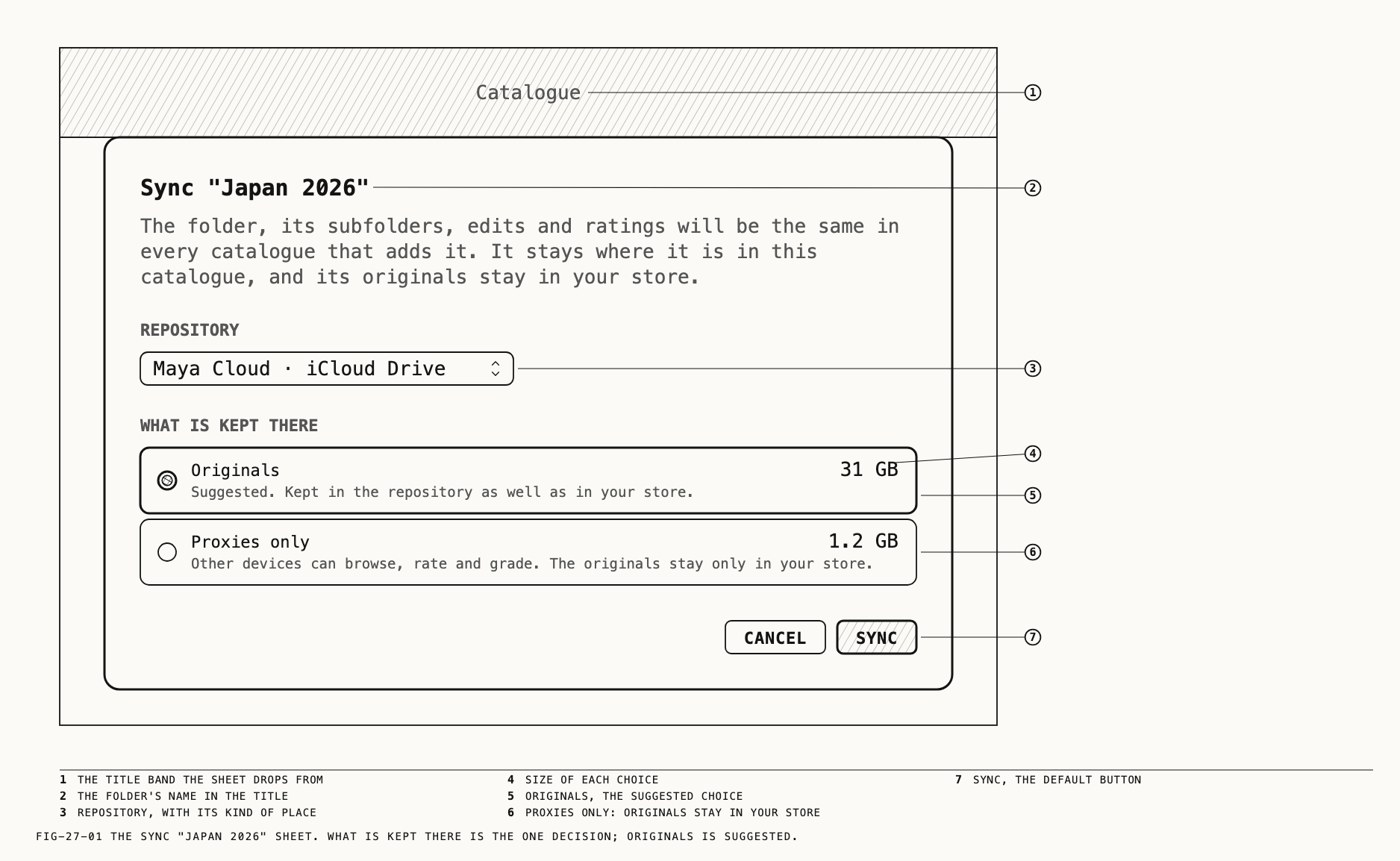
- Right-click the photo folder you want to share in Revela’s sidebar.
- Choose Sync This Folder.
- Select the repository you created in the Repository menu.
- Under What is kept there, select Originals.
- Click Sync once Revela has finished reading the folder.
The folder stays where it is in your catalog, and its originals stay in your store. Revela puts a copy in the repository, together with its subfolders, edits, ratings and proxies. A proxy is a smaller preview that lets you browse without downloading the full original.
If Revela asks about resources used by your photos, put them in a kit in this repository. A kit groups editing resources such as presets, LUTs and calibrations so they can travel with your work. Choose New Kit…, give it a descriptive name, then click Add … and Sync. Choosing Sync Without Them means another catalog will show the affected photos without those tools.
4 Connect your second Mac
On your MacBook, make sure the repository’s location is available. If you use a cloud service, allow time for it to carry the repository’s files across. If you use a drive or network share, connect it first.
- Open your MacBook’s own catalog in Revela.
- Choose Catalogue → Repositories → Connect to a Repository….
- Open the Repository menu and choose Choose Another….
- Select the repository folder that Revela created. It has the name you entered in Step 2; choose that folder rather than its parent.
- Tick the folder you want to add to this Mac.
- Leave any kits used by that folder ticked. Revela selects them when you select the folder.
- Click the Add … button. Its wording reflects your selection, such as Add 1 Folder and 1 Kit….
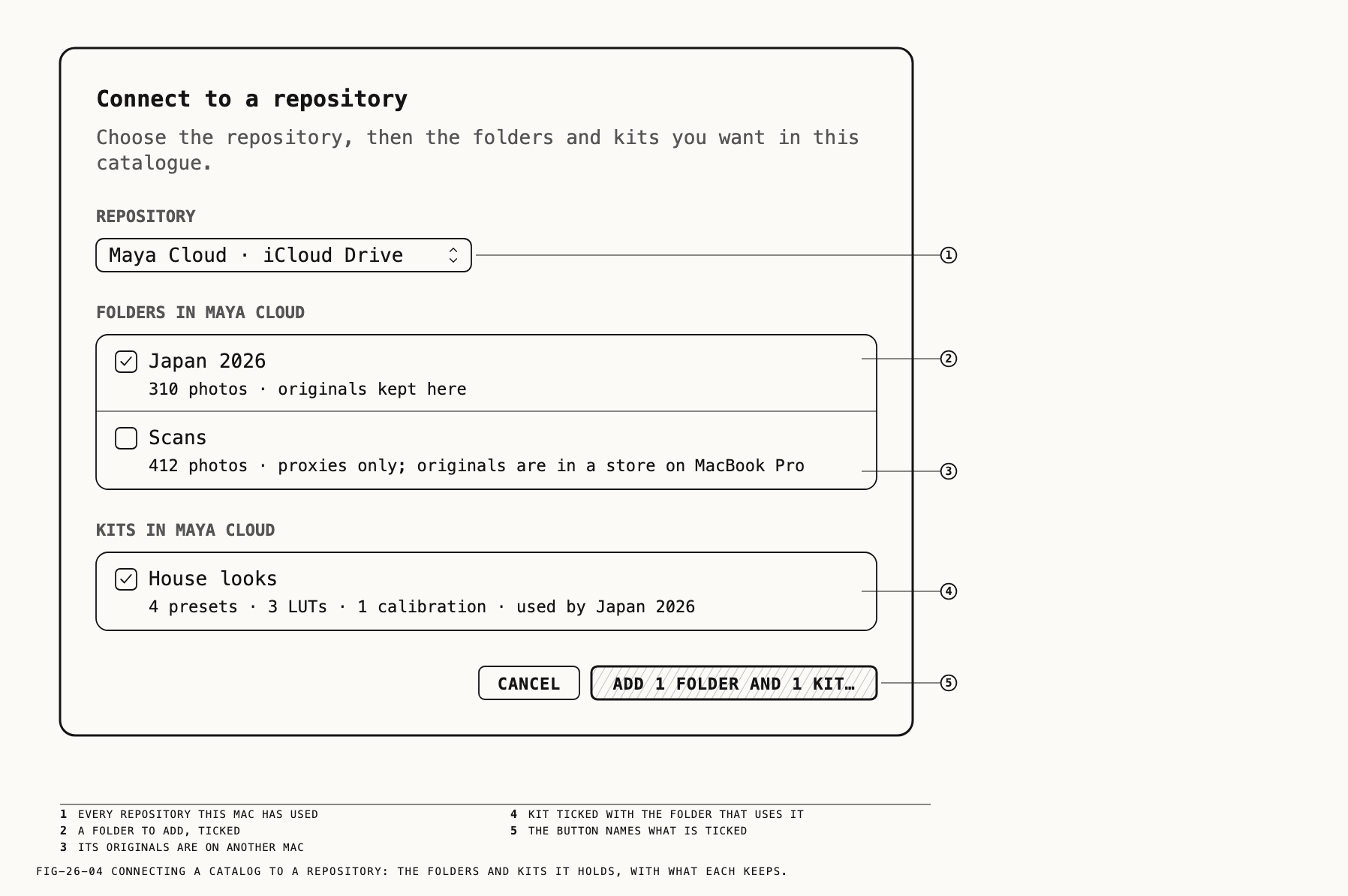
There is one more choice before the folder is added: how much this Mac should keep.
5 Choose how much your MacBook downloads
The Add dialog shows the name of the folder you selected. Choose an option under Originals in this catalogue, then click Add.
| Choice | What happens | When it helps |
|---|---|---|
| Proxies now, originals when I edit a photo | Downloads previews for browsing and rating. The first edit of a photo downloads its original. | A useful starting point for a laptop; this is Revela’s suggested choice. |
| All originals | Downloads every original the repository holds and keeps them up to date in this Mac’s store. | You want the files ready for work away from the repository. |
| Thumbnails only | Downloads a proxy when you open a photo and its original when you first edit it. | You want to minimize initial downloads. |
The choice in Step 3 controls what the repository holds. This choice controls what the MacBook downloads. You can keep originals in the repository while saving space on the laptop.
You can change this Mac’s choice later: right-click the folder, open Sync Settings, then click Change… beside This catalogue keeps …. Choosing less stops new downloads; it does not delete files already downloaded.
6 Check that changes travel both ways
Try a simple test before moving a whole project across:
- On the first Mac, give a photo in the shared folder a distinctive star rating.
- Open Catalogue → Repositories and click Sync Now for the repository you are using.
- Allow the shared location to update. On the MacBook, click Sync Now for the same repository and check the rating.
- Change the rating on the MacBook, then repeat the sync in the opposite direction.
Once the rating arrives on both Macs, the shared folder is working in both directions. You can also check the last sync time in Repositories and inspect Sync Settings for the folder’s sync state.
To add another Mac, repeat Steps 4–6 with that Mac’s own catalog. Each Mac connects to the same repository and chooses its own download level.
7 Make switching Macs a habit
Revela checks for changes automatically. Before switching Macs, use Sync Now and let the current Mac finish sending its changes. On the next Mac, let those changes arrive before continuing to edit the same photos.
Syncing pauses automatically on battery, in Low Power Mode, on limited or metered networks, during import or verification, and when the Mac is about to sleep. Sync Now forces a pass; Transfers… shows what is still moving or waiting.
Before traveling without access to the repository, choose All originals for the folders you need, or select the photos and use Download from their right-click menu. Wait for downloads to finish. A filled cloud means the originals are in the repository; it does not mean this Mac has downloaded them.
When a drive or share is disconnected, local edits and ratings wait until it returns. Files that are not already on the Mac remain unavailable until their location can be reached.
New folders need an explicit choice on each Mac. Sync a new folder from its source Mac, then add it on the others through Connect to a Repository…. A new badge on the catalog’s sidebar row also points to available folders. You can keep some projects on just one Mac.
If something does not look right
| What you see | What to do |
|---|---|
| Sync This Folder is missing | It is offered for an ordinary folder that neither sits inside a syncing folder nor contains one. Syncing includes the folder’s subfolders. |
| “Isn’t a Revela repository” | Select the repository folder itself, identified by the name you gave it, rather than its parent. |
| Made by a newer version of Revela | Update Revela on that Mac, then connect again. |
| Offline | Reconnect the drive or mount the network share. Local changes are waiting. |
| Can’t reach | Read the reason in Repositories. Use Choose… there to point Revela to the repository’s folder again. |
| A grey ON … label naming another Mac | The original is only on that Mac. On the Mac holding it, open the folder’s Sync Settings and choose Upload Originals…. |
| Transfers have stopped | Check Transfers… for the reason, use Resume if you paused the repository, and look in Catalogue → Sync Log → Problems for errors. |
| An amber CONFLICT label | Both Macs edited the same photo before their changes synced. Choose Resolve… or right-click the photo and choose Resolve Conflict. Use Compare before choosing which version to keep. |
Revela keeps both edit versions when there is a conflict; the newer edit initially becomes current. Ratings, flags, labels and tags use the later change instead. The Sync Log records replaced values and offers Revert.
Take care when removing shared work
Deleting a photo in a synced folder applies to every catalog that has that folder. Revela asks you to confirm Delete in Every Catalogue. The photo remains in Recently Deleted for 30 days and can be restored during that time; after that it is erased everywhere it is kept, including the repository.
If you only want a folder off your laptop, use Remove from This Catalogue… and read the scope carefully. When other catalogs use a folder whose originals are in the repository, the dialog offers Only from … for your current catalog. Keep that selected to remove it here while leaving it available to the others.
Deleting the repository itself stops syncing through it in every catalog.