The scopes panel gives three readings of the picture in the loupe: a histogram, a waveform and a parade. They show the active output and update when its appearance changes, during playback and when switching outputs. The panel also takes part in masking: while a luma range is being edited, the waveform carries a band that sets the range directly.
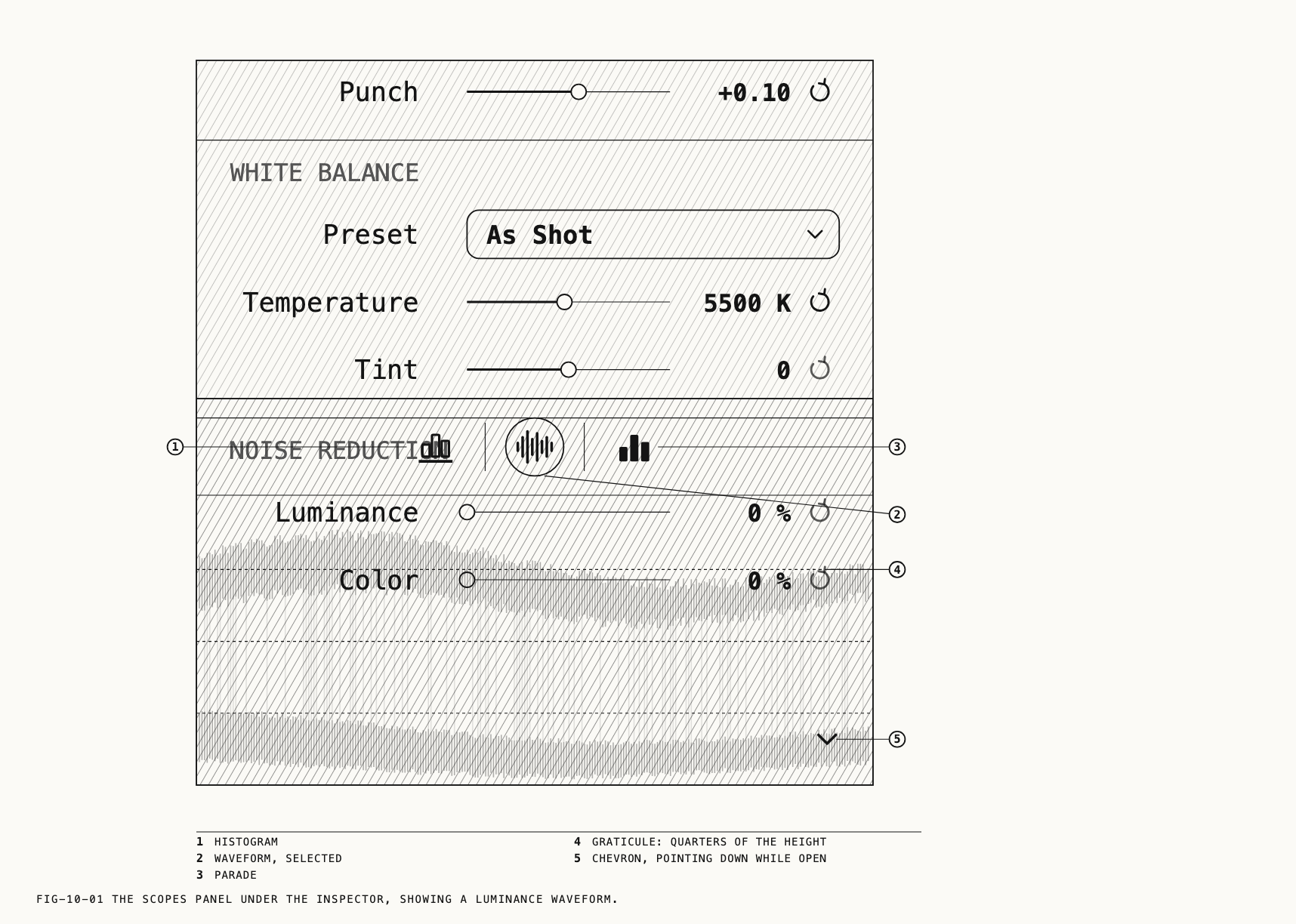
10.1 The Scopes Panel
Where to find it: View → Show Scopes (⌥⌘W), or the chevron at the bottom-right corner of the inspector.
The scopes panel opens under the inspector and is closed when Revela is first run. The
chevron points up while the panel is closed and down while it is open; the menu item
reads Show Scopes or Hide Scopes to match. Drag the divider above the panel to set its height. Drag it to the foot of the column to close the panel, or up again to open it. Revela remembers the height and whether the panel was open across launches. The panel is visible only while a picture is open. The window’s columns and panels are Chapter 2.
The three buttons at the top select Histogram, Waveform and Parade. Hover over a button to see its name. The selected icon is drawn in the accent color. The choice is remembered across
launches. Below the buttons the whole of the panel is the drawing; the scopes draw no
numbers, labels or readouts, only the trace and a graticule of three faint horizontal
lines at a quarter, a half and three quarters of the height.
10.2 What the Scopes Read
The scopes read the output the loupe shows, with every edit applied and in that output’s color space. They do not read the loupe’s screen: the background color, zoom, the crop surround and the editing overlays make no difference to the trace. The output the loupe shows, and how to change it, is Chapter 11; the color space an output delivers in is Chapter 24.
The trace follows the loupe. Dragging a control updates the scopes as you drag, not only on release. Playing a clip updates them as it plays, and stepping or scrubbing updates them on each frame shown. Switching to another asset blanks the panel until the new picture has rendered, so a trace on screen always belongs to the picture on screen.
The graticule changes with the delivery. For an output delivering in a standard dynamic range the three lines mark quarters of the signal, with black at the foot of the drawing and full signal at the top. For an HDR output the signal is still plotted full height and a brighter line marks reference white: at three quarters for HLG, and just under three fifths of the height for PQ. For an output delivering in a log encoding the lines are the plain quarters and no reference white is marked, because a log signal has none.
Note: A reference set beside the picture (Chapter 8) is not read; the scopes
describe the asset alone, whichever side of the split it is on. The same holds for
View → Before / After (\): while the Before picture shows, the scopes keep describing
the edited picture.
10.3 Histogram
Where to find it: the first button on the scopes panel.
The histogram plots how much of the picture sits at each brightness, dark at the left and bright at the right, with one curve per channel in red, green and blue. A pile against the left edge is shadow that has gone to black; a pile against the right edge is highlight that has clipped. Narrow spikes at the edges leave the rest of the curves readable.
The drawing follows the Histogram display mode in the Settings window (10.7). In
Overlay, the default, the three curves share one area, overlap where they cross and have comparable heights. In
Stacked, the panel is divided into three strips, red at the top, green in the middle
and blue at the foot, with a separate scale for each channel.
10.4 Waveform
Where to find it: the second button on the scopes panel.
The waveform shows brightness from left to right across the picture. Bright areas appear high on the trace and dark areas low: a bright sky forms a band near the top, a dark foreground near the foot. Denser parts of the trace indicate more pixels at that brightness.
The drawing follows the Waveform display mode in the Settings window (10.7). In
Luminance, the default, there is one trace of brightness. In RGB, the red, green and
blue channels are each plotted in their own color in the same area, so a color cast
shows as the three traces sitting at different heights.
10.5 Parade
Where to find it: the third button on the scopes panel.
The parade is the RGB waveform with the channels set side by side instead of overlaid: red in the left third, green in the middle, blue in the right, with a small gap between them. Each third reads as a waveform of its channel across the full width of the picture. The parade makes a cast easier to see than the overlaid RGB waveform, because the three traces no longer hide one another, and it is the usual scope for matching black and white levels between channels. It has no settings of its own.
10.6 The Range Band
Where to find it: the Waveform tab of the scopes panel, while a Luma Range component is selected on the Mix tab.
A luma range mask selects the pixels whose brightness falls between two bounds, with a soft edge outside each. Masks and their components are Chapter 19. While the component is selected, the scopes show the picture used to choose the mask’s brightness range. A chip at the top left identifies the selected node and indicates that its input is shown. It appears on all three tabs.
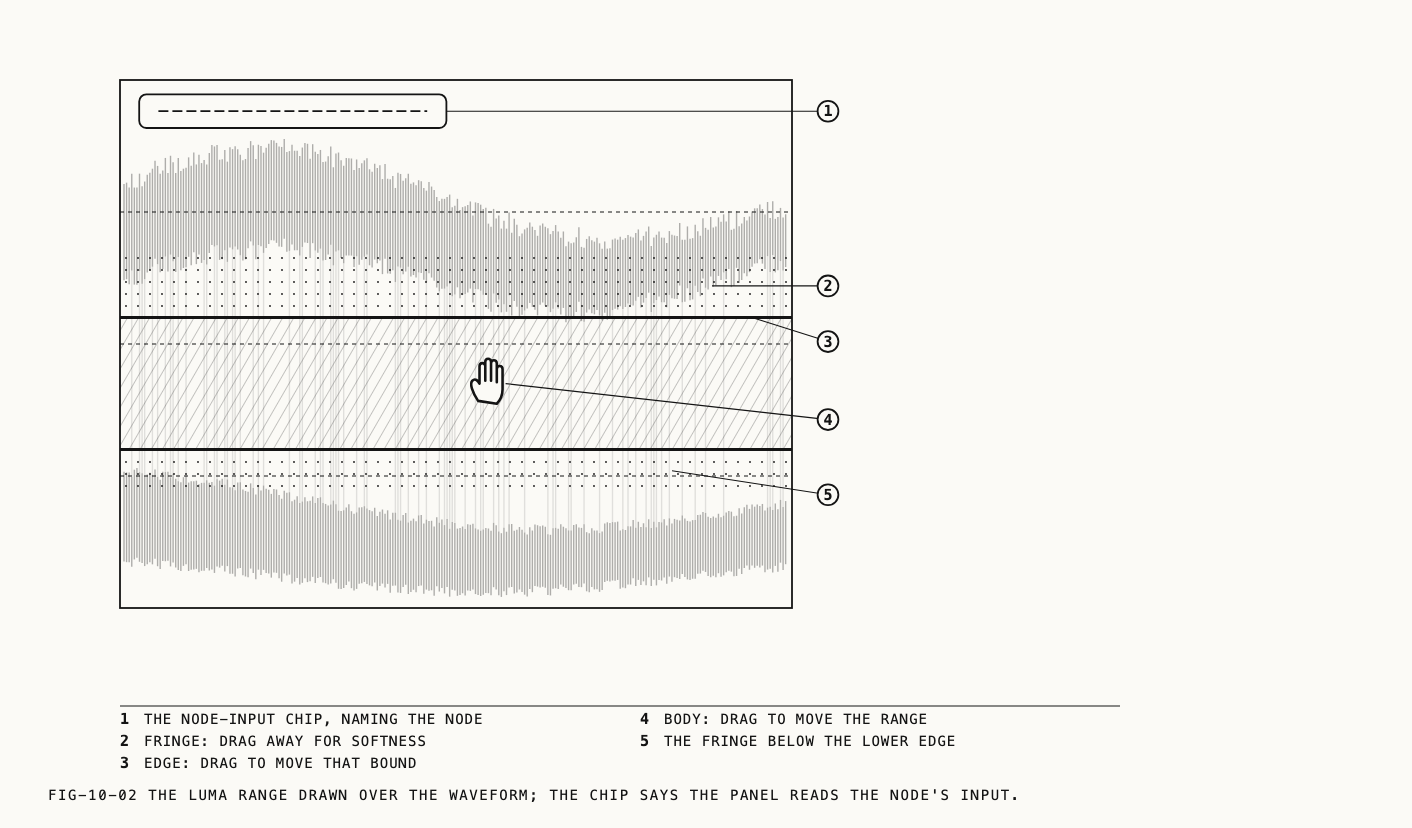
On the Waveform tab the range itself is drawn over the trace as a band: a tinted fill between two solid edge lines, with a fringe fading out beyond each edge for the softness. The band is on the same vertical scale as the waveform, so the part of the trace inside the band is the part of the picture the mask selects. The band can be dragged.
| Drag | Effect |
|---|---|
| The body between the edges | Moves the whole range, keeping its width |
| An edge line | Moves that bound. The two edges can meet but never cross |
| The fringe outside an edge | Sets that edge’s softness, by how far you drag away from the edge |
The pointer changes to a vertical resize arrow over an edge and an open hand over the
body. The loupe previews the mask as you drag. Releasing the mouse saves the change as one undo step, Set Mask Range. The same range can be set on the Mix tab’s Range strip, and the band
follows edits made there.
The band is drawn on the Waveform tab only; the Histogram and Parade tabs carry the chip without a band. Selecting a different component, a component of another kind, or leaving the Mix tab returns the scopes to the output, and the chip and band go. A Color Range component has no band.
10.7 Scopes Settings
Where to find it: Revela → Settings (⌘,), the Scopes tab.
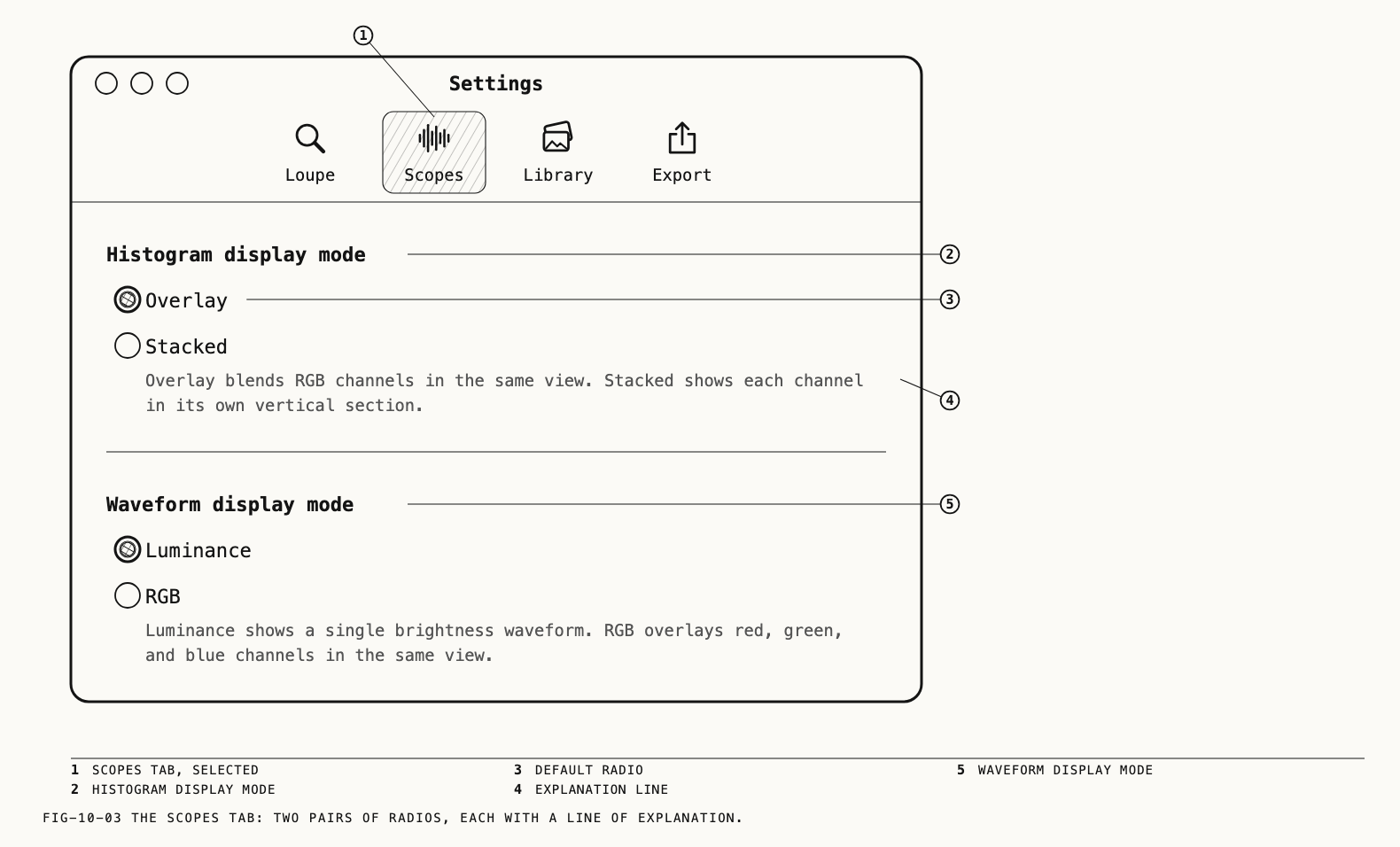
The Scopes tab holds two choices, each a pair of radio buttons with a line of explanation beneath. Both take effect at once, on the panel as it stands, and both are yours rather than the catalog’s: they apply to every catalog you open on this Mac.
| Section | Choices | Default |
|---|---|---|
Histogram display mode | Overlay, Stacked | Overlay |
Waveform display mode | Luminance, RGB | Luminance |