Select the input node to adjust a file’s development. Available controls include white balance, exposure, tone, noise reduction, detail, lens correction and color space. The controls depend on the file format.
Raw files use the Develop tab. Its controls differ for Blackmagic RAW and Nikon N-RAW clips. Other clips use the Video Input tab. Revela shows the appropriate tab for the file. The graph that these tabs sit in is covered in Chapter 11; the Curves and Colour tabs that follow them are covered in Chapter 13.
12.1 The Develop Tab
Where to find it: the Develop tab, with the input node selected.
The Develop tab is shown for the input node of every still, every .prawv clip and every
Apple ProRes RAW clip. Selecting any other node hides it. With nothing selected the tab
reads Select a photo to develop.
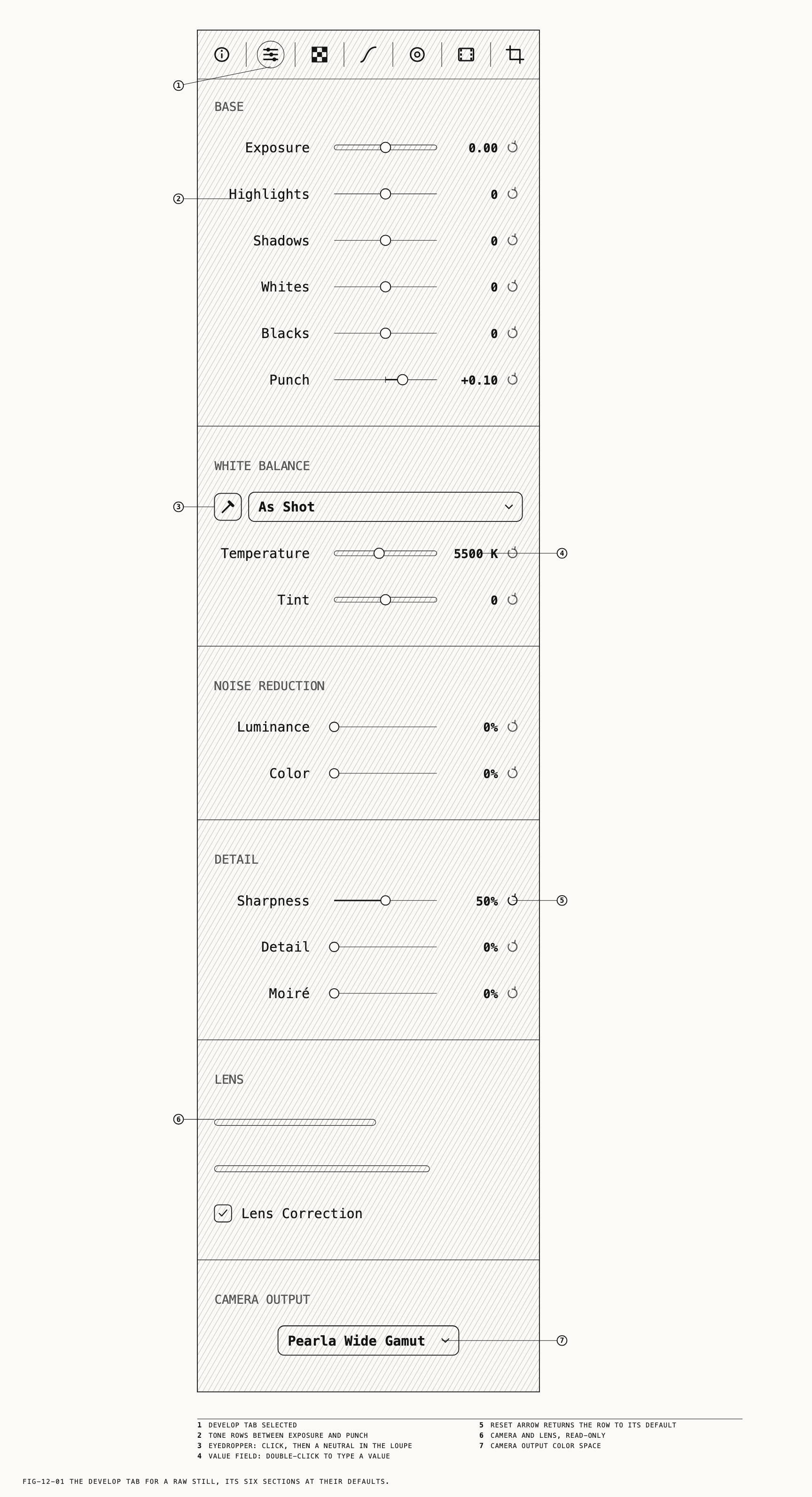
Every slider on the tab works the same way. Dragging previews the change in the loupe at
once; the edit is saved a moment after you stop. The arrow at the end of a row returns it
to its default. Double-clicking the value opens a field where you can type one; Return
commits it and Esc cancels. Each settled change is one step in the undo history, named
for the control (Undo Adjust Exposure, Undo Change White Balance, and so on).
The tab is divided into six sections: BASE, WHITE BALANCE, NOISE REDUCTION,
DETAIL, LENS and CAMERA OUTPUT. The Calibration tab sits beside it on the same node
and is covered in Chapter 16.
Base
| Control | Range | Default |
|---|---|---|
Exposure | −4.00 to +4.00 stops | 0.00 |
Highlights | −100 to +100 | 0 |
Shadows | −100 to +100 | 0 |
Whites | −100 to +100 | 0 |
Blacks | −100 to +100 | 0 |
Punch | −0.30 to +0.30 | +0.10 |
Fuji DR | As Shot, DR100, DR200, DR400 | As Shot |
Exposure shifts the whole picture in stops. Highlights, Shadows, Whites and
Blacks each lift or lower one band of the tonal range, and a slider at 0 contributes
nothing. They are part of the development and are kept with the input node. The Curves
tab carries a separate set of the same four (Chapter 13). The two sets are independent;
moving one never moves the other.
Punch sets the picture’s contrast about mid gray, which stays where it is at any
setting. The default is the Pearla look. Punch is live for every file Revela opens, still
or clip.
Fuji DR appears only for a Fujifilm file; for any other make the row is absent. On a
Fujifilm file the row is grayed, reads As Shot and cannot be changed.
White balance
The section opens with an eyedropper button and a mode dropdown on one row, then two sliders.
| Mode | Temperature | Tint |
|---|---|---|
As Shot | The camera’s value | The camera’s value |
Daylight | 5500 K | 0 |
Cloudy | 6500 K | +10 |
Shade | 7500 K | +10 |
Tungsten | 3200 K | 0 |
Flash | 5500 K | 0 |
Custom | As set | As set |
Temperature runs from 2000 K to 10000 K and Tint from −150 to +150. Choosing a preset
sets both sliders to the preset’s values. Choosing As Shot restores what the camera
recorded. Moving either slider switches the mode to Custom; Custom means the values are
yours.
The eyedropper samples a neutral from the picture. Click the button, then click a point in
the loupe that should be neutral gray or white. The mode becomes Custom and both sliders
take the sampled values. Clicking the button again, or pressing Esc, leaves eyedropper
mode without sampling. Switching to another tab also ends it.
Noise reduction
Luminance and Color each run from 0 % to 100 %, default 0 %.
Detail
Sharpness (default 50 %), Detail (default 0 %) and Moiré (default 0 %) each run from
0 % to 100 %. Sharpness is the ordinary sharpening amount; Detail brings up fine
texture; Moiré suppresses the colored patterning that fine repeating detail can produce.
Lens
When the file records them, the camera model and the lens model are shown as two
read-only lines at the top of the section. Below them, Lens Correction is a checkbox,
on by default, that applies the correction profile for the lens. When Revela has no
profile for the lens the box is grayed and unticked.
Camera output
The section carries a color space dropdown and, in some cases, a Tone Mapping row.
The dropdown declares the color space the developed picture leaves the node in. The
default is Pearla Wide Gamut, and for ordinary editing it stays there: the rest of the
graph works in that space and the delivery color space is chosen on the output, as
Chapter 24 describes. The full list is given in section 12.5.
Tone Mapping appears only when the camera output is set to an SDR display space
(Rec.709, Rec.709-A (Apple), sRGB or Display P3). It offers None, Clip,
Rolloff and Pearla. Pearla is the house render; None is a plain conversion with
no tone mapping. The same choice is usually made on the output (Chapter 24) or on a
Colour Space node (Chapter 11), with the camera output left on Pearla Wide Gamut.
Available controls
Controls unavailable for the file are grayed.
| File | Grayed rows |
|---|---|
A camera raw still, a .praw still | As the file reports; typically only Lens Correction, when no profile exists for the lens |
Hasselblad .3fr | Luminance, Color, Detail, Moiré, Lens Correction |
A .prawv or Apple ProRes RAW clip | Luminance, Color, Sharpness, Detail, Moiré, Lens Correction |
Exposure, the four tone sliders, Punch, the white balance controls and the camera
output are live on every file the tab serves.
12.2 Raw Clips
A clip arrives in one of three kinds, and the kind decides its first tab.
| Kind | Formats | First tab |
|---|---|---|
| Raw with the standard controls | .prawv, Apple ProRes RAW | The Develop tab of section 12.1 |
| Raw with format-specific controls | Blackmagic RAW, Nikon N-RAW | The Develop tab of section 12.3 |
| Everything else | Any other movie | The Video Input tab of section 12.4 |
A .prawv or ProRes RAW clip has the same white balance, exposure, tone and camera output controls as a still. Only the noise reduction, detail and
lens rows are withheld, as the table in section 12.1 shows. Playback of raw clips, and
the precision at which they play, is covered in Chapter 9.
12.3 The Develop Tab for Blackmagic RAW and Nikon N-RAW
Where to find it: the Develop tab, with the input node of a Blackmagic RAW or Nikon N-RAW clip selected.
For these formats, the Develop tab offers controls specific to the clip. Available controls vary by camera; settings that cannot be changed are grayed.
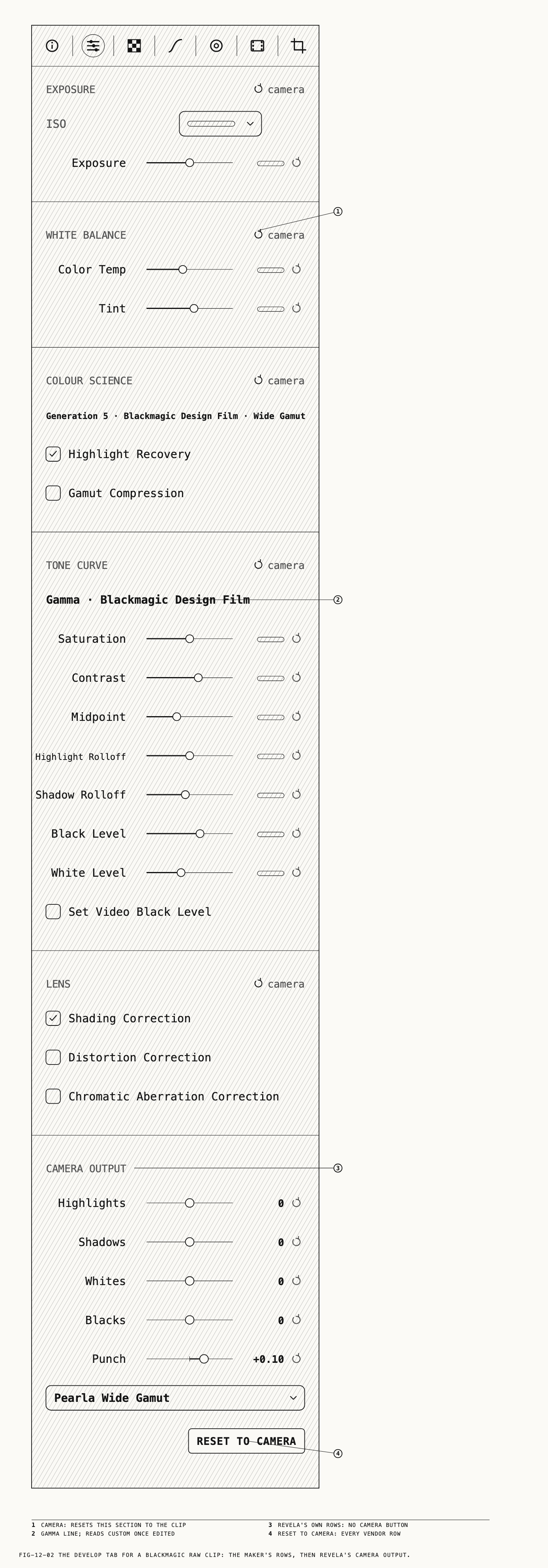
Every slider starts at the value the camera recorded, with no marks on the track. Its
arrow, with the tooltip Reset to camera, puts it back there. Each section header
carries a camera button that resets the whole section, and Reset to Camera at the
foot of the tab resets all the format-specific controls at once. A list value is a dropdown; a yes-or-no
value is a checkbox. Changes preview and save as on the standard Develop tab. Each saved change is one undo step, Undo Adjust RAW Settings.
Blackmagic RAW
| Section | Rows |
|---|---|
EXPOSURE | ISO (dropdown of the clip’s ISO values), Exposure (stops, 0 is no change) |
WHITE BALANCE | Color Temp (kelvin), Tint (whole numbers) |
COLOUR SCIENCE | Highlight Recovery, Gamut Compression checkboxes, under a fixed line reading Generation 5 · Blackmagic Design Film · Wide Gamut |
TONE CURVE | Saturation, Contrast, Midpoint, Highlight Rolloff, Shadow Rolloff, Black Level, White Level, and the Set Video Black Level checkbox |
LENS | Shading Correction, Distortion Correction, Chromatic Aberration Correction checkboxes |
The TONE CURVE section opens with a line reading Gamma · Blackmagic Design Film. The
moment any control in the section leaves its film value the line changes to
Gamma · Blackmagic Design Custom, and it returns when the section is reset. The LENS
section appears only when the camera allows at least one of its three corrections to be
changed.
Nikon N-RAW
| Section | Rows |
|---|---|
EXPOSURE | ISO (dropdown of the clip’s ISO values), Exposure (stops, 0 is no change) |
WHITE BALANCE | Kelvin, Tint (one decimal; positive is green) |
LENS | Distortion Correction checkbox, only when the clip offers the correction |
Settings that cannot be changed
On both formats the following are not offered and cannot be changed:
- Noise reduction, sharpness, detail and moiré.
- Revela’s own
Lens Correction. Only the maker’s corrections above are offered. - The Blackmagic RAW color settings. The tab shows
Generation 5,Blackmagic Design FilmandWide Gamutin the fixedCOLOUR SCIENCEline. - The look file embedded in the clip. Revela reads its name and lists it in the Info tab as not applied; it is never applied to the picture.
Camera output
Below the format-specific controls, the CAMERA OUTPUT section contains Highlights,
Shadows, Whites and Blacks, then Punch, the color space dropdown and
Tone Mapping, as on the standard Develop tab in section 12.1. Neither the camera buttons nor Reset to Camera resets these controls. Each has its own reset arrow.
Note: Grades travel between clips of the same kind in full. A grade copied from a Blackmagic RAW or Nikon N-RAW clip to another kind of file carries only the look; the target’s development settings stay unchanged. Chapter 17 covers grades.
12.4 The Video Input Tab
Where to find it: the Video Input tab, with the input node of a clip selected.
Use the Video Input tab to set a clip’s recorded color space. With nothing selected the tab reads
Select a video input node.
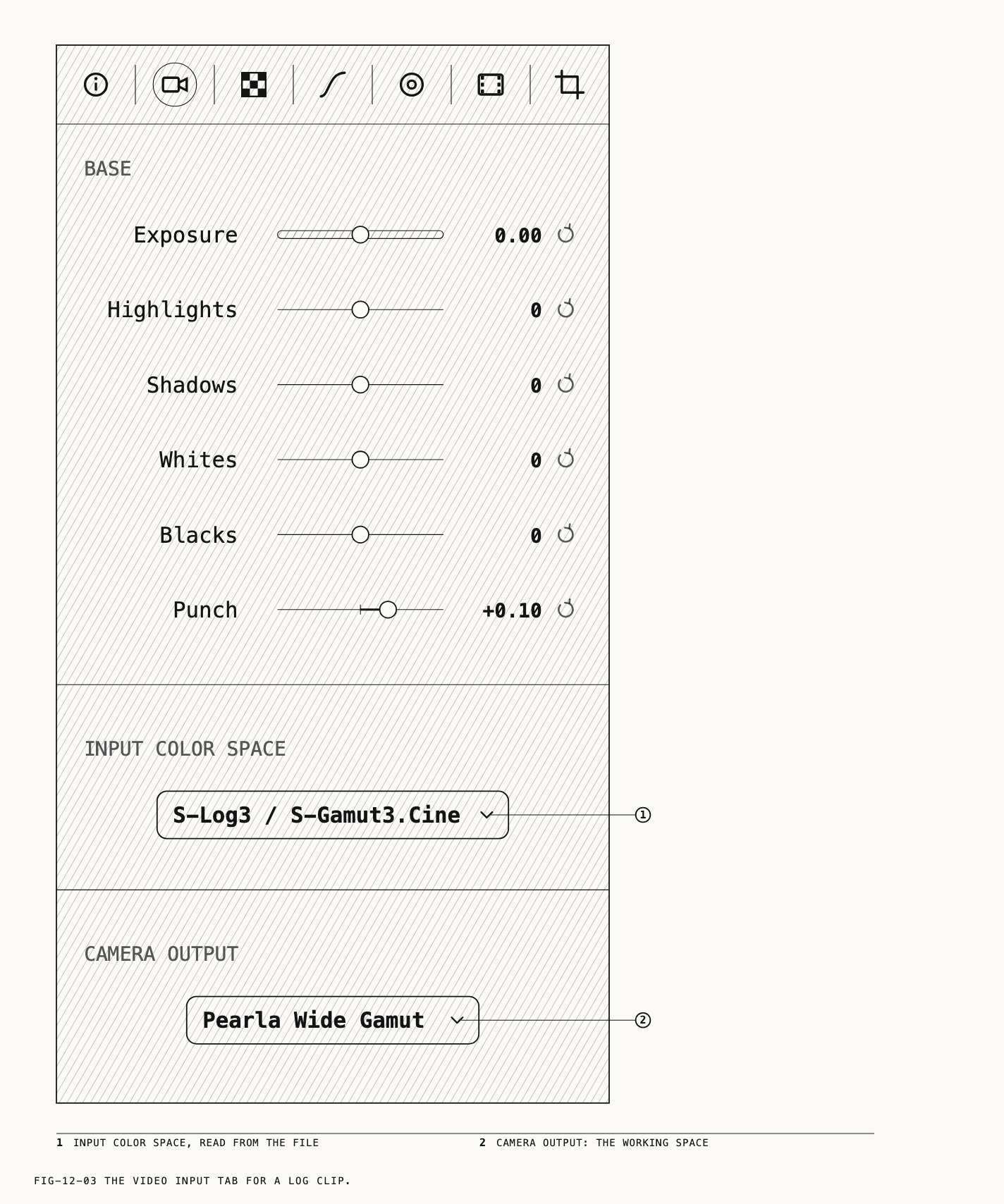
BASE holds six sliders. Exposure runs from −4.00 to +4.00 stops, default 0.00.
Highlights, Shadows, Whites and Blacks run from −100 to +100, default 0. As on the
Develop tab they belong to the input, and they are separate from the Curves tab’s own four
(Chapter 13). Punch is the same as on the Develop tab, −0.30 to +0.30, default +0.10.
INPUT COLOR SPACE declares what the footage is. Revela reads it from the file at import
and sets it for you. If the file names a space that is not on the standard list, that
space is added at the end of the list. When the file says nothing usable, the clip is
taken as Rec.709. Correct this row when you know better than the file: a log clip that
was tagged as Rec.709 looks flat and gray until you choose its log space here. Changing
it records Undo Change Input Color Space.
CAMERA OUTPUT sets the input node’s output color space. The default is Pearla Wide Gamut, and as on the Develop tab it stays there for
ordinary editing.
A Tone Mapping row appears under the camera output only when the input is a
scene-referred space (a log space or Pearla Wide Gamut) and the camera output is an SDR
display space. The choices are None, Clip, Rolloff and Pearla. With Pearla
chosen, a Profile row follows, listing Pearla Film Gamut and the film profiles of
Chapter 14.
There are no trim controls on this tab. In and out points are set on the scrubber, as Chapter 9 describes.
Recognized color spaces
Revela recognizes these spaces when a file declares them: Apple Log and Apple Log 2,
S-Log3, V-Log, LogC3, C-Log2, C-Log3, N-Log, F-Log, F-Log2, BMD Film Gen 5, Rec.709, HLG,
PQ (shown as PQ BT.2020 (HDR10) or PQ P3), sRGB, Display P3, and the
two linear spaces. A log space the file does not declare, or declares in a way Revela does
not read, falls back to Rec.709 and needs setting by hand.
12.5 The Color Space List
Every color space dropdown in this chapter, and the ones on the Colour Space node
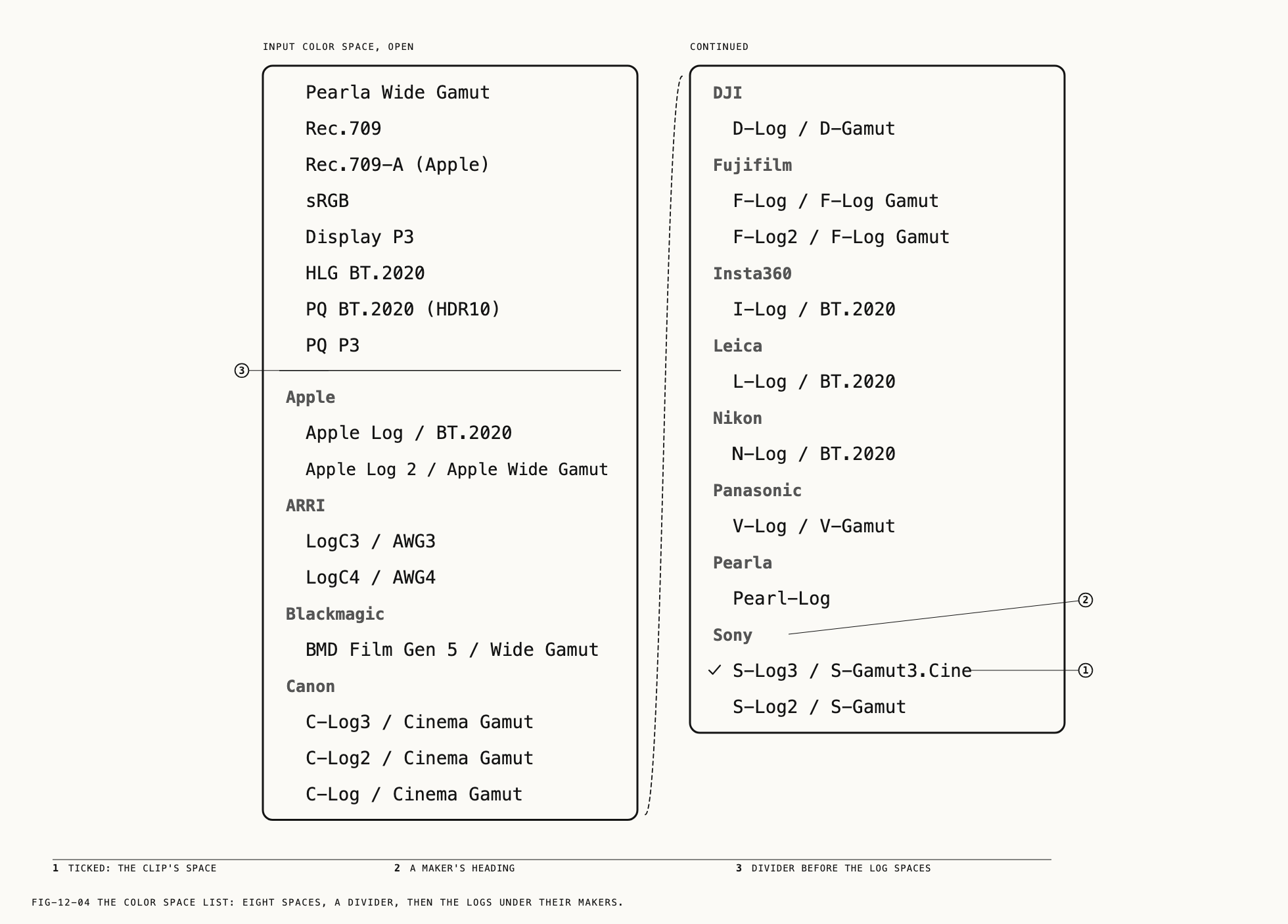
(Chapter 11), offers the same list in the same order. The working, display and HDR spaces
come first; a divider follows; then the log spaces, each under its maker’s heading.
| Group | Spaces |
|---|---|
| (ungrouped) | Pearla Wide Gamut, Rec.709, Rec.709-A (Apple), sRGB, Display P3, HLG BT.2020, PQ BT.2020 (HDR10), PQ P3 |
Apple | Apple Log / BT.2020, Apple Log 2 / Apple Wide Gamut |
ARRI | LogC3 / AWG3, LogC4 / AWG4 |
Blackmagic | BMD Film Gen 5 / Wide Gamut |
Canon | C-Log3 / Cinema Gamut, C-Log2 / Cinema Gamut, C-Log / Cinema Gamut |
DJI | D-Log / D-Gamut |
Fujifilm | F-Log / F-Log Gamut, F-Log2 / F-Log Gamut |
Insta360 | I-Log / BT.2020 |
Leica | L-Log / BT.2020 |
Nikon | N-Log / BT.2020 |
Panasonic | V-Log / V-Gamut |
Pearla | Pearl-Log |
Sony | S-Log3 / S-Gamut3.Cine, S-Log2 / S-Gamut |
Linear sRGB and Linear BT.2020 are not on the list; they appear only as the appended
item on the Video Input tab when a file is tagged that way. The delivery spaces an output
can be set to are a separate list, covered in Chapter 24.
← 11. The Editing Graph · Contents · 13. Curves and Colour →