An output is the last node on a branch of the editing graph, and it is also the
deliverable that branch describes: one file, with its color space, size, format and
metadata fixed on the node. An asset can carry several outputs, each at the end of its
own branch, and each export writes the output as the node describes it. Adding outputs
and the two kinds a clip offers, Video and Frame, are introduced with the graph in
Chapter 11. Writing the file is
Chapter 25.
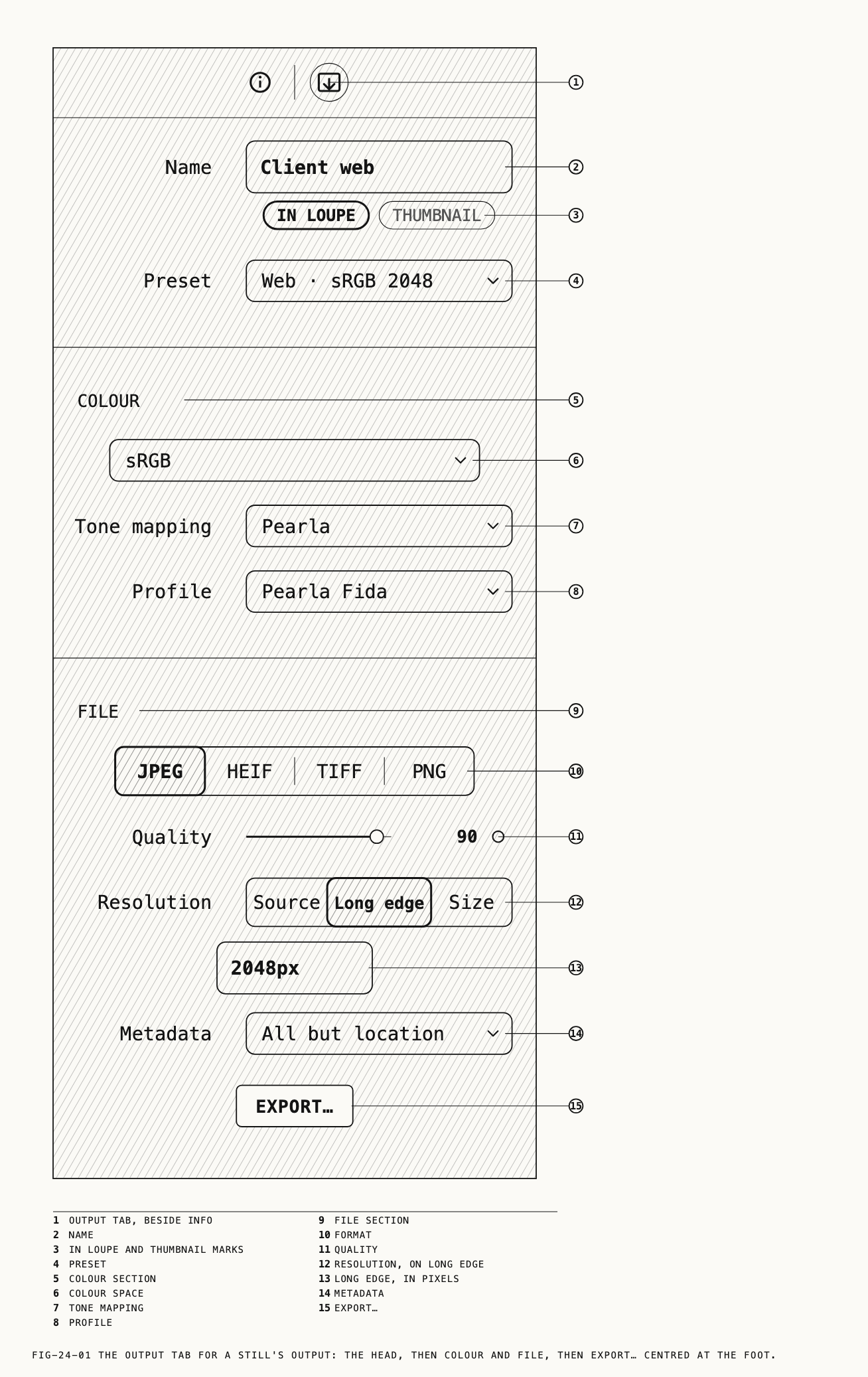
Select an output card and the inspector offers two tabs, Info and Output. The Output
tab is one column: a head with the output’s name, then the sections Colour and File
for a still, or Range, Video and Audio for a clip’s video output, then the
Export… button.
Where to find it: the Output tab, with an output card selected on the node canvas.
24.1 What an Output Holds
Every asset starts with one output, and the grid thumbnail is made from it. The loupe
shows one output at a time, and the two roles are marked on the tab under the name: In loupe on the output the loupe is showing, Thumbnail on the output
the thumbnail comes from. One output can carry both marks. The roles are set from the
output card’s menu on the node canvas, Show in Loupe and Use for Thumbnail, and
double-clicking an output card also makes it the one the loupe shows. The thumbnail
output cannot be deleted; move the role to another output first.
A still’s output and a clip’s Frame output hold the same rows: a color space, a file
format with its quality or bit depth, a size, and a metadata choice. A clip’s Video
output holds the range, the movie or image-sequence rows, and the audio rows instead.
Nothing on the tab crops or transforms the picture. A crop belongs to the input or
adjustment node upstream, and every output downstream of it is cropped (Chapter 18).
24.2 Name and Kind
The Name field at the top renames the output. The name appears on the card and in the
name of every file exported from it, so name outputs by what they are for, such as
Client web or Print.
On a clip, a Kind switch sits under Preset: Video or Frame. Switching preserves the previous kind’s settings and restores them when you switch back. A new Frame output
starts as sRGB, JPEG at quality 90 and Source size, with the grade’s tone mapping
and profile, and takes the stills presets.
24.3 Presets
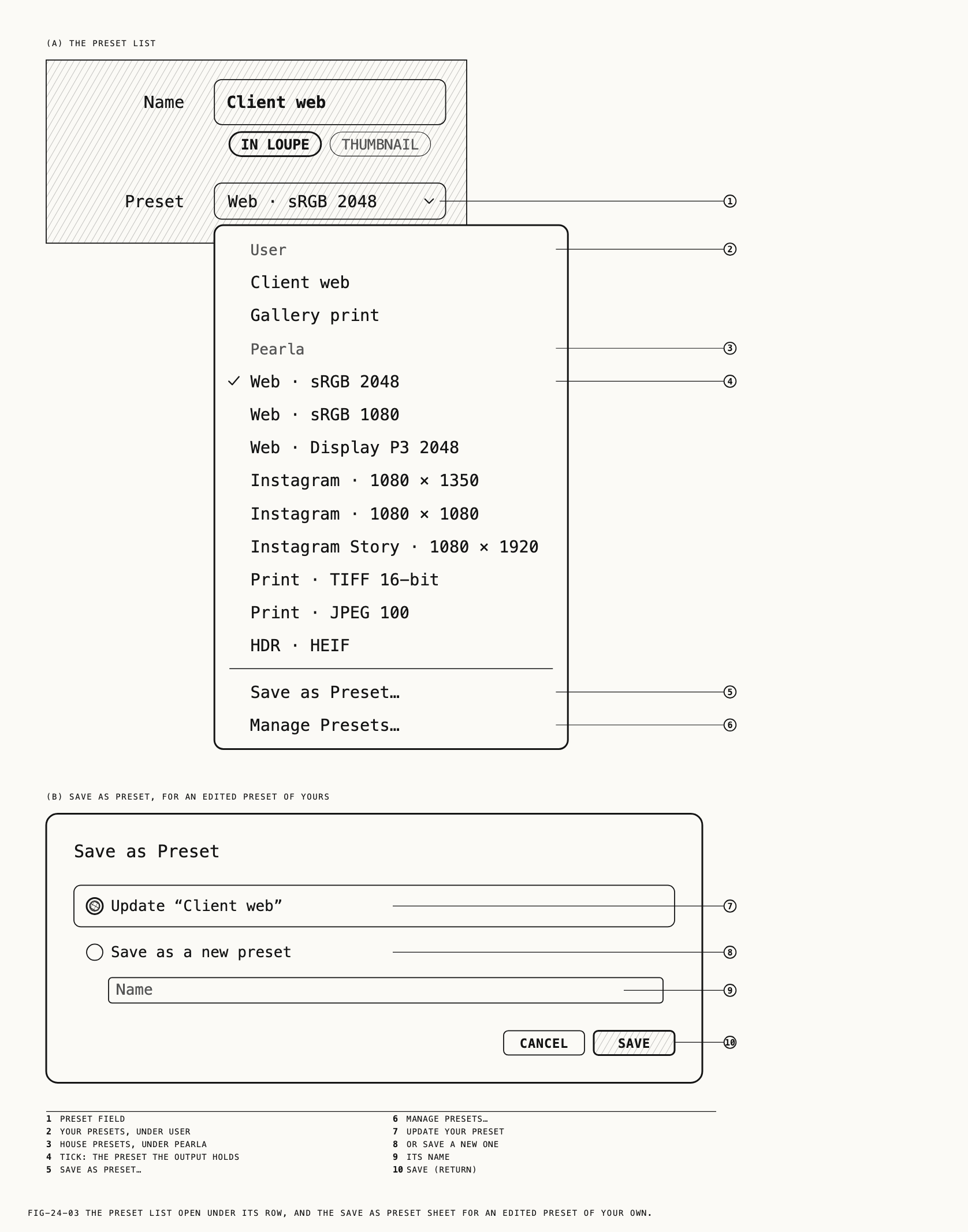
Preset applies a set of delivery settings to the output. The list is headed User,
your own presets of this kind, then Pearla, the house presets, then Save as Preset…
and Manage Presets…. The closed field reads None with no preset, the preset’s name
while the output matches it, and Custom once any row the preset sets has been
changed. Selecting the preset again restores its settings.
A preset sets delivery rows only: color space, format, quality or bit depth, size,
scaling, the video and audio rows, and metadata. It never sets Tone mapping,
Profile or Conversion; those stay with the output.
The house presets, nine for stills and eight for video:
| Still preset | Writes |
|---|---|
Web · sRGB 2048 | sRGB, JPEG 90, long edge 2048 |
Web · sRGB 1080 | sRGB, JPEG 85, long edge 1080 |
Web · Display P3 2048 | Display P3, JPEG 90, long edge 2048 |
Instagram · 1080 × 1350 | sRGB, JPEG 90, 1080 × 1350 filled, copyright only |
Instagram · 1080 × 1080 | sRGB, JPEG 90, 1080 × 1080 filled, copyright only |
Instagram Story · 1080 × 1920 | sRGB, JPEG 90, 1080 × 1920 filled, copyright only |
Print · TIFF 16-bit | Adobe RGB (1998), TIFF 16-bit, source size |
Print · JPEG 100 | sRGB, JPEG 100, source size |
HDR · HEIF | Display P3, HEIF with gain map, quality 90 |
| Video preset | Writes |
|---|---|
Reels · H.264 | Rec.709, MP4, H.264 High, 1080 × 1920, AAC 320 kb/s stereo |
Instagram feed · H.264 | Rec.709, MP4, H.264 High, 1080 × 1350, AAC, copyright only |
Web · H.264 1080p | Rec.709, MP4, H.264 High, 1920 × 1080, AAC |
YouTube · HEVC 4K | Rec.709, MP4, H.265 Main, 3840 × 2160, AAC |
YouTube HDR · HEVC 4K | HLG BT.2020, MP4, H.265 Main10, 3840 × 2160, AAC |
Master · ProRes 4444 | Rec.709, QuickTime, Apple ProRes 4444, source size, Linear PCM 24-bit, all metadata |
Master · ProRes 422 HQ | Rec.709, QuickTime, Apple ProRes 422 HQ, source size, Linear PCM 24-bit, all metadata |
Edit proxy · ProRes Proxy | Rec.709, QuickTime, Apple ProRes 422 Proxy, 1920 × 1080, Linear PCM 24-bit |
Metadata is All but location unless the table says otherwise. The web video presets
scale to fit; the Instagram still presets fill the frame.
Saving a preset. Save as Preset… opens the Save as Preset sheet with a Name
field, suggested from the output’s name when that name is free. When the output came
from one of your own presets and has since been edited, the sheet first offers a
choice: Update “<preset>” or Save as a new preset. Save (Return) is unavailable
while the name is empty or already in use; Cancel closes the sheet. House presets
cannot be updated.
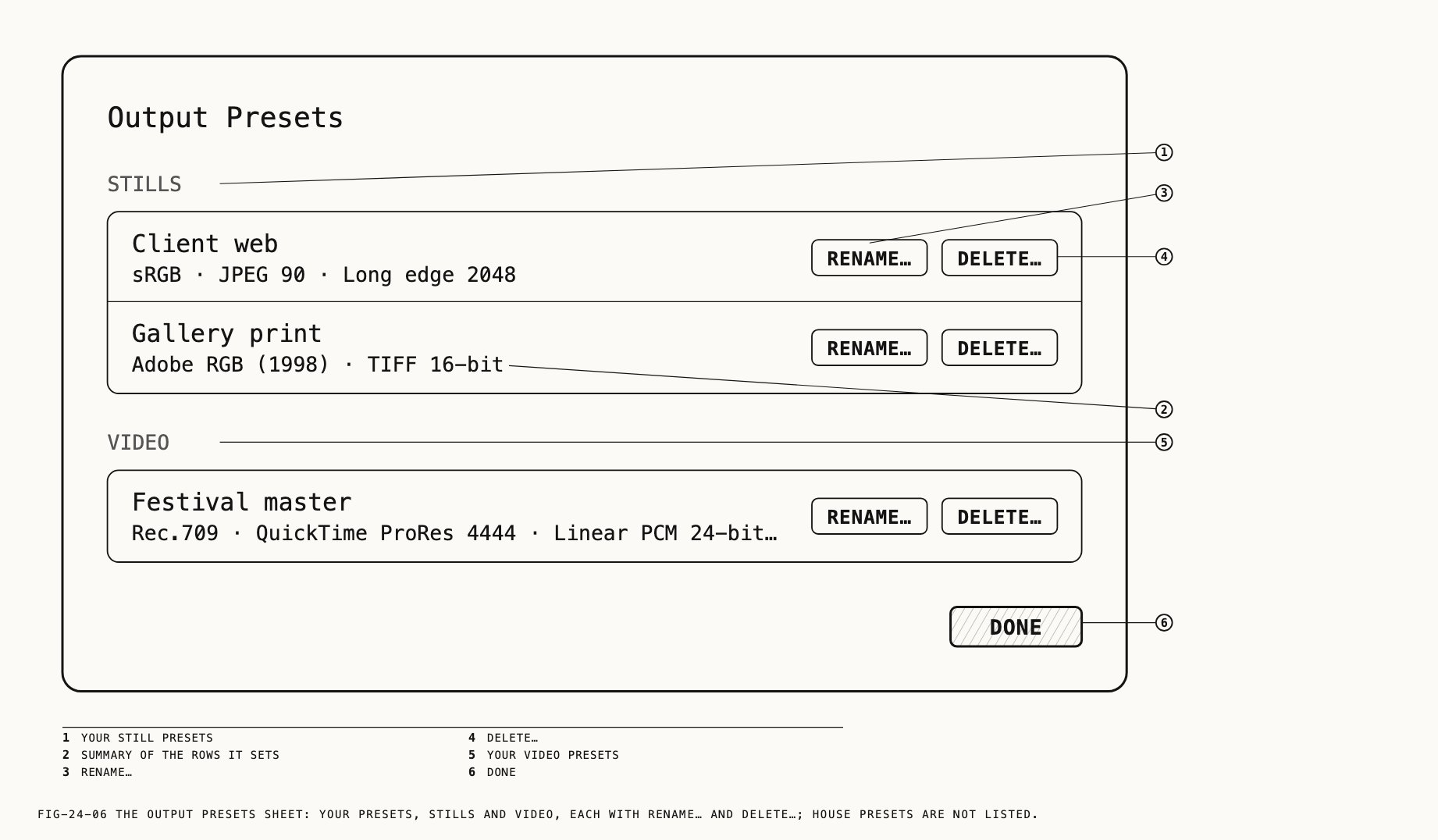
Managing presets. Manage Presets… opens the Output Presets sheet, listing your
presets under Stills and Video, each with a summary line such as
sRGB · JPEG 90 · Long edge 2048. Each row offers Rename… and Delete…; Done
closes the sheet. With none saved the list reads None of yours yet, and the menu item
is unavailable until you have one. House presets are not listed and cannot be changed.
Rename… and Delete… each ask in a small sheet before acting. Deleting a preset does
not change the outputs made with it; they keep their settings.
24.4 Color Space and Rendering
The Colour section fixes what color space the file is written in and how the picture
is rendered into it.
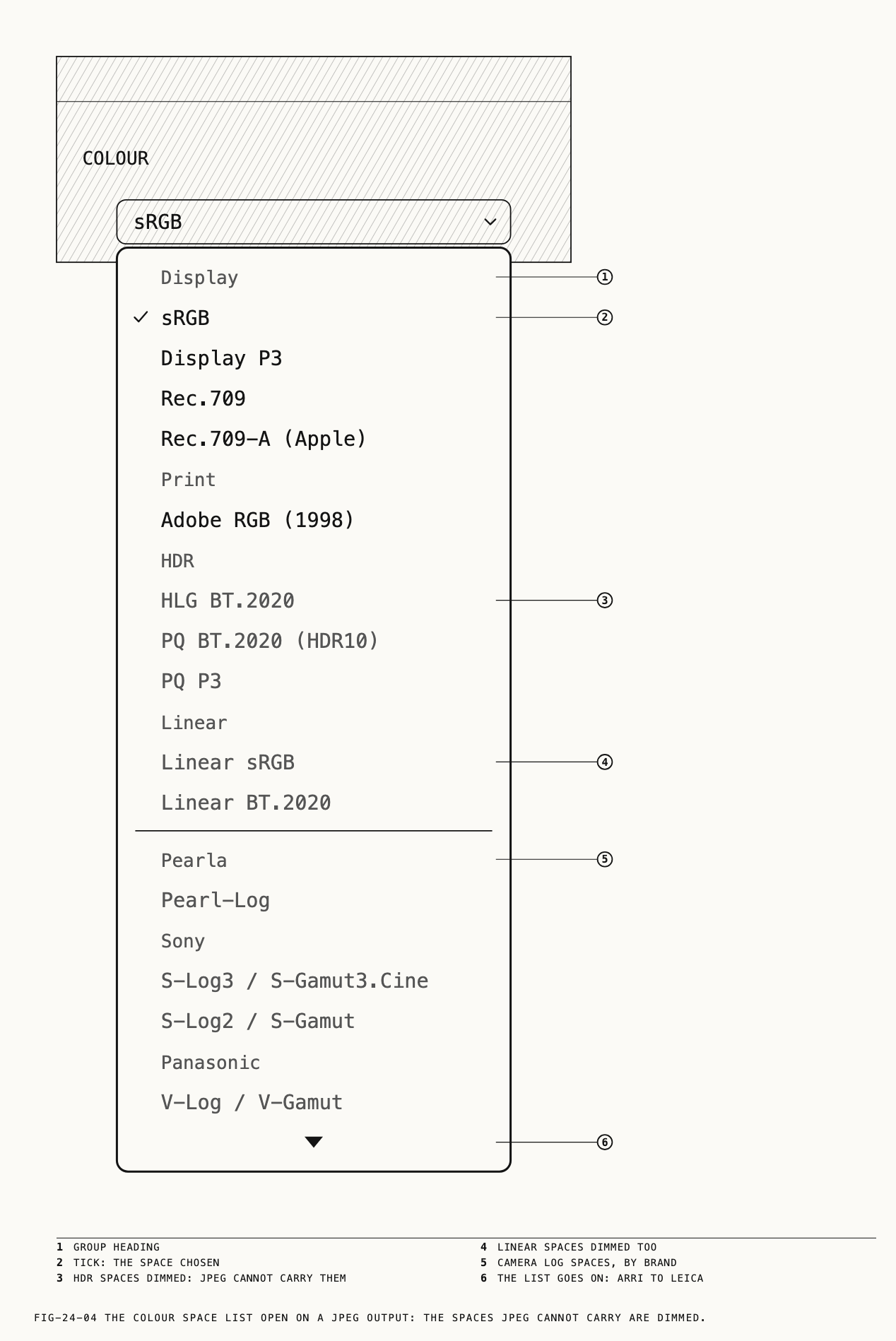
Colour space. A grouped list. The first four groups are Display (sRGB,
Display P3, Rec.709, Rec.709-A (Apple)), Print (Adobe RGB (1998)), HDR
(HLG BT.2020, PQ BT.2020 (HDR10), PQ P3) and Linear (Linear sRGB,
Linear BT.2020). The camera log spaces follow, grouped by brand:
| Brand | Spaces |
|---|---|
Pearla | Pearl-Log |
Sony | S-Log3 / S-Gamut3.Cine, S-Log2 / S-Gamut |
Panasonic | V-Log / V-Gamut |
ARRI | LogC3 / AWG3, LogC4 / AWG4 |
Canon | C-Log2 / Cinema Gamut, C-Log3 / Cinema Gamut, C-Log / Cinema Gamut |
Nikon | N-Log / BT.2020 |
Fujifilm | F-Log2 / F-Log Gamut, F-Log / F-Log Gamut |
Blackmagic | BMD Film Gen 5 / Wide Gamut |
Apple | Apple Log / BT.2020, Apple Log 2 / Apple Wide Gamut |
DJI | D-Log / D-Gamut |
Insta360 | I-Log / BT.2020 |
Leica | L-Log / BT.2020 |
A space the chosen format cannot carry, or that an 8-bit setting cannot hold without
banding, is dimmed and cannot be picked. Change the format or bit depth to make the color space available. Revela does not change the format automatically. A new output
is sRGB on a still and Rec.709-A (Apple) on a clip.
Tone mapping. Shown when the color space is an SDR display space, which is the
usual case, and absent when the picture was already converted to a display space on an
earlier node. The choices are None, Clip, Rolloff and Pearla. Pearla is the
default and is the house render; None applies no tone mapping.
Profile. Live only with Pearla tone mapping. The list opens with Pearla Film Gamut, the plain house render, followed by the film profiles Revela offers; the
profiles and what they do are covered in Chapter 14. The film look is chosen here, on
the output. The Film Emulation tab adds grain and other texture on top of whatever the
profile renders; it does not choose the look. On an HDR space the Tone mapping row is
absent, Profile remains, and the profile applies to the HDR file as well.
Conversion. When the color space is a camera log space and the picture reaching
the output is in another space, Tone mapping and Profile are replaced by a single
switch: Transform changes the picture to the selected log space. Tag only leaves the picture unchanged and identifies it as that space; use it when an earlier node already performs the conversion.
24.5 File
The File section is shown on a still’s output and on a clip’s Frame output.
Timecode. On a Frame output only, the first row: the frame the output exports,
as hours, minutes, seconds and frames. Clicking the timecode moves the playhead to that
frame; Set stores the playhead’s current position as the timecode. A new Frame
output takes the playhead when it is made. A timecode past the end of the clip, as after
pasting a grade onto a shorter clip, exports the clip’s last frame.
Format. JPEG, HEIF, TIFF or PNG. A format that cannot be written in the
chosen color space is dimmed. JPEG carries the display and print spaces; PNG adds
Linear sRGB; TIFF adds both linear spaces and every log space; HEIF carries the
display and print spaces, the HDR spaces and every log space. The HDR spaces need HEIF.
Gain map. A checkbox under HEIF, available for sRGB and Display P3 only.
Ticked, the file shows as SDR on an ordinary display and with its extra highlight range
on an HDR display. It is never offered on a Video output.
Quality. For JPEG and HEIF, a slider from 0 to 100, default 90.
Bit depth. For TIFF and PNG: 8-bit or 16-bit, default 16-bit. 8-bit is
offered for the SDR display spaces only.
24.6 Resolution and Scaling
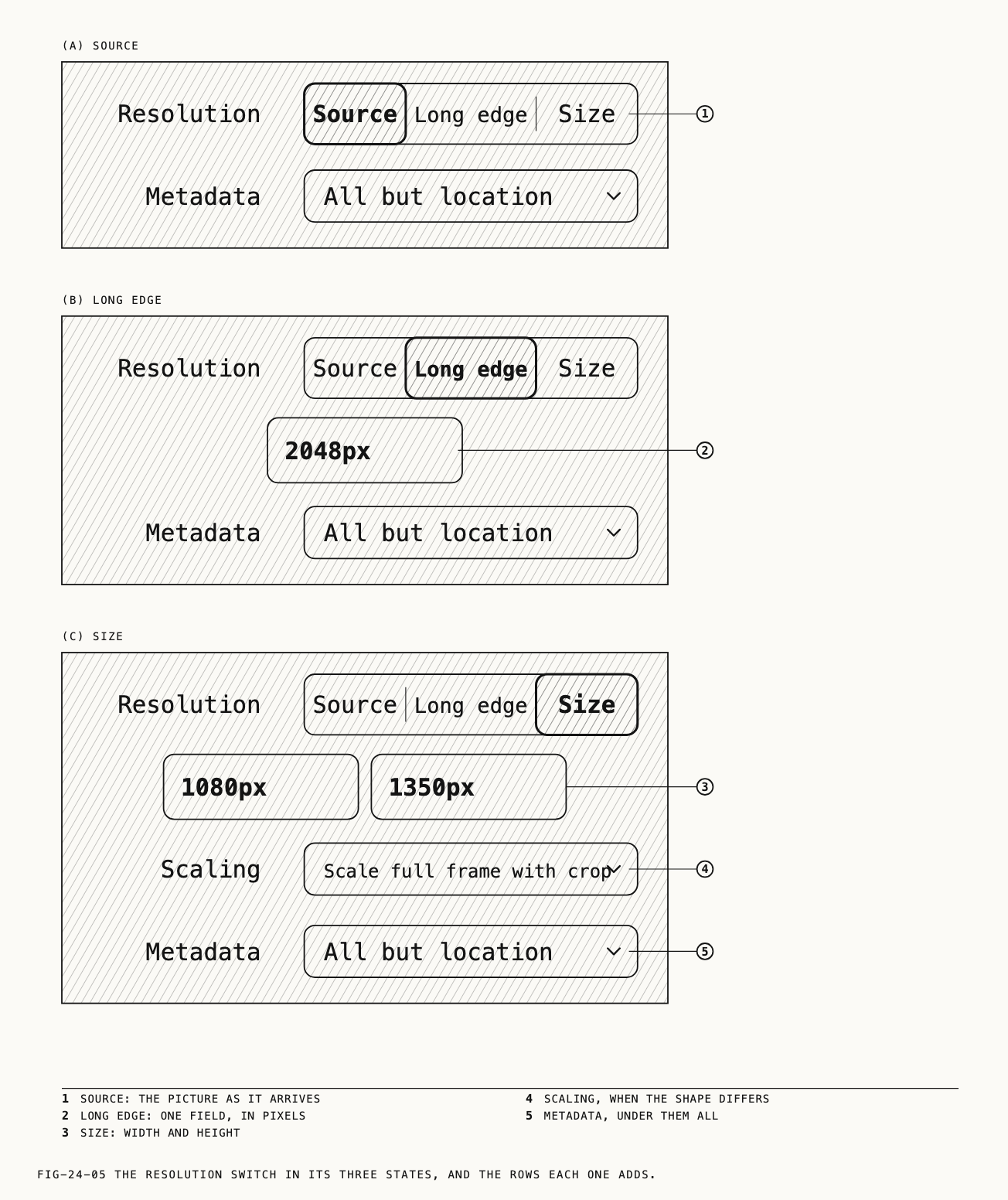
Resolution is a three-way switch: Source, Long edge or Size. Source writes
the picture as it reaches the output, after any crop on its branch. Long edge shows one
field, in pixels, and keeps the picture’s shape. Size shows Width and Height
fields and writes exactly those pixels. A pixel field shows its unit after the number, as
2048px; type the number alone. Presets fill these fields; type a number only when no
preset has the size you need.
A long edge larger than the picture writes the picture’s own size. Revela does not
enlarge for Long edge.
Scaling appears only under Size, and only when the typed shape differs from the
shape of the picture reaching the output. It offers four centered layouts:
| Choice | Result |
|---|---|
Scale entire image to fit | The whole picture inside the frame, bars filling the rest |
Scale full frame with crop | The frame covered, the overflow cut evenly from both sides |
Center crop with no resizing | The picture’s pixels unscaled from its center, bars where it is smaller |
Stretch frame to all corners | Each axis scaled on its own to the frame’s corners |
24.7 Metadata
Metadata decides what the exported file says about itself: All,
All but location, Copyright only or None. The default is All but location.
All adds the location to the capture facts, keywords, caption, copyright and creator;
Copyright only writes nothing but the copyright and creator lines; None writes
nothing beyond what the format needs.
Copyright only is dimmed, with the tooltip Add your copyright in Settings ▸ Export,
when there is no copyright or creator to write: neither the Settings window’s Export
tab nor the original has one. What each choice carries, and where the copyright and
creator lines are entered, is covered in Chapter 25. The row sits under File on a
still and under Video on a video output, and is hidden on an OpenEXR sequence, whose
frames carry no metadata.
24.8 A Clip’s Video Output
With Kind set to Video, three sections replace File.
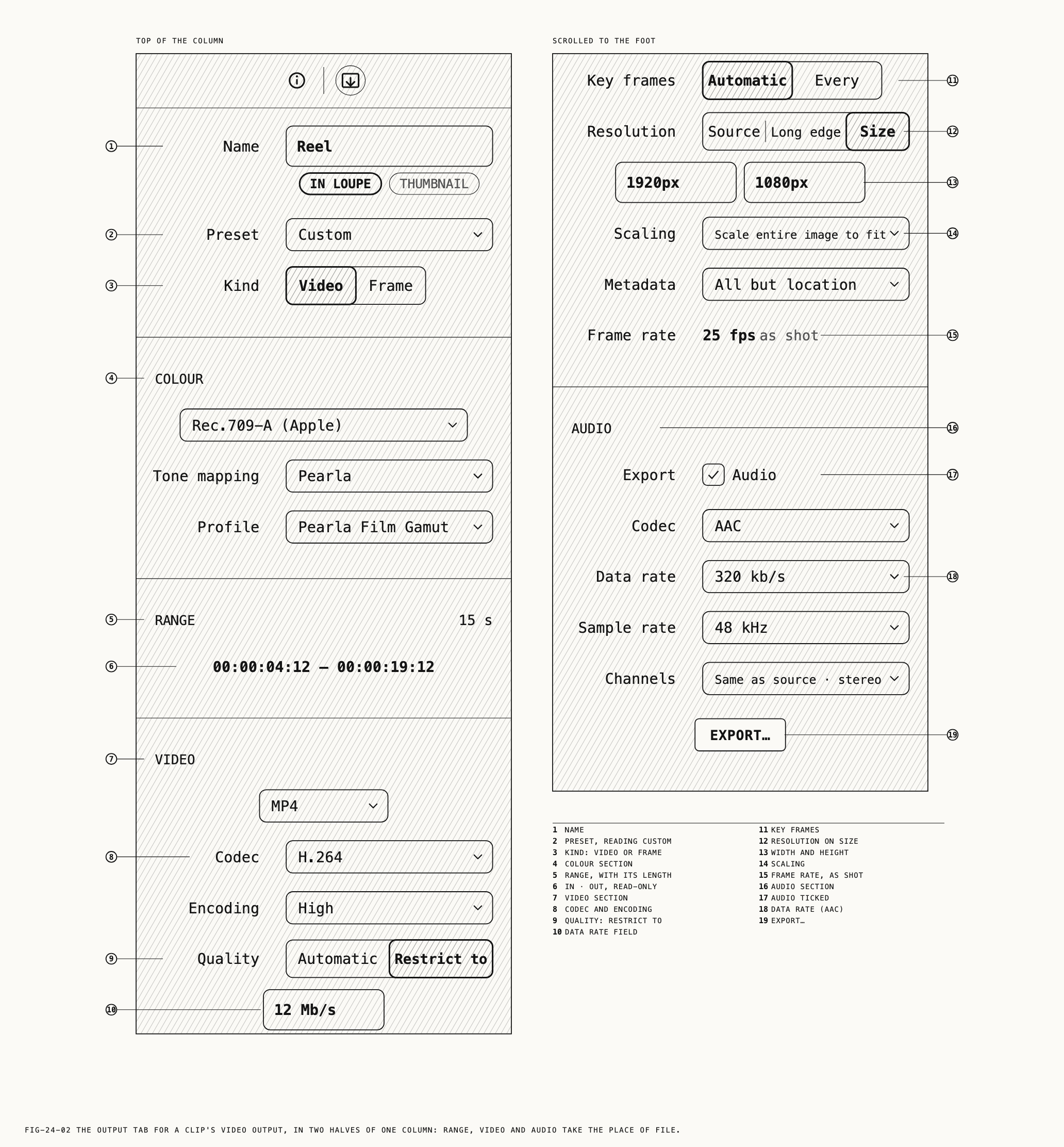
Range. The section header carries the length of what will be written, as 15 s,
31 s · whole clip or 1 min 31 s, and the single row In · Out reads the in and out
points as timecodes. The row is read-only. The range combines the input’s trim with the
output’s own; in and out points are set on the loupe, as described in Chapter 9.
Video. The movie or image-sequence rows.
| Row | Choices | Notes |
|---|---|---|
Format | Movie: QuickTime, MP4. Image sequence: TIFF, PNG, OpenEXR | A sequence writes one file per frame into a folder; the closed field then reads, for example, TIFF sequence |
Codec | Apple ProRes: Apple ProRes 422 Proxy, Apple ProRes 422 LT, Apple ProRes 422, Apple ProRes 422 HQ, Apple ProRes 4444, Apple ProRes 4444 XQ. H.264 · H.265: H.264, H.265 | QuickTime offers all; MP4 offers H.264 and H.265 only. Hidden on a sequence. Default Apple ProRes 422 HQ |
Encoding | H.264: Auto, Main, High. H.265: Auto, Main, Main10, Main 4:2:2 10 | Hidden for ProRes, where the codec is the profile. Main 4:2:2 10 is QuickTime only |
Quality | Automatic or Restrict to, with a Mb/s field | H.264 and H.265 only. Switching to Restrict to fills the field with a rate suited to the written frame size |
Key frames | Automatic or Every, with a frames field | H.264 and H.265 only. Every starts at one key frame a second |
HDR10 | Embed metadata checkbox | Shown for a PQ color space on a movie |
Bit depth | 8-bit or 16-bit for TIFF and PNG; Half float or Float for OpenEXR | Sequences only. 8-bit for the SDR display spaces only; sequences default to 16-bit and OpenEXR to Half float |
Resolution, Scaling, Metadata | As sections 24.6 and 24.7 | |
Frame rate | Read-only, as shot | Revela does not retime; the movie is written at the clip’s rate |
A codec or encoding that would band the chosen color space is dimmed, as is a color
space the current rows cannot carry: an 8-bit movie holds the display spaces only, so
HDR, linear and log spaces need H.265 at Main10 or Main 4:2:2 10, or a ProRes
codec. Adobe RGB (1998) is a print space and is never offered on a video output.
Audio. Shown on a movie, never on a sequence. The Export row carries an Audio
checkbox, dimmed on a clip with no audio. With it ticked:
| Row | Choices | Notes |
|---|---|---|
Codec | Linear PCM, AAC, ALAC (Apple Lossless) | Default Linear PCM |
Data rate | The rates AAC offers for the channel count, in kb/s | AAC only. Stereo offers 64 kb/s to 320 kb/s and defaults to the highest |
Bit depth | 16-bit, 24-bit, 32-bit, 32-bit float | Linear PCM; ALAC offers 16-bit and 24-bit. Default 24-bit |
Sample rate | 44.1 kHz, 48 kHz, 96 kHz | Default 48 kHz. AAC stops at 48 kHz |
Channels | Same as source · stereo (the source’s count shown), Mono, Stereo, 5.1 | 5.1 needs a source with six channels. AAC and ALAC take mono, stereo or 5.1 only; Linear PCM takes any count |
Hover over a dimmed item to see why it is unavailable.
24.9 Export… and the Output Card’s Menu
The Export… button sits centered at the foot of the tab and writes this one output:
the still’s file, the frame, or the movie or sequence. It is dimmed, with the tooltip
Needs the original, while the asset is being reviewed from a proxy, and until the
picture is ready. Where the file goes, batch export for many assets, and the exports
panel are covered in Chapter 25.
Right-clicking an output card on the node canvas opens its menu: Show in Loupe,
Use for Thumbnail, Rename, then Export, Export LUT and
Export Verana Profile, then Insert Before ▸ and Delete. Every item acts on the
clicked card, whichever output is selected. Export does what the tab’s Export…
button does. Delete is dimmed on the thumbnail output. Export LUT and
Export Verana Profile write the output’s rendering as a LUT or a profile for Verana,
and are covered in Chapter 14.