A second iPhone running Verana can act as a monitor and controller for the first. One device is set to the camera role and holds the lens. The other is set to the monitor role, shows what the camera sees, and drives its exposure, white balance, focus, lens and shutter from across the room. Both devices need to be on the same local network.
An Apple Watch paired with the camera’s iPhone can also act as a remote. It shows the camera’s image and fires the shutter, and it changes no setting.
The monitor screen is assembled from the same parts as the camera screen: the same viewfinder, toolbar, Mode button, main dial, lens switcher, shutter button, bottom bar and landscape relayout. Chapter 2 describes all of them and remains the description. This chapter covers only what the monitor does differently, then the Apple Watch remote, then the two accessory routes that extend the camera itself: Bluetooth controllers and HDMI output.
21.1 The Two Device Roles
A device is either the camera or the monitor. The role is chosen on DEVICE ROLE, which
offers CAMERA and MONITOR, and the app rebuilds around the choice as soon as you make
it. The camera role is the normal application. The monitor role captures nothing of its
own: there is no sensor running behind that screen, only the image arriving from the
camera.
Where to change it: Settings → Remote Control → iPhone.
The role is remembered between launches, so a phone kept as a dedicated monitor stays one until you change it back.
21.2 The Local Network Permission
Remote monitoring depends on the two devices being able to reach each other, which iOS gates behind the Local Network permission. Until that permission is granted, nothing in this section of the chapter works.
The LOCAL NETWORK section on the same page reports where you stand and offers the one
action that will move you forward. Before you have ever used the feature it shows
ENABLE REMOTE CONTROL. Tapping it turns remote control on and raises the system prompt.
Answer yes and the section disappears, since there is nothing left to set. Answer no and
the section stays, now explaining that access is off and offering OPEN SETTINGS, which
takes you to Verana’s page in the Settings app where the Local Network switch lives.
Return afterwards and the connection resumes by itself.
iOS asks for this permission once and provides no way for an app to ask again, which is why a refusal is answered with a route into system settings rather than a second prompt.
Note: the prompt is raised by the button, not by opening the page. A camera also becomes visible to monitors only once you have enabled remote control on it, and it stays visible at every launch afterwards. A phone that has never had remote control enabled announces nothing.
21.3 Connecting
The CONNECTION section reports the state of the link in plain words: Disconnected,
Searching…, Connecting…, or Connected to and the name of the other device. The
monitor screen carries the same reading in a bar directly below the toolbar, so the state
is visible while you are working rather than only in settings.
When a monitor finds a camera, the camera asks its operator before anything is shown. An
alert headed Connection Request names the monitor and states what it will be able to
do, with Accept and Refuse beneath. A request nobody answers is refused after a
minute. Work with one enabled camera at a time. If the connection drops, both devices
return to looking for each other and reconnect on their own.
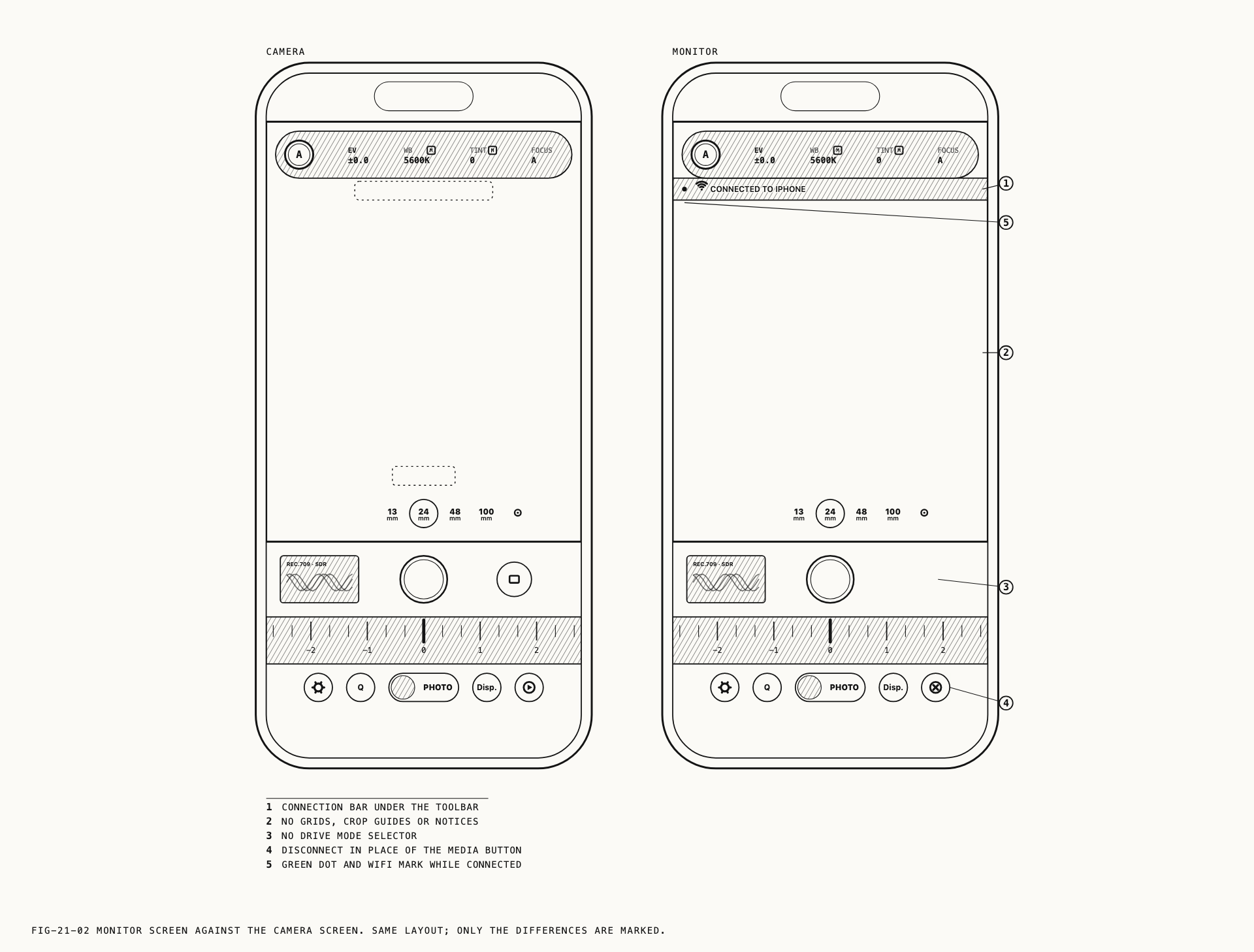
21.4 What the Monitor Screen Does Differently
The monitor screen shows the camera’s monitoring image. Everything carried in that image arrives with it: the color treatment currently selected, monitor color, focus peaking, false color, image flip and anamorphic desqueeze. Everything drawn by the camera’s interface on top of the image does not. Composition grids, crop guides, the level, the viewfinder indicators and the notices are all camera-side, so the monitor shows a clean feed.
That last omission has a consequence for anyone leaving the camera unattended. Notices report dropped frames, full storage and failed sequences, and they appear on the camera only. A condition that stops a take is not announced on the monitor.
Mode button and toolbar. The Mode button mirrors the camera’s exposure mode and
cycles A, M and S when tapped, hiding and showing tools exactly as it does on the
camera. The monitor follows its own phone’s Toolbar setting, described in Chapter 3.
The custom mode positions on its long press are not offered from the monitor. Exposure
modes are covered in Chapter 3. The aperture cannot be set from the monitor. IRIS is
only on the camera’s own toolbar.
Main dial. Six of the camera’s tools are on the dial and each turn is sent to the camera, which applies it and reports back. The values you read are the camera’s, not a local guess.
Lens switcher. Lenses, focal length options and the press-and-hold zoom slider all work from the monitor and drive the camera’s lens.
Shutter button. A tap on the monitor’s shutter is a tap on the camera’s. In video it starts and stops recording. In photo it does whatever the camera’s drive mode does with a tap. With single frames selected it takes the photograph, or starts the self-timer if one is set, and a second tap during the countdown cancels it. With the intervalometer selected it starts the active program, and during a run it arms and then confirms the stop as two taps on the camera would. With burst selected a tap does nothing, because a burst is press and hold and the monitor sends taps only.
The drive mode is chosen on the camera. The monitor has no drive mode selector and does not show which one the camera is in, so check the camera before relying on the shutter in photo mode.
Status line. The recording timer appears while the camera is recording. The self-timer’s countdown and the interval run readout appear on the camera only, so a timer or a run started from the monitor proceeds without any sign of it on the monitor.
Bottom bar. The media button is replaced by a disconnect control. Tapping it ends the session and returns the device to the camera role, which is also how a monitor becomes a camera again without going through settings. Settings itself is reached as usual.
The teleprompter is not shown on the monitor. A script runs on the device holding the camera, where the person reading it is looking. Chapter 12 covers the prompter.
The monitor keeps its screen awake for as long as the monitor screen is showing, so a phone left on a stand does not sleep mid take.
The quick menu and the display mode act on the camera and are not offered from the monitor.
21.5 Focus From the Monitor
Tapping the monitor’s image places a focus point on the camera, and the whole of the
camera’s focus behavior comes with it. The tap is not a separate feature with its own
rules: it runs the same path a tap on the camera’s own viewfinder runs, so Tap Action
and Tap Behavior govern it, a long press latches focus and exposure where the setting
allows, and the point is released the same ways. Chapter 5 covers all of it.
Three consequences follow, and they matter because the settings live on the camera while you are holding the monitor.
With Tap Action set to Off, taps on the monitor are ignored, exactly as they are on
the camera. With Long Press: AF/AE Lock turned off, a long press on the monitor does
nothing. And during an intervalometer run, focus is locked for the whole run, so a tap
from the monitor is refused; the notice explaining why appears on the camera, where the
notices are.
The focus point is drawn on the monitor as it is on the camera, through the same states,
and the lock chip reads AF-L or AF/AE-L according to what is actually held.
21.6 Apple Watch Remote
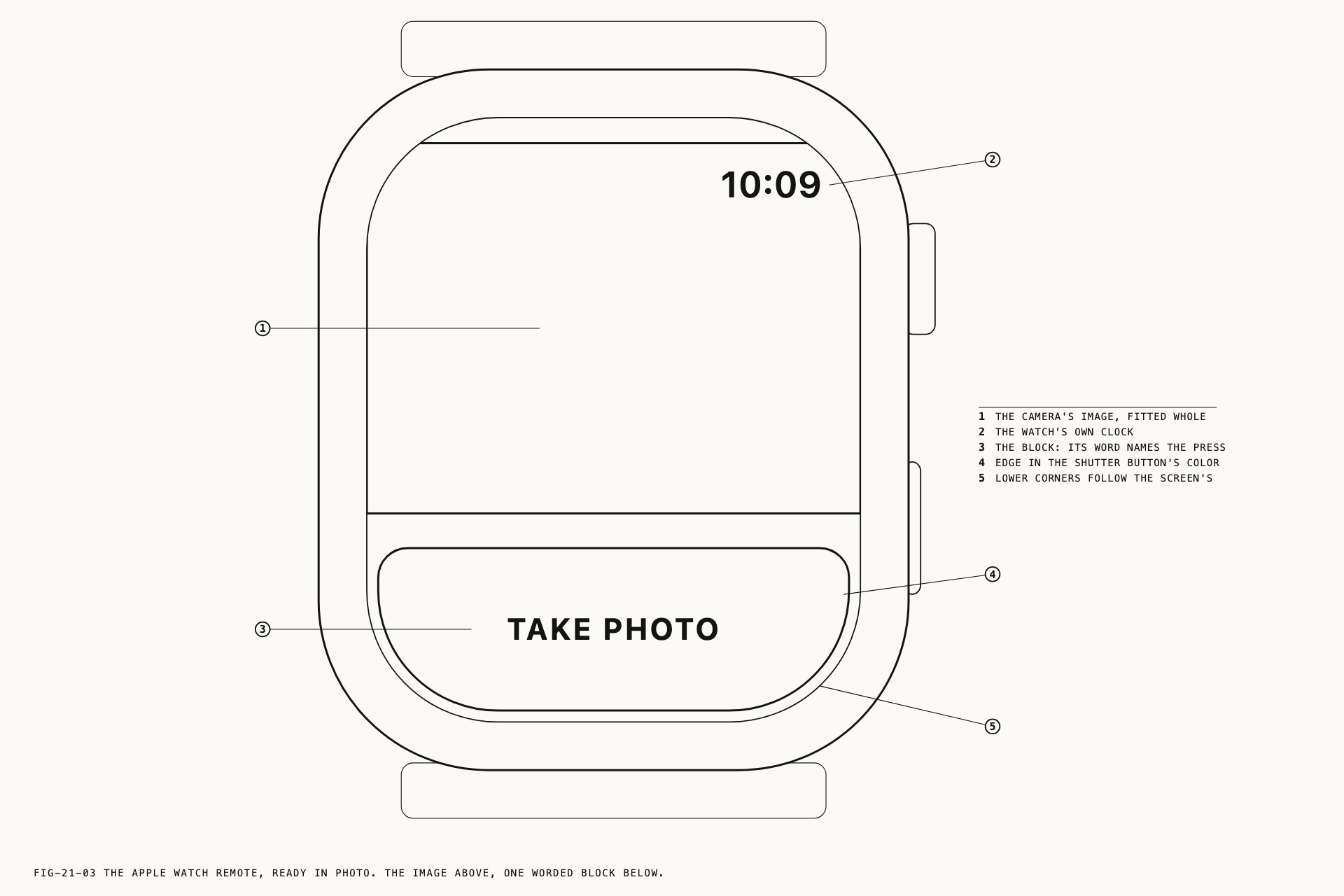
An Apple Watch paired with the iPhone works as a remote for the camera. It shows the camera’s monitoring image and carries one control, a worded block that fires the shutter and reports what the camera is doing. There is nothing to set up in Verana: no settings page, no permission prompt and no pairing step. The watch has to be paired with the iPhone, and Verana’s watch app has to be installed on it, which is done from the Watch app on the iPhone.
The remote works while the camera screen is showing on the iPhone, with the iPhone unlocked and Verana in front. The capture mode and the drive mode are chosen on the phone. The watch changes no setting.
The image and the block
The upper part of the watch screen shows the camera’s monitoring image, fitted whole inside the screen, so a landscape frame sits between black bars. As on a monitor iPhone, what is carried in the image arrives with it, such as the color treatment, focus peaking and false color, and what the camera’s interface draws over the image does not. While the camera is recording, the image is framed in red.
Below the image is the block. Its word names what a press will do, and its color follows the camera’s shutter button: a red edge in photo, solid red in video, and a blue edge for burst and the intervalometer.
| The camera is in | The block reads | A press |
|---|---|---|
| Photo, single frames | TAKE PHOTO | Takes the photograph, or starts the self-timer if one is set |
| Video | RECORD, then STOP | Starts and stops recording |
| Photo, burst | HOLD FOR BURST, then RELEASE TO END | Runs a burst for as long as the block is held |
| Photo, intervalometer | START INTERVAL, then END INTERVAL | Starts the active program, and ends the run in two taps |
A press on the block does what the camera’s own shutter button does in the same mode, so Chapters 7 to 10 describe the result. What follows covers only what the watch shows.
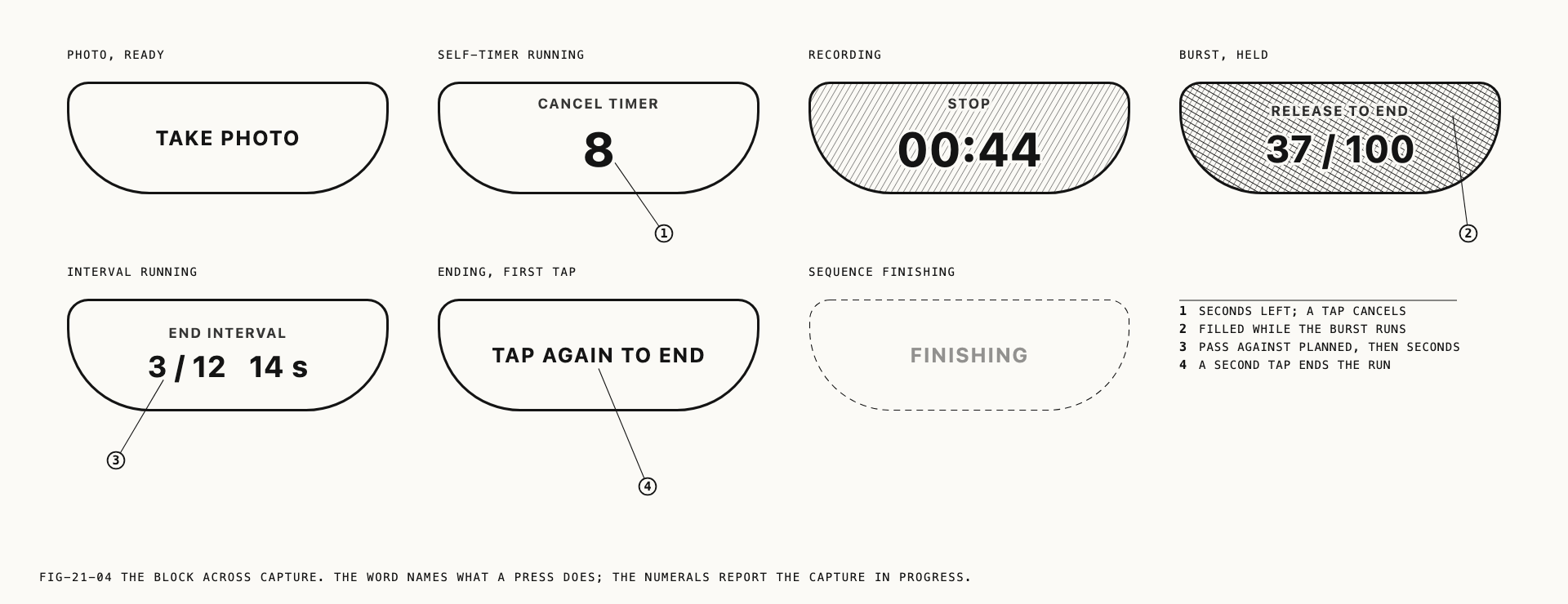
The self-timer
With a timer set, a tap on TAKE PHOTO starts the countdown on the camera. The block
changes to CANCEL TIMER and counts the remaining seconds beneath the words. A second tap
cancels the countdown. The timer is set on the phone, and Chapter 7 covers it.
Video
RECORD starts a take. The block turns solid red, reads STOP, and carries the recording
clock in the form the camera uses: minutes and seconds, with hours added on a long take. A
recording started on the phone appears on the watch in the same way, and either device can
stop it.
Burst
Press and hold the block. When the camera begins the burst the block fills with blue and
reads RELEASE TO END, with the frame count against the most frames the device holds in
one burst, such as 37 / 100. Lift the finger to end the burst.
The burst begins a moment after the press and ends a moment after the release. The fill and the count show when it is running. A burst that reaches the frame limit ends while the block is still held. Chapter 8 covers burst.
The intervalometer
START INTERVAL starts the active program. During the run the block reads END INTERVAL
and shows the current pass against the planned passes, followed by the seconds to the next
frame, such as 3 / 12 14 s. A program with no fixed number of passes shows ∞ in
place of the total.
Ending a run takes two taps, as it does on the camera. One tap and the block reads
TAP AGAIN TO END in red. A second tap within two seconds ends the run. Without one the
run carries on, and capture does not pause in the meantime. While the camera finishes the
sequence the block reads FINISHING and does not respond. Chapter 9 covers the
intervalometer.
Note: with the intervalometer selected and no program to run, a tap changes nothing on the watch. The phone shows its own notice.
What the wrist feels
The watch taps the wrist when a photograph is taken, when the self-timer starts and when it fires, when recording starts and when it stops, and when a burst or an interval run starts and ends. Recording taps arrive whether the take was started on the watch or on the phone. A different tap means the phone declined the press.
When the remote is unavailable
When the shutter cannot be used, the block is replaced by one line saying why.
| The watch reads | What it means |
|---|---|
Connecting | The watch is finding the iPhone. This clears within a few seconds |
iPhone not reachable | The watch cannot find the iPhone. Bring the two within range of each other |
Update Verana | The watch app and the iPhone app are different versions. Update Verana so that both match |
Open the camera in Verana | The camera screen is not showing. Verana is closed or behind another app, the iPhone is locked, or Verana is on another screen such as settings, the media library or Revela Lite |
This iPhone is set as a monitor | The iPhone is in the monitor role described in section 21.1 and has no camera running. Return it to the camera role |
iPhone storage is full | The camera is in video and the destination has no room to start a recording. Chapter 27 covers storage |
iPhone is too hot | The iPhone has reached the temperature at which captures are refused. Chapter 27 covers heat |
Camera interrupted | Something else has taken the camera, such as a call. The remote returns when the camera does |
Subscribe in Verana on iPhone | Verana’s subscription is not active on the iPhone |
With iPhone storage is full and iPhone is too hot the image stays on the watch,
because the camera is still framing. With the other lines the image is hidden.
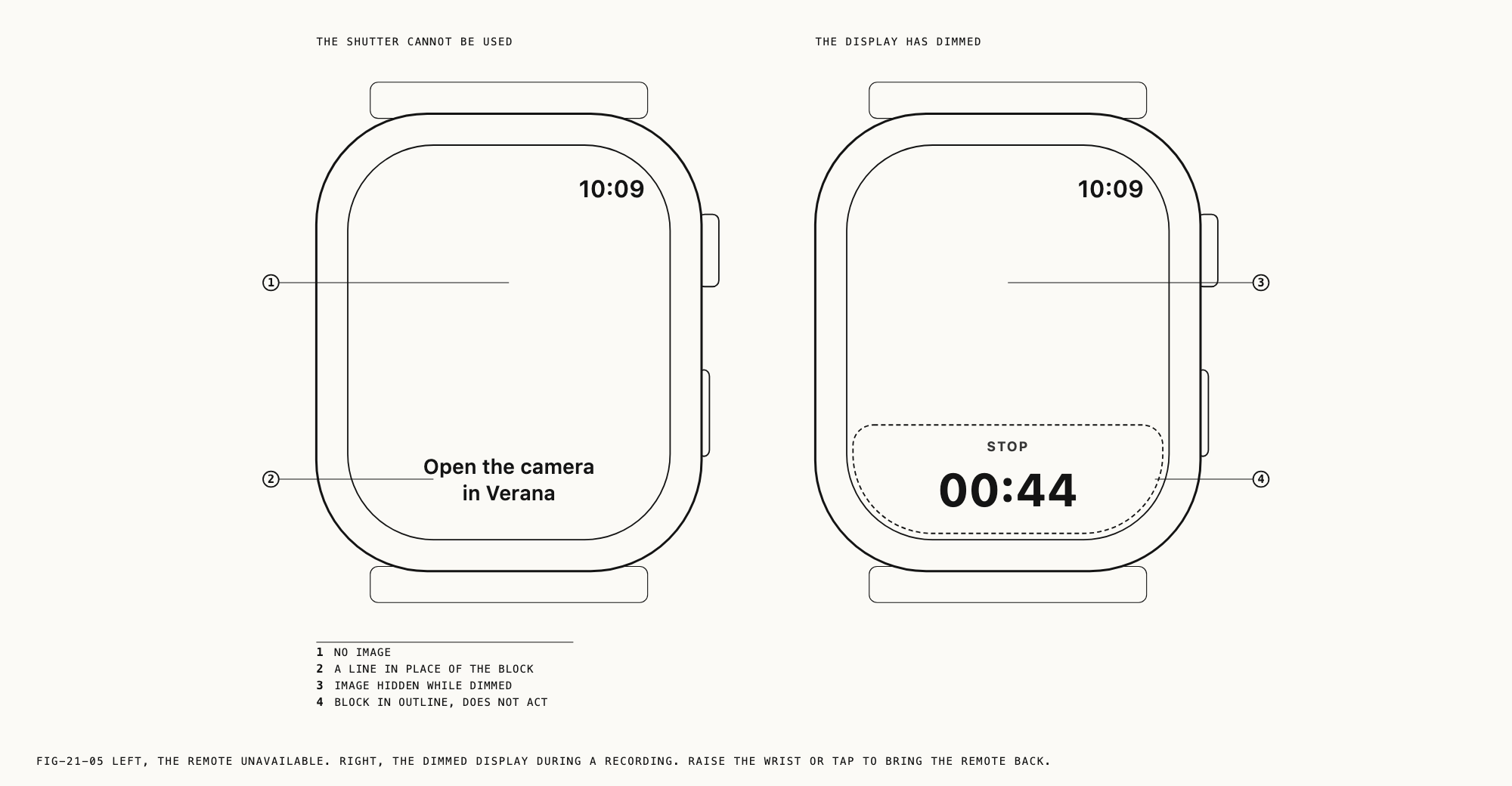
When the watch display dims
The watch dims its display a short time after the last touch or wrist raise. While it is dimmed the image is hidden, the block is drawn in outline and still reads what the camera is doing, including its clock or count, and the remote does not act on a press. The taps on the wrist stop as well. Raise the wrist or tap the screen to bring the remote back. The outline of the frame shows for a moment until the image returns.
A burst being held when the display dims is ended.
Note: the time the display stays awake is a setting on the watch, not in Verana. For a shoot, set it to its longest, 70 seconds.
Where to change it, on the watch: Settings → Display & Brightness → Wake Duration.
The watch also returns to its clock face after a period out of use, and the period can be lengthened for Verana alone.
Where to change it, on the watch: Settings → General → Return to Clock.
What the watch does not show
Notices appear on the camera only, including those a burst raises. Pre-capture is armed on the phone, and the watch does not show whether it is armed. During an interval run the elapsed time is on the camera’s status line and not on the watch.
21.7 Bluetooth Controllers
Verana connects to a Tilta Nucleus-M follow focus over Bluetooth. The handwheel drives the lens and the controller’s record button starts and stops video recording.
Where to change it: Settings → Remote Control → Bluetooth.
The Bluetooth toggle at the top of the page turns the feature on, and turning it on for
the first time raises the system Bluetooth permission prompt. Until then the page reads
Enable Bluetooth to connect to devices. If the radio is switched off at the system
level the page says so with Bluetooth is turned off in system settings. and waits.
With the feature on, Verana scans for controllers as soon as the radio is available and
lists what it finds under TILTA NUCLEUS-M. A scan runs for ten seconds and then stops,
and SCAN FOR DEVICES runs another. While one is in progress the same button reads
STOP SCANNING. When nothing has been found the page reads
No Nucleus-M found. Power the controller on and scan., and once a controller is listed
it reads Tap a device to connect or disconnect. Scanning stops on connection. There is
no automatic reconnection, so a controller that has been powered down is reconnected the
same way it was connected.
The handwheel sets focus distance directly and takes ownership of focus as the FOCUS
dial does, which means a tapped focus point is cleared the moment the wheel moves.
Turning the wheel and tapping the viewfinder are two ways of claiming the same control,
and the most recent claim wins.
The record button starts and stops video recording. In photo mode it is ignored.
Bluetooth controllers connect to the device holding the camera. A phone in the monitor role has no lens to drive.
21.8 HDMI Output and Clean Output
A display connected over HDMI or over AirPlay normally mirrors the whole screen,
interface included. HDMI Out replaces that with the viewfinder image alone.
Where to change it: Settings → Monitoring → HDMI.
With the toggle on and a display attached, the external screen shows the camera’s monitoring image and nothing else, fitted to the display and centered on black. It carries the same color treatment the viewfinder carries, so what a client sees on a set monitor matches what you see on the phone. No part of the interface is ever drawn there. With the toggle off, the display mirrors the screen as the system would without Verana involved.
The STATUS line reports what is actually attached: No external display connected.,
External display connected. when a display is present but the toggle is off, and
External display connected. Clean feed active. when the clean feed is running.
The output follows the camera. A phone in the monitor role does not drive an external display.