This chapter collects the conditions Verana reports, what each one means for the shot in front of you, and what to do about it. Entries are grouped by what you were trying to do rather than by the screen the message came from, since a stopped recording is a stopped recording whichever part of the camera noticed it first.
Where a condition belongs to a feature, the chapter that explains that feature is named rather than repeated here. Messages are quoted as the app writes them. Several carry a number, a name or a file name that changes with the situation, and those are shown with a representative value in place.
27.1 Where Verana Reports a Condition
Verana reports conditions in four places. Where a message appears tells you how urgent it is.
Notices appear in a band below the toolbar on the camera screen. Gold reports a change of state, red reports a fault or an interruption. Both clear themselves after a few seconds. Notices are unaffected by the viewfinder display mode and stay visible even in Clean, because a condition that can cost you a take should not be concealed by a display setting. Chapter 2 covers the band itself.
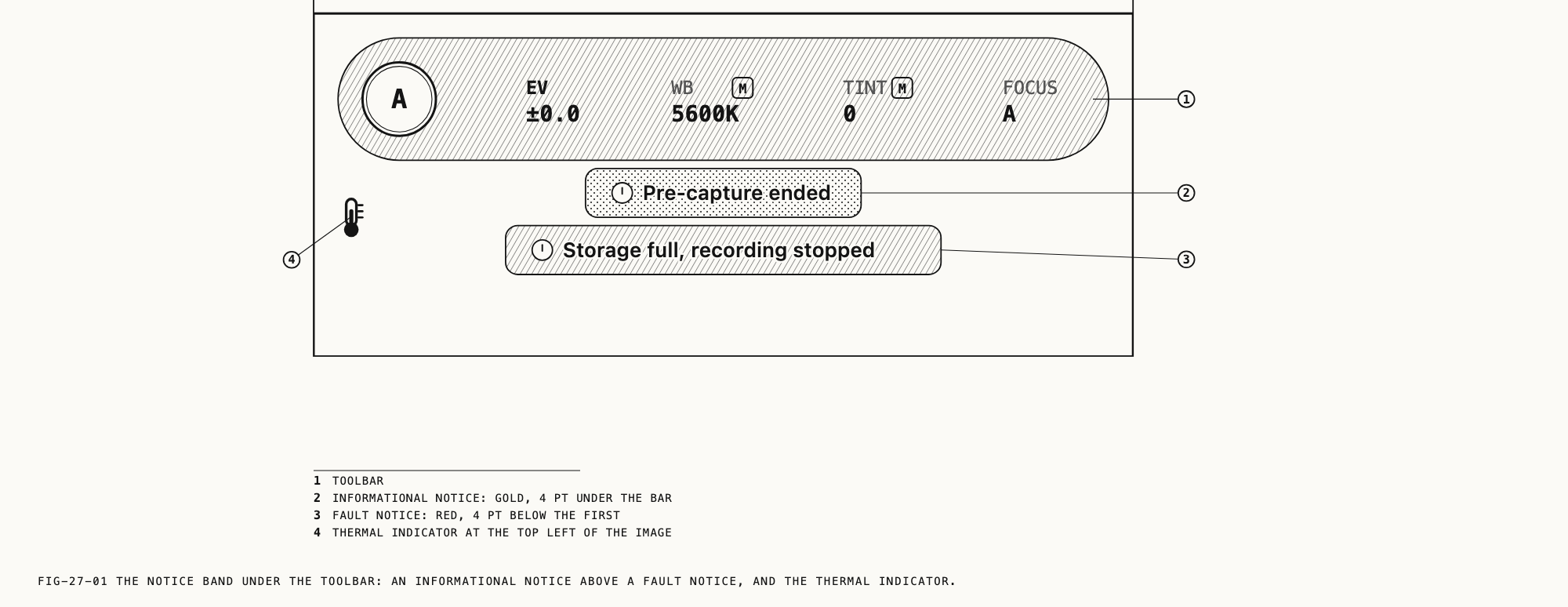
The thermal indicator is drawn on the image at the top-left corner. It reports the device’s running temperature continuously rather than announcing a single event.
Status text in settings carries conditions that belong to a setting rather than to a capture: a drive that is not connected, a permission that has not been granted, a device that has not been calibrated. These are read where the setting lives, not on the camera screen.
Alerts interrupt with a message and a button, and are used for actions you started yourself: an export, a deletion, an import, a save.
27.2 Recording Will Not Start, or Stops on Its Own
Frames are being dropped
Dropping frames during a recording means the camera cannot keep up with the format it
has been asked to record, and the clip is being written with gaps in it.
Dropping frames, recording stopped means the same condition arrived with Stop On Frame
Drop switched on, and the recording was ended at the first drop rather than continued.
A lower resolution, a lower frame rate, a less demanding codec or a faster destination all give the camera more headroom. Heat is the other common cause: see section 27.3. Stop On Frame Drop and the reasoning behind each setting are covered in Chapter 10.
The destination is full
Storage full refuses the start. Storage full, recording stopped means a recording
already running was ended because the destination filled beneath it, and the clip was
closed properly rather than left truncated.
While the condition holds, the shutter button dims and video recording will not start. Clearing space on the destination releases it without leaving the camera screen. When the destination is a folder rather than the library, the notice carries a drive symbol rather than a warning circle, so it is clear which one is out of room. Destinations are covered in Chapter 10 and free space in Chapter 20.
Recording failed
Four messages report a recording that could not be started or could not be completed: “Recording is not ready. Please try again.”, “Recording failed. Please try again.”, “Recording failed. Please check available storage.” and “Could not create recording file. Please check available storage.”
The first two are worth a second attempt. The last two point at the destination: clear space, or select a destination with room on it. If a recording fails repeatedly at the same format, try a less demanding one to establish whether the format or the destination is the constraint.
The camera could not be configured
“Could not configure the camera. Please try restarting the app.” and “A rendering error occurred. Please try restarting the app.” both mean the camera did not come up in a usable state. Close Verana fully and reopen it. “Camera is not available on this device.” and “GPU rendering is not available on this device.” report that the hardware the camera needs could not be reached at all.
27.3 The Device Is Running Hot
A thermometer appears at the top-left of the image once the device passes the temperature you have asked to be warned at. It is drawn in gold at the earlier stage and in red once the device is hot enough that capture is being restricted.
Sustained recording, high frame rates and raw capture all generate heat, and so does direct sun on the back of the phone. Shade the device, take it out of a case, and give it a few minutes idle. The indicator clears itself as the device cools.
Thermal Warning
Where to change it: Settings → System.
Two options, and they decide when the thermometer appears, not what the camera does about the heat.
| Option | When the indicator appears |
|---|---|
Early | From the first heat build-up |
Severe | Only when performance is at risk |
Severe is the default, and on it the thermometer appears only in its red form, when the
device is hot enough for capture to be affected. Early adds the gold stage before it, so
you see heat accumulating well before anything is restricted. Early suits a long
scheduled shoot where you would rather manage the temperature than be told about it late.
Severe suits a working camera where an indicator you cannot act on is a distraction.
Neither setting changes the temperature at which the camera intervenes. The refusals and stops below apply on both, and they apply whether or not the indicator is on screen.
Captures refused or ended by heat
Heat produces its own notices, because some captures are refused rather than allowed to make the problem worse.
Burst paused (device too hot) refuses a burst at the moment you press. Burst stopped (device too hot) ends a burst already running, and the frames captured up to that point
are kept.
Pre-capture disengaged (thermal) releases an armed pre-capture ring. The ring does not
re-arm itself. Arm it again when the device has cooled. Pre-capture is covered in
Chapter 8.
Intervalometer paused (device too hot) refuses the start of a run. Intervalometer stopped (device too hot) ends a run in progress, and what was captured before the stop is
kept. A long run in direct sun is the commonest way to meet this, and shading the device
is usually enough. Runs are covered in Chapter 9.
27.4 A Still, a Burst or a Sequence Failed
Stills
“Photo capture failed. Please try again.” reports a single frame that did not complete.
“Photo processing failed. The unprocessed image was saved instead.” means the frame itself was captured and saved, but the finished version of it was not produced. The capture is not lost.
“Raw photo capture is not supported on this device.” means a raw photo cannot be captured as the camera is currently set up. Raw formats and the cameras that support them are covered in Chapter 7.
“Could not save to the Photos library.” and “Photos library access is required. Please enable it in Settings.” both concern Save Copy to Photos rather than the capture. The capture reached Verana’s own library normally. Grant Photos access in iOS Settings to restore the copy.
Burst
Burst failed reports a burst that ended without producing anything. Capture already in progress refuses a burst because another capture owns the camera: wait for it to finish.
RAW capture unavailable means the camera currently selected cannot deliver the raw
frames a burst is made of.
Two burst notices are informational rather than faults. Burst limited to 20 fps at 1/40s
reports that the rate you asked for is not sustainable at the shutter speed in use and a
lower rate was run instead, with the actual figures in place of the example. Burst limit reached (400 frames) reports that the run reached the longest burst the device supports
and closed itself. Both are covered in Chapter 8.
Pre-capture ended reports an armed ring that reached the end of its window without a
capture. Nothing was lost. Arm it again.
Intervalometer
No intervalometer program. Create one in Settings means the shutter was pressed in
intervalometer mode with no program selected. Programs are the unit of work, and Chapter 9
covers building one.
Sunset can't run. Check it in Settings names the selected program and reports that it
cannot be run as written, usually because it has no captures in it or a step is
incomplete. Open the program and complete it.
Capture already in progress refuses the start because another capture owns the camera.
Intervalometer stopped (device stack limit) ends a run that reached the largest sequence
the device can save as a single item. Everything captured is kept.
Intervalometer ended (interrupted) reports a run cut short by something outside Verana,
such as a call arriving or the app being sent to the background. Intervalometer failed
reports a run that ended without producing a usable result.
A program stored by a newer version of Verana than the one installed cannot be read, and the program list says so in place of its summary. Update the app to use it. The program itself is not damaged.
27.5 A Control Will Not Respond During a Capture
Some controls are held for the duration of a capture, and Verana names the lock rather than ignoring the touch.
ZOOM LOCKED DURING RAW CAPTURE means the lens switcher and the zoom slider are held for
the duration of a raw run: a PearlaRAW recording, a burst, or an interval sequence that
is saved as a single item. The framing on screen does not shift, and the lock
releases when the run ends. Covered in Chapters 8 and 10.
FOCUS LOCKED DURING RUN means focus was fixed at the start of an interval run and a tap
on the viewfinder will not move it. This is what holds a sequence consistent from the
first frame to the last. Covered in Chapter 9.
Camera busy (recording). refuses a custom mode while a recording, a burst, or an
interval or calibration run is in progress, naming what is holding the camera.
Reconfiguring the camera mid capture would cost the take. Custom modes are covered in
Chapter 23.
A custom mode recalled successfully can still report that part of it was not reproduced, naming what was used instead. The registered position is not rewritten, so restoring a missing LUT, profile or program makes it whole again. A mode stored by a newer version of Verana than the one installed cannot be read at all, and both the pill and the Custom Modes page say so. Chapter 23 covers the whole behavior.
27.6 Storage, Drives and Destinations
The drive is not connected
The Destination Folder row on the video page reads Not Connected when the folder you
picked cannot be reached, and invites you to reconnect the drive or choose another folder.
The recording destination returns to Library while the drive is away, so a recording
started in the meantime is written to Verana’s own library rather than failing. The folder
is remembered: reconnect the drive, select Files again, and the same folder returns
without a second trip through the picker.
The media library’s FILES source reads Drive not connected. for the same reason.
Chapter 18 covers the two sources and Chapter 10 the destination setting.
There is not enough space
“PearlaRAW video recording requires at least 256 GB of free space.” appears under the codec choice when PearlaRAW is being recorded to the device rather than to a drive. The codec is unavailable until either space is cleared or an external drive is selected. Chapter 10 covers raw video and its requirements.
Exports refuse for the same reason, and name both the shortfall and the volume, in the
form Not enough space in "Footage": needs 12.4 GB, 3.1 GB free. A second form, “Not
enough space on this device for the export staging file”, concerns the space an export
needs while it is working, even when the finished file is destined for a drive. Clear
space on the device in that case, not on the drive.
27.7 Displays, Controllers, a Second iPhone and Apple Watch
No external display
The HDMI page reports one of three states: “No external display connected.”, “External display connected.” or “External display connected. Clean feed active.” If a display is attached and the page still reports none, check the cable and the adapter first. Chapter 21 covers HDMI output and the clean feed.
Bluetooth
“Bluetooth is turned off in system settings.” means Bluetooth is off for the whole device and no controller can be reached until it is switched on in iOS Settings. “Enable Bluetooth to connect to devices.” refers instead to Verana’s own Bluetooth switch on the page, which is off.
“No Nucleus-M found. Power the controller on and scan.” means scanning found nothing: power the controller on, bring it closer, and scan again. “Tap a device to connect or disconnect.” means at least one controller was found and is ready to pair. Chapter 21 covers controllers.
The local network permission
Two states appear on the Remote Control page. Before the permission has been asked for,
the page explains that controlling the camera from a second iPhone needs the Local Network
permission and that iOS asks once, when remote control is enabled. If the permission was
declined, the page reports that Local Network access is turned off so other iPhones cannot
be reached, and offers OPEN SETTINGS. Switch Local Network on there and return: remote
control resumes on its own, with no further step in Verana. Chapter 21 covers the whole
setup.
Apple Watch
When the watch cannot fire the shutter it shows one line in place of its block.
| The watch reads | What to do |
|---|---|
Connecting | Wait a few seconds. If it stays, open Verana on the iPhone |
iPhone not reachable | Bring the watch and the iPhone within range of each other, and check that the iPhone is switched on |
Update Verana | Update Verana on the iPhone so that the watch app and the iPhone app match |
Open the camera in Verana | With the iPhone unlocked, bring Verana to the front and return to the camera screen from settings, the media library or Revela Lite |
This iPhone is set as a monitor | Return the iPhone to the camera role: Settings → Remote Control → iPhone, or the disconnect control on the monitor screen |
iPhone storage is full | Free space at the destination, or choose another. Section 27.6 |
iPhone is too hot | Let the iPhone cool. Section 27.3 |
Camera interrupted | End the call or close whatever has taken the camera. The remote returns with the camera |
Subscribe in Verana on iPhone | Open Verana on the iPhone. Section 27.12 covers the subscription |
The image has gone and the block does not respond. The watch display has dimmed. Raise the wrist or tap the screen.
Verana is not on the watch. Install it from the Watch app on the iPhone.
A tap did nothing with the intervalometer selected. No program is available to run. The phone says so, and the watch does not. Chapter 9 covers programs.
Chapter 21 covers the watch remote.
27.8 Color and Calibration
The device has not been calibrated
The RealHUE page reads “This device has not been calibrated.” until a calibration exists, and lists each rear camera as carrying a factory profile, calibrated with a date, or not calibrated. “iOS was updated since calibration. Re-calibration recommended.” appears when the system has changed underneath an existing calibration. Neither condition stops you shooting. Chapter 13 covers RealHUE and what calibration does.
A calibration run did not complete
“The light left the frame or isn’t blown out. Re-aim at the light, then resume.” pauses a
run in progress. Re-aim at the light and tap RESUME, or cancel. This is the message you
will meet most often, and it usually means the phone drifted off the lamp.
“The camera is busy. Stop recording or capturing, then try again.” refuses the start. “Calibration was interrupted. Nothing was changed.” and “Calibration was cancelled. Nothing was changed.” both report a run that ended early, and in each case the existing calibration is untouched. A run that fails outright reports the reason and, again, changes nothing. On devices that do not support calibration, the page says so.
A settings page will not respond
Several Image Processing pages become active only when the Color setting matches them, and
say which value they need: SET COLOR TO LOG TO ENABLE and SET COLOR TO FILM EMULATION TO ENABLE. A page reading CONTROLLED BY PROFILE is held by an active custom profile,
which overrides the Color group while it is selected. PROFILE USES NO LUT reports that
the active profile carries none, so there is nothing to show on the LUTs page. Chapter 13
explains the dependency, and Chapters 15, 16 and 17 the pages themselves.
27.9 Looks That Will Not Import
LUTs
An import that fails names the file and the reason in the import form. The reasons worth knowing in advance: only 3D LUTs can be imported, so a 1D file is refused; the declared size must be within the supported range; and the file’s data must match the size it declares. A file that is truncated, edited by hand or exported for a different purpose usually fails one of these.
“The LUT could not be saved.” reports a rename or a color space change that did not write. “The LUT could not be exported.” reports a share that could not be prepared. Chapter 17 covers importing and managing LUTs.
Custom profiles
Opening a profile file that Verana cannot read raises “Import Failed” with “This file is not a readable Pearla profile.” A successful import confirms with “Profile Imported” and names the profile. Some files are readable but refer to something the installed version does not know, and the message says so.
“The profile could not be saved.” and “The profile could not be exported.” report a profile action that did not complete. Chapter 17 covers custom profiles.
27.10 A Capture Will Not Open or Adjust
“Can’t Edit” with “This file could not be opened.” means the capture could not be read for adjustment. If the file came from an external drive, check the drive is still connected.
A capture that opens but cannot be decoded reads Decode failed in place of the tool
readout, and the controls are switched off. Nothing you do can damage the file in that
state.
“Save Failed” with “The edit could not be written. The photo is unchanged.” means an adjustment could not be committed. The original is intact. Free space is the first thing to check.
“Delete Failed” reports a capture that could not be removed. On the FILES source this
usually means the drive went away between the tap and the deletion.
Not available for this clip in the STABILIZE readout means the clip could not be
prepared for stabilization. A dimmed STABILIZE is different: the clip was steadied at
capture, or was recorded by an earlier version of Verana. Section 19.11 covers the tool.
Chapter 19 covers Revela Lite, and Chapter 18 the library.
27.11 An Export Will Not Complete
Export failures are reported in an alert titled for the kind of export you started, and
several of them offer Copy Details so the message can be pasted into a report rather
than photographed.
“Could not open clip” and “Could not open movie” mean the source could not be read. If it lives on a drive, check the drive.
“Clip contains no video frames.” means there is nothing in the clip to export.
“Could not create folder” reports a destination that could not be written to. Choose another folder, or check the drive is not write-protected.
“The drive folder is the source of this export. Choose a different destination.” means the export would write back over the folder it is reading from. Pick a different destination.
“Nothing shareable in this selection.” means the captures selected have nothing that can be shared in the form requested.
“Export failed” followed by a reason reports a render or a write that stopped partway. Some devices cannot encode certain frame sizes, and the message says so; exporting at a different size or in a different codec is the way around it.
Preview unavailable on the log export sheet means the preview image could not be
rendered. The export itself is unaffected.
Chapter 20 covers export in full.
27.12 Permissions and the Subscription
Permissions
Verana asks for camera and microphone access during setup and cannot operate the camera without them. If either is missing, the permissions screen is presented again when the camera screen opens, listing each permission with the reason it is asked for and a route into iOS Settings for anything already declined. iOS asks only once for each permission, so a declined permission is granted in iOS Settings rather than in Verana. Chapter 1 covers the setup sequence and what each permission is for.
Location is not reported on the camera screen. With location access declined, the Save Location switch on the photo and video pages is inactive and captures carry no location. Tapping the inactive switch asks for access, or opens iOS Settings if access was declined earlier.
The subscription
“Subscription Required” with “Subscription options could not be loaded. Check your
connection and try again. If the problem persists, close and reopen the app.” means the
subscription options could not be reached, usually a connection problem rather than an
account one. Retry tries again and Restore Purchases recovers an existing
subscription.
“No Subscription Found” after a restore means the restore itself completed but the Apple Account signed in on the device holds no active subscription. Check which Apple Account is signed in. “Restore Failed” reports a restore that could not complete, and carries the reason iOS gave.