A catalog is a .revela file holding folders, edits and ratings. Photos and clips live separately in a store. Revela asks where to keep this Mac’s store before the first catalog opens. Chapter 6 covers stores in depth.
1.1 Downloading and Installing
Revela is downloaded from the Pearla website as a disk image holding one item,
Install Revela.pkg. Double-clicking it opens the standard macOS installer, which runs
three pages: an introduction, the license agreement, and a summary. Installation goes
ahead only once the agreement is accepted. Revela is installed in the Applications
folder. It needs macOS 26.1 or later on an Apple silicon Mac, and a Pearla account the
first time it opens.
1.2 The Launch Sequence
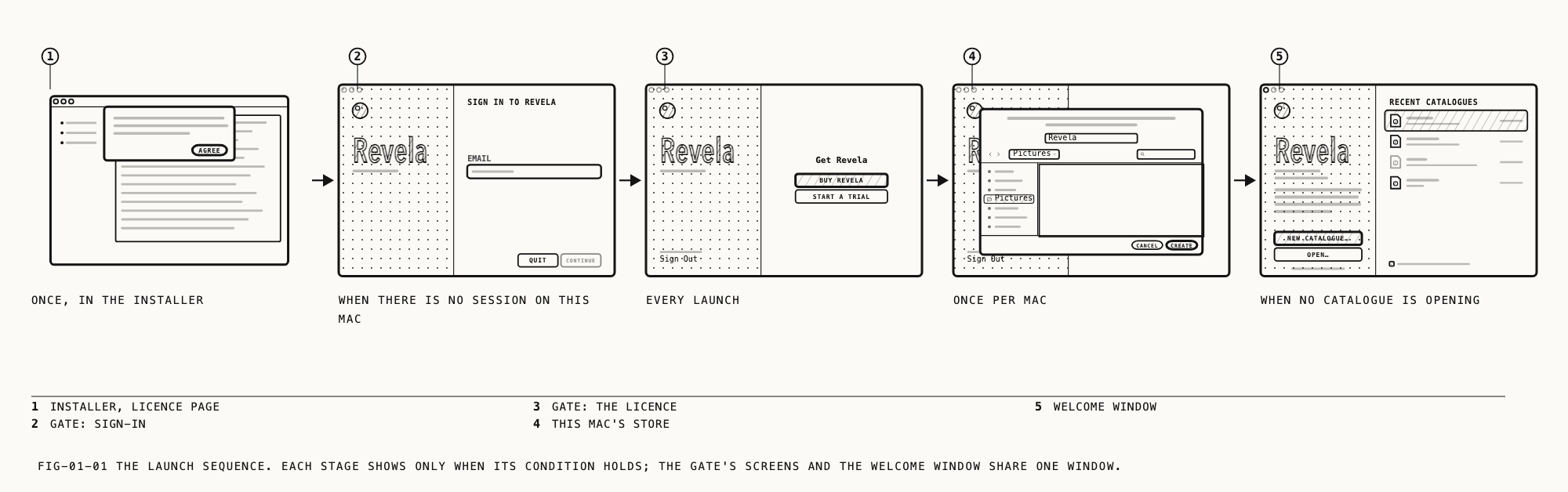
Revela completes startup before opening a catalog, whether it was double-clicked in Finder, dropped on the Dock icon, chosen from File → Open Recent or restored with its window. During startup, File → New, File → Open,
every Open Recent row, Window → Welcome, Revela → Settings and Revela → Account
are disabled. Revela → About Revela, Revela → Check for Updates and
Help → Revela Licence Agreement work.
Startup screens appear in the right pane of the welcome window, titled Revela. Its close button is dimmed and ⌘W does nothing; ⌘Q quits.
A click on the Dock icon brings the window forward.
The order is the same at every launch:
- A damaged installation. If Revela’s installation is damaged, the
Licence Endedscreen shows (section 1.5) and nothing else; reinstall Revela. If the license agreement is missing from the app, an alertRevela Is Damaged/Reinstall Revela.offersQuitonly. - License agreement, only when an update brought a changed one (section 1.3).
- Sign-in, when there is no session on this Mac (section 1.4).
- License (section 1.5). Usually this passes without a pause. When it does not, a spinner shows while Revela checks the license.
After startup, the same window becomes the welcome window. If
Show this window when Revela opens is off, or a catalog is waiting to open, the window
closes instead and the catalog opens. On a Mac’s first launch, the store panel comes
before either (section 1.8).
1.3 The License Agreement
The agreement is accepted in the installer. Revela asks again only when an update has
brought a changed one. The screen’s heading is the agreement’s title,
End User Licence Agreement, over the scrolling text; links in it can be clicked.
Agree (the default, Return) records this version as accepted and continues. Quit
(Esc) quits Revela.
The agreement can be read at any time, including during startup.
Where to find it: Help → Revela Licence Agreement
It opens in a window of its own, with the same layout as during startup, without Agree or Quit.
1.4 Signing In
Revela signs in with a Pearla account by email code. There is no password.
The Sign In to Revela screen has one field, Email. Continue (the default, Return)
is enabled once the text looks like an email address. It requests a code and moves to
the next screen. Quit (Esc) quits Revela. While the request runs, the field and both
buttons are off.
The Enter the Code screen shows the address and the field Code as six digit cells.
The cells take digits only, and a pasted code fills them even with a space in the
middle. Sign In (the default, Return) is enabled once six digits are in. Back
(Esc) returns to the email screen with the address kept. Resend asks for a new code.
It becomes available a minute after the screen opens and a minute after each use; no
countdown is shown. A wrong code clears the cells and puts the cursor back in the first.
When the account has no name, a Your Name screen follows, with a Name field and
Continue, enabled once the field is not empty. If the name cannot be saved, sign-in
still goes through and Revela asks again next time.
One line under the field, in the warning color, reports a failure:
| Line | When |
|---|---|
That code is wrong or has expired. | The code was refused. |
Revela can't reach Pearla. Check your connection. | The service could not be reached. |
Sign-in isn't working right now. Try again shortly. | Any other failure. |
Once signed in, the left pane’s foot shows the account’s email address and Sign Out on each subsequent startup screen. Sign Out deactivates this Mac on the account and
returns to the sign-in screen.
1.5 The License
Revela does not open without an active license.
The agreement defines three kinds of license. A Perpetual License covers the major version bought (Revela 1) and every update to it. A Subscription covers every version released while it is active. A Trial covers the period shown when it is started. Each license is for one person and runs on a limited number of Macs at the same time; the agreement states the number. Licenses are bought on the Pearla website, and a Mac is deactivated from the account page there, which frees its place for another.
The license screens appear in the startup window, each a title and its buttons, with the
address and Sign Out in the foot. Buy Revela, Start a Trial and Subscribe open
the pricing page on the Pearla website. Manage Macs opens the account page.
Check Again checks the license again. While Check Again runs, every button and
Sign Out are off. The answer replaces the screen: startup continues, another license screen appears, or the same one remains.
| Title | When | Buttons (the first is the default) |
|---|---|---|
| (a spinner) | Checking. | none |
Get Revela | No license on this account. | Buy Revela, Start a Trial |
Your Macs | The license is active on its full number of Macs. One row per Mac: its name, its model, and when it was last seen. | Check Again, Manage Macs |
Trial Ended | The trial ran out. | Subscribe, Check Again |
Subscription Ended | The subscription was canceled. | Subscribe, Check Again |
Subscription Expired | The subscription lapsed. | Subscribe, Check Again |
Licence Revoked | The license was revoked. | Buy Revela, Check Again |
Trial Used on This Mac | This Mac has already had a trial. | Subscribe, Check Again |
Licence Ended | No reason was given, or Revela’s installation is damaged (reinstall it). | Subscribe, Check Again |
Connect to the Internet | Offline, and the offline period ran out (section 1.6). | Check Again |
Revela Can't Check Your Licence | The Mac is online, but the license for this Mac could not be confirmed (section 1.6). | Check Again |
During a trial, the welcome window carries a second line under the version,
TRIAL · 7 DAYS LEFT (or TRIAL · 1 DAY LEFT), showing the days remaining. It
changes color at two days or fewer.
1.6 Offline, and When a License Ends
Revela keeps working for a time without a connection. When that time runs out, a screen
says why: Connect to the Internet when the Mac is offline, and
Revela Can't Check Your Licence when the Mac is online but the license could not be
confirmed. Revela works again once the Mac is online and the check succeeds.
A license that ends while Revela runs, or an offline period that runs out, closes every window at once. Pending edits are written first. Running exports pause, catalogs close, the Settings window closes, and the license screen appears in the startup window. Nothing is deleted: the catalogs and their stores are untouched, and a new license returns Revela to the welcome window.
1.7 The Welcome Window
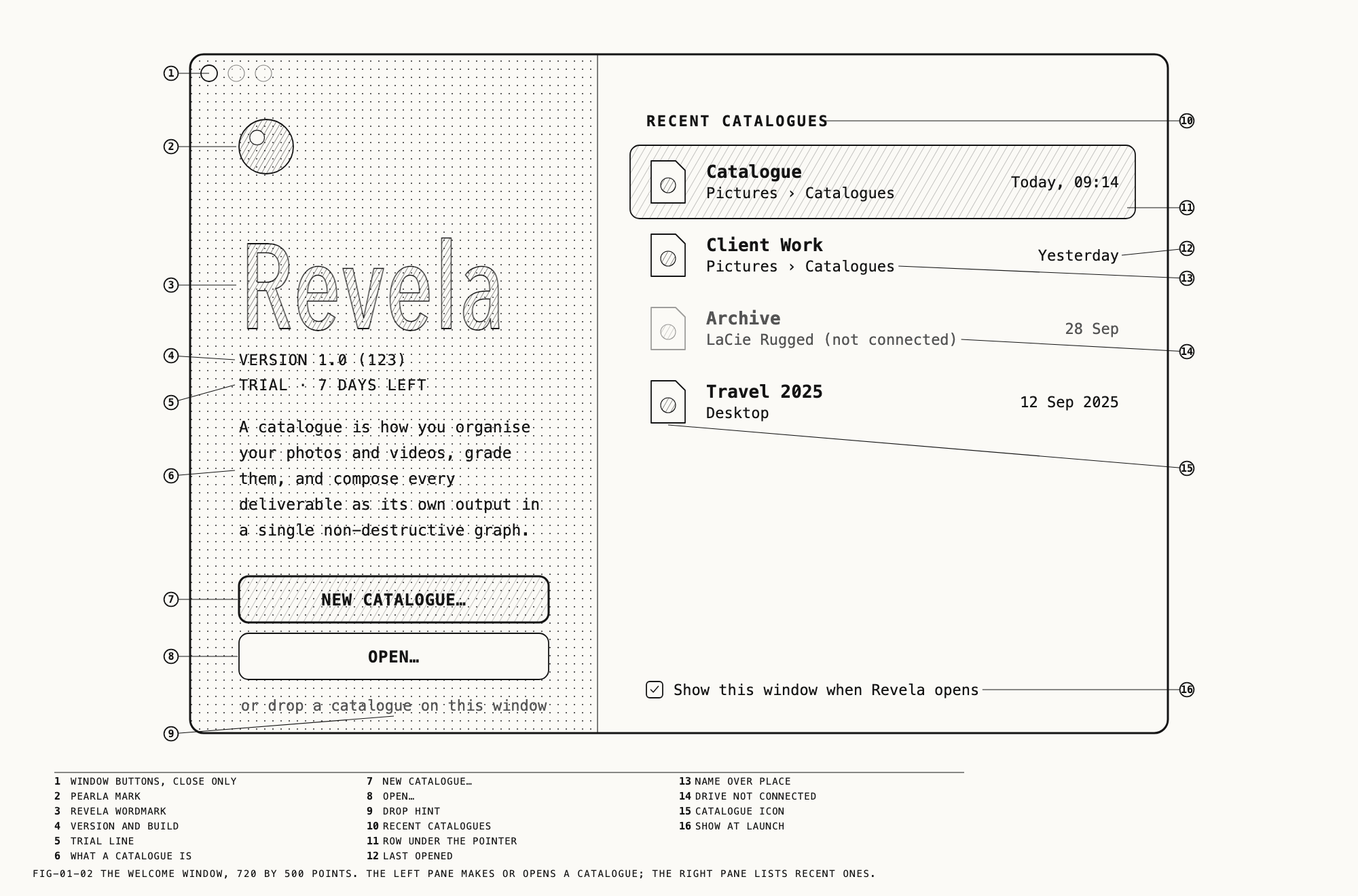
The welcome window has two panes. It closes itself when a Catalogue window comes to the front.
Where to find it: Window → Welcome
The left pane carries the Pearla mark and the Revela wordmark, the line
VERSION 1.0 (123) (the version, then the build), the trial line during a trial, one
sentence about what a catalog is, and two buttons: New Catalogue… (section 1.9) and
Open… (section 1.10). Under them, the hint or drop a catalogue on this window: the
whole window accepts dropped .revela files and opens each one. Anything else dropped
is ignored.
The right pane is headed RECENT CATALOGUES. Each row shows the catalog’s icon, its name
(the file name without its extension), where it is as a path from the home folder or
from the drive’s name (Pictures › Catalogues, LaCie Rugged › Work), and when it was
last opened (Today, 09:14, Yesterday, 28 Sep, 12 Sep 2025). Double-click a row,
or select it and press Return, to open it.
A catalog on a drive that is not connected stays in the list, dimmed, with the place
<drive> (not connected). It does not open, and it comes back live when the drive is
connected. A catalog that was deleted or moved disappears for good.
Before any catalog has been opened, the right pane reads No catalogues yet over
Make your first with New Catalogue. It appears here next time.
The footer holds one checkbox, Show this window when Revela opens, on by default
(section 1.11).
File → Open Recent lists the same rows in the same order, with Clear Menu at the
foot, which empties the list in both places.
1.8 This Mac’s Store
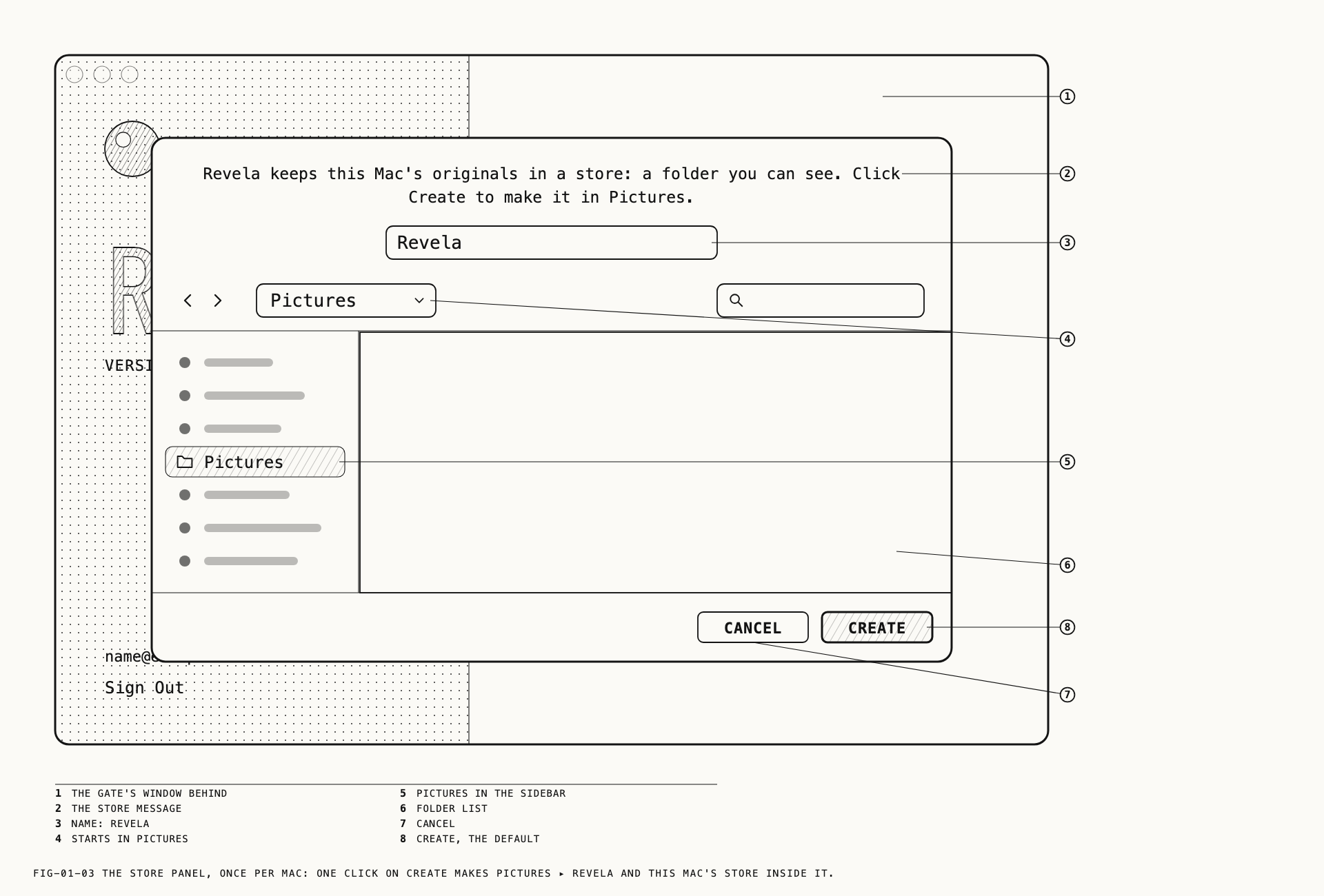
Before opening the first catalog, Revela asks where to keep this Mac’s store. It asks once per Mac.
The system save panel opens pointed at Pictures with the name Revela filled in and the
message Revela keeps this Mac's originals in a store: a folder you can see. Click Create to make it in Pictures. One click on Create makes the folder and the store inside it,
named after the Mac. Another folder can be chosen instead, and folders can be made from
the panel.
Three choices are refused, with an alert and the panel again:
| Alert | Reason |
|---|---|
Revela can't keep its store in <service> | The folder is kept in a sync service (iCloud Drive, Dropbox, Google Drive or OneDrive). Files copied one at a time can damage a store. |
This Mac's store must be on this Mac | The folder is on a drive that can be unplugged. The drive can be added as a store of its own later, from Locations (Chapter 6). |
Revela needs a store for your photos | Cancel was clicked. The alert names Pictures ▸ Revela as the usual place. |
Each alert offers Choose Again… (or Choose a Folder…) and Quit Revela. Without a
store there is nowhere to put an original, so quitting is the only other way out.
When Pictures is itself kept in a sync service, the alert
Your Pictures folder is kept in <service> comes first, and the panel then opens on the
home folder with the message Choose where Revela keeps this Mac's originals. The folder must be on this Mac and not in a sync service.
If Revela was removed and installed again, it takes up a folder that already holds this Mac’s store as it is.
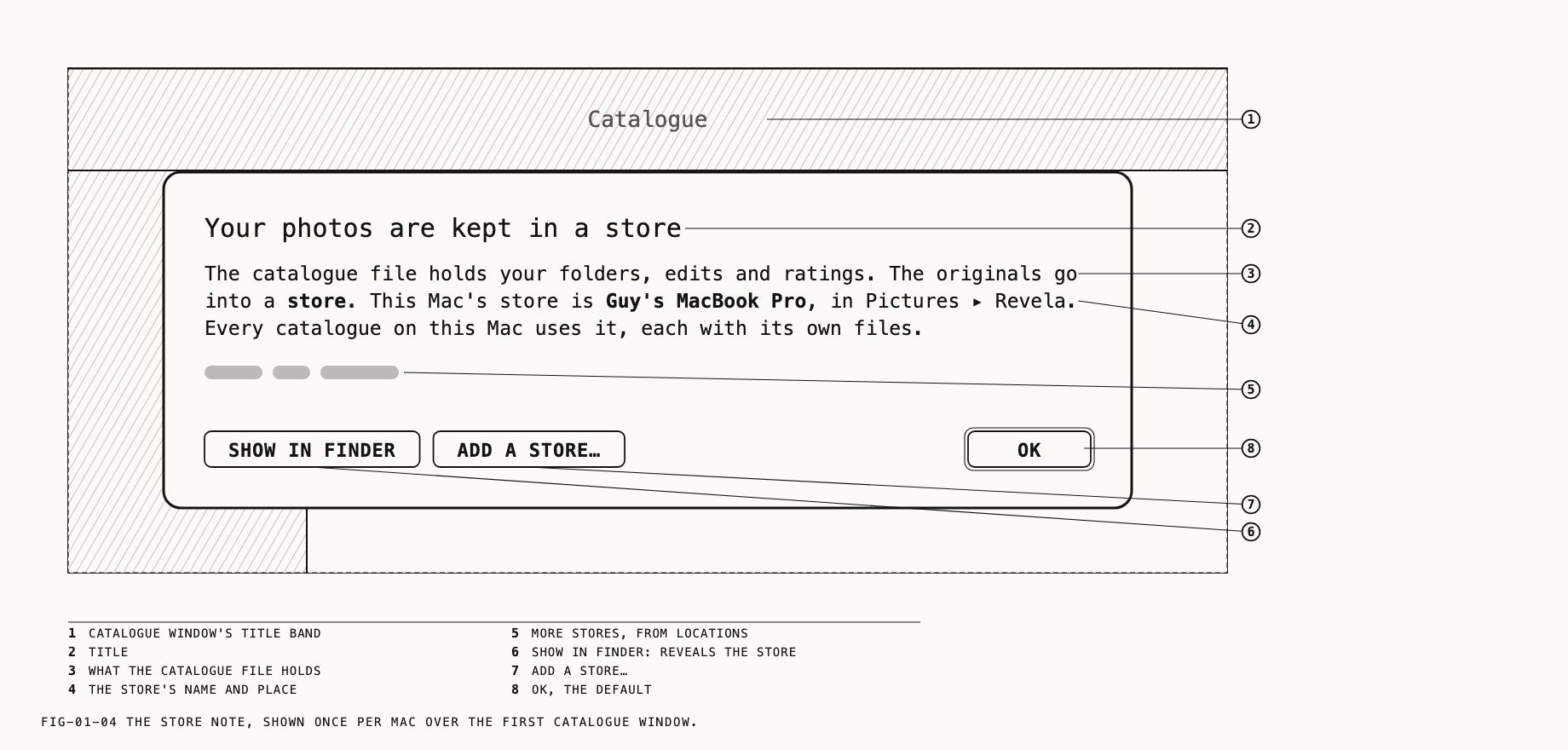
Once per Mac, the first Catalogue window that opens with nothing else up shows a note
titled Your photos are kept in a store. It explains that the catalog file holds
folders, edits and ratings while the originals go into a store, and it names this Mac’s
store and where it is. Every catalog on this Mac uses that store, each with its own
files. A second line says more stores, on a drive or a network share, can be added at
any time from Locations.
Show in Finder reveals the store; Add a Store… closes the note and opens the menu for
adding a store; OK (the default) closes it.
1.9 Creating the First Catalog
Where to find it: File → New (⌘N), or the welcome window’s New Catalogue…
The system save panel opens first, titled New Catalogue, with Untitled in the name
field; folders can be made from it. Cancel creates nothing. Confirming creates the
.revela file on disk and opens its window. Edits are saved as they are made.
Chapter 2 covers the Catalogue window. Chapter 3 covers bringing photos and clips into it.
1.10 Opening an Existing Catalog
Where to find it: File → Open (⌘O); File → Open Recent; a double-click in Finder; a drop on the Dock icon or the welcome window
These alerts may appear when opening a catalog:
| Alert | Meaning | Buttons |
|---|---|---|
"<name>" can't be opened from <service>. | The catalog is inside iCloud Drive, Dropbox, Google Drive or OneDrive, which copies files as they change and can damage a catalog while Revela writes to it. Move it to a folder that is not synced, such as Pictures. | OK |
“<name>” can't be opened | The catalog was made by an earlier version of Revela that this one cannot open. | OK |
“<copy>” is a copy of the catalogue “<catalogue>” | This catalog is already on this Mac. Two copies would claim the same originals, so only the known one opens. | Open <catalogue>, Cancel, Show <catalogue> in Finder |
“<catalogue>” belongs to another Mac | Its originals are in that Mac’s store. To work on its folders here, put them in a repository on that Mac (Chapter 26). | OK |
Revela knows “<catalogue>” as a file on <volume> | The catalog is known on a drive that is not connected. Connect it, or let this file take the known file’s place. | OK, Use This File… |
“<catalogue>” came from another Mac | It arrived with its store. Accepting makes it this Mac’s; the copy on the other Mac should not be used after that. | Use on This Mac, Cancel |
A .revelastore package is not a document. Double-clicked in Finder, it brings its
catalog’s window forward or opens that catalog from the recents; otherwise an alert says
which catalog the originals belong to and that the files inside should not be moved or
renamed.
If a catalog was found damaged when it opened, Revela sets the damaged file aside and restores the most recent good copy it keeps of the catalog. A sheet says so once, gives the date of the copy that was restored, and says what work since then may be lost.
1.11 Later Launches
After the first launch, Revela usually opens without showing the startup screens (section 1.2).
The checkbox in the welcome window’s footer, Show this window when Revela opens,
decides whether it shows. On (the default), the window shows at launch when no catalog
is opening, and again when the last Catalogue window closes. Off, it shows in neither
case; Window → Welcome still opens it, and required startup screens always appear. A
launch that is opening a catalog never shows the welcome window first.
Where to find it: Revela → Account
The Account sheet shows Name (when the account has one) and Email. Done (the
default) closes it. Sign Out closes every catalog as ⌘W does, pausing any running
export, and closes the Settings window. It then deactivates this Mac on the account and shows the sign-in screen. Signing in again opens the welcome window. If Revela requires a new sign-in, the same windows close, but the Mac remains activated.
1.12 Checking for Updates
Where to find it: Revela → Check for Updates
Updates use the standard update flow and its windows. Revela checks for updates on its own, and an update found by a background check may install when Revela quits. Updates are available even when the Mac is signed out or has no license. The menu item works during startup. Each major version has its own updates: a Revela 1 installation is offered Revela 1 updates.
Revela → About Revela shows the version and build and an Acknowledgements button that
lists every third-party component in Revela with its notice.