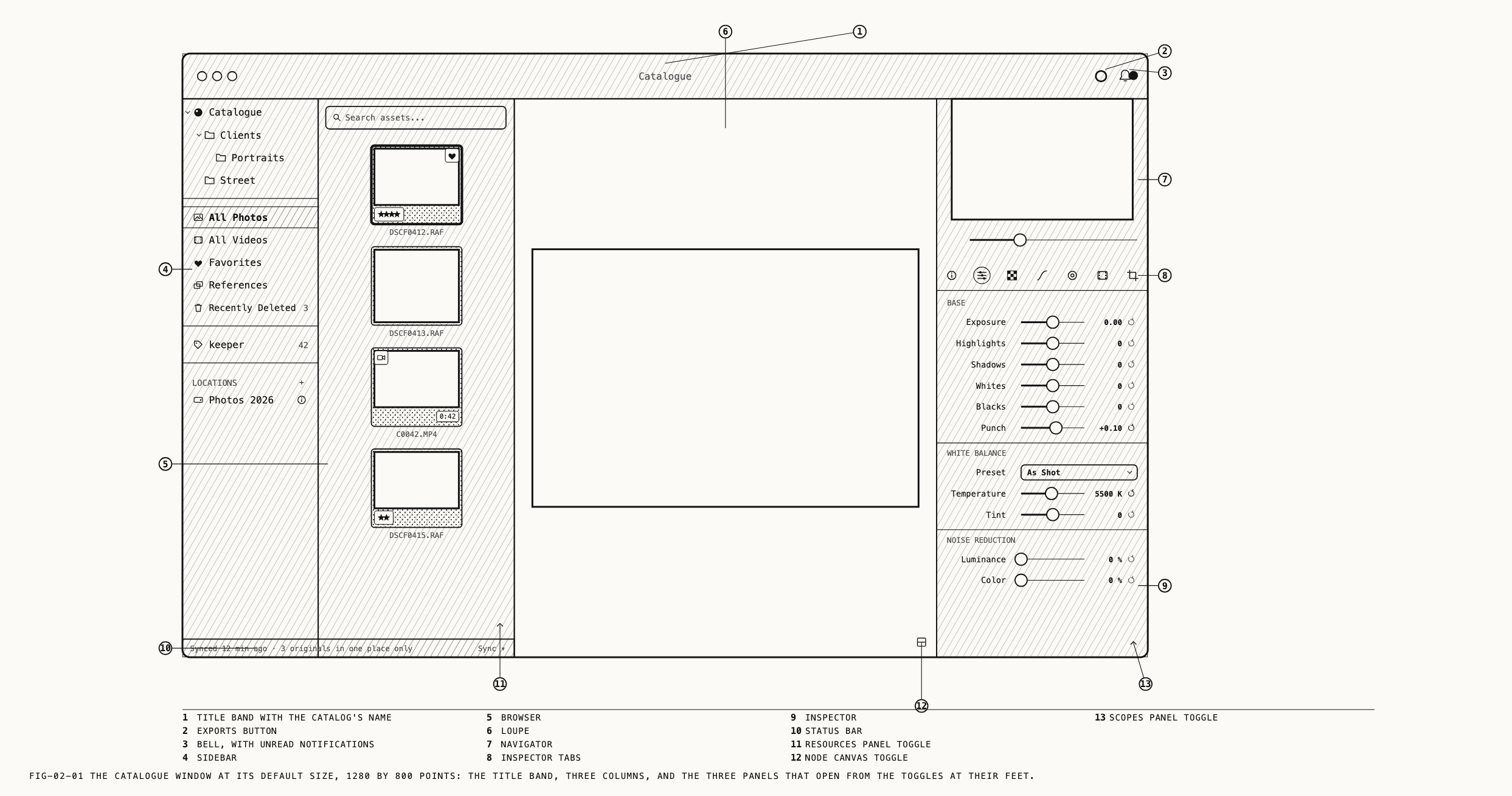
Each catalog opens in a Catalogue window. Its three columns contain the folders, browser, loupe, editing controls and export controls.
Later chapters cover each region. The sidebar is Chapter 4, the browser Chapter 5, the loupe Chapter 7, the node canvas Chapter 11, the inspector’s tabs Chapters 12 onward, the scopes panel Chapter 10 and the resources panel Chapter 17.
2.1 The Title Band
The top of the window is a band that carries the catalog’s name in the middle, the window’s close, minimize and zoom buttons at the left, and two buttons at the right: the exports button and then the bell. Dragging the band moves the window, as a title bar does. The three columns begin under it.
The name in the band is the catalog’s filename without its extension. It is the same name the sidebar shows on its first row.
The exports button
Where to find it: the ring with an arrow, left of the bell in the title band.
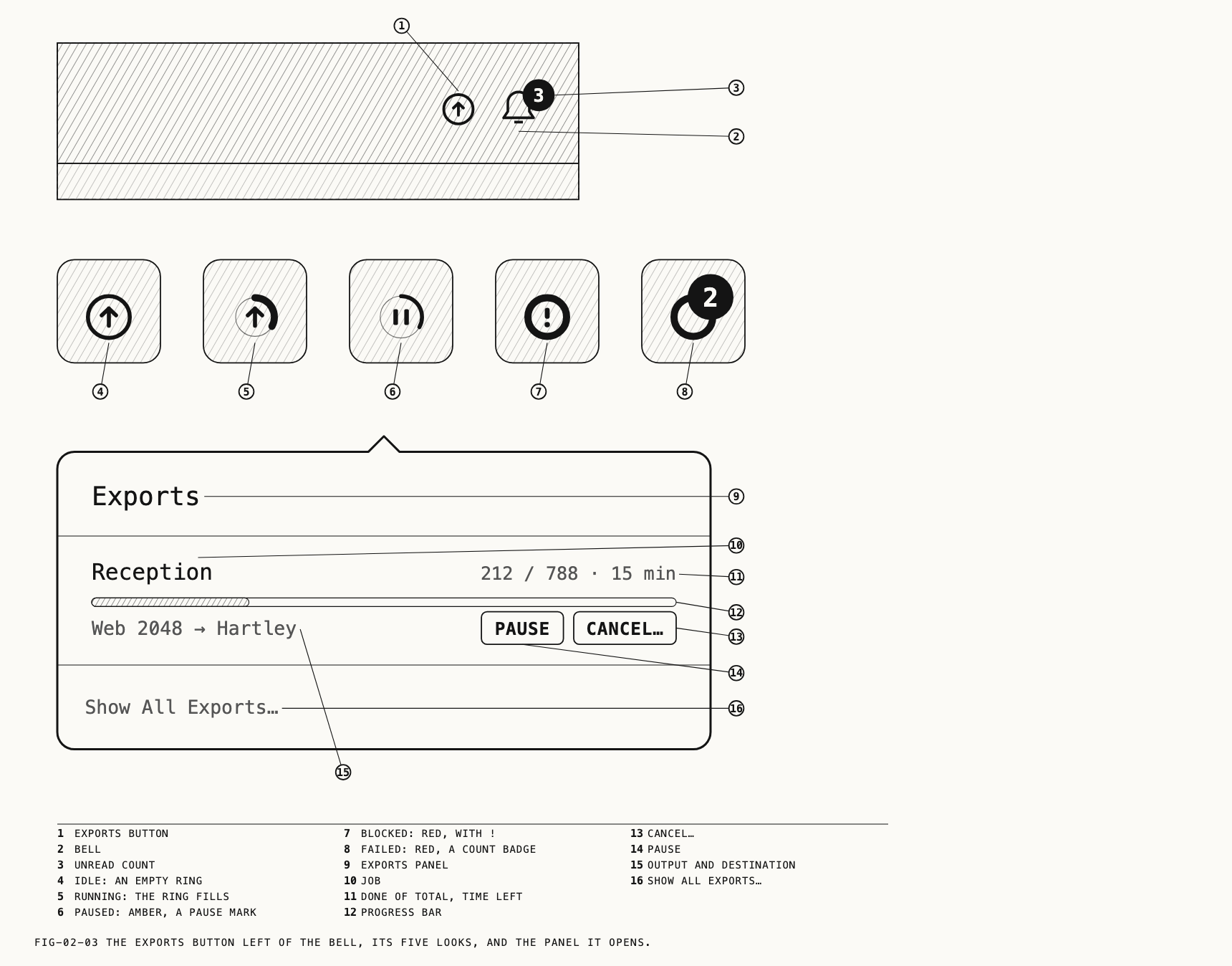
The exports button is always in the band, whether or not anything is exporting. It is a ring, and the ring reports the state of the export queue in five looks:
| Look | What it means |
|---|---|
| An empty ring | Nothing is exporting |
| The ring filling | An export is running; the fill is how far the running job has got |
| Amber, with a pause mark | The queue is paused |
| Red, with an exclamation mark | An export is blocked and needs you |
| Red, with a count badge | Exports have finished with failures; the badge is how many |
The badge counts to three digits and then reads 999+. Hovering the button gives the
same information in words: Exports, how many percent done, Exports, paused,
Exports, needs attention, or Exports, 1 failed and so on.
Clicking the button opens a panel under it headed Exports. The panel lists the jobs in
the queue, with their controls, and ends with Show All Exports…, which opens the Exports
sheet. The same sheet opens from Catalogue → Exports. With nothing in the queue the
panel reads No exports yet. A second click on the button, or a click anywhere else,
closes the panel. Exporting, the queue and the sheet are covered in Chapter 25.
The bell
Where to find it: the right end of the title band, or Catalogue → Notifications
The bell reports changes made from another Mac and scheduled actions, such as erasing photos whose time in Recently Deleted ran out. A red badge on the bell counts the unread items and disappears at zero.
Hovering the bell reads Notifications, or Notifications · 2 unread.
Clicking the bell opens the notification panel. The panel is described in section 2.7.
2.2 The Three Columns
Under the band, two draggable dividers split the window into a left column, a center column and a right column. Each column has a minimum width. The positions you leave the dividers in are remembered across launches.
The sidebar
The sidebar is the left edge of the left column. Its first row is the catalog itself,
named after the file, and your folders and subfolders hang beneath it. Below a divider
sit the built-in rows: All Photos, All Videos, Favorites, then any smart folders
you have saved, then References and Recently Deleted. Below the next divider come
your tags and the four label colors, with no header of their own, and below a last
divider the Locations group under its header. Clicking any row fills the browser with
what that row holds. Folders and
smart folders are covered in Chapter 4, tags in Chapter 5, locations in Chapter 6.
The browser
The browser is the grid of thumbnails beside the sidebar, filling the rest of the left column. A search field sits above the grid. Each cell shows a thumbnail with its rating, flag and favorite marks, and a label as a wash of its color behind the thumbnail; a clip also shows its duration. Clicking a cell opens that asset in the loupe. The grid’s selection is what the Catalogue menu’s commands act on. Thumbnail size, sorting and filtering are on the View menu. Culling and finding are covered in Chapter 5.
A strip under the search field shows the active search or filter, with Clear at its end (Chapter 5). The status bar sits at the foot of the column (section 2.4).
The loupe
The loupe is the center column: the picture, at whatever zoom you have set, with the transport under it when the asset is a clip. Viewing, playing and editing all happen on this one picture; there is no separate edit view to enter and leave. The loupe is covered in Chapter 7, playback in Chapter 9 and comparing against a reference in Chapter 8.
The inspector
The inspector is the right column. At its top is a small navigator showing the whole
picture with a rectangle for the part the loupe is showing; dragging in it moves the
loupe. Under the navigator is a row of tabs, drawn as icons, and under the tabs the
selected tab’s controls. The tabs change with the selected node. An input node for a raw still offers Info, Develop, Calibration, Curves, Colour, Film Emulation and Transform. An adjustment node replaces Develop and Calibration with Mix. An output node offers Info and Output. Info is always present.
With no asset or reference open the inspector has nothing to show, and the whole column
hides until there is.
The inspector’s width can be dragged between a minimum and a maximum. Each tab is covered in the chapter for its subject, from Chapter 12 onward; the Info tab is in Chapter 5.
Hiding a column
Where to find it: View → Hide Sidebar (⌥⌘S), View → Hide Inspector (⌥⌘I)
The left and right columns can be hidden to give the loupe the width. View → Hide Sidebar hides the whole left column, browser and status bar included, and the item
reads Show Sidebar until you bring it back. View → Hide Inspector does the same for
the right column; the item is disabled while the inspector has nothing to show anyway.
Both choices last for the session, and a hidden column comes back at the width it had.
2.3 The Three Panels
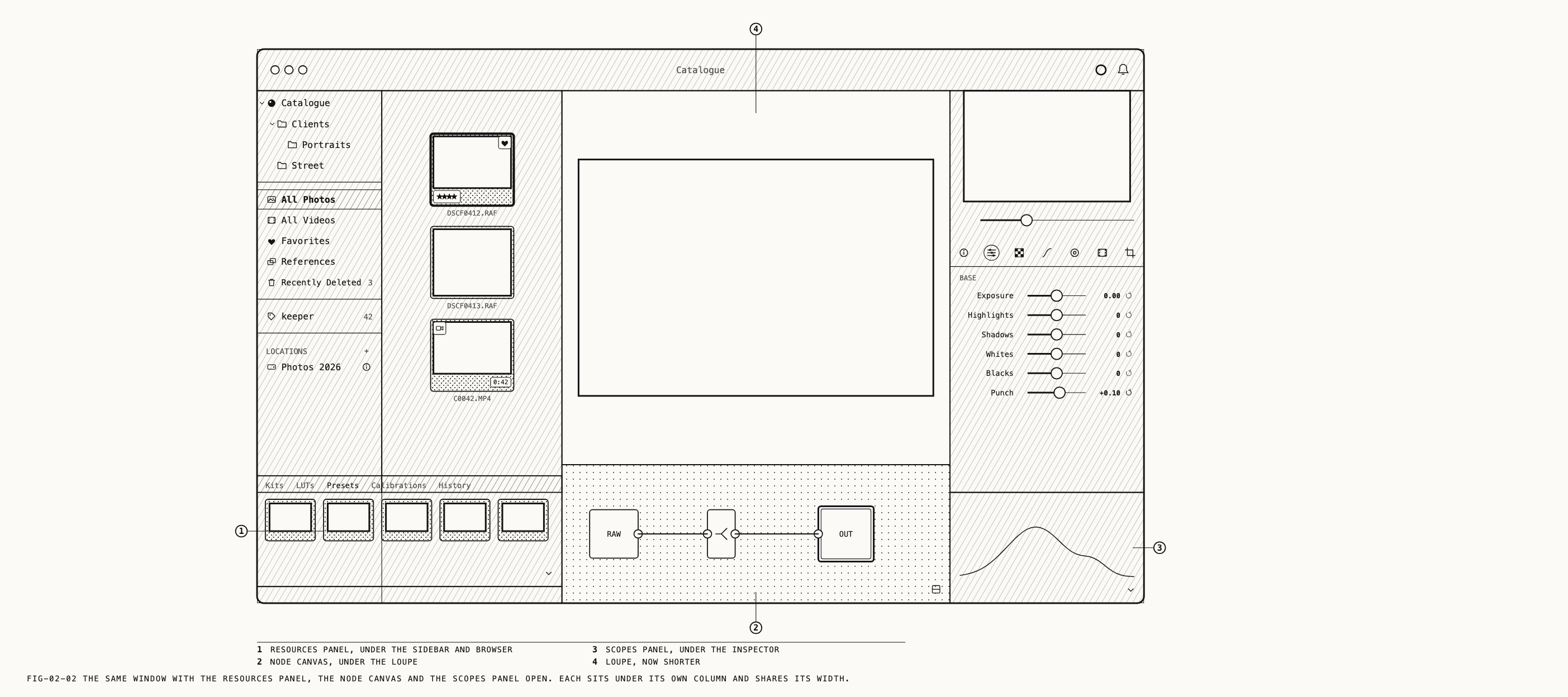
Three panels open from the bottom of the window, one under each column, and each is
closed when a catalog is first opened. A small button at the bottom-right corner of its
column opens and closes each one: a chevron for the resources and scopes panels, pointing
up while the panel is closed and down while it is open, and a split-square button for the
node canvas. The same three panels have items on the View menu, which read
Show or Hide to match their state.
| Panel | Opens under | Button | Menu item |
|---|---|---|---|
| The resources panel | The sidebar and browser, sharing the left column’s full width | Bottom-right corner of the browser, above the status bar | View → Show Resources (⌥⌘L) |
| The node canvas | The loupe | Bottom-right corner of the loupe | View → Show Node Canvas (⌥⌘N) |
| The scopes panel | The inspector | Bottom-right corner of the inspector | View → Show Scopes (⌥⌘W) |
Each panel has a minimum height and can be made taller by dragging the divider above it. The resources and scopes panels can also be closed by dragging that divider down to the foot of the column, and opened again by dragging it up. The resources panel and the scopes panel remember whether they were open across launches; the node canvas restores the state it was left in.
The resources panel holds five tabs: kits, LUTs, presets, calibrations and a history
of your edits. View → Resources ▸ lists the same five as Kits, LUTs, Presets,
Calibrations and History, with the active one checked, and choosing one opens the
panel if it is closed. The panel is covered in Chapter 17.
The node canvas shows the editing graph (Chapter 11). While the loupe shows a reference rather than an asset, the
canvas is closed, its split-square button is disabled, and View → Show Node Canvas is
disabled with it. The canvas returns to the state it was in when you go back to an
asset. References are covered in Chapter 8.
The scopes panel holds the histogram, waveform and parade, and is covered in Chapter 10.
2.4 The Status Bar
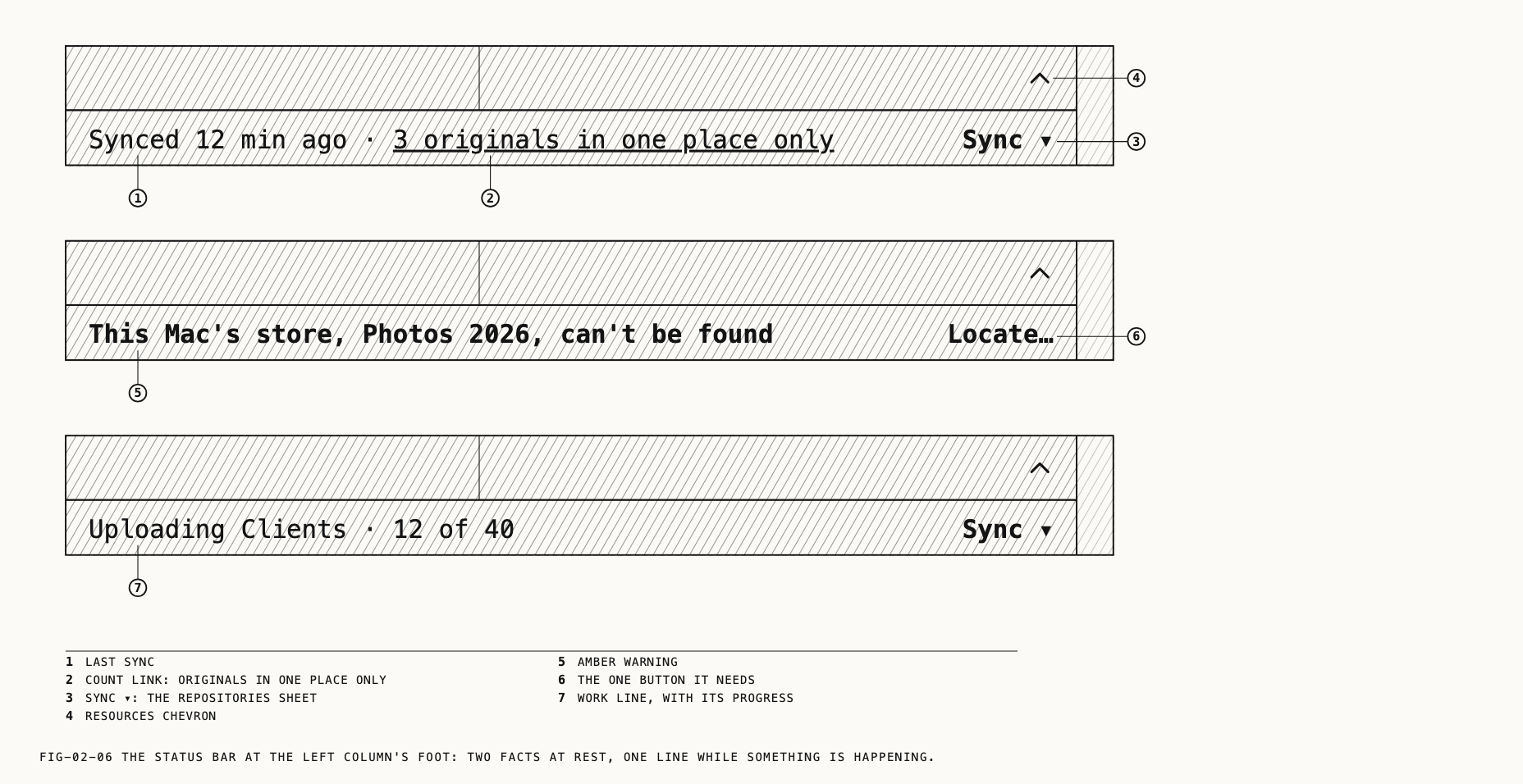
Where to find it: the single line at the foot of the left column, under both the sidebar and the browser.
The status bar shows current activity and warnings. When idle, it shows
when this catalog last synced, or No repository if it has never been joined to one,
and how many originals are in one place only. The count is a link, and clicking it shows
those photos in the browser. At the right end Sync ▾ opens the Repositories sheet. An
empty catalog shows No photos yet on its own.
While something is happening, one activity line takes the place of the two facts for as
long as it lasts: an upload or download with its progress, a copy you can Cancel, a
paused or offline repository, or a warning. Warnings are the only lines drawn in amber,
and each carries the one button it needs at the right end, such as Locate… for a store
that cannot be found or Resolve… for an edit conflict. Lines are ranked, so a warning
is never hidden behind a progress line, and no line waits for a click: it goes away when
what it reports stops being true.
Results of your own actions and news from other Macs never appear in the bar; they go to a toast or to the bell. The sync lines are listed in Chapter 27, the store warnings in Chapter 6.
2.5 Window Size and Full Screen
Where to find it: View → Enter Full Screen (Globe-F)
A Catalogue window can be resized, minimized and zoomed in the usual ways. Its minimum size keeps the controls visible. It reopens with the columns where you left them.
In full screen the title band becomes the top of the screen, with the name, the exports
button and the bell in place; there are no window buttons to show. The menu item reads
Exit Full Screen while you are in it. On macOS 26 the system supplies the item and
its own shortcut (Globe-F) in place of ⌃⌘F, so the View menu shows one full-screen item
with the system’s key.
2.6 The Menu Bar
The menu bar has seven menus. Every item, its shortcut and the chapter that explains it are listed in Chapter 28. This section says only what each menu is for.
Revela holds the app’s own items: About Revela, Check for Updates, Settings
(⌘,), Account, the system’s Services, Hide and Show items, and Quit Revela (⌘Q).
Quitting with exports running asks first.
File opens and closes catalogs and brings files in: New (⌘N), Open (⌘O),
Open Recent ▸, Close (⌘W), Import (⇧⌘I), the two look exports Export LUT and
Export Verana Profile, and Catalogue Info.
Edit holds Undo, Redo, the system’s text editing and selection, then the
editing graph’s commands: copying and pasting a grade, applying a preset, Reset All Edits, Find, and the node commands for inserting, branching, adding mixers and outputs
and disabling a node. Delete and Undo are retitled by what has focus, so the item
always says what it will act on. The graph commands are Chapter 11.
Catalogue acts on the selection and on the catalog as a whole: moving through the
grid, tagging, rating, flagging and labeling, favorites, folders, references, revealing
and exporting originals, proxies, calibration, and then the catalog’s own sheets:
Repositories, Sync Log, Notifications, Exports, Locations, Verify Catalogue and Adopt an Existing Folder.
View controls the loupe and the window: zoom, Before / After, the reference
split, sorting, filtering and thumbnail size for the grid, the five show-and-hide items
for the sidebar, node canvas, resources, scopes and inspector, Resources ▸, and
Enter Full Screen.
Window holds the system’s Minimize (⌘M), Zoom and Bring All to Front, then
Welcome, which shows the welcome window and its recent catalogs at any time, and the
list of open windows.
Help holds Revela Licence Agreement, which opens the agreement you accepted for
reading, and the system’s search field.
Several bare keys printed beside Catalogue and View items (0 to 5 for rating, P,
X and U for flags, 6 to 9 for labels, \ for before and after, among others)
work when the window is active, except while typing in a text field. Chapter 28 lists every bare key and when it works.
2.7 Notifications and Toasts
The status bar (section 2.4) shows current activity and warnings. The bell reports changes from other Macs and scheduled actions. A toast reports the result of your own action.
The notification panel
Where to find it: the bell in the title band, or Catalogue → Notifications
The panel drops from the bell. It is headed Notifications, with Mark all as read at
the right of the header and a filter under it, All or Unread. It opens on All every
time. Items are grouped under New while unread and under Earlier once read, newest
first. The foot carries Clear all and Sync Log, a link to the Sync Log sheet. With
nothing to show the panel reads You’re all caught up and Nothing has happened since you last looked.
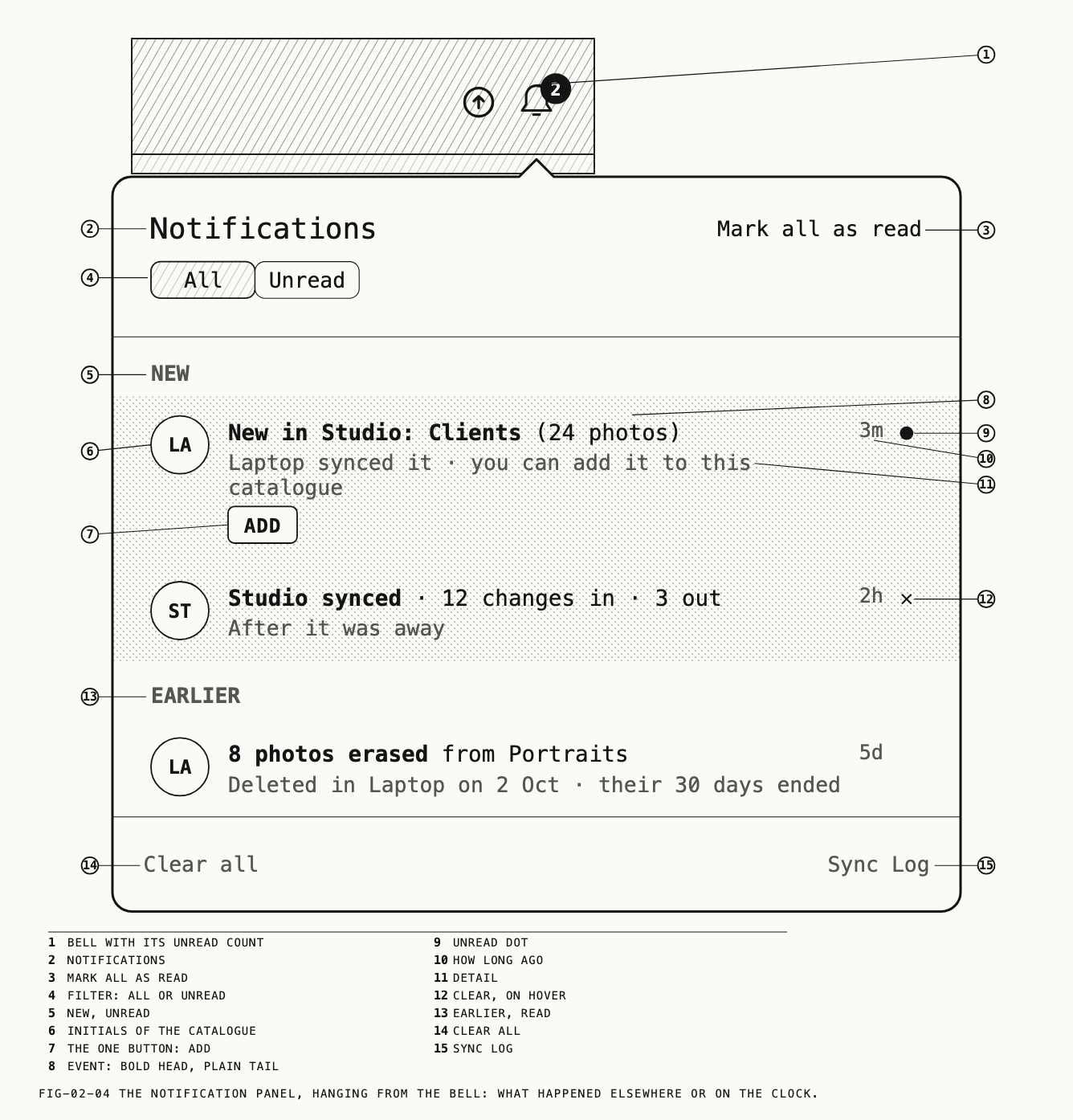
Each item shows a circle at the left with the two initials of the catalog that acted
(or a symbol when the clock or the app itself did), the event in bold with a plain tail,
a line of detail, and how long ago (just now, 3m, 2h, 5d, then a date). A dot
marks an item unread. Where there is something to do about it, one button sits on the
item: Add for a new folder in a repository, Show for a folder or repository deleted
elsewhere, Connect for a restored repository, Show in Finder for files a deleted
repository left behind. Pressing the button closes the panel and opens the screen that
already exists for the job; afterwards the button reads Added, Shown or Connected.
Hovering an item shows an × that clears it.
Items the panel showed are marked read when it closes, and the badge on the bell drops to match. Clicking outside the panel closes it. What each kind of notification means and what to do about it is covered in Chapter 27.
Toasts
A toast is a brief message over the loupe. It does not move or block the controls beneath it. Several toasts in quick succession stack.
Some toasts have a button and stay longer to allow time to use it. The
toast after a single export reads Exported <file> with Show in Finder; the toast after
a delete offers Undo with its key. The toasts each operation produces are described in
that operation’s chapter.
2.8 The Settings Window
Where to find it: Revela → Settings (⌘,)
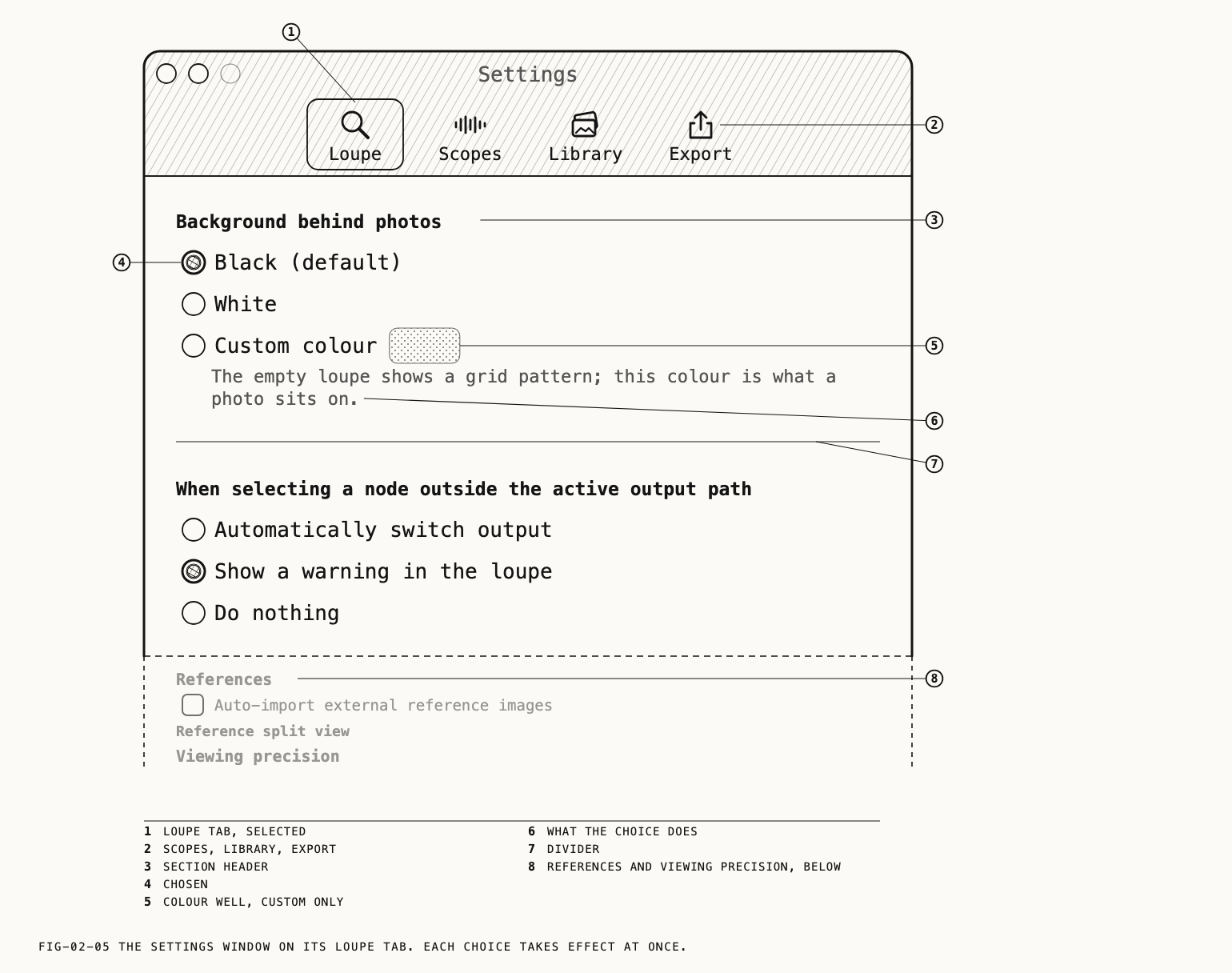
The Settings window has four tabs under its title, each an icon over its label: Loupe,
Scopes, Library and Export. It opens on Loupe and remembers where you put it.
Every control takes effect the moment you change it; there is no Save. The settings are
yours, not the catalog’s: they apply to every catalog you open on this Mac.
Loupe
The tab has four sections.
Background behind photos sets what a photo sits on in the loupe: Black (default),
White, or Custom colour with a color well that is enabled only for that choice. The
empty loupe shows a grid pattern whatever the choice.
When selecting a node outside the active output path decides what happens when you
select a node that the current output does not use: Automatically switch output,
Show a warning in the loupe (the default), or Do nothing. Chapter 11 explains
outputs and paths.
References holds a checkbox and a choice. The checkbox,
Auto-import external reference images, is off by default. On, an image you drop as a
reference is saved into the catalog and listed under References in the sidebar; off,
dropped references last only for the session.
The choice, Reference split view, sets how the two halves of a reference split follow
each other. Match screen (the default) fits each image into its half on its own and
locks pan and zoom by screen distance. Match image fraction fills each half and keeps
the same fraction of the image visible on both sides, which suits matching grades on
similarly framed shots. The same choice is on the View menu as Lock Reference Zoom
(⇧L), checked while Match image fraction is chosen. Chapter 8 covers references.
Viewing precision is Full precision (default) or Save memory. Saving memory lets
the loupe use less graphics memory on the largest files, for a Mac with less memory. The
difference cannot be seen on screen, and exports are not affected.
Scopes
Histogram display mode is Overlay, blending the three channels in one view, or
Stacked, giving each channel its own strip. Waveform display mode is Luminance, a
single brightness trace, or RGB, the three channels overlaid. Reading the scopes is
Chapter 10.
Library
One control: Keep deleted photos for: with a pop-up of 7 days, 14 days, 30 days
(the default), 60 days, 90 days or Until I empty it. Deleted photos, videos and
references stay in Recently Deleted with their files untouched until that time passes, or
until you choose Delete Now or Empty. Folders in a repository always keep deleted photos
for 30 days, on every Mac, whatever this setting says. Recently Deleted is covered in
Chapter 6.
Export
Two text fields, Copyright and Creator, both empty until you fill them. Both are
written into exported files. The Output tab’s choice to keep copyright only in a file’s
metadata stays grayed until Copyright here has a value. Metadata on export is Chapter
24.