Import copies or moves originals into a store and checks them before adding them to the catalog. Adoption takes over an existing folder in place without copying its files.
Revela imports raw stills and video only. JPEG, HEIC, TIFF and PNG images are not imported; the import sheet counts them as files to be skipped, and an adoption sets them aside unchanged.
3.1 Ways to Start an Import
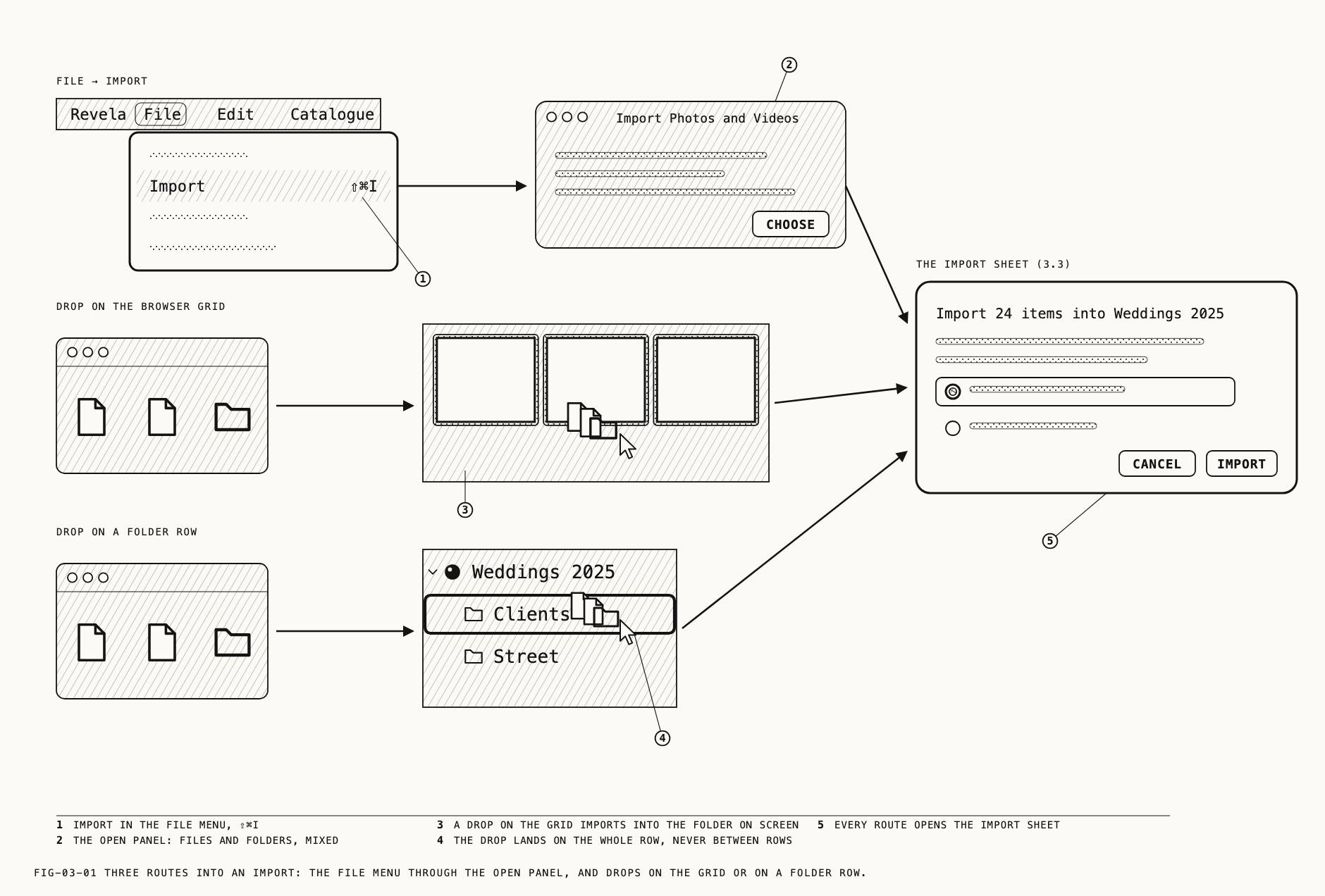
Where to find it: File → Import (⇧⌘I)
The menu item opens a panel titled Import Photos and Videos with the message Choose files or folders. Folders are searched, subfolders included. and the button Choose.
Files and folders may be mixed in one selection. A folder is searched to any depth. A
package (a catalog, an application) is never offered as a folder.
An empty catalog offers the same panel from the browser: the button
Import Photos and Videos… sits under the prompt No photos or videos yet, with the hint
or drag RAW or video files here.
Dragging files or folders from the Finder onto the grid starts an import into the folder on
screen. When the grid is showing the catalog itself, All Photos, All Videos,
Favorites, a smart folder, a tag, a store or a repository, the import goes to the top
level and the sheet’s folder pop-up reads Catalogue (no folder). The grid of References
and the grid of Recently Deleted take no drop.
Dragging onto the sidebar works the same way: drop onto a folder row to import into that folder, or onto the catalog’s own row to import to the top level. The drop lands on the row itself, never between rows. Only files Revela imports, and folders, count as a drop; a drag made only of other files is refused.
Whichever route is used, the files are scanned and the import sheet opens (section 3.3). One import runs at a time; starting a second while one is in progress only beeps.
A folder that is in Recently Deleted takes no import. The attempt is answered with an
alert titled <folder> takes no photos now, which says when the folder will be erased and
asks you to restore it first or choose another. Restoring folders is covered in Chapter 6.
3.2 What Revela Imports
Revela accepts the following file extensions.
| Kind | Formats |
|---|---|
| Raw stills | Canon .cr2 and .cr3, Sony .arw, Nikon .nef, Panasonic .rw2, Olympus .orf, Fujifilm .raf, Hasselblad .3fr, DNG .dng, PearlaRAW .praw |
| Movies | .mov, .mp4, .m4v |
| Raw video | PearlaRAW .prawv, Apple ProRes RAW (a .mov carrying ProRes RAW or ProRes RAW HQ), Blackmagic RAW .braw, Nikon N-RAW .nev |
Everything else is left out. JPEG, HEIC, HEIF, TIFF and PNG images are not assets.
REDCODE RAW (.r3d) and X-OCN are not accepted. A file of any other kind is
reported on the sheet as 1 other file is not a photo or video Revela imports and will be skipped. (or the plural), and listed again in the summary.
Hidden files and packages inside a chosen folder are skipped. Nothing that is already inside the catalog or inside one of its stores is ever offered for import, so a folder that contains the catalog can be chosen without importing the catalog’s own originals twice.
Note: ProRes RAW clips use the .mov extension and have raw development controls. Developing raw clips is covered in Chapter 12.
3.3 The Import Sheet
Where to find it: the sheet that opens after File → Import, or after a drop
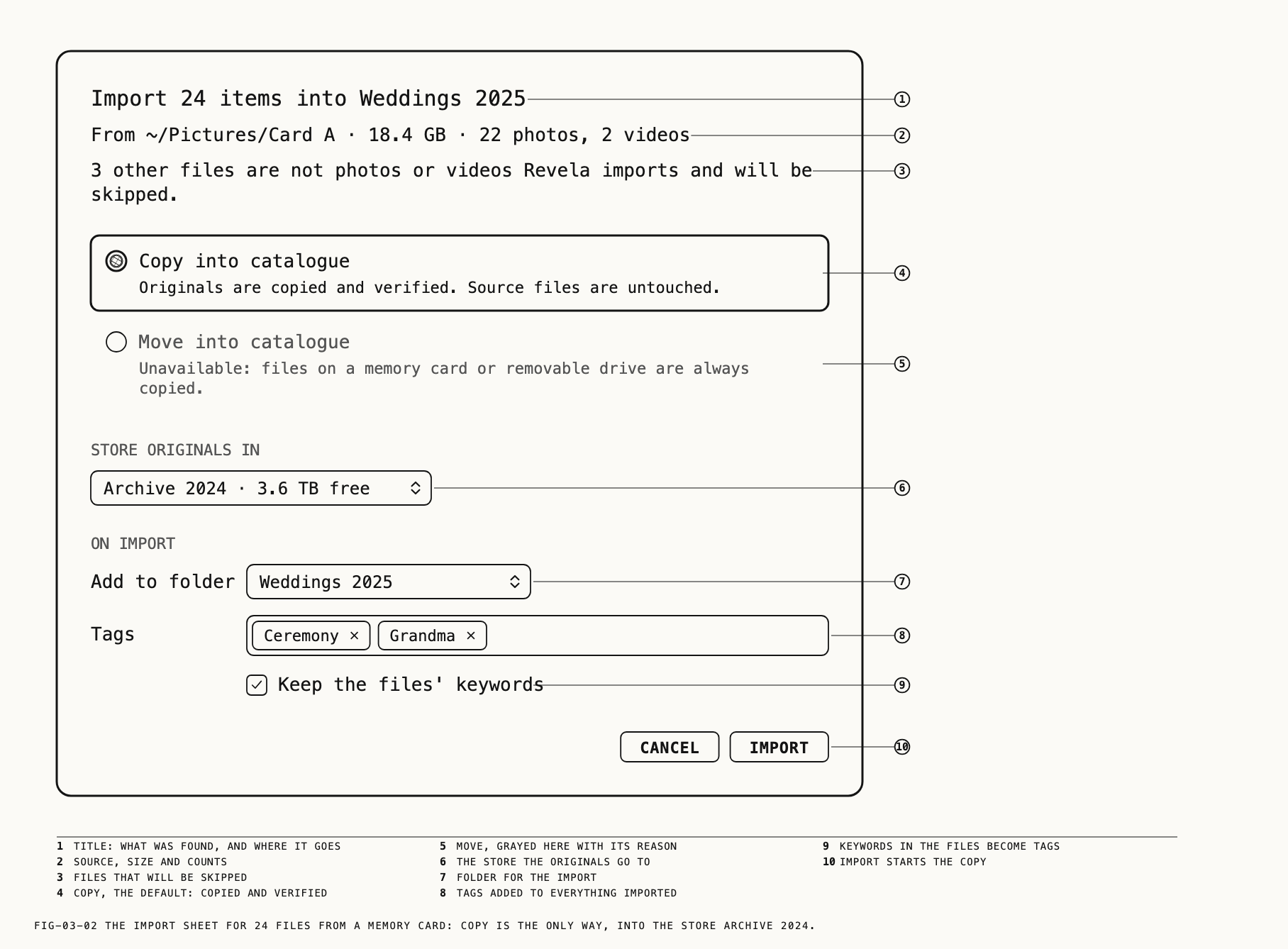
The sheet’s title states what was found and where it will go: Import 24 items into <catalogue>, with 1 photo, 3 videos or items depending on what was found. When
nothing importable was found the title is Nothing to import and Import stays disabled.
The line under the title shows where the files are, their total size and the number of photos and videos: From ~/Pictures/Card A · 18.4 GB · 22 photos, 2 videos. Several items chosen from one folder read 3 items in <parent>; items from several places read 3 locations. Files that will be skipped are
counted on a third line.
The two choices at the top decide what happens to the files.
| Choice | Detail shown |
|---|---|
Copy into catalogue | Originals are copied and verified. Source files are untouched. |
Move into catalogue | Files are moved, never duplicated. Same drive only; unavailable from cards. |
Copy is the default. Move is offered only when every file is on the same drive as the
catalog, no file is on a memory card or an ejectable drive, and Store originals in is set
to this Mac’s store. Otherwise the row is grayed and its detail gives the reason:
Unavailable: files on a memory card or removable drive are always copied.,
Unavailable: the files are not on the same drive as the catalogue., or
Unavailable: there is nothing to import. Choosing a store on another drive while Move is
selected switches the sheet back to Copy.
Store originals in chooses the store the originals go to. A store is a place where
originals live, and a catalog may use several; stores are covered in Chapter 6. The pop-up
lists each store with its free space, as Archive 2024 · 3.6 TB free. With one store there
is no pop-up, only the store’s name. When a copy will not fit, the line Not enough space: this import needs 18.4 GB and the catalogue's drive has 2.1 GB free. appears in red and
Import is disabled until the store is changed or files are removed from the selection.
Under On import, Add to folder is a pop-up of Catalogue (no folder) followed by the
folder tree, indented as in the sidebar. It is preset to the folder the import was dropped
on or shown in. Tags is a chip field; any tag entered here is added to everything
imported, and a word that is not already a tag becomes one. The checkbox
Keep the files' keywords is on unless it was turned off on an earlier import; while it is
on, keywords already written in the files become tags in the catalog. Tags are covered in
Chapter 5.
Cancel closes the sheet. Import starts the copy or move.
3.4 Progress and Verification
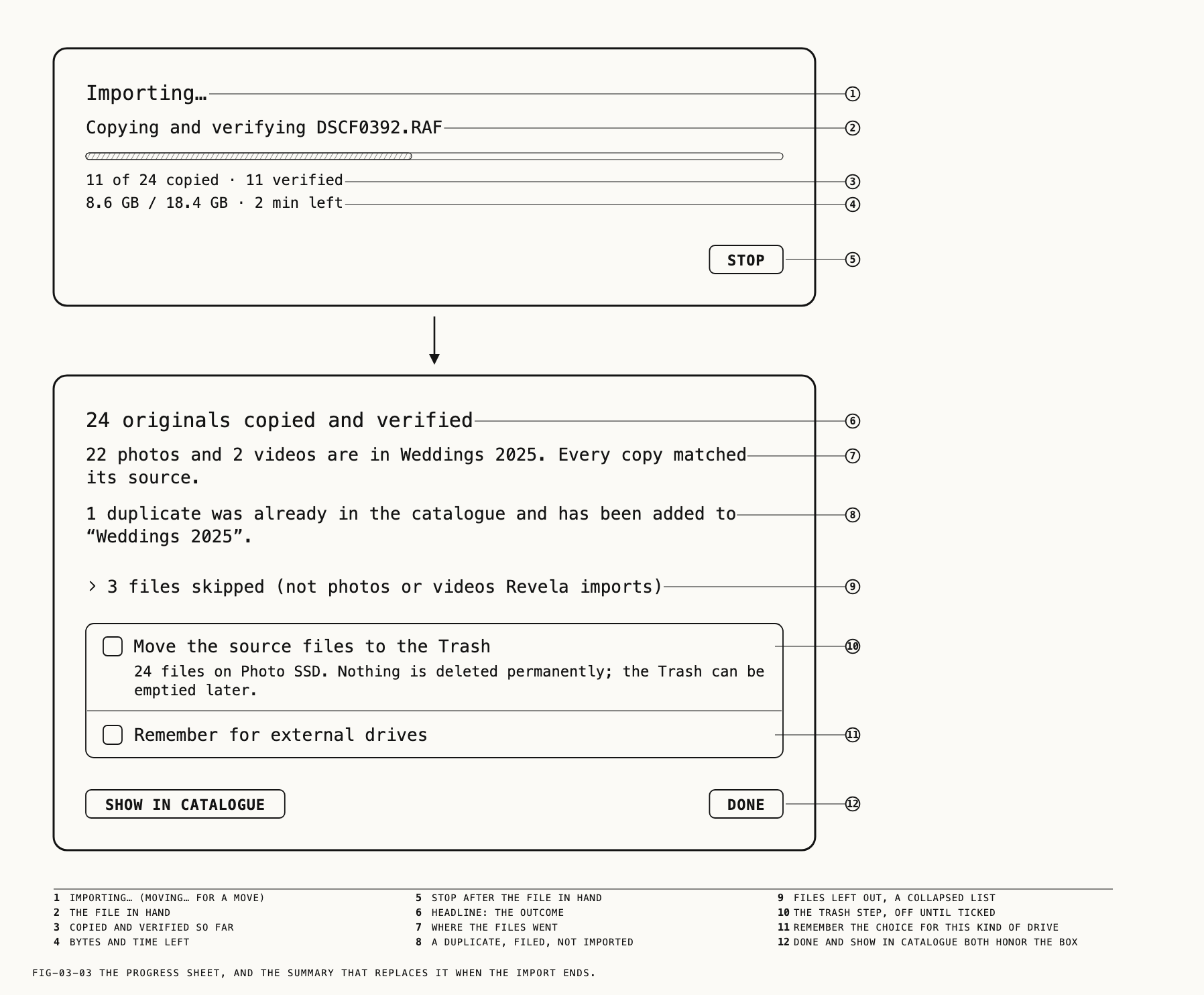
The progress sheet is titled Importing… (Moving… for a move). It names the file in
hand, Copying and verifying DSCF0392.RAF (Checking and moving … for a move), and keeps
two counts: 11 of 24 copied · 11 verified and 8.6 GB / 18.4 GB · 2 min left.
Every copy is checked against its source before it counts as imported. A copy whose
contents do not match is removed and reported in the summary with the reason
Verification failed: the copy's contents did not match the source. The copy was removed.
A file that changes while it is being read is not imported either: The file changed while it was being imported. It was left where it was. A move is checked in the same way, in
place, and a file that cannot be moved is copied and verified instead.
Stop ends the import after the file in hand. The line reads Stopping… until it does.
Files reached before the stop are in the catalog and verified; files not reached are not in
the catalog at all, and the summary says so.
3.5 The Summary
The summary sheet opens when the import ends. Its headline states the outcome:
24 originals copied and verified, … moved and verified, … imported and verified when
some were moved and some copied, Import stopped: 11 originals copied and verified,
Nothing new to import when every file was already in the catalog, or Nothing was imported.
The summary also reports the following outcomes when they apply:
22 photos and 2 videos are in <folder>. Every copy matched its source.For a move:They were moved, not copied, and checked in place.1 duplicate was already in the catalogue and has been added to “<folder>”.3 were in Recently Deleted and have been restored to <folder>.2 were already in the catalogue and were not imported again.1 file could not be moved, so it was copied and verified instead. Its source is untouched.5 files were not imported because the import was stopped. Nothing of them is in the catalogue.
Two lists may follow. N files could not be imported names each file with its reason in
plain words and a Reveal in Finder button. N files skipped (not photos or videos Revela imports) names the files the import left out.
Show in Catalogue closes the sheet, selects the folder the files went to and selects the
new arrivals in the grid. Done closes the sheet.
Duplicates
Revela does not import a duplicate, even if the copy has a different name. If the import was aimed at a folder the existing asset is not in,
the asset is added to that folder. If it was aimed at the top level, nothing changes. A
match that is sitting in Recently Deleted is restored into the folder the import was
aimed at. The summary reports each outcome.
The Trash step
When every file has been verified and source files remain, the summary offers
☐ Move the source files to the Trash, with 24 files on <drive>. Nothing is deleted permanently; the Trash can be emptied later. This option is unavailable for files on a memory card or an ejectable drive. Files on cards are always left where they are.
A second checkbox remembers the choice for the kind of place the files came from:
Remember for folders on this Mac, Remember for external drives or
Remember for network drives. It appears when every file came from one kind of place.
Remembering does not move anything on its own. On the next import from the same kind of
place the Trash box opens ticked or unticked as it was left, and the files go to the Trash
only when the summary is closed with the box ticked.
Both Done and Show in Catalogue honor the box. If any file cannot be put in the Trash,
an alert reports N source files could not be moved to the Trash with the detail
The files are still where they were. Nothing was deleted. and names the files.
After the import
The new assets appear in the folder chosen on the sheet, or at the top level. The foot of the browser shows Indexing 48 of 612 for search… while the new assets become available to search. Other controls remain available. Searching is covered in Chapter 5.
3.6 Adopting a Folder in Place
Where to find it: Catalogue → Adopt an Existing Folder; also the Locations sheet,
Add Location → Adopt an Existing Folder
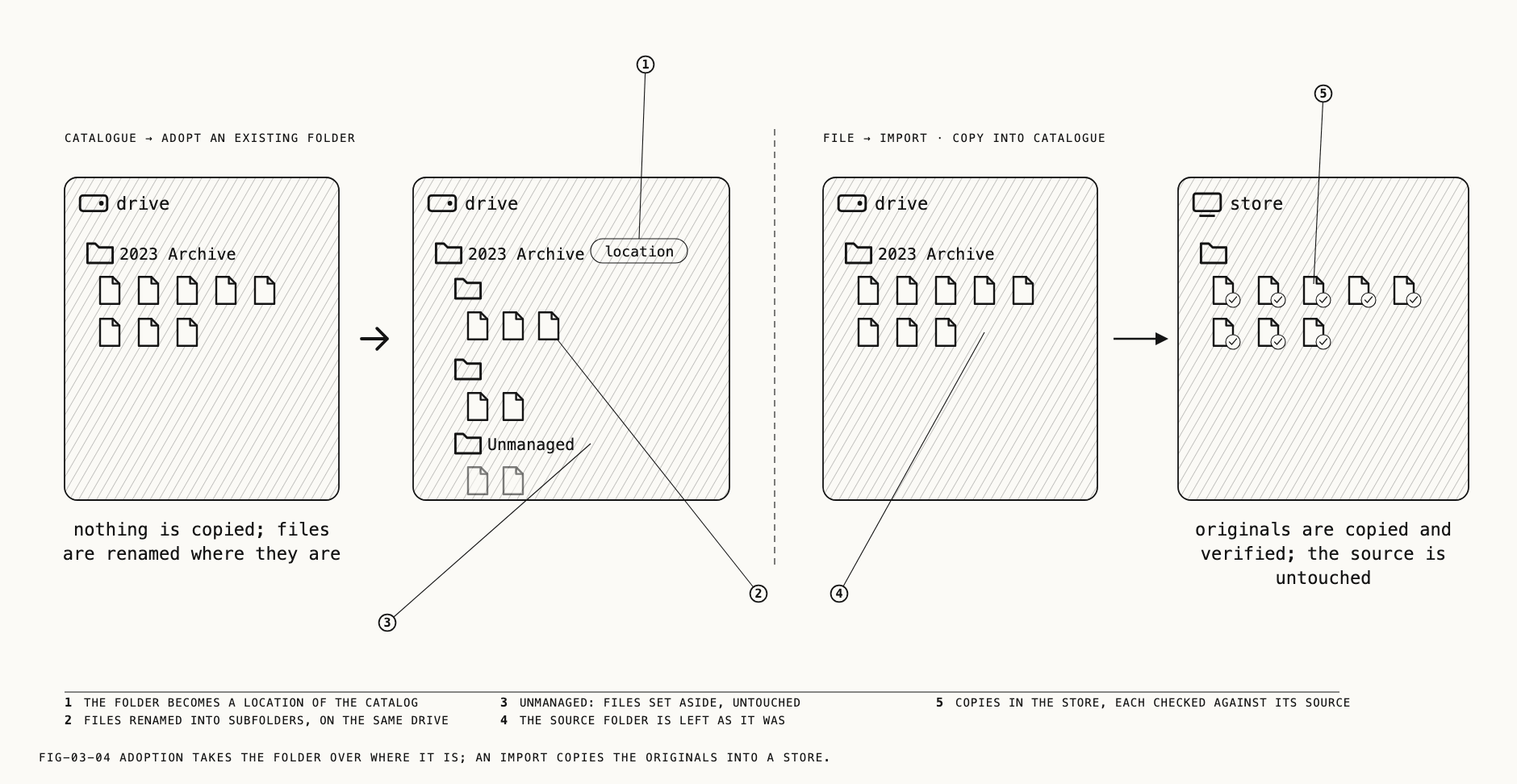
Adoption is for an archive that already lives on a drive and should stay there. Nothing is copied. Revela takes over the folder where it is, renames its files into the app’s own layout, and the folder becomes a location of the catalog. The adoption sheet also offers to copy the folder into a store.
The menu item is disabled while an import, a move, a proxy generation or a Verify Catalogue pass is running. Chosen then, it says why, as A folder cannot be adopted while an import is running.
The open panel reads Choose a folder of photos and videos to adopt. Revela takes over the folder in place: nothing is copied, the files are renamed into Revela's layout, and the folder becomes a Revela location. with the button Adopt This Folder.
Some folders cannot be adopted. Each refusal is an alert titled "<folder>" cannot be adopted with one plain reason.
| Folder | Reason given |
|---|---|
| Not a folder | Choose a folder. |
| Inside a cloud-synced location | The alert names the sync service and asks for the folder to be moved to a folder that is not synced first. |
| A whole drive | A whole drive cannot be adopted. Choose a folder on it. |
| Your home folder | Your home folder cannot be adopted. Choose a folder inside it. |
| A system folder such as Pictures | <Pictures> itself cannot be adopted. Choose a folder inside it. |
| Inside a catalog or store | It is inside "<package>", which Revela already manages. |
| Containing a catalog or store | It contains "<package>", which Revela already manages. Move that out first. |
| On a read-only drive | It is on a read-only drive, or cannot be written to. Adoption renames files, so the folder must be writable. |
| Holding locked files | "<file>" is locked. Unlock it in Finder (Get Info) first. |
| Being read by an import | An import is reading it right now. Let the import finish first. |
The adoption sheet
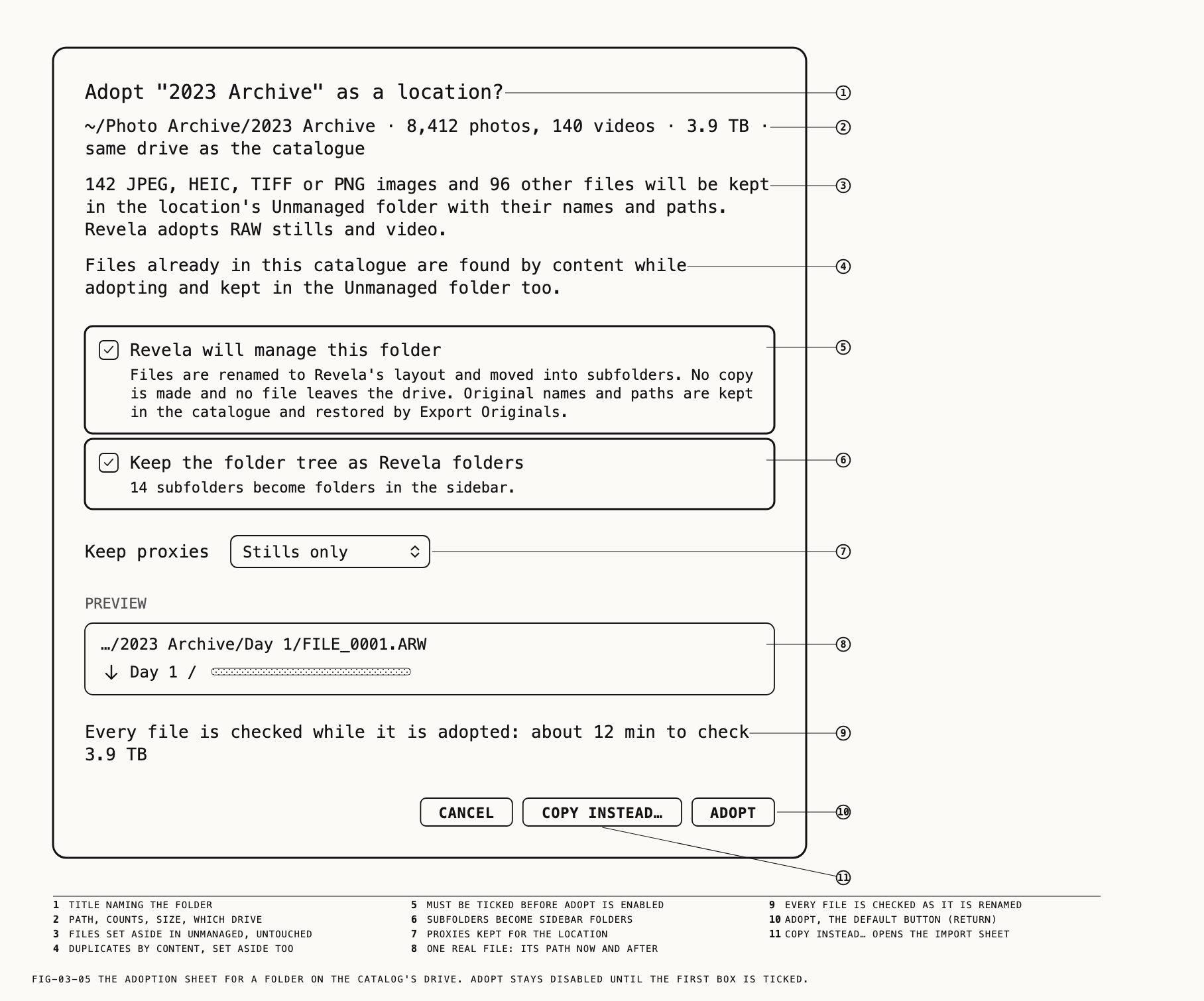
The sheet is titled Adopt "<folder>" as a location?. Under it, one line gives the facts:
the folder’s path, 8,412 photos, 140 videos, the size, and same drive as the catalogue
or another drive. A folder with nothing to adopt reads This folder holds no photos or videos Revela can adopt (RAW stills and video).
Files Revela does not import are moved to the Unmanaged folder with their names and paths preserved. The sheet says so in
advance: 142 JPEG, HEIC, TIFF or PNG images and 96 other files will be kept in the location's Unmanaged folder with their names and paths. Revela adopts RAW stills and video. Aliases are counted in the same line. A second line adds Files already in this catalogue are found by content while adopting and kept in the Unmanaged folder too., so a
duplicate by contents is never adopted twice.
Review these controls before adopting the folder:
- ☐
Revela will manage this folder, with the detailFiles are renamed to Revela's layout and moved into subfolders. No copy is made and no file leaves the drive. Original names and paths are kept in the catalogue and restored by Export Originals.Adoptstays disabled until this box is ticked. - ☑
Keep the folder tree as Revela folders, with14 subfolders become folders in the sidebar.On by default; disabled when the folder has no subfolders. Keep proxies, a pop-up ofOff,Stills onlyandStills and clips, preset toStills only. Proxies are covered in Chapter 6.Preview: one real file from the folder, shown as its path now and as the name and folder it will have afterwards.Every file is checked while it is adopted:followed by the estimate,about 12 min to check 3.9 TB.- When the catalog’s drive is short of room for the thumbnails and proxies an adoption
makes, a warning:
Thumbnails and proxies are kept in the catalogue, which has 41 GB free; about 2.1 GB may be needed.
Cancel closes the sheet. Copy instead… hands the same folder to the import sheet
(section 3.3), where it is treated like any chosen folder. Adopt starts the adoption.
Renaming a folder’s contents sometimes needs permission for the folder that contains it. A
second panel then asks: "<folder>": Revela needs permission for the folder that contains it, to rename it. Choose that folder. with the button Allow.
Progress, stopping and the summary
The progress sheet is titled Adopting "<folder>"… and reports the phase: Preparing…,
Checking and adopting <name>, Setting aside <name>, Finishing…, with a count of files
done. Each file is checked as it is renamed, so an adopted location is verified from the
start.
Stop asks Stop and put everything back? with Every file goes back to its original name and place, and nothing is added to the catalogue. and the buttons Stop and Put Back and
Keep Adopting. A stopped adoption undoes itself; the progress line reads Putting everything back… while it does.
The summary’s headline is "<folder>" adopted: 8,552 originals verified, followed by
8,412 photos, 140 videos adopted into 14 folders. Each was checked as it was renamed; the location is verified from the first minute., a tally of what was set aside in the
Unmanaged folder, and, where it applies, N hidden Finder files (.DS_Store, ._) were removed. The buttons are Show Unmanaged in Finder, Show in Catalogue, which selects the
folder the adoption made in the sidebar, and Done.
A stopped or failed adoption reports Adoption stopped: "<folder>" is back as it was or
"<folder>" could not be adopted and is back as it was, with the reason under
What went wrong:. An adoption interrupted by a crash is undone the next time the catalog
opens; the alert An adoption of "<folder>" was interrupted says where the folder was put
back.
Afterwards
The adopted folder, and its subfolders when the tree was kept, appear as folders in the
sidebar. The location appears in the Locations sheet with the count of files set aside, as
· 142 unmanaged. The original names and paths of the adopted files are kept in the
catalog and are written back by Export Originals. Locations, Export Originals and the
Unmanaged folder are covered in Chapter 6.
Note: references dropped onto the loupe are not an import. They are covered in Chapter 8.
← 2. The Catalogue Window · Contents · 4. Folders and Smart Folders →