The sidebar is the left column of the Catalogue window. It lists the catalog itself, the folders you make inside it, a few built-in views, your smart folders, your tags and the places your originals live. Selecting a row fills the browser with that row’s assets.
An asset belongs to one folder or sits at the top level of the catalog. Moving it to a folder removes it from its previous location in the sidebar; it does not make a copy. Smart folders show assets matching a saved view, so the same asset can appear in several smart folders.
4.1 The Sidebar
Where to find it: View → Hide Sidebar (⌥⌘S). The item reads Show Sidebar while the
sidebar is hidden.
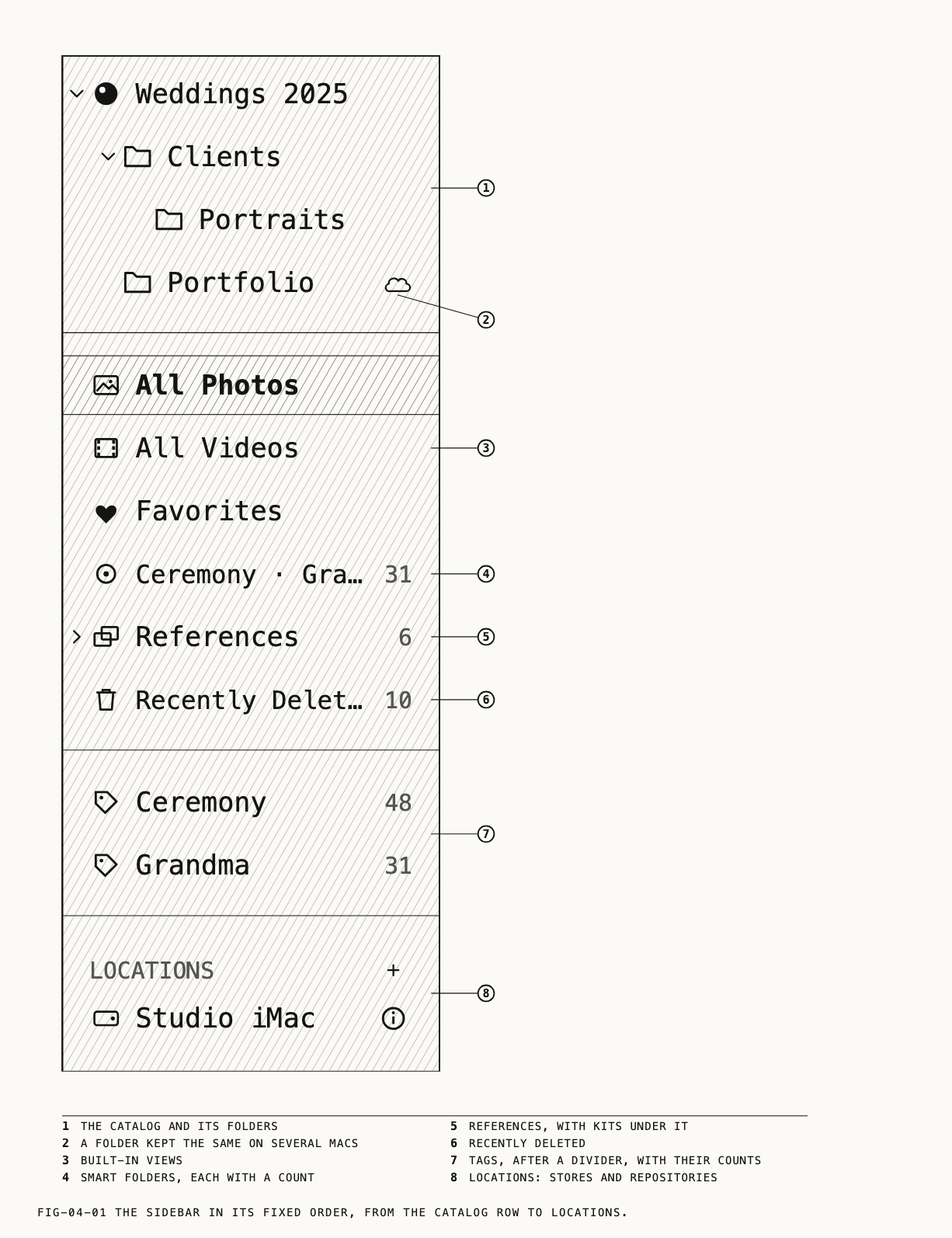
The sidebar is one list, top to bottom, in a fixed order.
| Row | What selecting it shows |
|---|---|
| The catalog row, titled with the catalog’s name | Every asset in the catalog, whichever folder it is in |
| Your folders, nested under the catalog row | That folder’s own assets |
All Photos | Every still |
All Videos | Every clip |
Favorites | Every asset marked as a favorite |
| Your smart folders, one row each | The saved view (section 4.5) |
References | The reference images kept with this catalog and with any kit |
Recently Deleted | Removed assets waiting to be erased |
| Your tags and tag groups, after a divider and with no heading of their own | A tag’s row shows that tag’s assets (Chapter 5) |
LOCATIONS | A header. Under it, one row per store and one per repository |
The catalog row and References expand when they have rows under them. The sidebar
remembers which rows were open and which row was selected, and restores both when the
catalog is opened again.
Folder rows show no counts, and neither do All Photos, All Videos or Favorites.
Recently Deleted, smart folders, tag rows and the groups under References do show one.
Several marks and rows in this list belong to other chapters. A folder that is kept the
same on several Macs carries a cloud at the right of its row. The cloud’s shapes are
explained in Chapter 27, as is the N new badge the catalog row carries when a
repository offers folders this catalog has not taken. The rows under LOCATIONS are
covered in Chapter 6 for stores and in Chapter 26 for repositories. The groups under
References are kits, covered in Chapter 27. Tags are covered in Chapter 5, and
Recently Deleted in Chapter 6.
4.2 Folders
A folder is a grouping you make. Folders nest to any depth. Selecting a folder shows the
assets placed directly in it; a search started from a folder also covers its subfolders,
and searching is covered in Chapter 5. A folder with nothing in it shows the message
This folder is empty in the browser.
Making a folder
Where to find it: Catalogue → New Folder (⇧⌘N), or Catalogue → New Subfolder.
New Folder makes a folder named New Folder (then New Folder 2, and so on) at the top
level, or inside the selected folder when one is selected. New Subfolder makes one
inside the selected folder and is available only while a folder is selected. Either way
the new folder is selected and its name is opened for editing at once, so typing a name
and pressing Return finishes the job.
Both commands are also on the right-click menu: New Folder on the catalog row or on the
empty area below the rows, New Subfolder on a folder. The empty area’s menu also carries
New Tag and New Group, covered in Chapter 5.
Renaming a folder
Where to find it: Catalogue → Rename Folder, or right-click the folder and choose
Rename, or select the folder row and press Return.
The name is edited in a field over the row. Return commits and Esc cancels. A name
already used by another folder at the same level is refused: the field stays open and
shakes, and you can type a different name. Leaving the name empty or unchanged commits
nothing.
Arranging folders
Drag folder rows to arrange them. Drop a folder between two rows to reorder it. Drop it onto another folder to place it after that folder’s existing subfolders, or onto the catalog row to move it to the top level. A folder cannot be dropped into itself or into one of its own subfolders.
Dragging a folder into or out of one that syncs through a repository is not always a plain move. The label beside the pointer says what will happen, and Chapter 27 explains each case.
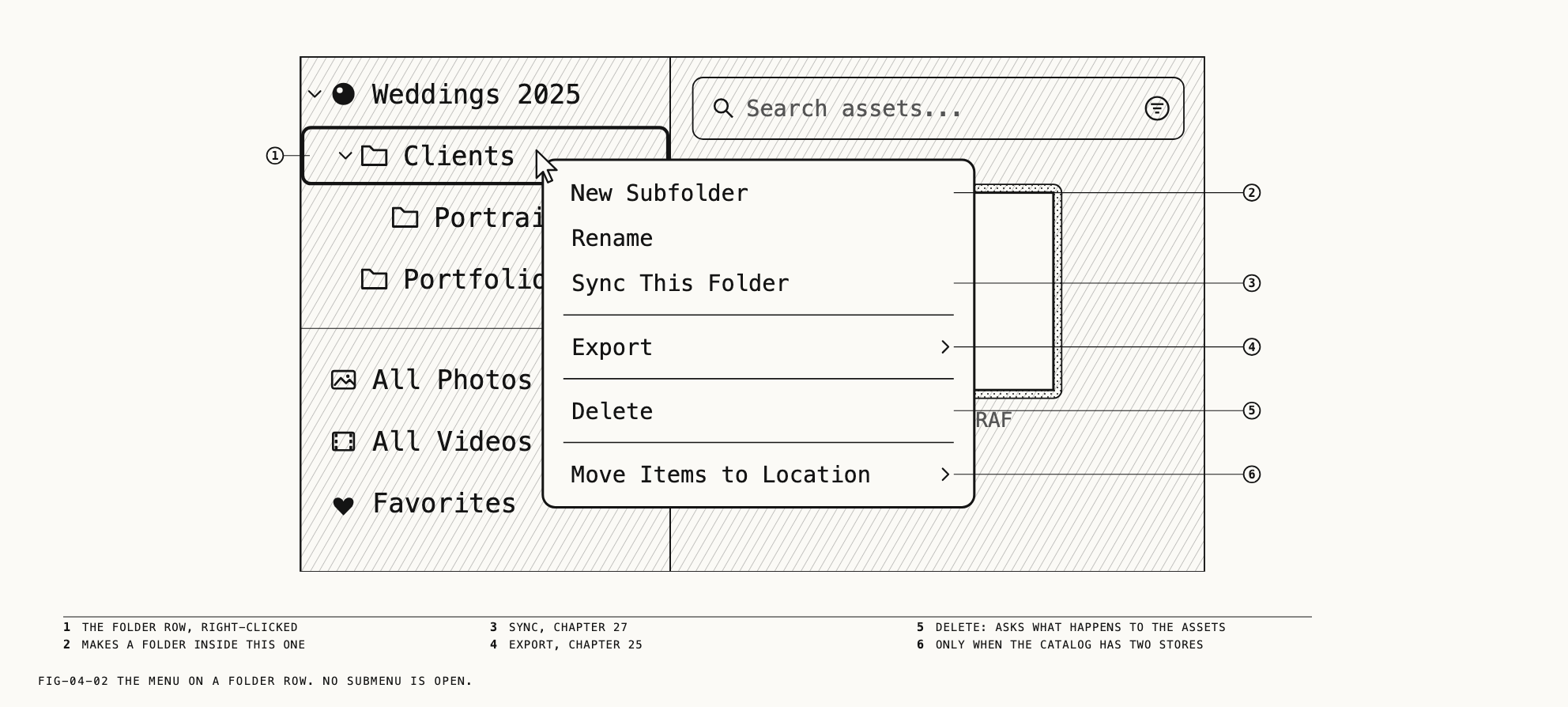
The folder’s menu
Right-clicking a folder opens its menu. The items, in order:
| Item | What it does |
|---|---|
New Subfolder | Makes a folder inside this one |
Rename | Opens the name for editing |
Sync This Folder and its related items | Sync, covered in Chapter 27 |
Export ▸ | Exports this folder’s assets, covered in Chapter 25 |
Delete | Removes the folder (below) |
Move Items to Location ▸ | Moves the folder’s originals to another store, covered in Chapter 6. Shown only when the catalog has more than one store |
Deleting a folder
Where to find it: right-click the folder and choose Delete, or select the folder row
and press ⌫, or Edit → Delete (⌘⌫) while the sidebar has focus, where the item reads
Delete Folder.
Deleting a folder never deletes a file on disk. An alert asks what to do with the folder’s assets. The alert is titled Delete "<name>"? and
states what will be removed: the folder, or the folder and its subfolders. If the folder
holds assets it goes on to say how many, and offers three buttons:
| Button | Result |
|---|---|
Remove Folder Only | The folder goes. Its assets stay in the catalog at the top level. This is the default |
Delete Folder and N Items | The folder goes and its assets move to Recently Deleted. A message reports N items moved to Recently Deleted |
Cancel | Nothing changes |
A folder that holds nothing offers Remove Folder Only and Cancel.
Delete is unavailable on a folder that syncs through a repository, on a folder that
contains one, and on a folder waiting in Recently Deleted. Those folders are removed
with the sync commands on the same menu, covered in Chapter 27. Deleting a subfolder of a
syncing folder asks a slightly different question, because the answer applies on every
Mac; Chapter 27 covers that too.
4.3 Moving Assets Between Folders
Move assets by dragging them or using the menu.
By drag. Select assets in the browser and drag them onto a folder row. Dropping on the catalog row moves them to the top level, out of any folder. A plain move shows no label beside the pointer and happens as soon as you drop.
By menu. Where to find it: Catalogue → Move to Folder ▸, or right-click the selection
and choose Move to Folder ▸. The submenu lists Catalogue (no folder) for the top
level, then every folder indented to show its nesting, then New Folder. The folder
every selected asset is already in is marked with a tick. A folder that syncs through a
repository shows a small cloud beside its name. New Folder makes a folder beside the
selected one (or at the top level), moves the selection into it and opens its name for
editing. A move made from the menu is confirmed by a brief message, Moved 12 photos to "Wedding".
After a move the browser keeps showing what it showed before, unless the view was the
folder the assets have just left. The catalog row, All Photos, All Videos,
Favorites, a tag’s view and a smart folder all span folders, so a move changes nothing
on screen there.
Three other drop targets in the sidebar do something other than move. Dropping assets on a tag row adds the tag (Chapter 5). Dropping them on a store row moves their originals to that store (Chapter 6). Dropping files from the Finder on a folder row or the catalog row starts an import into that folder (Chapter 3).
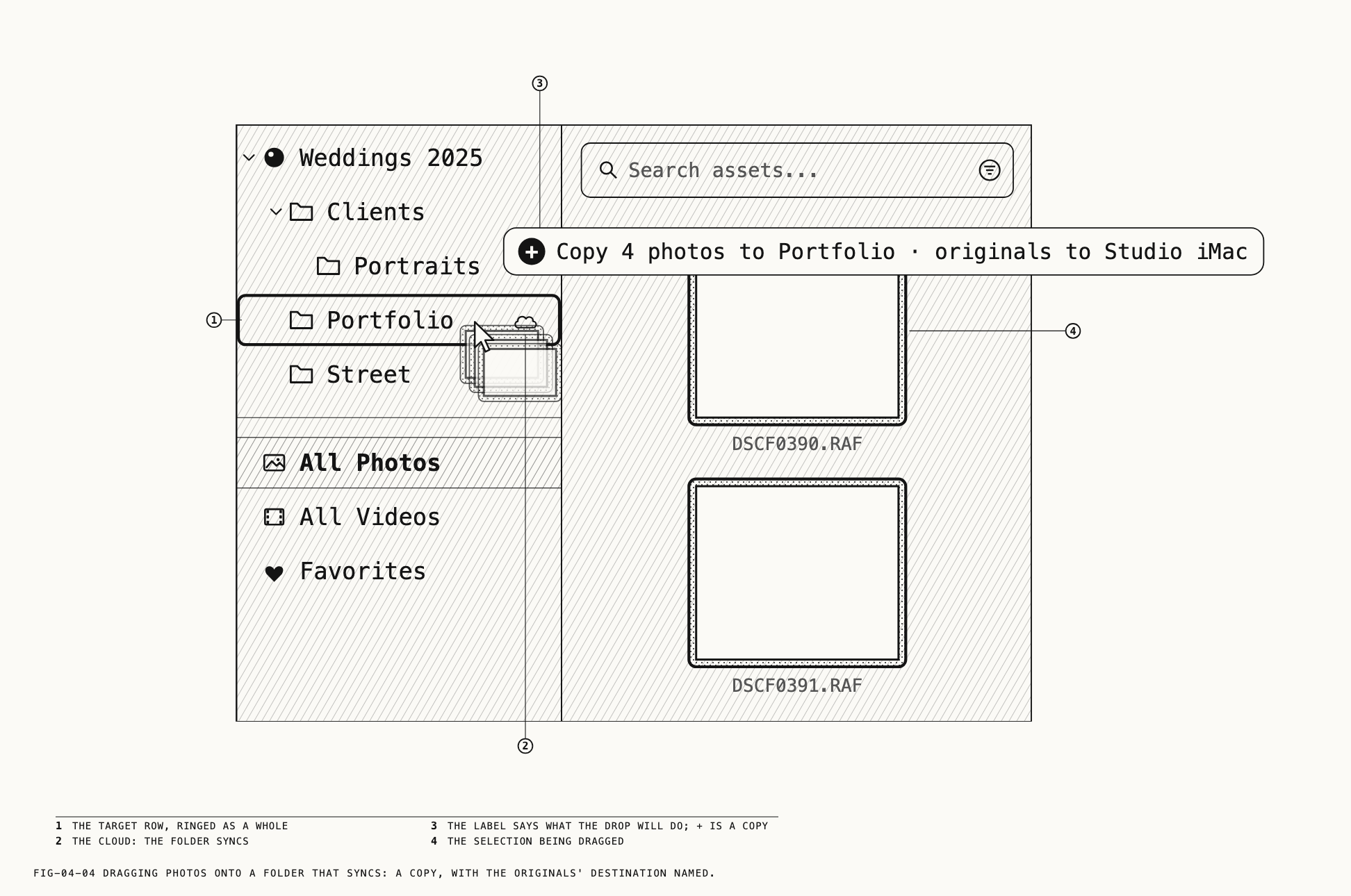
Moving assets into, out of or between folders that sync through a repository can mean a
copy rather than a move, or can be refused. On a drag the label beside the pointer says
which, for example Copy 4 photos to Portfolio · originals to Studio iMac, with a ⊘
mark when the drop is refused. From the menu, a sheet asks first. Both are explained in
Chapter 27.
4.4 Favorites
Where to find it: Catalogue → Add to Favorites (⌘.), which reads Remove from Favorites
when the first selected asset is already one. Also on the selection’s right-click menu,
and as the heart on every thumbnail.
Marking an asset as a favorite does not move it. Click the heart on a thumbnail to add or remove the mark. The menu command adds the whole selection to favorites if the first asset is not a favorite, or removes them all if it is.
The Favorites row in the sidebar shows every favorite across all folders. While it is
empty the browser says so and points you to the heart on the thumbnails. Favorites can
also be combined with other conditions through the Favorites Only filter, covered in
Chapter 5.
4.5 Smart Folders
A smart folder saves a view: which row of the sidebar you were in, what the filter was narrowed to (rating, flag, tags, kind, favorites, presence) and what was typed in the search field. There are no rules to compose. You set the browser up to show what you want and save it.
Saving a view
Where to find it: Catalogue → Save View as Smart Folder
The command is available while a filter or a search is narrowing a folder, the catalog
row, All Photos, All Videos, Favorites or another smart folder. It is always available
on a tag’s view, because the tag is itself the rule. It is never available on
References, Recently Deleted, a store or a repository.
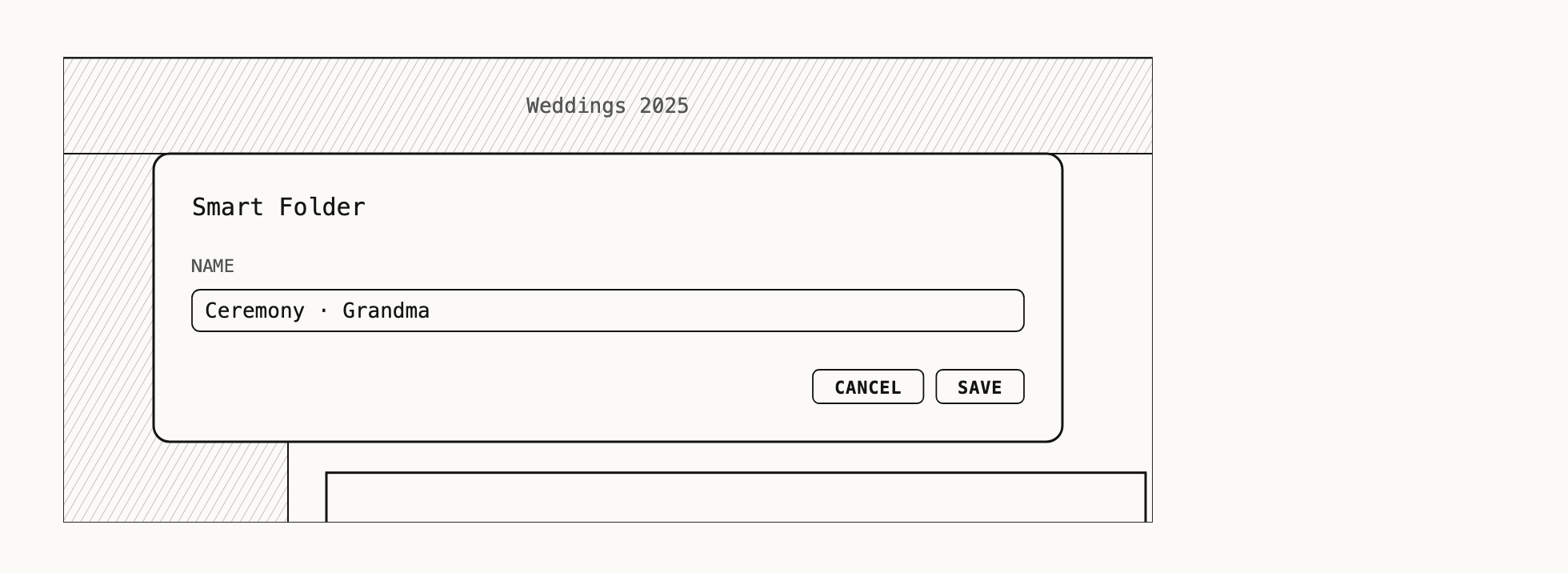
The sheet is titled Smart Folder and has a single Name field with Cancel and Save
buttons. The name is prefilled from the words of the strip under the search field: the
search text, then the filter’s parts, joined by a middle dot, for example Ceremony · Grandma. On a tag’s view alone the tag’s name is suggested. Save is unavailable while
the field is empty. Saving under a name another smart folder already uses replaces that
smart folder.
Using a smart folder
Smart folder rows sit after Favorites, each with its count. A smart folder that saved a
search text shows a dash in place of the count until you visit it in the current session.
Selecting a smart folder shows its saved view. If it saved a search text, that text appears in the search field and the results come in relevance order, as a typed search would. Edited search text remains in the field until you clear it. Once the field is clear, selecting the smart folder again restores its saved search text.
Narrow a smart folder with a filter or search, then save again to keep the combined view. Smart folders cannot contain other smart folders. Saving under its own name (the name the sheet suggests) replaces it.
A smart folder that matches nothing shows the browser’s message for an empty view.
Renaming and deleting
Right-click a smart folder for Rename and Delete Smart Folder. Return on the selected
row opens the name for editing in the same way as a folder. Delete Smart Folder acts at
once, with no alert; a message reports Deleted “<name>” with an Undo button, and
Edit → Undo (⌘Z) brings it back. Deleting a smart folder never touches the assets it
showed.