Use the browser to select, rate, flag, label and tag assets, then sort, filter or search to find them.
Rating, flag, label and tag commands act on every selected asset. Inspector edits apply only to the primary asset (Section 5.2).
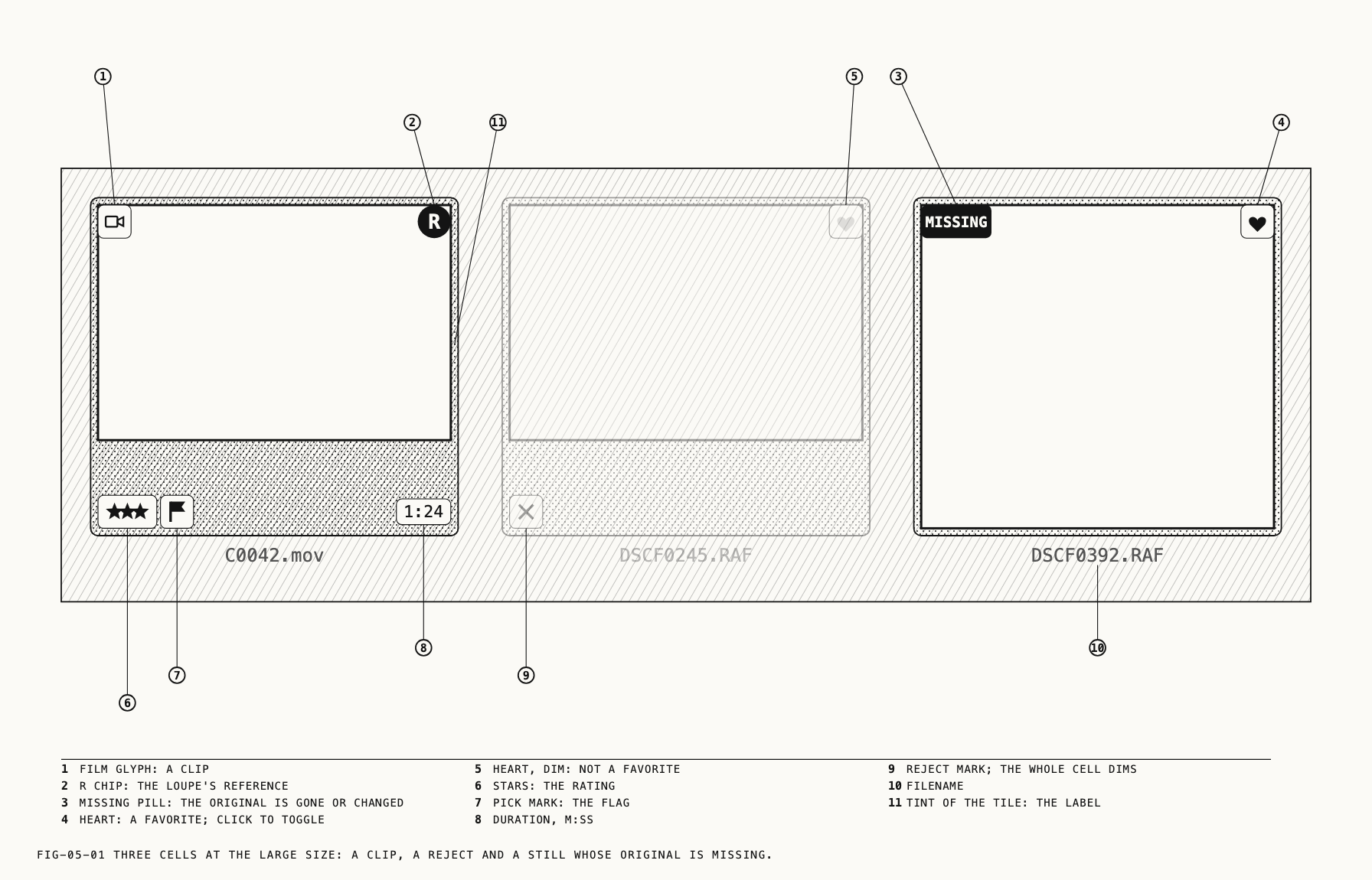
5.1 The Grid
The browser shows the selected sidebar row’s assets as a grid of thumbnails, each with its filename underneath. A thumbnail shows the picture with its saved edit, as it currently looks.
Where to find it: View → Thumbnail Size → Small, Medium or Large.
Three cell sizes are offered. The choice is remembered per catalog, as are the sort, the filter and the search scope described later in this chapter.
A cell carries marks that report the asset’s state. The rating and the flag sit in a strip under the image, drawn only when something is in it; a clip always shows the strip because its duration lives there. The label is not in the strip: it tints the rounded tile the image and the strip sit on.
| Mark | Where | Meaning |
|---|---|---|
| Stars | the strip | The rating, one to five. Nothing is drawn at zero |
| Pick or reject mark | the strip | The flag. A reject also dims the whole cell |
| A tint of the label’s color | the tile behind the image and the strip | The Label (Red, Yellow, Green or Blue) |
| Film glyph and a time | the strip | A clip and its duration, as m:ss or h:mm:ss |
| Heart | on the image | A favorite. Click it to toggle |
| Time chip, lower left | on the image | A search hit on a range tag: the start of the earliest matching span. Opening the clip seeks there |
R chip, top right | on the image | This asset is the loupe’s reference (Chapter 8) |
MISSING pill, top left | on the image | The original is gone or has changed since import (Chapter 6) |
| Gray pill naming a location, over a dimmed image | on the image | The original is in a store that is offline (Chapter 6) |
A reject stays in the grid, dimmed, until it is filtered out or deleted. There is no mark
for a proxy; the loupe reports when it is working from one (Chapter 7). Sync marks and the
days-remaining badge in Recently Deleted belong to Chapters 27 and 6.
5.2 Selecting and Moving Through the Grid
Click a thumbnail to select it. The loupe follows after a short pause, so a drag can begin without the loupe switching to the dragged item. Double-clicking adds nothing: a single click already opens the item in the loupe.
⇧-click extends the selection as a range and ⌘-click toggles one item. The arrow keys
step the selection, and ⇧ with an arrow extends it. Edit → Select All (⌘A) and
Edit → Deselect All (⇧⌘A) act on the whole grid while it has focus. A click on empty space
in the grid leaves the selection as it is; dragging from empty space selects the thumbnails
the drag crosses.
Where to find it: Catalogue → Previous (⌥←), Next (⌥→), First (⌥↑), Last (⌥↓).
The primary. When several assets are selected, one is the primary: the loupe shows it
and the inspector edits it. It is the item you clicked last, or the item an arrow key
stepped to. Inspector edits apply to the primary only; to change many assets at once, use
Paste Grade or Apply Preset (Chapter 17), or the culling and tagging commands in this
chapter.
Note: With a clip open in the loupe, the bare arrow keys step its frames instead of moving through the grid; ⌥← and ⌥→ still move through the grid. Chapter 9 covers the transport keys.
Dragging a thumbnail out of the window, to the Finder or another app, delivers a copy of the original file, for a still and a clip alike, never the graded render (for that, export: Chapter 25). Dropping files or folders from the Finder onto the grid starts an import into the folder on screen (Chapter 3). Dropping a preset from the resources panel onto a thumbnail applies it to that asset (Chapter 17).
The right-click menu. Right-clicking a thumbnail opens a menu holding the same commands
as the Catalogue and Edit menus. When the clicked thumbnail is part of the selection, the
menu acts on the whole selection. When it is not, the right-click first selects that
thumbnail alone, so the loupe and the inspector move to it and the menu acts on it. The
culling items come first: Rating ▸, Flag ▸, Label ▸, Add to Favorites (or Remove from Favorites) and Tag. The folder, location, export, reference, grade and delete
commands that follow are explained in their own chapters.
5.3 Ratings, Flags and Labels
Assets can have three independent marks: a star rating, a pick or reject flag, and a color label. Each applies to the whole selection, each can be undone, and each works from the menu bar, the right-click menu or a single key.
Where to find it: Catalogue → Rating ▸, Catalogue → Flag ▸, Catalogue → Label ▸.
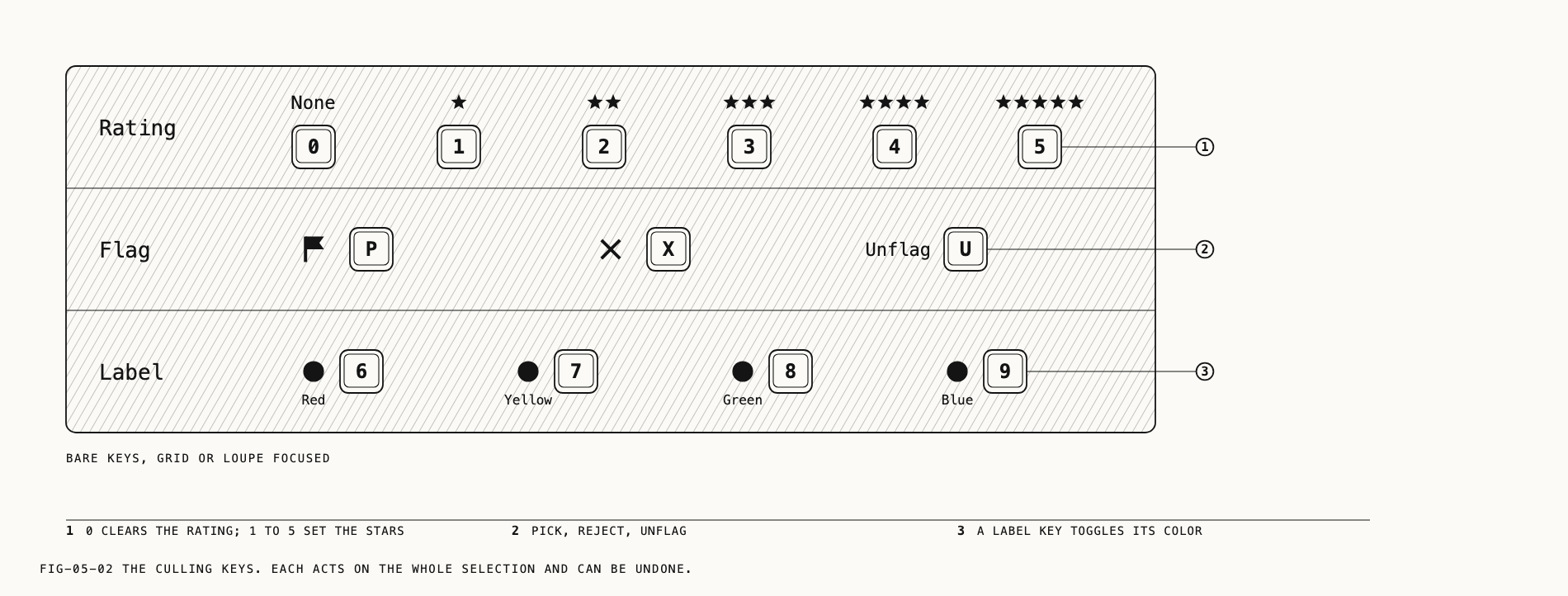
| Command | Menu items | Key |
|---|---|---|
| Rating | None, ★, ★★, ★★★, ★★★★, ★★★★★ | 0 to 5 |
| Flag | Pick, Reject, Unflag | P, X, U |
| Label | Red, Yellow, Green, Blue, None | 6, 7, 8, 9 |
The keys are bare, with no modifier. They are printed beside the menu items and work while the grid or loupe has focus. They do not act while you type in a text field.
A label key toggles its color: pressed on a selection that already carries that color, it
clears the label. In the Label ▸ menu each color is printed with a dot of that color, and
on the grid a label tints the cell’s tile (5.1). The label is a tag in the sidebar’s built-in
Label group, so it can be filtered like any other tag (5.5) and leaves the catalog as a
keyword on export (Chapter 25).
If a rating, flag or label cannot be written, a toast says so and the previous value is put back.
Advancing as you cull. With Catalogue → Advance After Rating or Flagging ticked, a
rating, flag or label key moves the primary to the next asset once it has acted, so a pass
through a shoot is one key per picture. It stops at the last asset rather than wrapping.
The tag popover’s ⌘Return advances the same way (5.5). The setting is remembered per
catalog.
Rejects are removed in one batch with Catalogue → Delete Rejected Photos; Chapter 6
covers it with the rest of deleting.
5.4 Favorites
A favorite is a heart on the thumbnail. Click the heart to toggle it, or use the menu.
Where to find it: Catalogue → Add to Favorites (⌘.).
The item reads Remove from Favorites when the selection is already favorited. The
sidebar’s Favorites row collects every favorite (Chapter 4) and Favorites Only narrows
the grid to them (5.6). The heart is not drawn on references or in Recently Deleted.
5.5 Tags
A tag is a word attached to an asset. Tags are listed in the sidebar after Recently Deleted, below a divider and with no heading of their own, each with a live count. A tag
may sit inside a group, and may be pinned to a key from ⌥1 to ⌥9. The word on screen
is Tag; “keyword” appears only on the import sheet (Chapter 3) and on export
(Chapter 25).
The tag popover
Where to find it: Catalogue → Tag (⌘K); right-click → Tag; the Info tab’s Add a tag
chip.
The Catalogue menu has two items named Tag. The one with ⌘K opens the popover; the one
after it, with a submenu arrow, applies pinned tags and is described below.
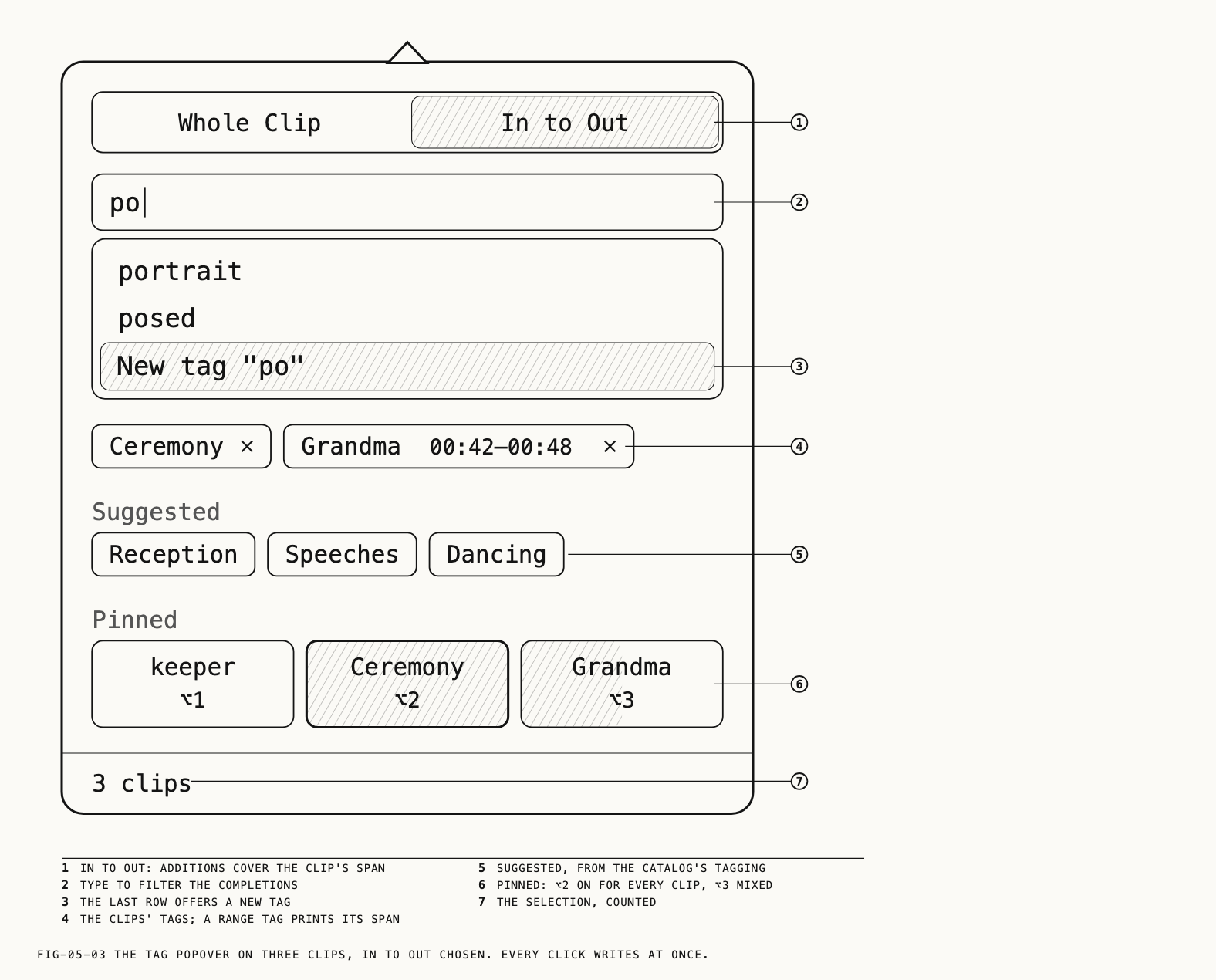
The popover opens on the selection with its text field focused. Typing filters a list of
completions whose last row offers a new tag from what you typed, as New tag "po"; typing
Group:word offers it inside that group. ↑ and ↓ move the highlight, Return applies
the highlighted row and clears the field, and Return with nothing typed closes the
popover. Esc and ⌘K close it.
Tag changes are saved immediately. There is no apply button.
Below the field are the selection’s tags as chips, each with an × that removes it; a
Suggested row drawn from the catalog’s own tagging; and a Pinned row of cells, each
printing its key. A pinned cell is on when every selected asset carries the tag and mixed
when only some do. The foot counts the selection: 1 photo, 3 clips, 12 items.
With Advance After Rating or Flagging on, ⌘Return closes the popover and moves the
primary to the next asset.
Catalogue → Tag ▸ lists the pinned tags with their keys, ticked when the whole selection
carries them, then Remove All Tags. A pinned label color is printed with its color dot.
The ⌥1 to ⌥9 keys apply a pinned tag without opening the popover.
Range tags on clips
A tag on a clip can cover a span of it rather than the whole. With one clip open in the
loupe and an in and out point set (Chapter 9), the popover enables a Whole Clip |
In to Out switch. With In to Out chosen, every addition made from the field, the
completions, Suggested or Pinned becomes a range tag over that span. The switch returns
to Whole Clip when the popover closes, and setting the points writes nothing by itself.
A range tag’s chip prints its span after the word, as 00:42–00:48. A whole-clip tag and
a range tag of the same word are two chips, and a chip’s × removes only that one.
Where to find it: View → Next Tag Range (⌥→), Previous Tag Range (⌥←).
These step through the ranges on the loupe’s scrubber. When the clip in the loupe has no
range tags, the keys keep their Catalogue → Next and Previous meaning.
Managing tags in the sidebar
Where to find it: right-click a tag or a tag group in the sidebar; right-click the empty area below the sidebar’s rows for a new tag or group.
The empty area’s menu offers New Tag and New Group after New Folder.
A tag’s menu offers these commands:
Renameedits the name.Pinassigns the lowest free key;Unpinfrees it.Pinis grayed when keys 1 to 9 are taken.Move to Group ▸lists the groups,NoneandNew Group.Merge into ▸lists other tags under their group headings.New TagandNew Groupcreate a tag or group.Delete Tagremoves the tag.
A grouped tag also shows Exported, checked when enabled. A group offers Rename, Exported, New Tag and Delete Group.
Exported decides whether a group’s tags leave the catalog as keywords on export
(Chapter 25). The built-in Label group and its four colors cannot be renamed, moved,
merged or deleted; they offer only Pin, Unpin and Exported.
Return on a selected tag or group row opens the rename field. Deleting a tag shows a toast naming the tag and the number of assets it was removed from, with Undo (⌘Z). Deleting a
group asks Delete the group “<name>”?, notes that its tags become ungrouped, and offers
Delete and Cancel. A tag needs a name, a pinned key is 1 to 9, and a tag cannot be
merged into itself; each refusal is a short message.
Dragging assets from the grid onto a tag’s row adds the tag without moving anything. Clicking a tag’s row shows that tag’s assets.
Filtering by tag
Where to find it: View → Filter → Tags ▸.
The submenu lists every tag with its count, ungrouped tags first, then each group under a
header, Label last, its colors printed with their dots. Ticking tags narrows the grid to
assets carrying Any of These or All of These, chosen at the top; Clear Tags lifts
the tag part of the filter. The strip
under the search field names the tags narrowed to, up to four and then …, with the
count: Filtered: Ceremony · Grandma · 31 of 3,018.
In the search field, #word finds a tag of that name in any group, #group:word one
group’s tag, and #label:green a label (5.7).
5.6 Sorting, Filtering and Thumbnail Size
Where to find it: View → Sort By ▸, View → Filter ▸ and View → Show Filters (⇧⌘F).
Sort By ▸ offers Capture Date, Import Date, Filename, Rating and Camera, then
Ascending and Descending. The default is capture date, ascending, with the import date
standing in for files that carry none. Relevance heads the submenu and is offered only
while a search is live (5.7).
Filter ▸ narrows the current folder, built-in view or search results. It offers these options:
| Part | Items |
|---|---|
Rating ▸ | Any Rating, then ★ and up to ★★★★ and up, then ★★★★★ |
| Flag | Any Flag, Picks, Unflagged, Rejects |
Tags ▸ | As in 5.5 |
| Kind | All Kinds, Stills, Clips |
Favorites Only | |
| Presence | Available, Offline, Missing (Chapter 6) |
Sync | In One Place Only, Original Not Here, Conflicts (Chapter 27) |
Clear Filter |
The same menu pops from the filter icon at the right end of the search field, where it
also carries the search scope switch (5.7), and from View → Show Filters. The icon fills in
while a filter is active and a strip under the field states the filter and the count, as
Filtered: Picks, ★★★ and up · 48 of 612, with Clear. The strip’s parts come in a fixed
order: flag, rating, tags, kind, Favorites, presence. When the filter hides everything
the grid reads Nothing matches the filter.
A filtered or searched view can be kept as a smart folder (Chapter 4). The filter is not
offered in Recently Deleted.
5.7 Searching
Where to find it: the search field above the grid; Edit → Find (⌘F) focuses it.
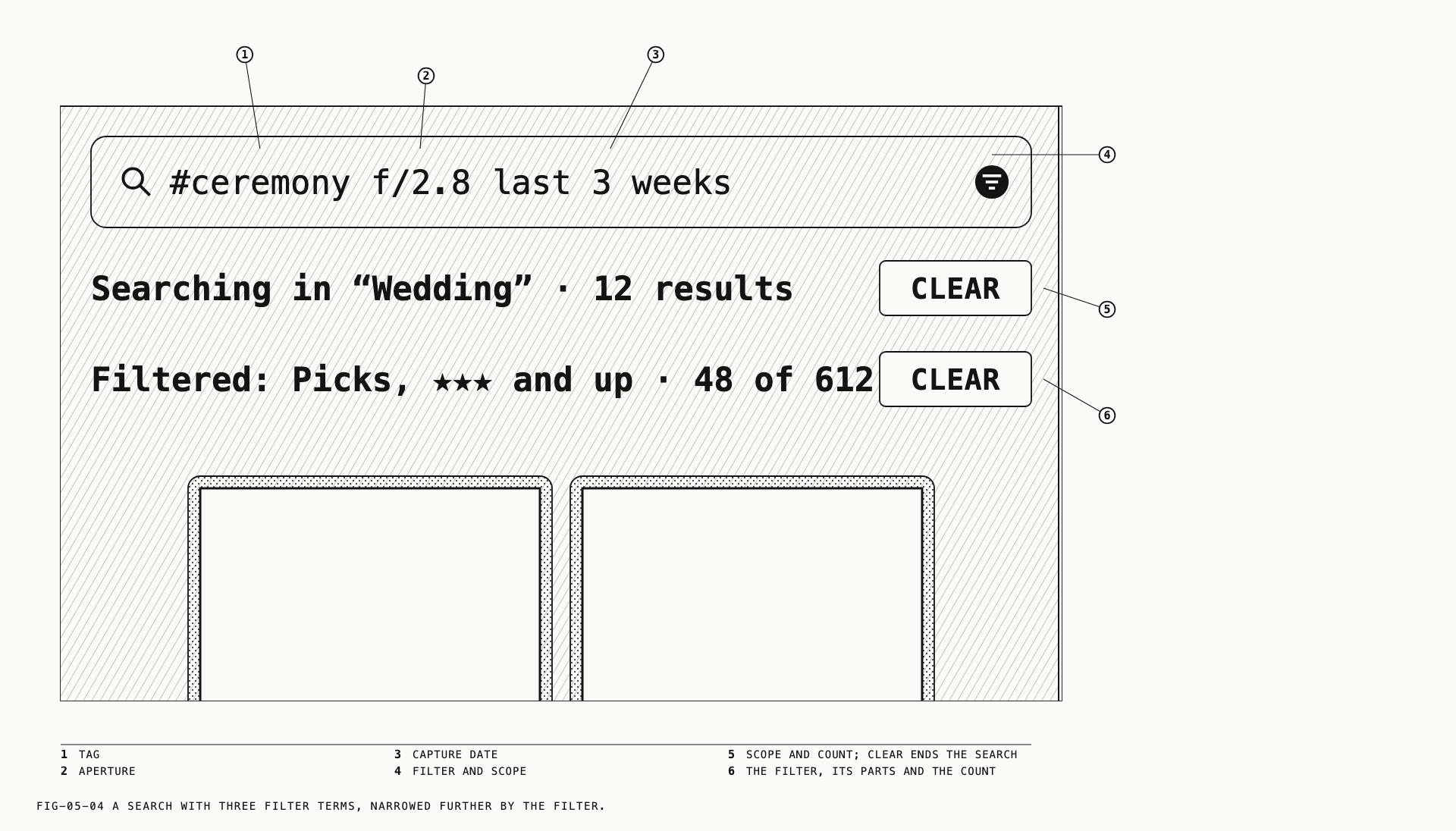
Searching happens as you type. A strip under the field reports the scope and the count,
as Searching in “Wedding” · 12 results (1 result, no results), with Clear. Esc
clears the search while the field or the grid has focus. When nothing matches, the grid
reads No results for "<query>".
Results arrive in relevance order. Choosing another sort while a search is live reorders
them; View → Sort By → Relevance returns to the search’s own order.
Scope. A search covers the selected folder and its subfolders, or the built-in row on
screen. Edit → Search Entire Catalogue, ticked by state and also offered as Entire Catalogue in the filter icon’s menu, widens it to the whole catalog; the strip then reads
Searching in the entire catalogue · …. A search from References always covers the
whole catalog. The scope is remembered per catalog.
What a search matches. The query is matched against the content of the picture, text visible in the picture, words spoken in a clip, text placed with text nodes (Chapter 22), camera metadata, and your own tags, note and caption.
Some terms are read as filters rather than as words:
| Typed | Read as |
|---|---|
sony, canon, nikon, fuji, panasonic, olympus, leica, hasselblad, pentax, sigma, ricoh, dji, gopro, apple, samsung, blackmagic, red, arri | The camera make; a model name after it is matched too |
f/2.8, iso 800 | The aperture, the ISO |
50mm, ~50mm | That focal length exactly, or within about ten percent |
ultra wide, wide, normal, mid-telephoto, telephoto, super telephoto | A focal length band |
flash | Flash fired |
with 2 people, more than 3 faces | A face count |
last 3 weeks, a month, a weekday, before or after a date | The capture date; add imported to mean the import date |
4k, 8k, at least 24 MP | Resolution |
#word, #group:word, #label:green | A tag, a tag in one group, a label |
Whatever remains is matched as ordinary words.
Search preparation. After an import, or when a catalog opens with search preparation unfinished, a strip reads Indexing 48 of 612 for search…. Assets appear in search results as they become ready. Other controls remain available.
Note: If search is unavailable on this Mac, the field is disabled and its placeholder says so. Filtering and sorting are unaffected.
Empty states. A row with nothing in it says so in the grid: No photos or videos yet
on the catalog row, with an Import Photos and Videos… button (Chapter 3); No photos in this catalogue and No videos in this catalogue on the two built-in rows; a prompt to
click a heart on Favorites; This folder is empty on a folder; and No originals in this location on a store, a tag or a smart folder.
5.8 The Info Tab
Where to find it: the inspector, the Info tab.
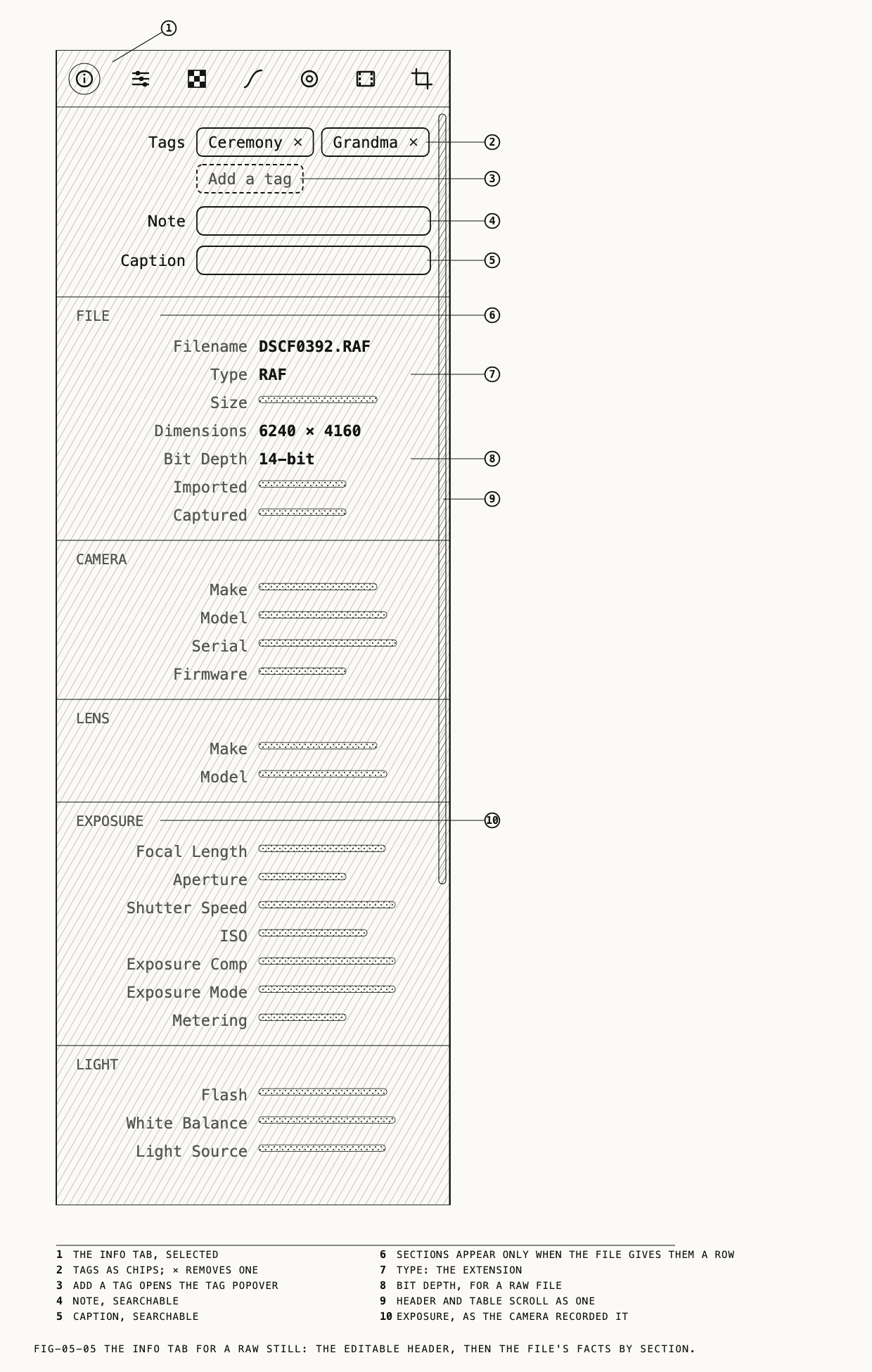
The Info tab shows information about the primary asset. The header is editable; the table below contains file details. Sections appear only when information is available, and some rows take a moment to appear. Hover over a shortened label or value to read it in full.
The header. Tags shows the asset’s tags as chips; a chip’s × removes it and the
dashed Add a tag chip opens the tag popover (5.5). Note and Caption are free text,
written when you leave the field, and both are searchable (5.7). With several assets selected, the header shows their count (12 items) and tags. Tags shared by only some of the selection appear as mixed chips. Clicking a mixed chip opens the popover. The header is
hidden for an asset in Recently Deleted.
| Section | Rows |
|---|---|
File | Filename, Type (the extension, as RAF, MOV, BRAW), Size, Dimensions, Bit Depth for a raw file, Imported, Captured |
Camera | Make, Model, Serial, Firmware |
Lens | Make, Model |
Exposure | Focal Length, Aperture, Shutter Speed, ISO, Exposure Comp, Exposure Mode, Metering |
Light | Flash, White Balance, Light Source |
Location | Latitude, Longitude, as 51.5000° N |
Develop | For a raw clip (Chapter 12): the color science generation and any embedded LUT, marked (not applied) |
Pearla Container or Raw Container | For a .praw, .prawv or DNG file: technical details of the file, for reference only |
The File section also carries technical readouts; like the container section, they are
reference information and call for no action. Sections reporting where an original is
kept, which repository it syncs through and when a deleted asset will be erased belong to
Chapters 6 and 27.
Note: For a clip, the Info tab shows no duration, frame rate or audio rows. The duration is on the thumbnail (5.1); the clip’s playback facts are in the loupe (Chapter 9).
← 4. Folders and Smart Folders · Contents · 6. Stores, Locations and Originals →