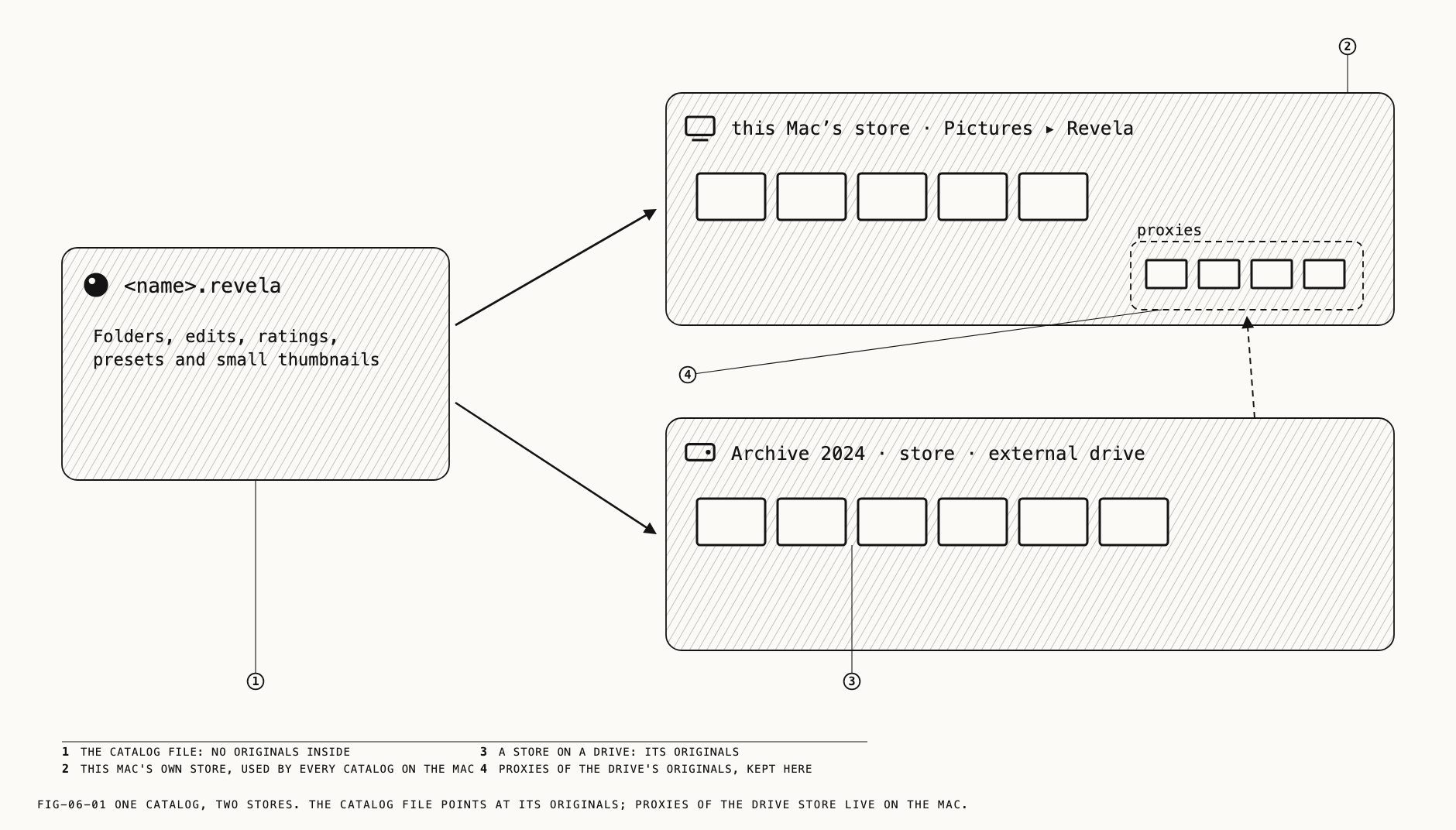
A catalog does not contain its pictures. The .revela file holds folders, edits,
ratings, presets and small thumbnails; the originals live in a store, a folder on disk
that you can see in Finder. A catalog may use several stores, and the Locations sheet
lists them. It also provides controls for moving, verifying and exporting originals, and for removing them with Delete.
Importing into a store, and adopting a folder in place, are covered in Chapter 3. Stores that sync through a repository are covered in Chapter 27.
6.1 What a Store Is
Every Mac has one store of its own, made the first time Revela runs. Unless you choose another folder, the store is created in Revela in Pictures. The store is named after the Mac. Every catalog on the Mac keeps its own files there. The store must be on the Mac
itself: not on a drive that can be unplugged, and not in a folder synced by a cloud service, which can damage the store. Creating the store is covered in Chapter 1. A note appears once, on the first Catalogue window, under the title
Your photos are kept in a store; it names the store and offers Show in Finder,
Add a Store… and OK.
Further stores are added later: a store on a drive, or a folder adopted in place. Each
is one row in the sidebar’s Locations group and one row in the Locations sheet. The
app calls a store a location wherever it lists them; the two words name the same thing.
To see where a catalog’s parts are, open its info sheet.
Where to find it: File → Catalogue Info
The sheet’s title is the catalog’s file name; its summary line gives the size and photo
count. In this file reads Folders, edits, ratings, presets and small thumbnails.
Not in this file lists the Originals as a size per store with the store’s place (212 GB in Studio iMac (Pictures ▸ Revela) · 1.4 TB in Archive 2024), then Large thumbnails and proxies and LUT files and reference images with the store that holds them, and
when the catalog’s hourly copy was last made. A closing block reports how many
originals are also in a repository (Chapter 27). Done closes the sheet.
6.2 The Locations Sheet
Where to find it: Catalogue → Locations; a store row’s ⓘ button in the sidebar; a
store row’s right-click Locations.
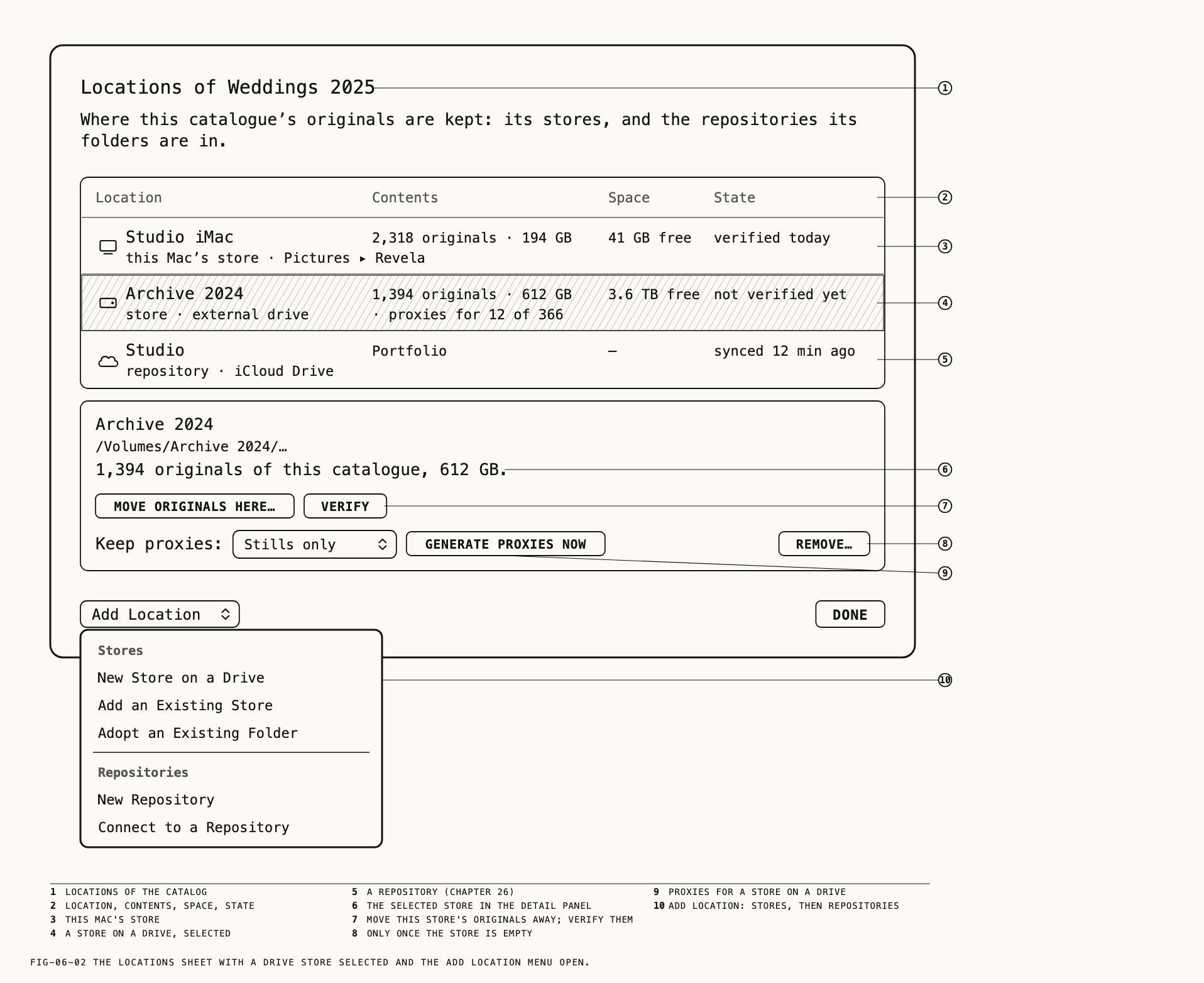
The sheet is titled Locations of <catalogue> and subtitled Where this catalogue’s originals are kept: its stores, and the repositories its folders are in. It lists every
store, and every repository the catalog’s folders sync through, in four columns.
| Column | A store row shows |
|---|---|
Location | The store’s name over its kind: this Mac’s store · Pictures ▸ Revela, store · this Mac or store · external drive |
Contents | 2,318 originals · 194 GB, then · proxies for 12 of 366 where proxies are kept and · 142 unmanaged for an adopted folder |
Space | Free space on the drive, 41 GB free; a dash while the drive is away |
State | verified today, not verified yet, checking…, verifying…, Generating proxies 12 of 366…, offline, last seen 3 days ago, can’t be found, 3 missing, or Moved to "<catalogue>" |
Repository rows read repository · <place> with the folders they carry and a sync state.
They are covered in Chapter 26.
Selecting a row opens a detail panel beneath the list: the store’s name, its path, and a
sentence such as 1,394 originals of this catalogue, 612 GB. The buttons depend on the
store’s state.
| State | Buttons |
|---|---|
| Reachable | Move Originals Here… (enabled while the store holds originals) and Verify (enabled while it holds originals and no check is running) |
| A store on a drive, reachable | Also Keep proxies: with Off, Stills only or Stills and clips, and Generate Proxies Now |
| A store on a drive, any state | Also Remove…, enabled only once the store holds no originals. Its tooltip reads A location can be removed once it holds no originals. Move its items first. |
| Away | Locate… |
Note: Move Originals Here… moves every original the selected store holds into
another store, not into the selected one. With one other store the move sheet of
section 6.4 opens at once; with several, a menu asks which.
Verify runs the check of section 6.6 on that store alone. Remove… takes an empty store
out of the catalog and reports <name> was removed from the catalogue; the package on the
drive is left in place, and the alert says to delete it in Finder when it is no longer
needed.
Adding a location
The Add Location pull-down at the foot of the sheet is the same menu as the + beside
the sidebar’s Locations header. Its Stores section offers New Store on a Drive,
Add an Existing Store and Adopt an Existing Folder; its Repositories section
offers New Repository and Connect to a Repository. Adopting is covered in Chapter 3
and repositories in Chapter 26.
New Store on a Drive asks for the drive or folder where Revela will create the new
location; Revela makes a package there named after the catalog and manages the files
inside it. The button is Create Location Here. A second store on a drive that already
holds one is allowed after the question You already have <name> on this drive. Create another?, with a warning that moving items between them keeps the files on the same drive. Add an Existing Store asks for a store package that belongs to this catalog,
with the button Add.
A store package belongs to one catalog. Double-clicking one in Finder does not open it: Revela brings the owning catalog forward, or explains that the package is Revela’s originals storage for a named catalog and that the files inside should not be moved or renamed.
6.3 When a Store Is Away
A store on a drive that is unplugged is offline. Its sidebar row dims and reads
offline. Its originals keep their thumbnails, dimmed, with a gray pill naming the
store. The loupe shows the OFFLINE banner, Original is on <name>, which is offline. Connect the drive to edit., and editing is off. Nothing else changes: ratings, folders
and tags still work, and the originals are untouched. When the drive returns, a strip
over the browser reads Checking <name>… while Revela confirms that the originals are
where it left them, and the pills clear. If the store keeps proxies, offline originals
can still be reviewed; section 6.5 covers that. The loupe’s banners are covered in
Chapter 7.
A store that has been put in the Trash is treated as away, so that emptying the Trash cannot erase originals by surprise. The sheet’s detail panel says so and asks you to put it back in Finder; Revela finds it again by itself.
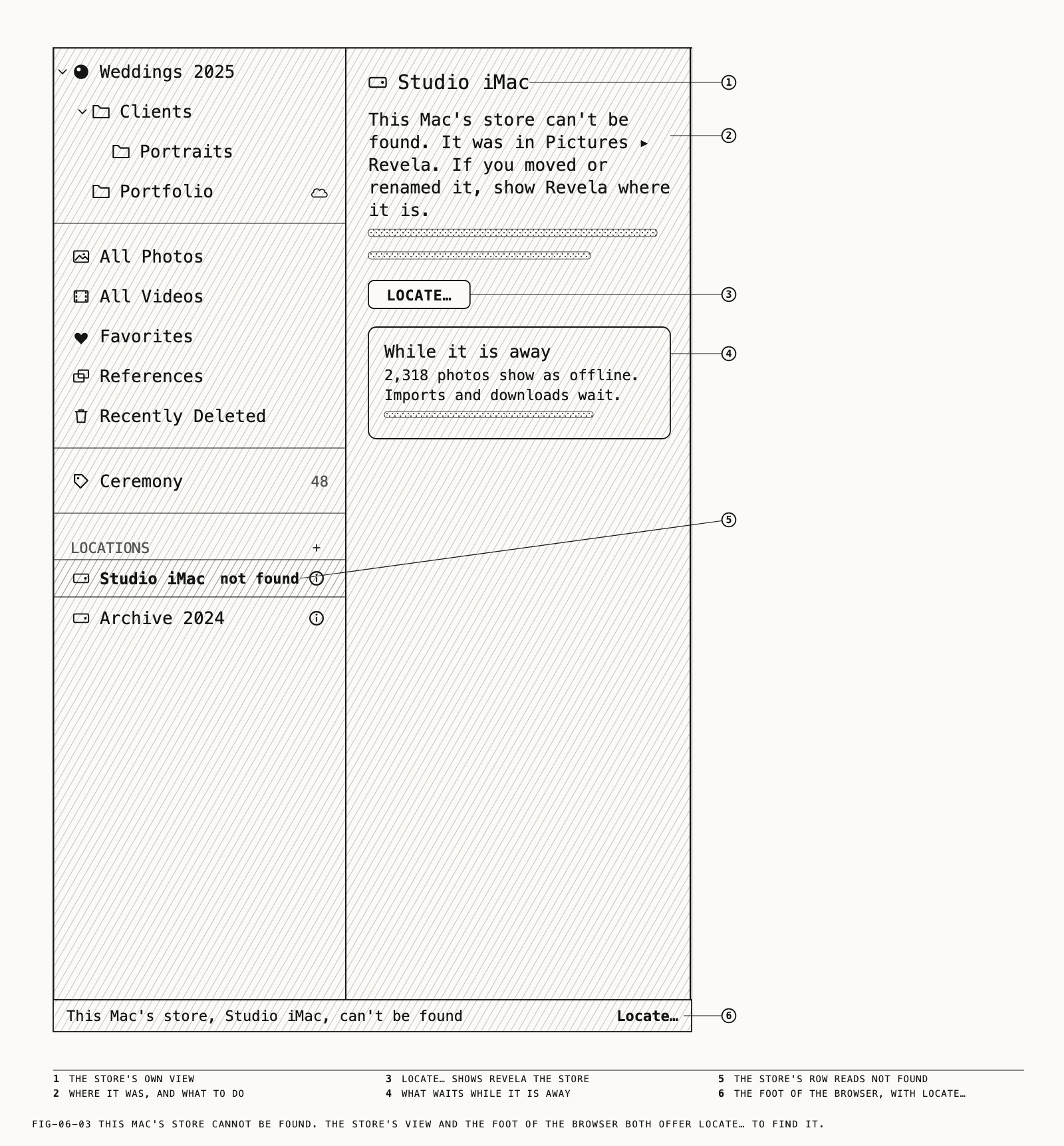
This Mac’s own store is different, because the Mac’s catalogs depend on it. When it
cannot be found, the foot of the browser reads This Mac's store, <name>, can't be found
with a Locate… button, and the sidebar row reads not found. The store’s own view says
where it was. If you moved or renamed the store, the view asks you to show Revela where
it is; if you deleted it, it must be restored first. A box headed While it is away
reports how many photos show as offline and that imports and downloads wait.
Locate… opens a panel whose button is Use This Store. Choosing the wrong package is
refused with That isn't <name> and a reminder of which store to choose and where it
was. A store on a drive that was moved is located the same way, from the sheet’s detail
panel; that panel’s message asks for the location’s package on the drive it is on now,
and its button is Reconnect.
6.4 Moving Originals Between Stores
Where to find it: right-click Move Items to Location ▸ <store> on selected thumbnails,
or on a folder for its direct members; drag thumbnails onto a store row in the sidebar;
the Locations sheet’s Move Originals Here….
The submenu appears only when the catalog has more than one store. It lists every reachable store; the one the selection is already in is ticked and grayed. Dropping thumbnails on a store row opens the same sheet.
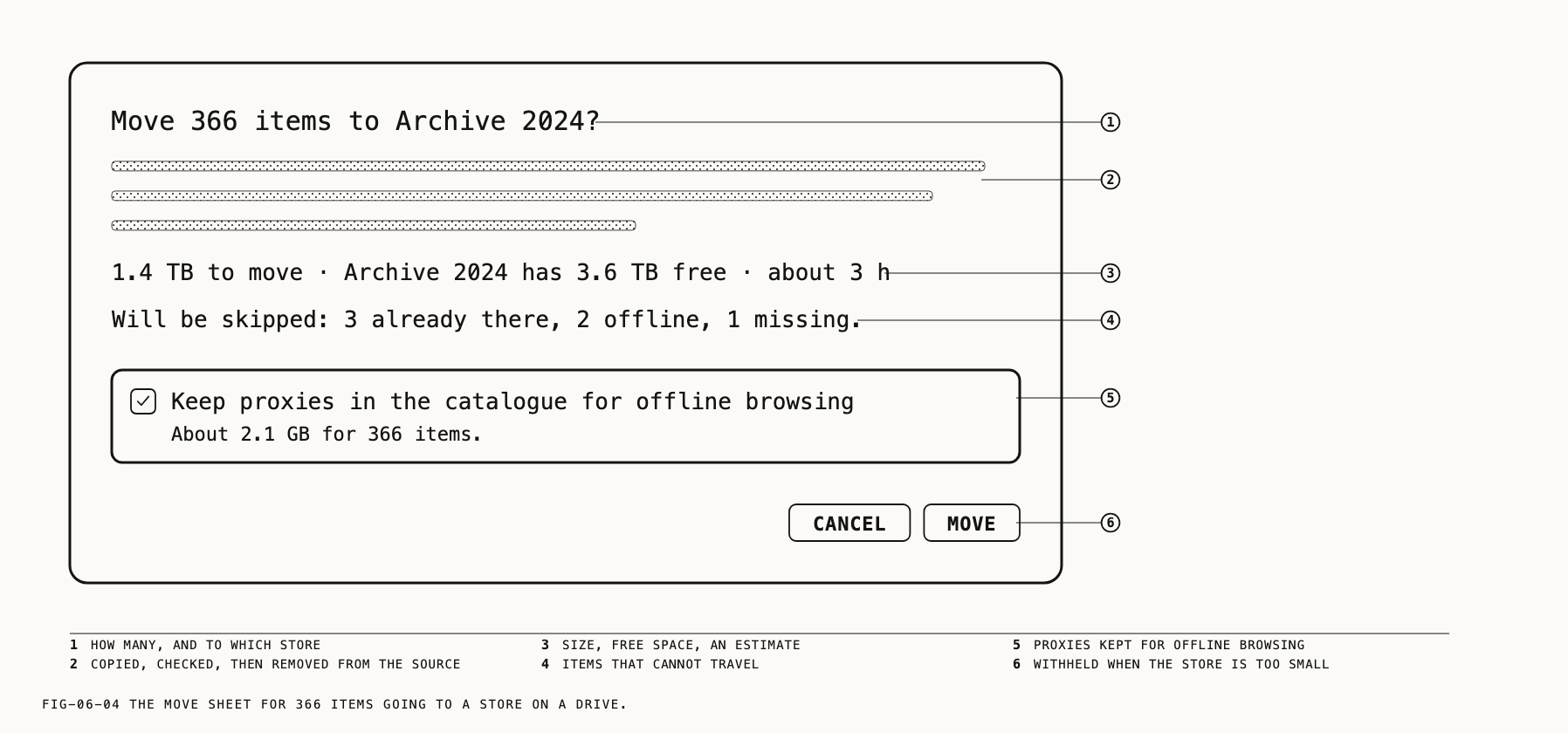
The sheet asks Move 366 items to <store>? and explains that each original is copied and verified at the destination before the previous copy is removed. Edits, folders and ratings do not change. A line gives the size, the free
space and an estimate: 1.4 TB to move · <store> has 3.6 TB free · about 3 h. Items that will not move are listed as Will be skipped: 3 already there, 2 offline, 1 missing.
If the destination lacks space, the sheet says so and Move is disabled.
A checkbox, Keep proxies in the catalogue for offline browsing, is offered when the
destination keeps proxies, with the space they will take; when it does not, the line
reads This location keeps no proxies. Turn them on in Locations… to browse its items offline.
Progress reads Moving originals… with Stop. The summary reads 366 originals moved and verified and confirms that every copy matched before its source was removed. A move cannot start during an import or verification, and a selection with nothing to
move is refused with Nothing to move.
6.5 Proxies
A proxy is a smaller stand-in for an original, kept in this Mac’s store so that an
original on an unplugged drive can still be reviewed. Whether a store keeps them is set
per store, with the Keep proxies: pop-up in the Locations sheet: Off, Stills only
(the default for a store on a drive) or Stills and clips. This Mac’s store keeps none,
because its originals are always present, and the pop-up is not offered for it.
Revela makes and refreshes proxies in the background as originals arrive or their edits
change. Generate Proxies Now in the sheet makes a proxy at once for every item in that
store the setting covers. The row’s state reads Generating proxies 12 of 366… while it
runs. Raw clips never get a proxy; the still formats and plain video do.
Two commands act on a selection regardless of the store’s setting.
Where to find it: Catalogue → Generate Proxies and Catalogue → Remove Proxies; also the thumbnail’s right-click menu.
Generate Proxies is enabled when a selected item is a still or a plain clip whose
original is reachable, and reports Generating 12 proxies in the background. Remove Proxies is enabled when a selected item has a proxy and its original is reachable, and
reports 12 proxies removed. An item whose original is away keeps its proxy, because it
is the only picture there is.
While a drive is away, an original that has a proxy opens in the loupe from the proxy,
under the PROXY banner: Original is on <name>, which is offline. Reviewing at 2560 px. Connect the drive to edit fully. The grade can be worked on; Develop, healing, masking
and export need the original, and the inspector marks each with Needs the original.
There is no proxy badge on the grid: a proxy announces itself only in the loupe.
6.6 Finding and Verifying Originals
Where to find it: Catalogue → Reveal in Finder, or right-click; the loupe’s
Reveal in Finder on a missing original.
Reveal in Finder selects one asset’s original on disk. It is enabled for exactly one
selected item whose original is not missing. On a missing original the loupe’s own
button reveals the folder the file should be in.
Verify Catalogue
Where to find it: Catalogue → Verify Catalogue; the Locations sheet’s Verify for one
store; the loupe’s Verify Location on a missing original.
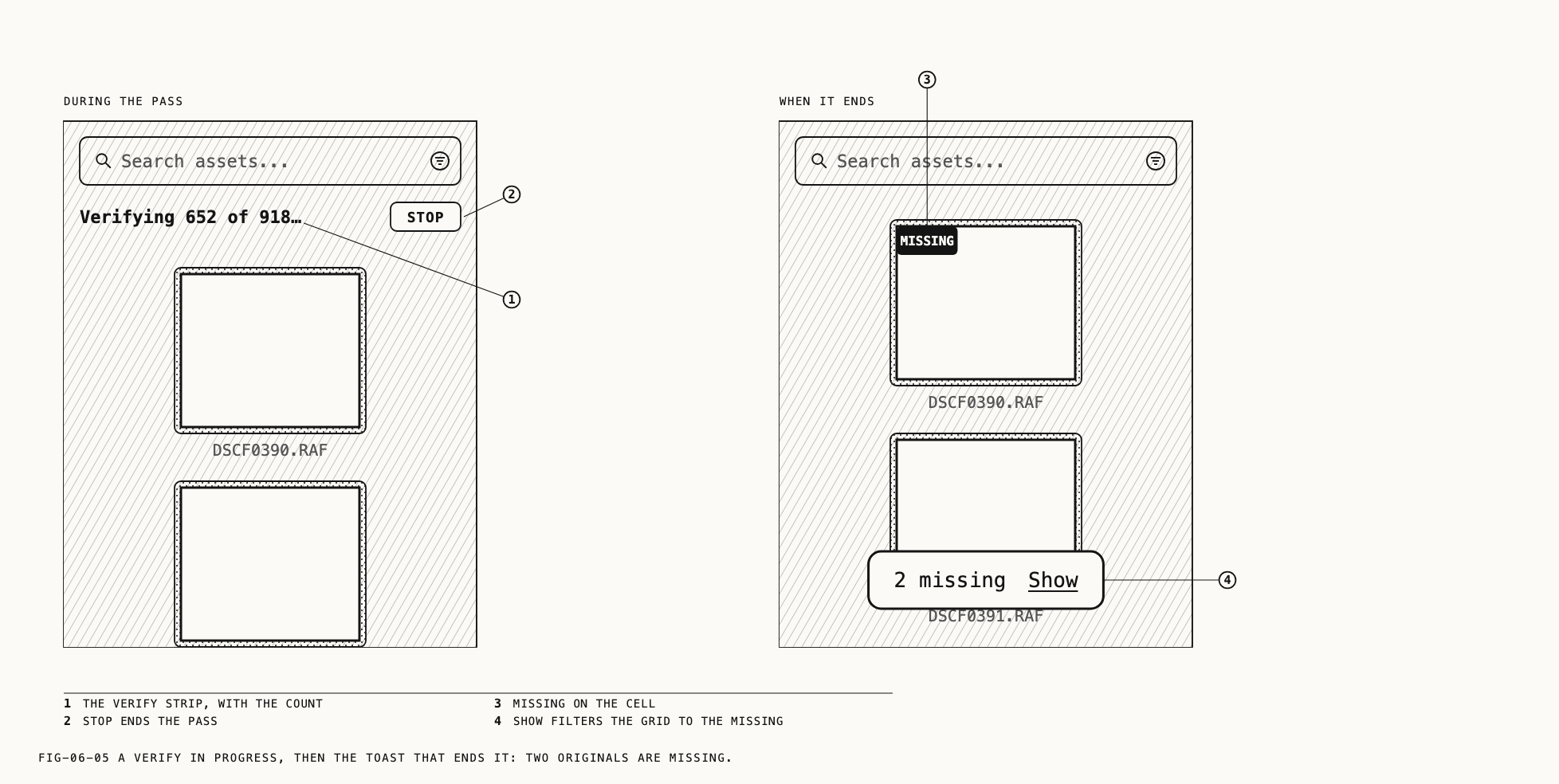
Verification checks for missing originals or files that have changed since import. A
strip over the browser reads Verifying 652 of 918… with Stop; on battery or in Low
Power Mode it pauses and reads Verifying paused on battery · 652 of 918. The pass ends
in a toast: 918 verified, 0 problems, or 2 missing with a Show button that filters
the grid to the missing items, or Verify stopped · 120 of 918 checked.
Revela also verifies originals automatically in the background and reports any problems.
A missing original carries a red MISSING pill on its thumbnail, and the loupe explains
either that The original file is not in the catalogue. Nothing can be edited until it is back. or that The original file has changed since it was imported., with the buttons
Verify Location and Reveal in Finder. View → Filter → Missing narrows the grid to
them. Put the file back and Verify Location clears the state.
A repaired catalog
Revela keeps an hourly copy of the catalog file in this Mac’s store. If the catalog is damaged, Revela sets it aside and restores the newest good copy when the catalog next opens. A sheet gives the restored copy’s date and time and the name of the damaged file kept inside the catalog. Edits, imports and ratings made after that time may be lost. The originals are untouched.
6.7 Export Originals
Where to find it: Catalogue → Export ▸ Originals; right-click Export ▸ Originals on
thumbnails or on a sidebar row (the catalog, a folder, All Photos, All Videos,
Favorites).
The panel Export Originals asks for a folder and explains that each original is copied
under its camera filename with a manifest.csv beside it, and that edits are not
exported. When adopted originals are among the selection, a checkbox Recreate the original folder layout writes them back under the folders and names they had before
adoption.
Progress reads Exporting originals… with Copying and verifying <name>, 12 of 400
and Stop. The summary reads 400 originals exported (or Export stopped after 12 originals, or Nothing was exported), then what was copied and verified into which
folder, and Edits are not exported; they stay in the catalogue. Missing originals are
skipped and counted; originals that could not be exported are listed. Reveal in Finder
opens the folder; Done closes the summary. Exporting outputs, as opposed to originals,
is covered in Chapter 25.
6.8 Removing from the Catalog
Deleting has two steps. The first moves items to Recently Deleted and touches no
file. Only the second, Delete Now, Empty… or the end of the retention
period, removes the original from disk.
Delete
Where to find it: Edit → Delete (⌘⌫); the ⌫ key; right-click Delete Photo (or
Delete 12 Photos) on thumbnails.
The menu item is retitled for the selection: Delete Photo, Delete 12 Photos, Delete Video, Delete 3 Items, Delete Reference. There is no dialog. The items move to
Recently Deleted, the loupe clears if the open asset was among them, and a toast reads
3 items moved to Recently Deleted with Undo; ⌘Z puts them back. The original file
stays exactly where it is. Deleting a folder is covered in Chapter 4; its Delete Folder and N Items button sends the items here too. Items in a synced folder ask first, with
the delete guards covered in Chapter 27.
Recently Deleted
Where to find it: the sidebar row Recently Deleted.
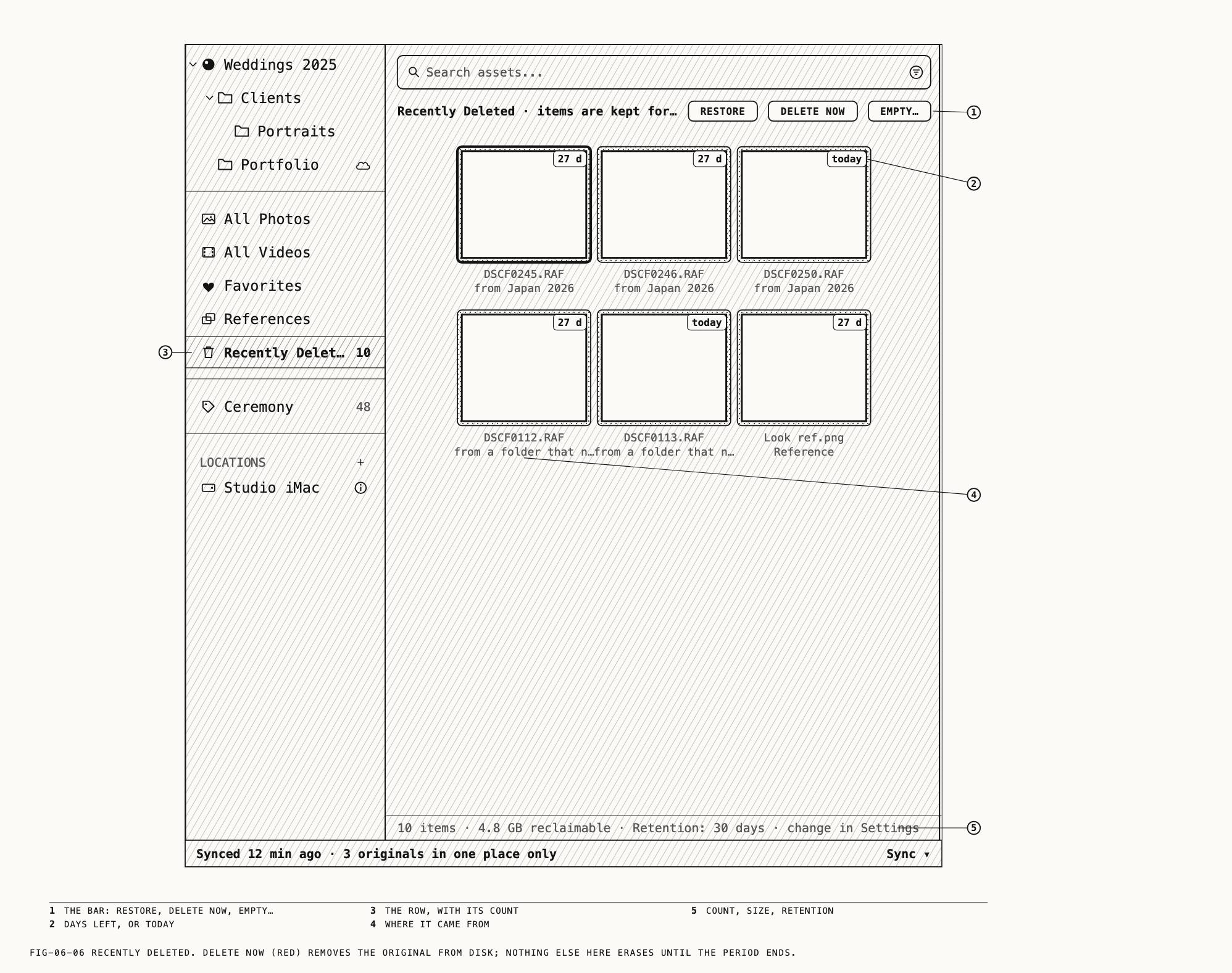
The row shows every deleted photo, video and reference. A bar across the top reads
Recently Deleted · items are kept for 30 days (or … until you empty it) with
Restore, Delete Now and Empty…; the footer reads 10 items · 4.8 GB reclaimable · Retention: 30 days · change in Settings. Each cell carries a badge with the days left,
27 d, or today on the last day, and a caption from <folder>, from a folder that no longer exists or Reference. Inside this row Edit → Delete becomes Delete Photo Now.
| Button | What it does |
|---|---|
Restore | Puts the selection back where it came from, with the toast 3 photos restored. Items whose folder is gone return to the top level, and the toast says so |
Delete Now | Asks Delete "DSCF0245.RAF" Now? or Delete 12 Photos Now?: This will permanently remove the original file and all edits from Recently Deleted. This cannot be undone. The original is removed from disk, not moved to the Trash, and the undo history is cleared. The toast reads Deleted 12 photos |
Empty… | Asks Empty Recently Deleted?, with the count and the size of original files that will be removed. Empty erases everything in the row |
Importing a file that is sitting in Recently Deleted restores it rather than importing
it again; the import summary says so (Chapter 3).
Note: An item whose store is away is not erased by Delete Now, Empty or the
retention period. It waits in Recently Deleted until its store is back.
The retention period
Where to find it: the Settings window, Library tab.
Keep deleted photos for: offers 7 days, 14 days, 30 days (the default), 60 days, 90 days or Until I empty it. The setting is yours, not the catalog’s, and
applies to every catalog you open. When the period passes, the item and its original are
removed without asking. The pass runs when a catalog opens and every hour while it stays
open, never during an import. Folders in a repository keep deleted photos for thirty days
on every Mac regardless of this setting; Chapter 27 covers them.
Export and Delete
Where to find it: Catalogue → Export and Delete, retitled Export and Delete 12 Photos; right-click.
Export and Delete copies originals out of the catalog before moving the assets to Recently Deleted. The
sheet Export and delete 3 photos explains that the originals are exported with their
camera filenames and the items then moved to Recently Deleted; edits are not exported.
Choose a destination with Choose… under Export originals to, keep or clear Include a manifest.csv, and tick Recreate the original folder layout if adopted originals are
among them. Export and Delete runs the export of section 6.7 and closes with the extra
line 3 items moved to Recently Deleted. Undo with ⌘Z; the exported files stay. A missing
original is skipped and left in the catalog.