A mixer is a node that takes several branches of the editing graph and combines them
into one picture. Revela has two kinds. A Parallel node combines independent corrections to the same picture. A Layer node stacks its branches, front to back,
each with a blend mode. Both sit at the end of a group of branches that start on one
splitter, and both are set up from the Mix tab.
This chapter assumes the node canvas, cards, wires and the splitter from Chapter 11. Masks are Chapter 19; a mixer uses them but does not build them.
15.1 Parallel and Layer
A mixer group has a fixed shape: a splitter, two or more branches leaving it, and the
mixer where the branches meet. Each branch is an ordinary run of nodes, usually a single
Adjustment, and each can carry its own mask. The mixer card is narrow, carries a
numbered notch on its left edge for every input, and grows taller as inputs are added.
Input 1 is the top notch.
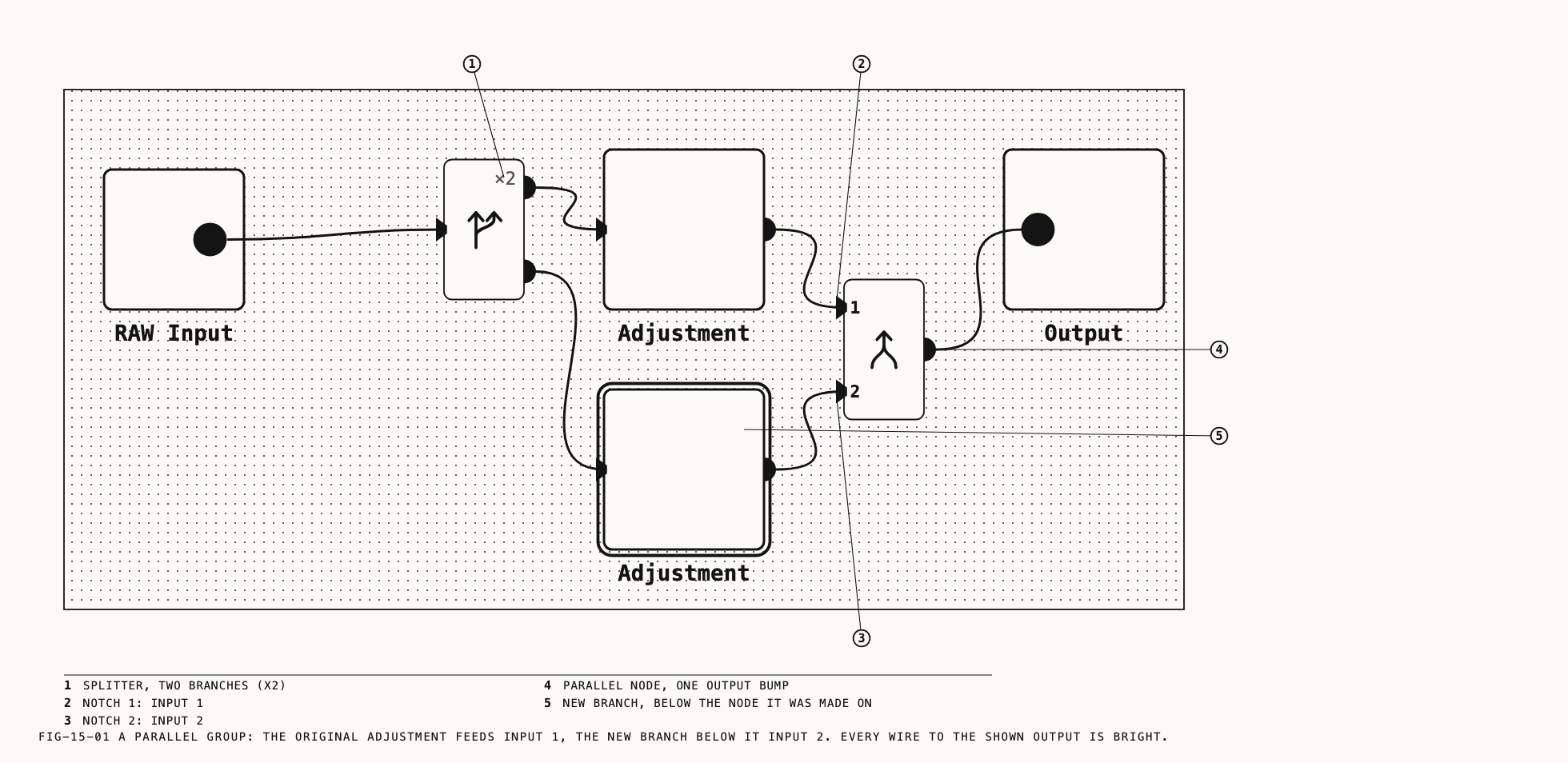
Parallel. Use a Parallel node for independent corrections to the same picture. Input order does not affect the result, so the Mix tab has no reordering control.
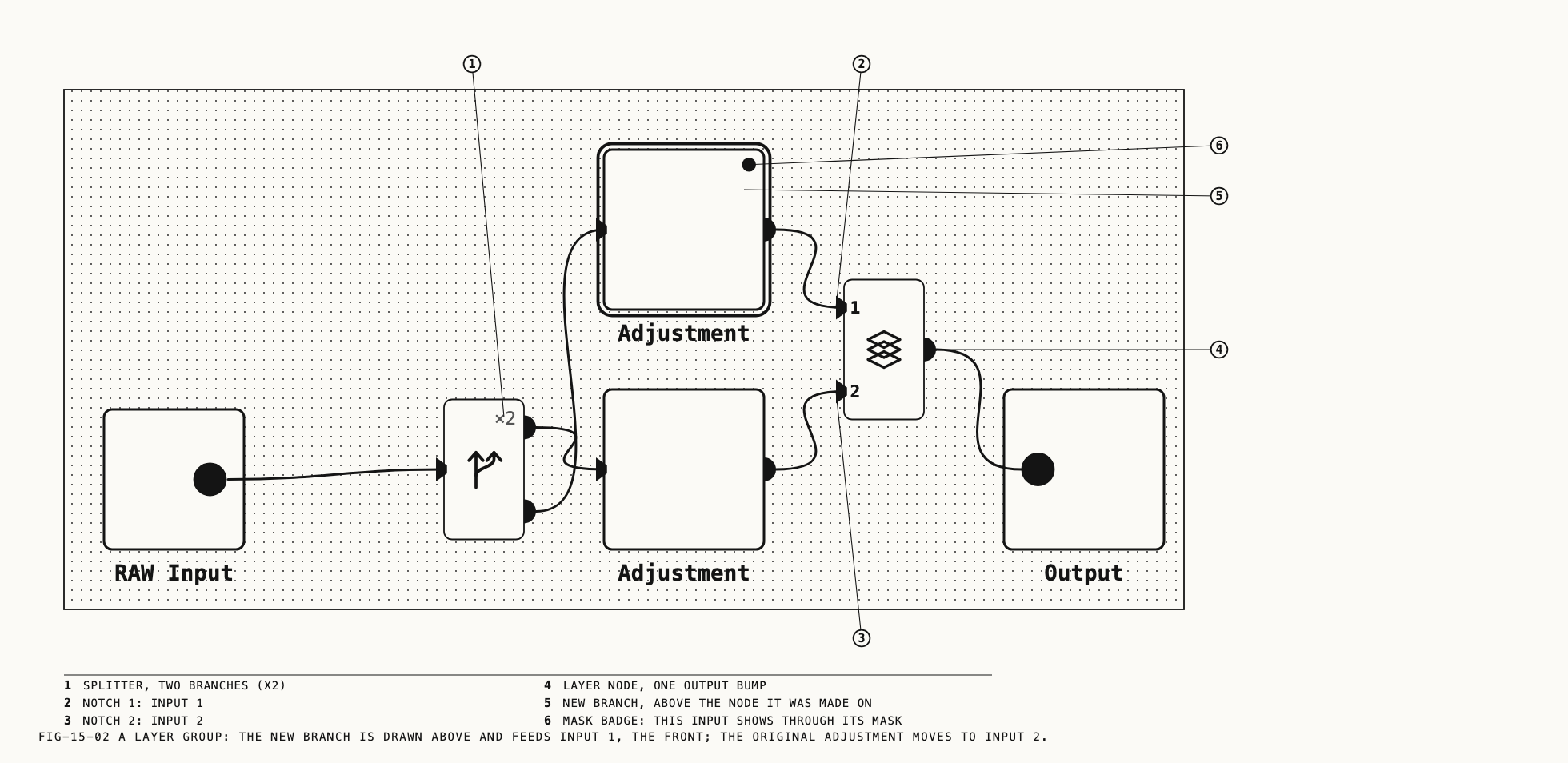
Layer. The Layer node stacks its inputs with input 1 in front. Each input has a
blend mode, chosen on the Mix tab, that says how it combines with everything behind it.
An input whose node carries a mask shows through only where that mask admits it; an
unmasked input covers the whole frame, and with the Normal mode it hides everything
behind it. Use a Layer node where branches should overlap in a chosen order, as layers
do in a compositing application.
The two kinds share everything else: the group shape, the canvas gestures, the
Strength slider and the rules in 15.5 and 15.6.
15.2 Making a mixer
Where to find it: Edit → Add Parallel Node (⌥P) and Edit → Add Layer Node (⌥L), or the
same two items on a card’s right-click menu, under Insert After.
Select an Adjustment, Colour Space, Text, Heal or Frequency Separation node and
choose Add Parallel Node or Add Layer Node. Revela builds the whole group around the
selected node in one step:
- A
Splitteris inserted before the node, unless the node already follows one. - A new, empty
Adjustmentis added on a second branch from that splitter. - The mixer appears after the selected node and connects to the rest of the graph.
For a Parallel node the selected node becomes input 1 and the new branch input 2,
drawn below it. For a Layer node the new branch is placed in front, as input 1, drawn
above the selected node, which moves to input 2. In both cases the new branch node is
selected afterward, ready for its own adjustments.
The two commands are refused on an input node, a splitter, an output, and on a mixer of the other kind.
To add a third branch, choose the same command again with any node of the group
selected, or right-click the mixer and choose Add Input. Either way a new empty
Adjustment appears on a new branch from the group’s splitter. A Parallel node appends
it as the last input; a Layer node puts it in front as input 1 and moves the others
back one.
The mixer card’s own right-click menu holds Add Input, Change to Layer Mixer (or
Change to Parallel Mixer), Insert Before, Insert After and Delete. A mixer cannot
be disabled, reset or copied. Deleting it bridges input 1’s branch to whatever followed
the mixer; the other branches stay on the canvas with nothing downstream.
15.3 Wiring inputs on the canvas
The notches on a mixer card accept dropped wires, so a group can be rebuilt by hand without the menu.
| Gesture | Result |
|---|---|
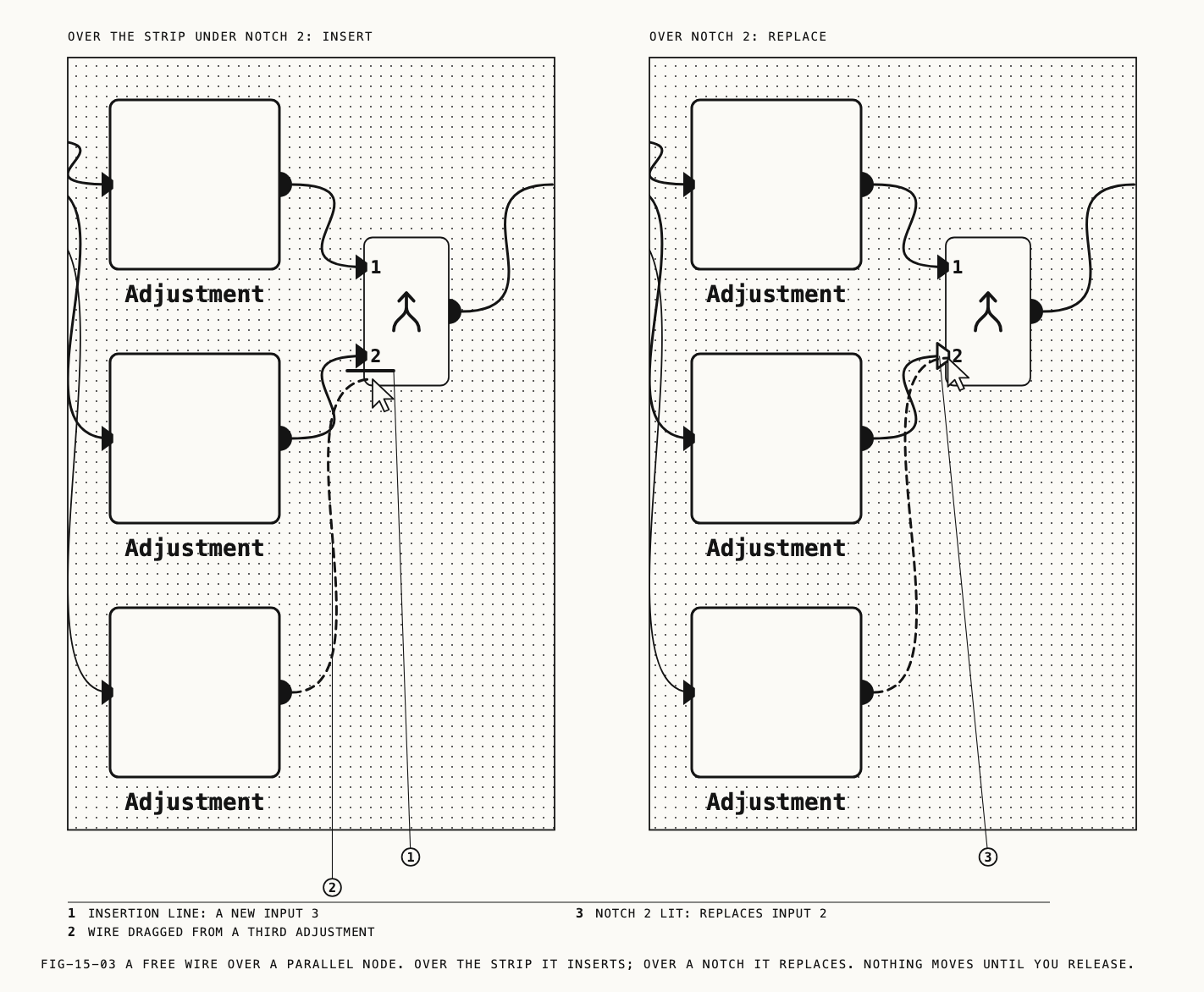
| Drop a wire on a notch | Replaces that input. The branch that fed it stays on the canvas, unconnected. Undo Replace Input. |
| Drop a wire in the gap between notches, or under the last one | Inserts a new input at that position; an insertion line marks the gap while the wire is over it. Undo Add Input. |
| Drop a splitter’s wire on the mixer | Makes a new empty Adjustment on a new branch of that splitter and feeds it in. |
| Drag a notch’s wire away | Removes that input and renumbers the rest. The branch stays on the canvas. Undo Remove Input. |
A drop is refused when it would close a loop, when the source already feeds another node
(only a splitter fans out), and on a Parallel node when the inputs would no longer all
descend from one splitter. A refused drop leaves the graph as it was.
A mixer left with a single input passes that input straight through, and its card reads
1 input beneath the symbol. A mixer with nothing connected shows black, like any
other node without an input.
The canvas draws every branch that reaches the output shown in the loupe in the bright wire color, not only input 1, so a glance at the wires shows which branches are in the picture.
15.4 The Mix tab
Where to find it: the Mix tab, with a Parallel or Layer node selected. It is the
mixer’s only tab beside Info.
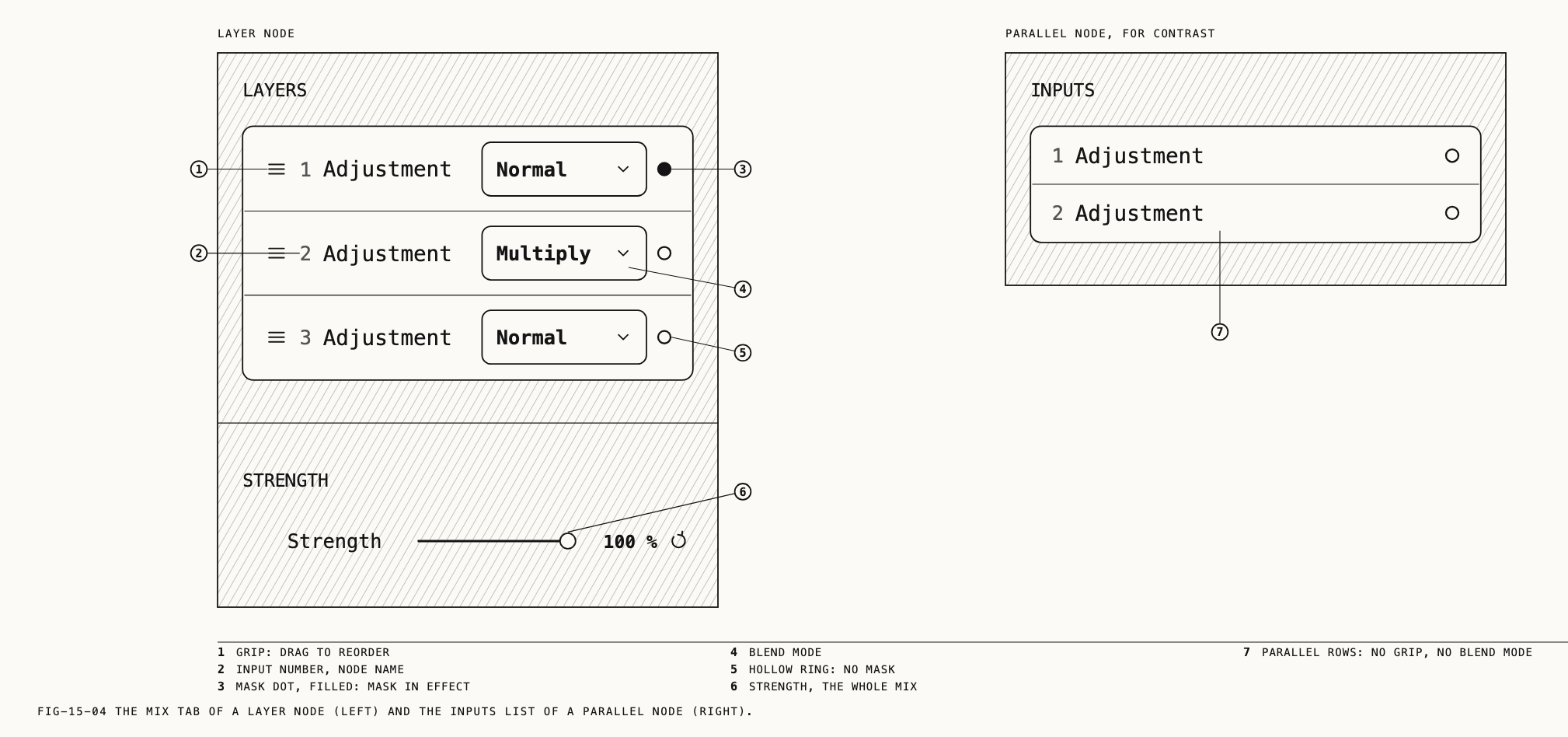
The tab lists the inputs under the header INPUTS for a Parallel node and LAYERS
for a Layer node, in input order with 1 first. Each row shows the input’s number, the
name of the node feeding it (the card’s label, as renamed on the canvas), and a mask dot
at the right: filled when that node’s mask is in effect, a hollow ring when the node has
no mask or an empty one. A Layer row adds a grip at the left and a blend dropdown
before the dot.
A row gains a second line in two cases. It reads disabled when the node feeding it has
been disabled; that input is left out of the mix entirely. It reads
converted · <from> → <to>, no look when the input arrives in a different color space
from input 1. A footer under Strength identifies the output color space: The Parallel node's output is in <space>, input 1's space. (or Layer). No tone mapping or film profile is added.
Blend modes
Each input of a Layer node has one blend mode, chosen from the dropdown on its row.
The sixteen modes are the familiar set, named as the app lists them:
| Mode | Mode | Mode | Mode |
|---|---|---|---|
Normal | Soft Light | Darken | Hue |
Multiply | Hard Light | Lighten | Saturation |
Screen | Color Dodge | Difference | Color |
Overlay | Color Burn | Exclusion | Luminosity |
Normal is the default and places the input over the stack behind it. The last input,
at the back, has nothing behind it, so its mode has no visible effect. A Parallel
node’s inputs have no blend mode: the row carries no dropdown.
Undo Change Blend Mode.
Reordering layers
Stack order matters only on a Layer node. Drag a row by its grip; an insertion line
marks the gap it will land in. Or click a row to select it and press ⌘↑ or ⌘↓ to move it
one place. The notch numbers on the card follow the new order. Undo Reorder Layers.
Strength
Strength runs from 0 % to 100 %, default 100 %, and controls the whole mix. At 0 %, a Parallel node shows the unchanged picture from the splitter. A Layer node shows only its last input. The loupe previews the change as you drag; releasing the mouse saves it.
Undo Node Strength.
15.5 Changing kind and nesting
Right-click a mixer and choose Change to Layer Mixer or Change to Parallel Mixer to
swap one kind for the other. The inputs, their order and Strength are kept; every
input’s blend mode is reset to Normal. The change to Parallel is refused unless every input comes from one splitter. A Parallel node requires this shared starting point.
A branch of one group may hold a whole second group, with its own splitter and mixer.
Choosing Add Parallel Node on a node inside a Parallel branch grows that inner group
rather than starting another. A Layer node’s inputs need not share one splitter, so a
Layer can gather branches from different points of the graph; a Parallel node’s
inputs always must.
15.6 Mixer Limitations
The Transform tab. A node inside a Parallel or Layer group offers no Transform
tab, because a crop on one branch would put that branch out of register with the others.
A node that already carried a transform when it joined a group keeps the tab, so the
transform can be removed. Crop and transform belong before the group’s splitter or after
the mixer, and are covered in Chapter 18.
LUT export. A grade whose path to the output passes through a mixer cannot be
exported as a LUT. Export LUT refuses with This grade has a Parallel or Layer node; a LUT cannot carry it. Exporting LUTs and Verana profiles is covered in Chapter 14.
Disabling. A mixer has no Disable Node. To take one branch out of the mix, disable
the node feeding it; the Mix tab marks the row disabled. To remove the whole mix,
delete the mixer and input 1’s branch carries on alone.
15.7 Feeding a mask as a key
A Layer input uses the mask on the node feeding it. To use the same mask on another branch, share it with a key wire between the cards.
Where to find it: right-click the receiving node and choose Use Mask From, then the
source node by name; or drag from the source card’s key output port, at the right of
its bottom edge, onto the receiving card. ⌥-dragging a card’s mask badge starts the same
drag.
The key wire is drawn in the mask color and dips below the cards so it reads apart from
the image wires. On the receiving node the shared mask appears in the mask editor as one
more component, and the card’s mask badge gains a ring around it. Disconnect Mask Key
on the receiving node’s menu removes it. Key wires are not limited to mixer groups; any
two maskable nodes can share one. Building masks, their components and the mask editor
are Chapter 19.
← 14. Film Emulation and LUTs · Contents · 16. Calibration →