Calibration controls the accuracy of a camera’s color reproduction. PearlaRAW files use RealHUE; other files use their camera’s color. Create a custom calibration from a photograph of a color chart and save it in the catalog. Select it on the input node to use it for every output.
The editing graph itself is covered in Chapter 11, the Develop tab in Chapter 12 and the split view in Chapter 8.
16.1 The Calibration Tab
Where to find it: the Calibration tab, with the input node selected.
The tab belongs to the input node of a still or a clip. With any other node selected it
shows one line, Select a raw or video input node. The tab is grayed while reviewing a still from a proxy. Calibration requires the original; proxies are covered in Chapter 6.
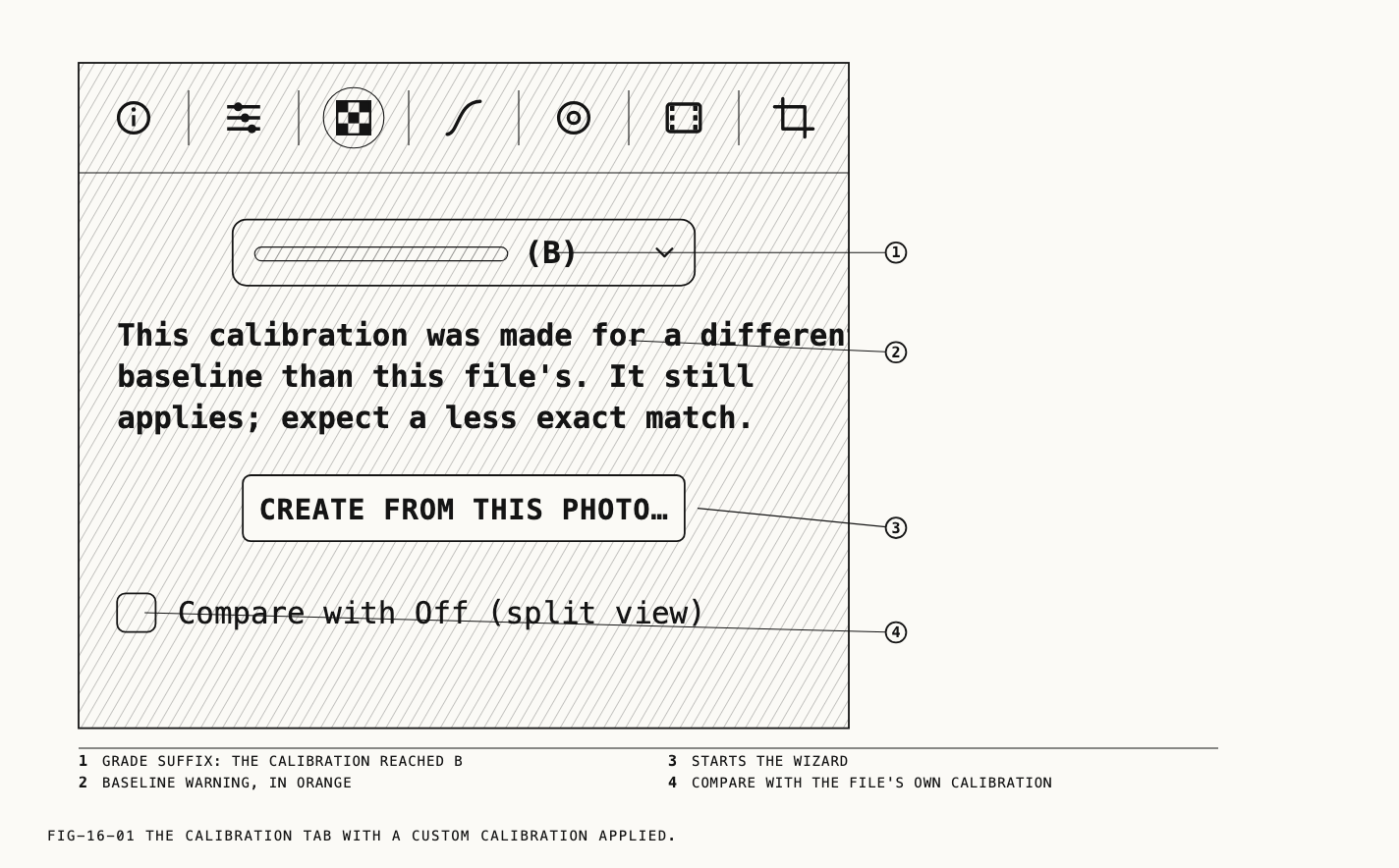
The tab holds three controls: a dropdown, a button and a checkbox.
The dropdown chooses the calibration. Off applies the file’s own calibration.
Automatic applies the newest calibration in the catalog that was saved with automatic
matching on and whose source matches this file; while chosen it reads
Automatic (<name>) or Automatic (no match). Below a divider, every calibration in the
catalog is listed by name. A calibration that did not reach grade A carries (B) or
(C) after its name. A file whose stored calibration has since been deleted shows
Missing calibration.
Create from this photo… starts the wizard (section 16.3). On a clip the button reads
Create from this frame…. It is grayed until the picture has loaded, and while the
wizard is open.
Compare with Off (split view) puts the picture as Off renders it on the reference
side of the loupe’s split view, labeled Off, so the correction can be judged against
the file’s own calibration. Unticking it restores whatever reference was set before. The
split view is covered in Chapter 8.
Changing the dropdown is one undo step, Edit → Undo Change Custom Calibration.
The tab does not show the applied calibration’s scores. Its row in the resources panel gives its grade and its score (section 16.5).
Two warnings can appear in orange directly under the dropdown, and only while a
calibration is applied. This calibration was fitted against a different baseline than this file's. It still applies; expect a less exact match. means the calibration was
made for a different camera, lens or kind of file than this one. This calibration was fitted over an earlier version of the RealHUE data. means RealHUE has been updated since
the calibration was made; the calibration still applies.
16.2 Shooting the Chart
Use the chart named under Chart and check its production date on the back. The wizard distinguishes charts made before November 2014 from those made later. It reports problems with the shot and suggests corrections.
Light the chart evenly from two sides at about 45 degrees, and keep every light source out of the chart’s reflection: the glossy patches catch reflections, and a reflection reads as a color error. Shade the lens and keep bright surfaces out of the frame around the chart, since flare lifts the dark patches. Expose so that no patch reaches white; a stop under the first clipped reading is about right. Keep the chart large enough in the frame that every patch covers a clear area of pixels, and square enough to the camera that the grid can follow it.
For a clip, record a few seconds with the chart held still.
Note: Use a .praw still or a plain camera raw for camera calibration. Other stills may produce a warning about their development.
16.3 Creating a Calibration
Where to find it: the Calibration tab → Create from this photo…
Select the chart shot, select its input node, and click Create from this photo… (or
Create from this frame… on a clip, with the scrubber parked on the frame to measure).
The wizard opens inside the tab as four numbered sections, all in view at once. A grid
appears over the loupe, and the dropdown is dimmed until the wizard closes. The loupe
stays live while the wizard is open, so the picture can be zoomed and panned under the
grid. Leaving the tab, selecting another node or another file, or clicking Cancel
closes the wizard and removes the grid.
1. CHART. The Chart row names the chart. The Vintage row asks for the
production date printed on the back of the chart, Before November 2014 or November 2014 or later; the later date is the default. Changing either discards any measurement
already made.
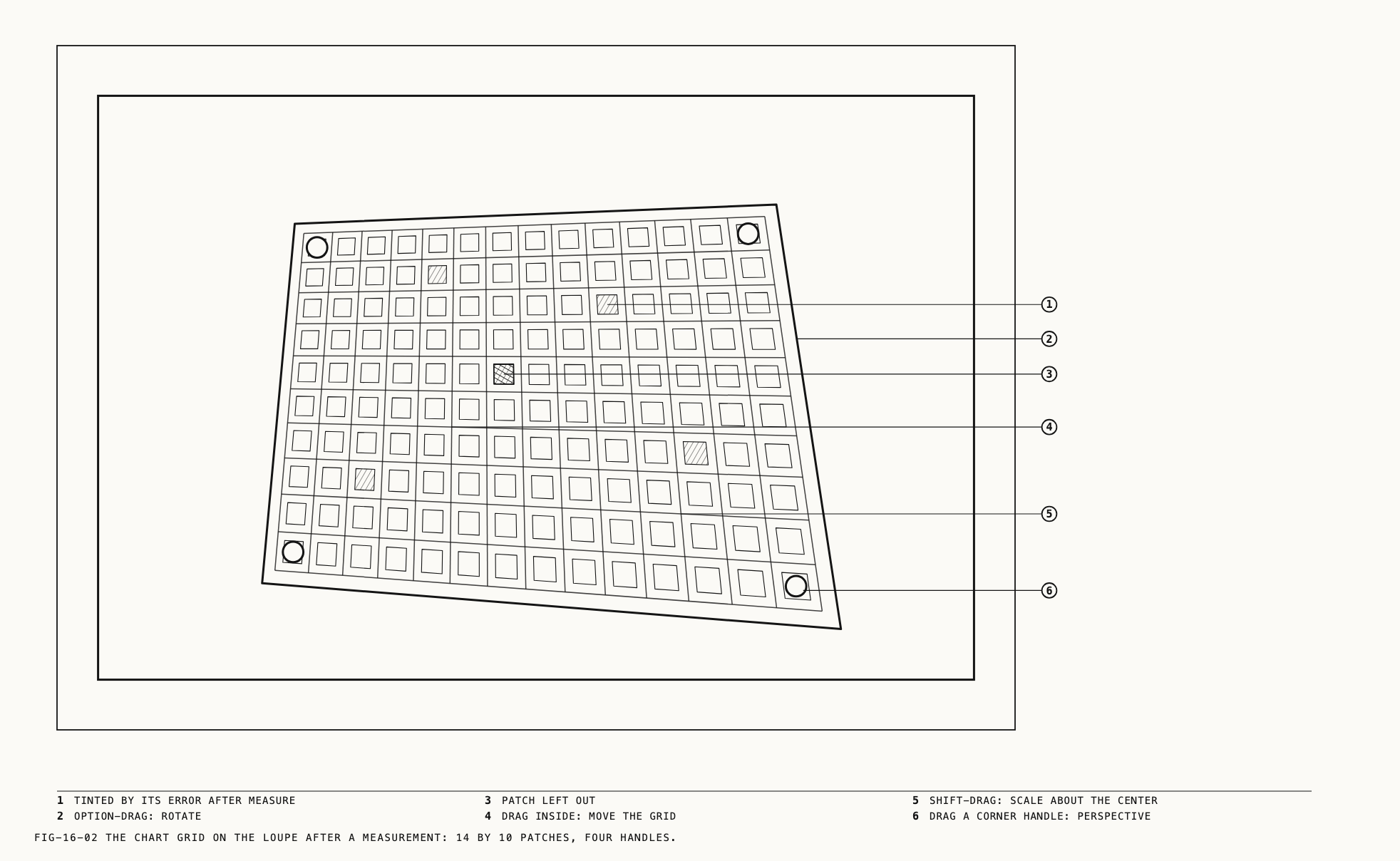
2. PLACE THE GRID. The grid starts centered and must be moved to sit over the
chart, with patch A1 (the top-left patch when the chart’s label reads upright) at the
grid’s top left. Drag inside the outline to move the whole grid. Drag a round corner handle to fit a chart photographed at an angle. Hold ⇧ and drag inside the outline to scale about the center, or hold ⌥ and drag to rotate. The sample square drawn inside each cell is the area that will be read, so it
must sit inside the patch with a margin, not on the patch’s edge.
Three buttons follow. Snap to corners refines the placement from the
picture once the grid is roughly in place. Rotate 180° swaps the grid end for end, for
a chart photographed upside down. Reset grid returns the grid to its starting position.
On a clip, Frames sets how many frames to use, from 1 to 15 in steps of 2. More frames can give a less noisy reading.
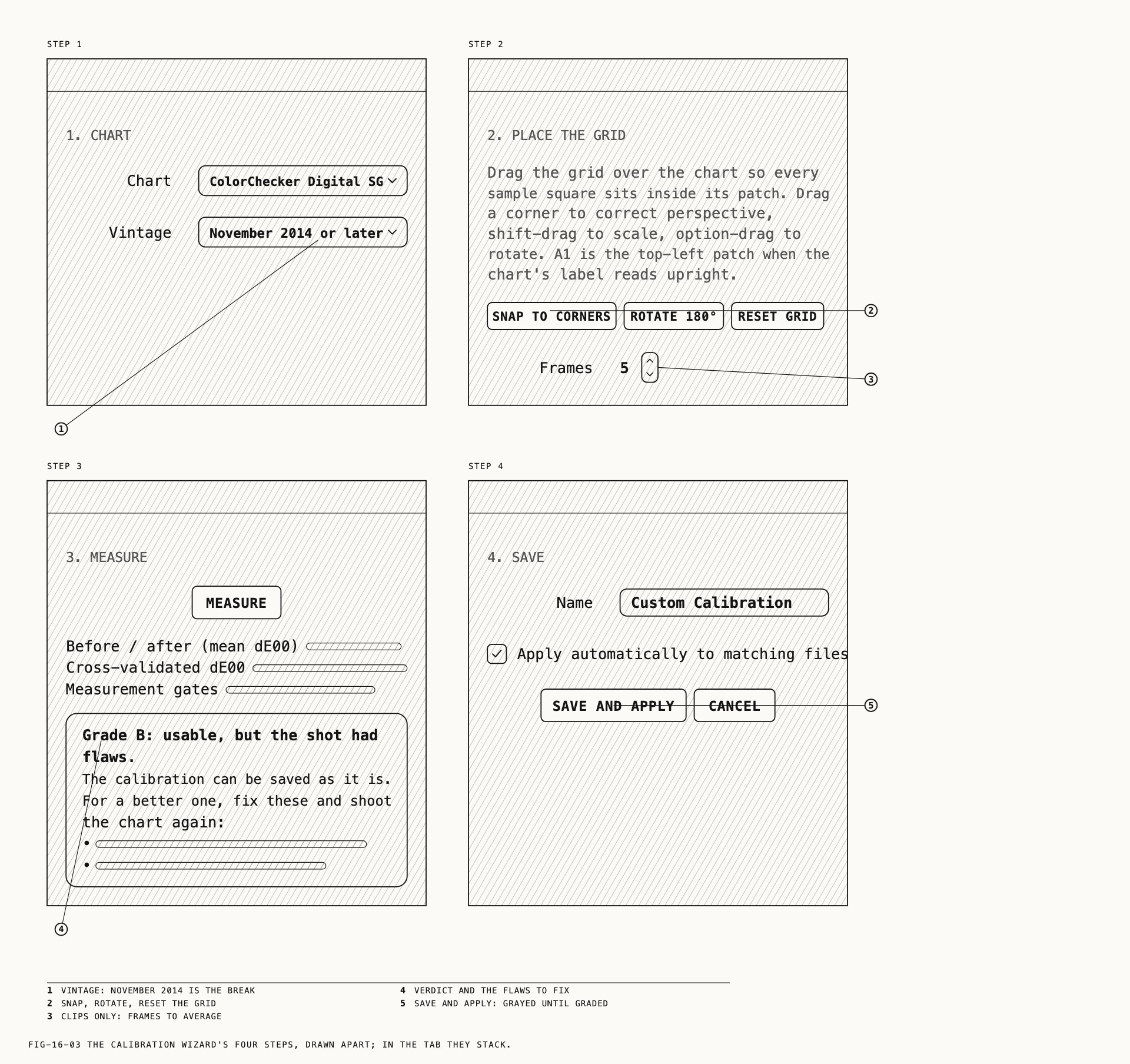
3. MEASURE. Click Measure, or press Return. The status reads Measuring… while
the chart is read, then Move the grid and measure again at any time. The grid’s cells
fill with the result: each patch is tinted from green (a close match) through amber to
red (a poor one), and a patch that could not be used is filled red. Patches that look
wrong are usually the grid sitting off the patch; move the grid and measure again.
Three result lines follow, Before / after (mean dE00), Cross-validated dE00 and
Measurement gates, each with its figures. The scores are color differences: lower is
better, and 1.0 is about the smallest difference a trained eye can see. Then one of three
verdicts follows.
| Verdict | What it means |
|---|---|
Grade A: as good as the house's own calibration shot. in green | The calibration meets the bar Pearla holds its own calibrations to. |
Grade B: usable, but the shot had flaws. or Grade C: marginal. The shot had serious flaws. in orange, followed by The calibration can be saved as it is. For a better one, fix these and shoot the chart again: and a list | The calibration can be saved and used; its grade travels with it in every list. The listed flaws are what to fix in the next shot. |
This shot cannot calibrate the camera in red, followed by Even at the loosest grade the fit is not trustworthy. Fix these and shoot the chart again: and a list | Nothing can be saved. |
If the shot has problems, follow the wizard’s advice before trying again.
For uneven light, move the lights farther away or add a second light. Check for shadows, hot spots and reflections. For flare, shade the lens and keep bright surfaces out of the surrounding frame. Reduce exposure by about a stop if patches are clipped.
If the result remains unusable, check the grid position, chart and vintage before measuring again. For a warning about the still’s development, follow section 16.2 and use a .praw still or a plain camera raw.
Some problems prevent measurement. Place the grid over the chart first.
means the grid has no valid position. No white ring patches were found under the grid. Check the grid position and orientation. and No neutral patches were found under the grid. Check the grid position and orientation. mean the grid is on the wrong part of the
picture or the wrong way up; Rotate 180° is the usual fix. The photo is not ready to measure yet. Wait for it to load and try again., or a message that the picture could not
be prepared for this file, means the picture could not be read for measuring. Any other
problem reads Could not measure the chart: followed by the reason.
4. SAVE. Type a Name in place of the default, Custom Calibration. Tick Apply automatically to matching files to make this calibration the one Automatic picks for
files from the same camera and lens, of the same kind. Then click Save and apply. The
calibration is stored in the catalog, the wizard closes, and this file’s dropdown is set
to it. Save and apply is grayed until a measurement has produced a grade.
16.4 Applying a Calibration to Many Files
Where to find it: Catalogue → Custom Calibration ▸, or right-click the selection in the grid.
Select the files in the browser and choose from the Custom Calibration submenu: Off,
Automatic, or, below a divider, any calibration in the catalog by name. The choice applies to every selected still and clip, and their thumbnails update. The same submenu sits in the selection’s right-click menu. The menu is
available whenever the selection is not empty.
A file whose stored edits cannot be read is skipped rather than overwritten.
Note: The menu changes every selected file, but only the file open in the loupe gets
an undo step. The others are changed as if their Calibration tab had been set by hand;
to reverse the change, apply Off or the previous choice to the same selection.
16.5 Calibrations in the Resources Panel
Where to find it: the resources panel, Calibrations tab.
Every calibration in the catalog is listed in the resources panel under the
Calibrations tab. There a calibration can be renamed, deleted, exported as a .pcal
file, and switched in and out of automatic matching, all from the row’s right-click menu
(Rename, Apply automatically to matching files, Export, Delete). Each row gives
the camera, the grade, the score and the date the calibration was made. Import Calibration brings in .pcal files, and so does dropping them on the tab. Deleting a
calibration that files use sets those files back to Off, and the prompt says so. The
panel and its tabs are covered in Chapter 17. Calibrations can also travel between Macs
in a kit, covered in Chapter 27.
← 15. Mixers · Contents · 17. Grades, Presets and Resources →