A grade is the whole of an asset’s editing graph: the input node’s develop settings, every node after it with its settings and mask, the wires between them, and the output node’s delivery settings. Copy and paste a grade between assets, or save it as a preset. The resources panel holds presets, LUTs, calibrations, kits and the open asset’s edit history.
The graph itself is Chapter 11. Importing LUTs is Chapter 14, calibrations are Chapter 16, and kits, which carry resources between Macs, are Chapter 27.
17.1 What a Grade Carries
A copied grade or preset leaves the target’s as-shot white balance unchanged. Clips also keep their input color space. Blackmagic RAW and Nikon N-RAW clips (Chapter 12) keep their entire Develop tab: they receive only the look, as the confirmation explains.
A grade crosses between stills and clips. A still’s grade pasted onto a clip has its raw input converted to a video input, and the reverse; every other node is kept as it was.
A grade requires its LUTs to be present in the destination catalog. Missing LUTs are omitted, and the confirmation warns before pasting.
17.2 Copying and Pasting a Grade
Where to find it: Edit → Copy Grade (⇧⌘C) and Edit → Paste Grade (⇧⌘V), or the same two items on a thumbnail’s right-click menu.
Copy Grade takes the grade of exactly one asset: the single selected thumbnail, or the
asset open in the loupe when nothing is selected. With several thumbnails selected the
item is disabled. Copying text or an image afterwards does not disturb the copied grade. It stays until another grade is copied
or Revela quits, and it can be pasted into any catalog open in the meantime.
Paste Grade acts on the selection. On one thumbnail the item reads Paste Grade; on
several it reads Paste Grade onto N Photos, or Videos, or Items when the selection
mixes the two. One confirmation covers the whole selection. For one asset it is titled
Paste Grade? and reads This will replace all adjustments on "<name>" with the copied grade.; for several, Paste the grade onto N photos? and This will replace all adjustments on these N photos with the copied grade. The buttons are Paste and
Cancel.
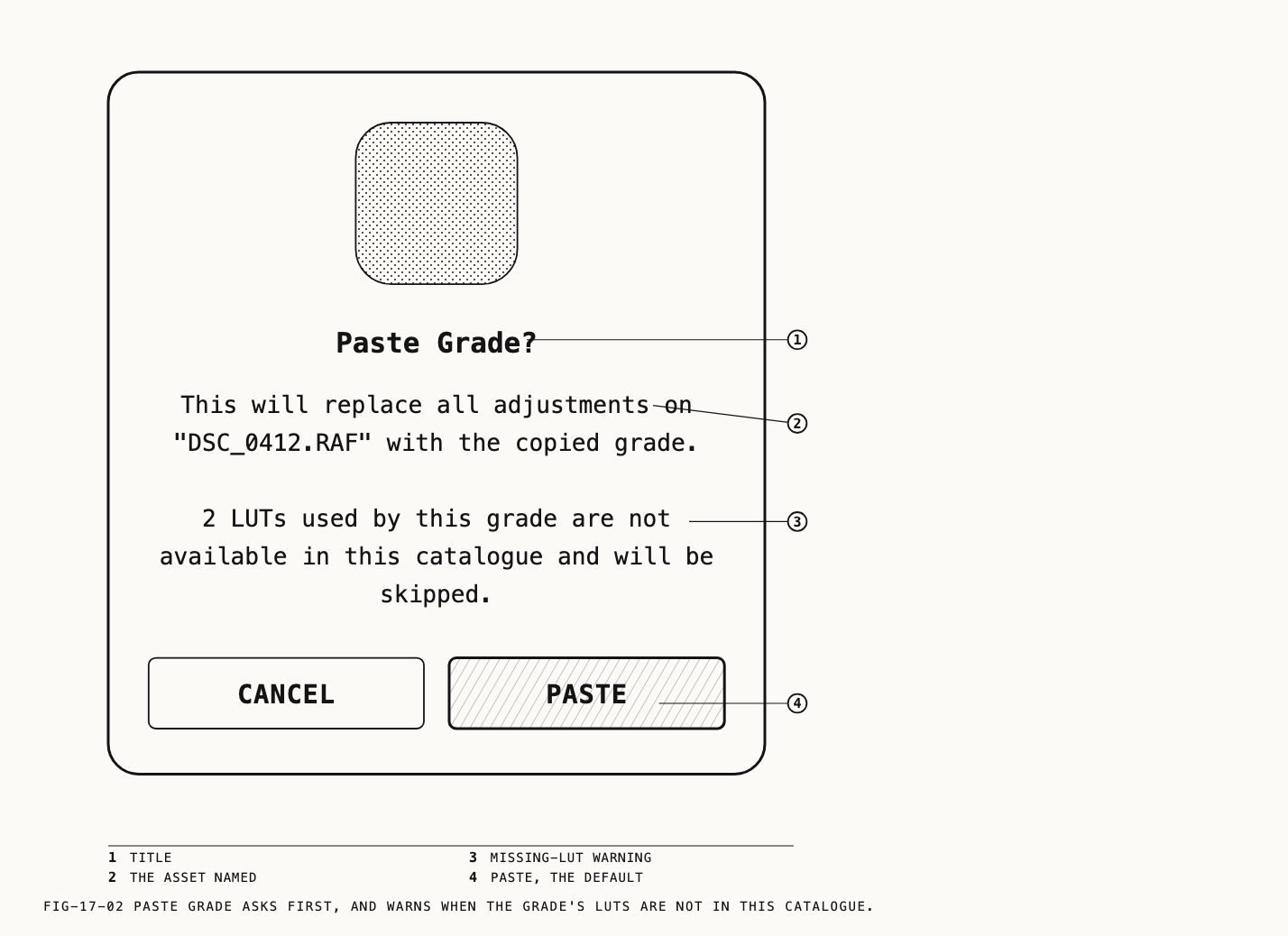
Two lines can be added to that text. When some targets develop differently from the
source (a Blackmagic RAW or Nikon N-RAW clip among stills, or clips of different raw formats),
a sentence names them, as "<name>" is a Blackmagic RAW clip: it takes the look only and keeps its own develop settings., and after the paste a brief notice reads Grade pasted onto N videos · N Blackmagic RAW clips took the look only. When the grade uses
LUTs this catalog lacks, the text ends N LUTs used by this grade are not available in this catalogue and will be skipped.
The paste is one undo step, Apply Grade (Apply Grade (cross-type) between a still and
a clip), for the asset open in the loupe. Every other asset in the selection takes the
grade directly, and for those the paste cannot be undone: the undo history belongs to the
open asset alone (Chapter 11).
17.3 Saving a Grade as a Preset
Where to find it: Save Grade on a thumbnail’s right-click menu.
A preset is a grade kept in the catalog under a name. Save Grade is offered for one
thumbnail at a time and is not on the Edit menu. It opens a sheet titled Save Grade,
reading Enter a name for this preset., with a Preset name field filled with the
asset’s file name without its extension, and the buttons Save and Cancel. An empty
name saves nothing.
The saved preset carries everything section 17.1 describes and records the camera the
asset was shot on, which the Presets tab shows under the name. A preset saved from a Blackmagic RAW or Nikon N-RAW clip carries only the look; the sheet adds Saved without the clip's <format> develop settings. A preset carries the look; the develop stays with the camera file.
The new preset appears at once on the resources panel’s Presets tab (section 17.5).
Presets are never imported from a file; they are made this way, or they arrive in a kit
(Chapter 27).
17.4 Applying a Preset
Where to find it: Edit → Apply Preset ▸, the same submenu on a thumbnail’s right-click
menu, Apply Grade on a preset’s right-click menu in the Presets tab, or a preset
dragged from that tab onto a thumbnail.
Apply Preset ▸ lists every preset in the catalog by name, or a disabled No Presets
when there are none. Choosing one applies it to the selection, as Paste Grade does,
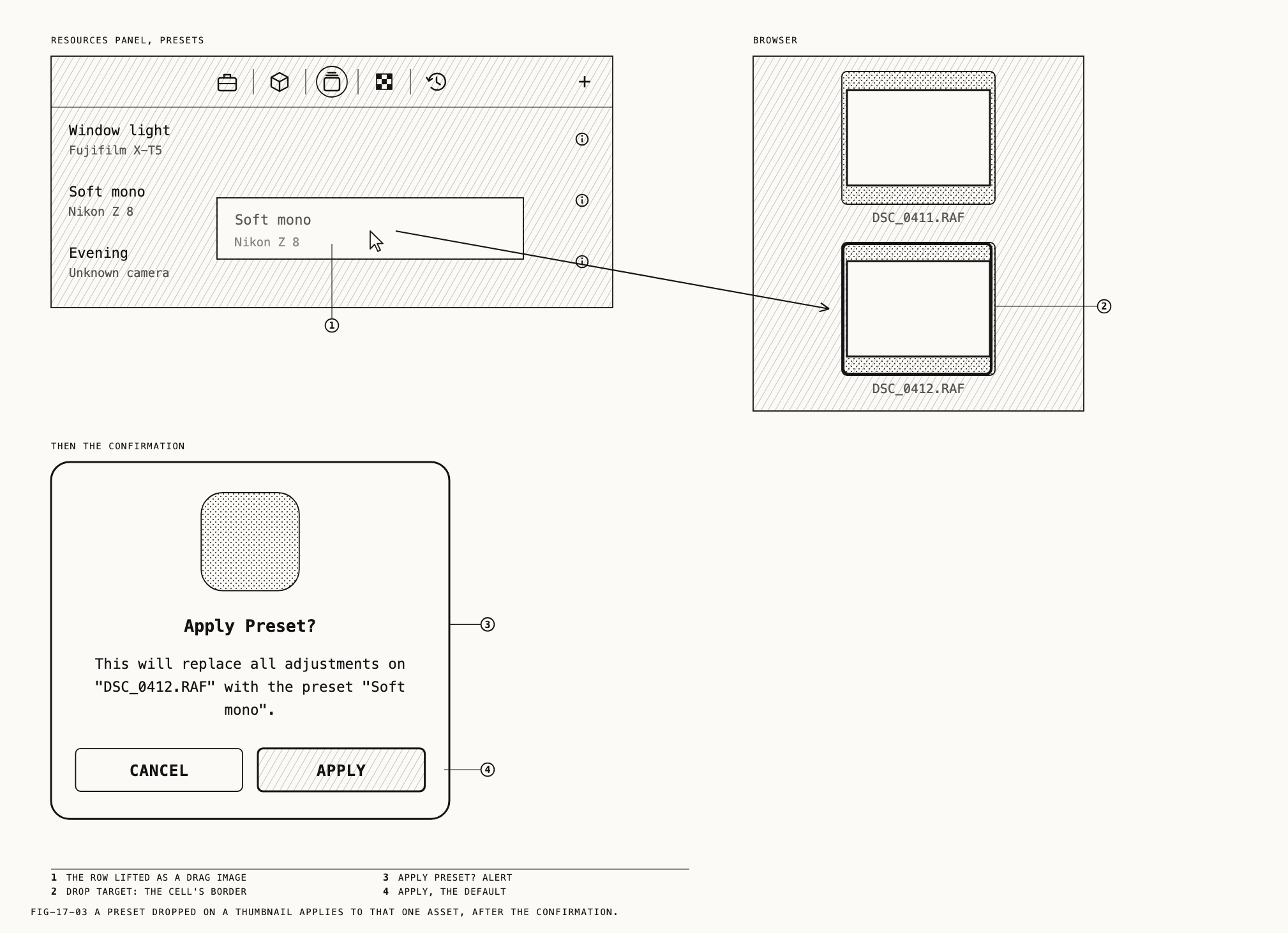
behind one confirmation: Apply Preset? and This will replace all adjustments on "<name>" with the preset "<preset>"., or Apply the preset to N photos? and the same
sentence for these N photos. The buttons are Apply and Cancel.
Apply Grade on the Presets tab applies that preset to the selected thumbnails, or to
the asset open in the loupe when nothing is selected, behind the same confirmation.
Dragging a preset’s row out of the Presets tab and dropping it on a thumbnail applies
it to that one asset, again after the confirmation. The drop must land on a thumbnail,
and the grid refuses it while showing References or Recently Deleted.
A preset applied to a Blackmagic RAW or Nikon N-RAW clip changes only the look. The Develop tab stays unchanged. The undo step for the open asset is Apply Preset, and
as with a paste, the other assets in a selection cannot be undone.
17.5 The Resources Panel
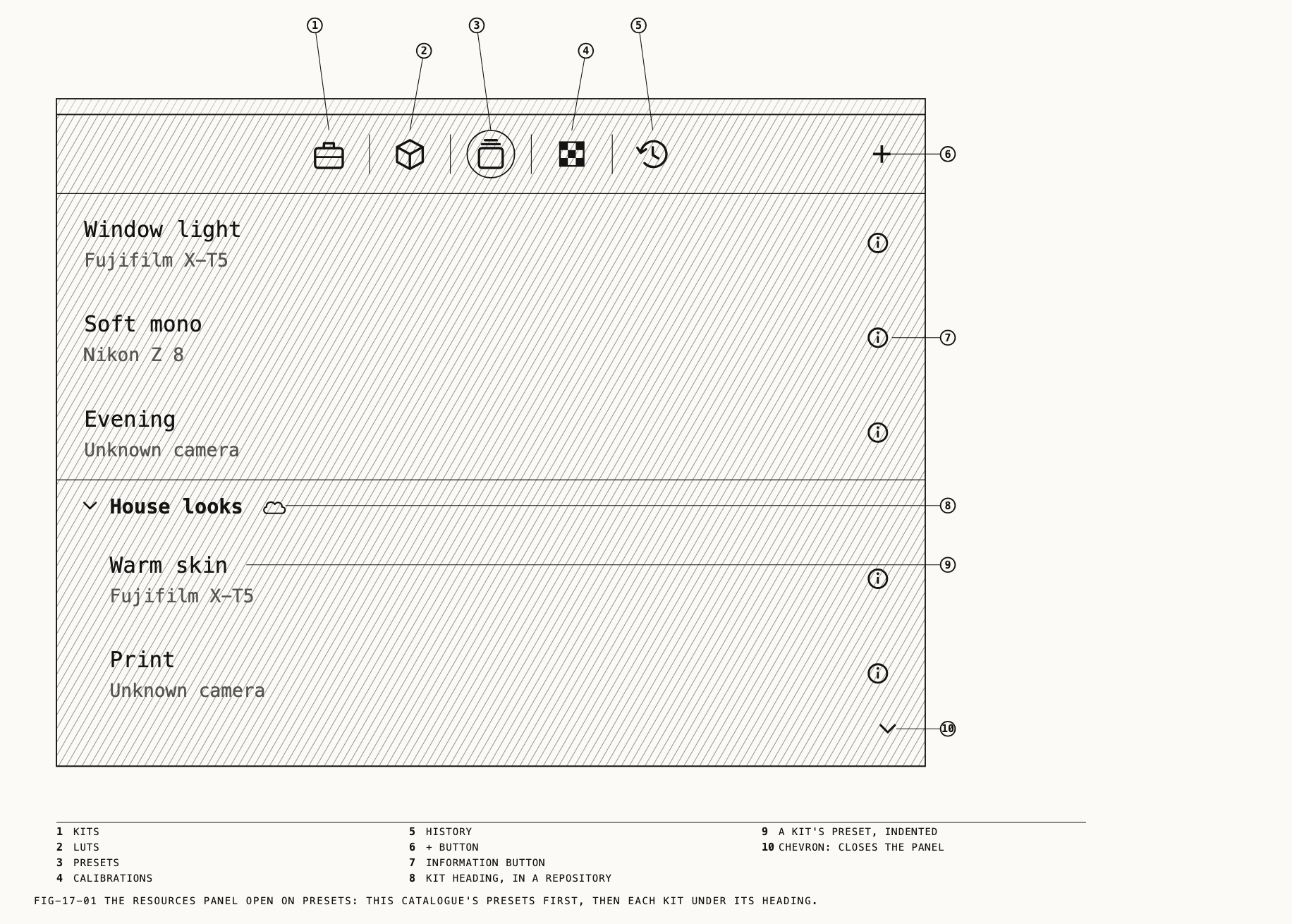
Where to find it: View → Show Resources (⌥⌘L), the chevron at the foot of the left column, or View → Resources ▸ followed by a tab’s name.
The resources panel opens under the sidebar and browser, across the left column, and is
closed when a catalog is first opened. Its tab bar is a row of icons; each tab’s name is
in its tooltip, and View → Resources ▸ lists the same names in the same order, with the
open one ticked, and opens the panel if it is closed. Five tabs, in this order: Kits,
LUTs, Presets, Calibrations, History. The tab you leave open is the one shown
next time. A + button sits at the right end of the bar; it is covered in 17.6.
| Tab | Lists | How a row gets there | Where it is used |
|---|---|---|---|
Kits | Every kit, with the six kinds of resource it holds | Made or added through + | Chapter 27 |
LUTs | The catalog’s LUTs | Import LUT, or files dropped on the tab | The Colour tab, Chapter 14 |
Presets | Saved grades | Save Grade on a thumbnail | Section 17.4 |
Calibrations | Camera calibrations | Import Calibration, a dropped .pcal, or the Calibration tab | Chapter 16 |
History | The open asset’s edit steps | Every edit | Section 17.5.5 |
On every tab but History, the list is grouped by where each resource is kept. This
catalog’s own resources come first, with no heading. Below them, each kit has a heading
that opens and closes with a click, with the kit’s resources set in beneath it: a kit in a
repository shows a cloud beside its name, a private one reads this catalogue only, and
one that has not finished arriving reads arriving from <repository>… and lists nothing
until it has. Once the catalog has a kit, every row’s right-click menu gains Copy to ▸
and Move to ▸, listing the kits and This catalogue, then New Kit; a row can also be
dragged onto a kit’s heading. What moving into and out of a kit means is Chapter 27.
17.5.1 Kits
The Kits tab shows this catalog’s own resources first, as six counted categories
(Chapter 27 lists them), then a hairline, then each kit under its heading with the same
six. A category at zero is gray, its chevron dimmed, and does not open. A kit kept in a
repository is the same in every catalog that has added it, which is how its resources
reach another Mac. Making a kit, adding one from a repository, and moving resources
between kits are Chapter 27.
17.5.2 LUTs
Each row shows the LUT’s name over its format and grid size, as CUBE · 33³. The empty
tab reads Drop .cube, .3dl, or .png files here. Double-click a name to rename it in
place; Return commits, Esc cancels, and an empty or unchanged name is ignored. The
right-click menu offers Rename, the kit items, and Delete.
Delete removes the LUT at once, without a confirmation, unless it is in a kit, in
which case the kit’s own confirmation sheet runs. Nodes that used it show None in
their LUT dropdown until the same file is imported again. Importing, the accepted
formats and the import warnings are Chapter 14.
17.5.3 Presets
Each row shows the preset’s name over the camera it was saved from, as <make> <model>, or Unknown camera when the file recorded none, with an information button at
the right. Clicking the button opens a popover that lists, node by node and section by
section, every setting in the preset that differs from its default; a preset with no
changes reads Default settings. The empty tab reads Right-click an asset to save a grade.
Double-click a name to rename it in place, as on the LUTs tab. The right-click menu
offers Apply Grade (section 17.4), Rename, the kit items, and Delete, which
removes the preset at once with no confirmation outside a kit. Assets already graded
with it keep their grade.
17.5.4 Calibrations
The tab has an import button in its toolbar, Import Calibration, takes a dropped .pcal
file, and reads Drop .pcal files here while empty. A calibration’s row shows its name
over the camera it was made for, its grade, its score and its date, with a
checkbox whose tooltip reads Apply automatically to matching files.
The right-click menu offers Rename, Apply automatically to matching files (checked
while on), Export, the kit items and Delete. Unlike LUTs and presets, a calibration
confirms before it is deleted: Delete '<name>'?, adding N photos use it and will fall back to Off. for a calibration in use, with Delete and Cancel. What a calibration
is, how one is made, and where it is applied are Chapter 16.
17.5.5 History
The History tab lists the edit steps of the asset open in the loupe, oldest at the
top. The first row is Open; each row after it carries the label of one undo step
(Node Strength, Apply Grade, Rename Node and so on, the same labels the Edit menu
shows after Undo) and, at the right, how long ago it was made: now, then seconds,
minutes or hours ago. The current step is highlighted. Steps beyond it, the ones undone
and available to redo, are dimmed. With no asset open, the tab reads No history.
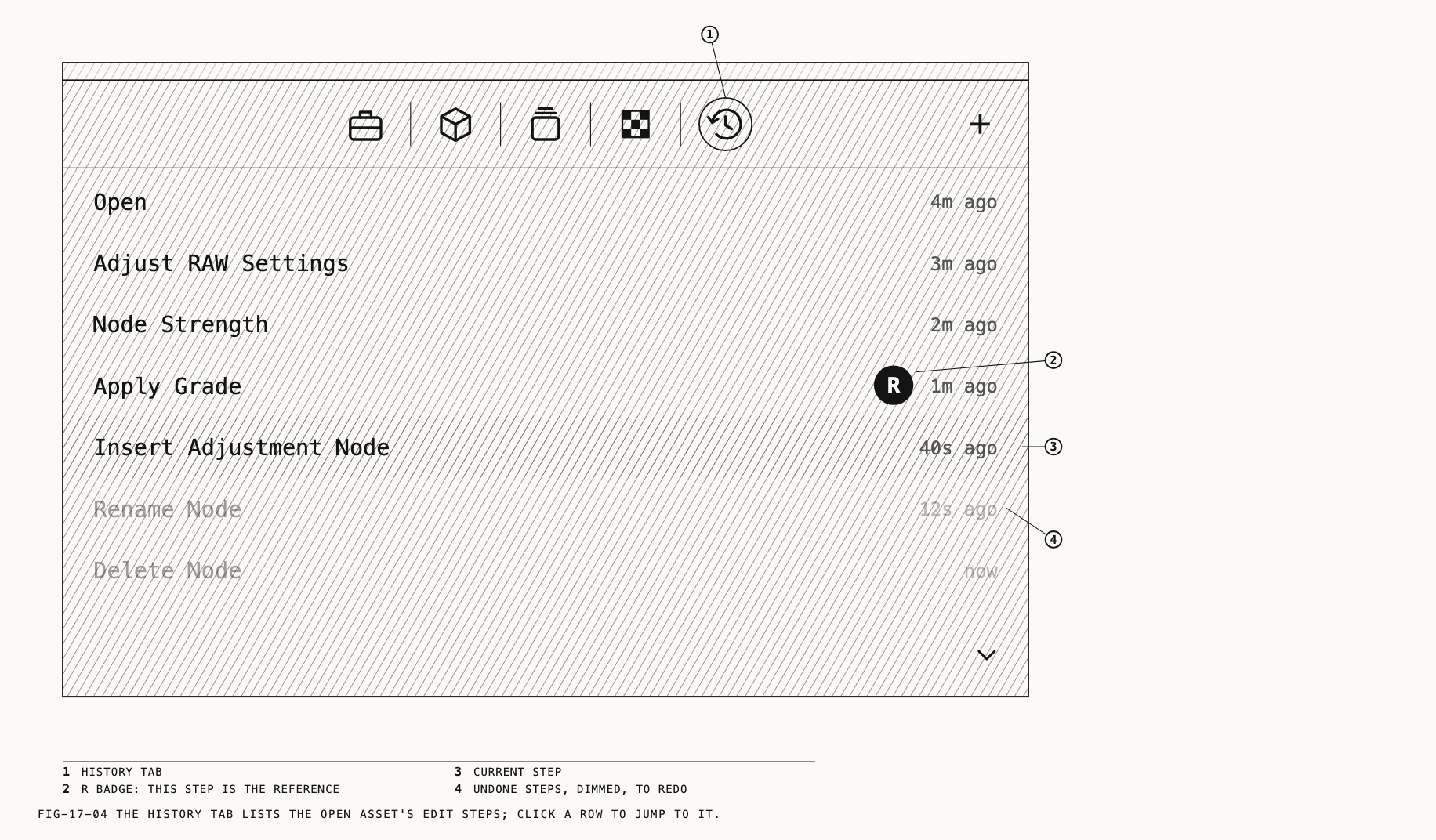
Clicking a row jumps the asset to that step: the graph, the loupe and the inspector all
follow. The inspector stays on the tab you are on when the node it shows still has that
tab, as it does after Undo and Redo. The rows after the step stay, dimmed, so you can
jump forward again. Making a new edit from that point discards the dimmed rows, as a new
edit after Undo does. The list holds fifty steps, the oldest dropping off as new ones
arrive, and it is cleared when you move to another asset (Chapter 11).
Right-click a row for two items. Use as Reference pins that step as the loupe’s
reference, so the split view compares the current state against how the picture looked
then; the row gains the R badge, and the item is disabled on the step already
referenced. Save as Reference saves the picture at that step as a reference in the
sidebar’s References row and makes it the reference, which outlives the history. The
reference and the split view are Chapter 8.
17.6 The + Button
Where to find it: the + at the right end of the resources panel’s tab bar.
The + button opens one menu, the same on every tab: a Kits header, New Kit and
Add a Kit from a Repository. Importing a LUT or a calibration is done from
the import button in that tab’s own toolbar, not from +. Making and adding kits are
Chapter 27.