A crop, a straighten, a quarter turn, a flip and a keystone correction are all settings of one node. They live on the input node or on an adjustment node, in that node’s Transform tab, and every output downstream of the node receives the result. An output node has no Transform tab of its own; the size an output is written at, and how the picture is fitted to that size, belong to the Output tab and are covered in Chapter 24.
Opening the Transform tab puts the loupe in crop mode: the whole uncropped frame is shown, dimmed outside a crop box that can be dragged, resized and tilted on the picture. The picture itself never moves or turns on screen; the box does. Leaving the tab ends crop mode and the loupe shows the cropped result.
18.1 Entering and Leaving Crop Mode
Where to find it: the Transform tab, or C in the loupe.
Select an input or adjustment node and click the Transform tab, or press C with the Catalogue window in front. C switches the inspector to the Transform tab and arms crop
mode in one step. C again, or clicking another tab, leaves it. C is ignored while a
text field is being edited and while the Frequency Separation tab owns the keys
(Chapter 21).
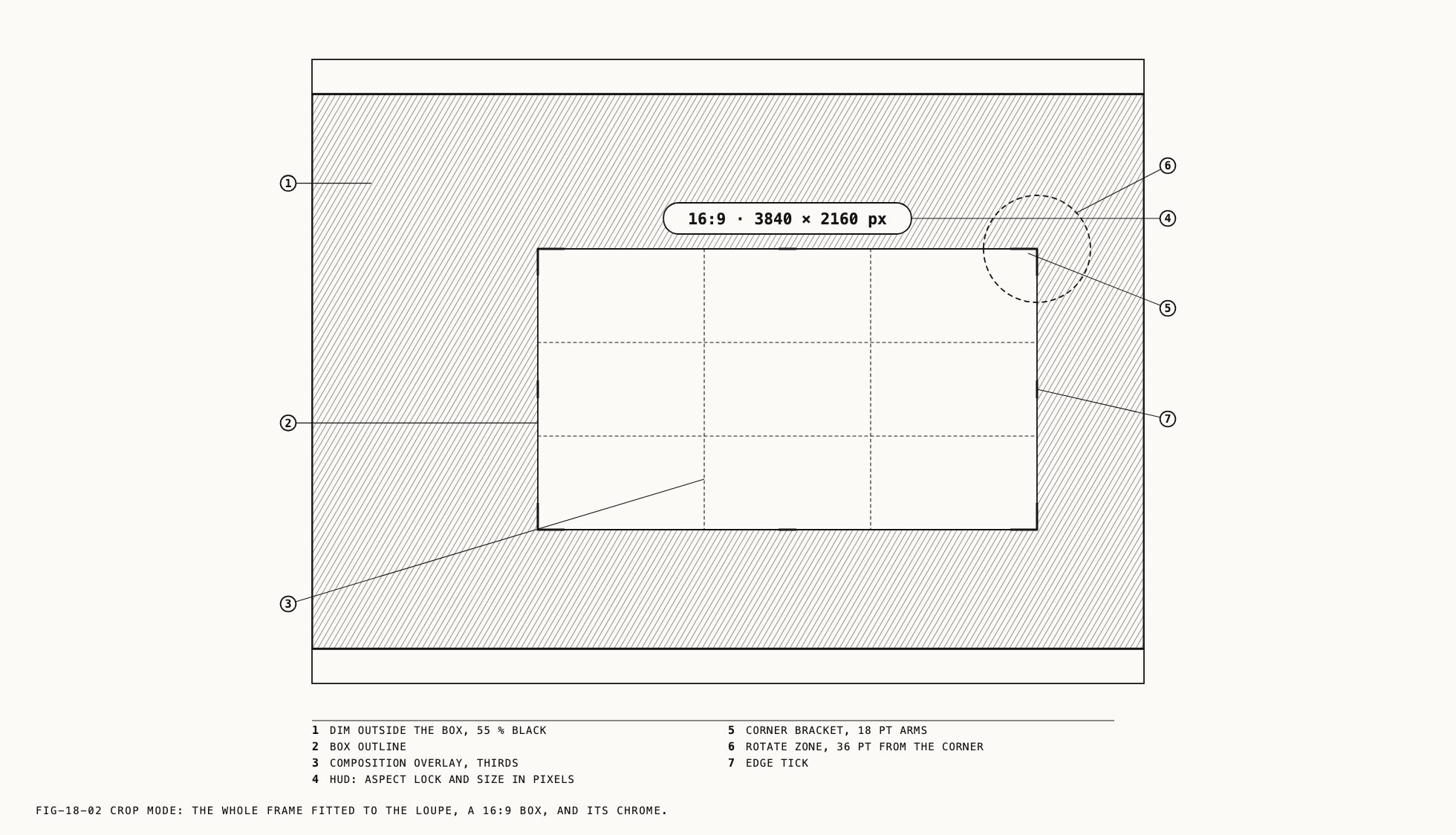
On entry the full frame is fitted to the loupe whatever the zoom was before. Everything outside the crop box is dimmed. The box has a white outline with bracketed corners and a short tick at the midpoint of each edge, and a composition overlay is drawn inside it. A small pill above the box reads the current aspect ratio and the crop’s size in pixels.
Every gesture in crop mode is committed as it ends, each with its own undo step, so there
is nothing to confirm. Return, or a double-click inside the box, accepts the crop and
animates the box out to fill the loupe. Esc puts the node back to the transform it had
when crop mode was entered (one undo step, labeled Cancel Crop) and leaves the mode.
⇧⌘H hides the crop controls to leave the framing visible on its own. The hidden handles cannot be dragged; click the picture to restore them. In crop mode, clicking the picture does not pan it, and clicking outside it does nothing.
Crop mode follows the selected node. Switching assets keeps the Transform tab open and starts crop mode for the new asset. An undo or redo also leaves the inspector on the Transform tab, so crop mode stays on while gestures are stepped back.
18.2 Framing the Crop
The box is moved and sized on the picture.
| Gesture | Result |
|---|---|
| Drag inside the box | Moves it. The box stays within the frame |
| Drag a corner bracket | Resizes about the opposite corner |
| Drag an edge tick | Resizes about the opposite edge |
| Drag on the frame outside the box | Draws a new box from that point |
| Arrow keys | Nudge the box one pixel; with ⇧, ten pixels. A run of presses is one undo step |
O | Cycles the composition overlay: thirds, an eight by eight grid, the golden spiral |
⇧O | Turns the spiral a quarter turn |
X | Swaps the box’s width and height about its center |
A resize keeps the aspect ratio when one is locked (section 18.3). With Free selected,
holding ⇧ during a resize keeps the ratio the box started with. A box cannot be made
smaller than a minimum size.
The pill above the box reads the lock and the size, for example 16:9 · 3840 × 2160 px
or Free · 2400 × 1600 px. During a rotation it reads the angle instead, as 12.5°.
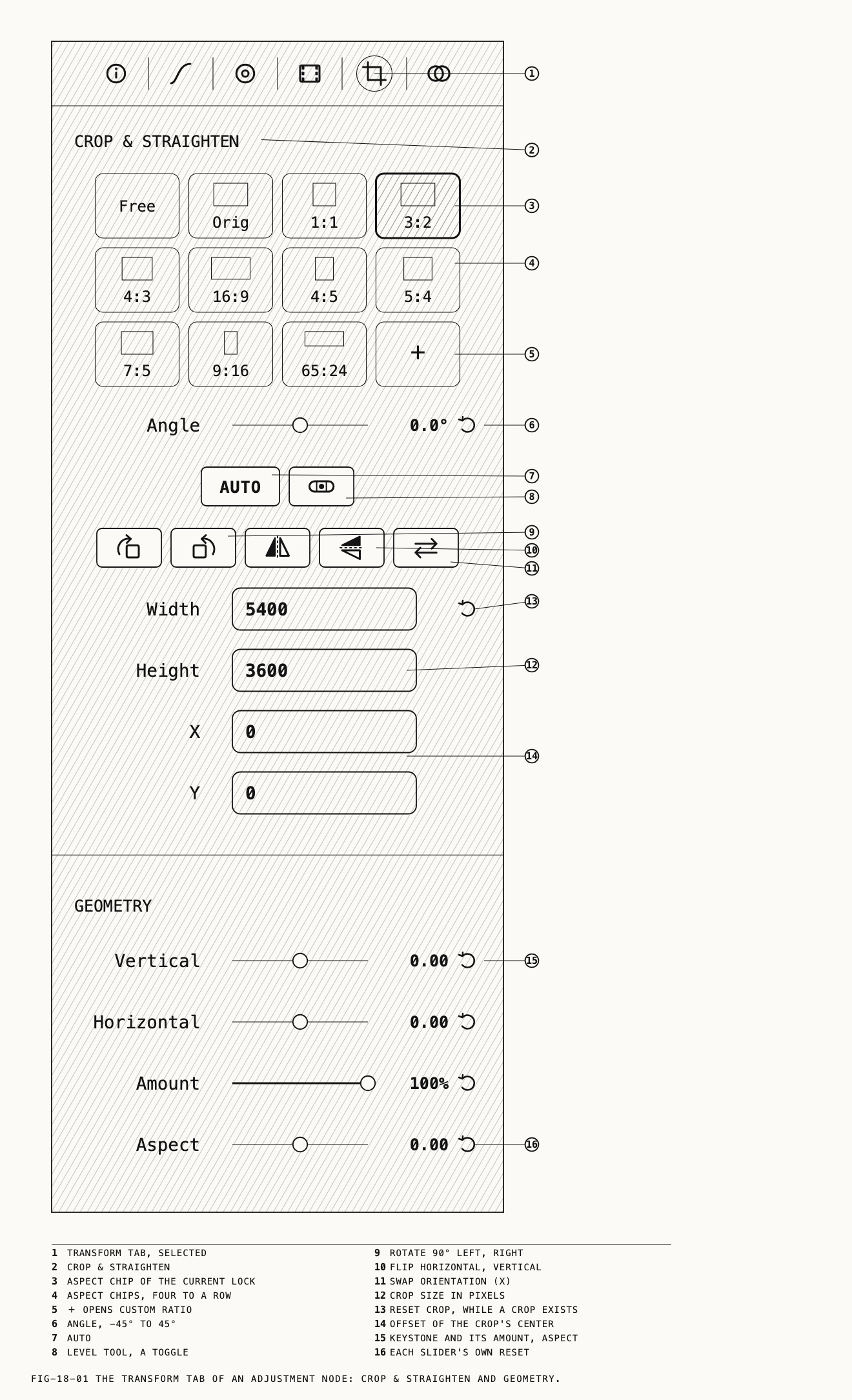
The same crop can be typed. At the end of Crop & Straighten the Width and Height
rows hold the crop’s size in pixels and the X and Y rows hold the offset of its center
from the center of the frame, positive to the right and downward. A value is committed
on Return or when the field loses focus. If a value would move the box outside the frame, Revela limits it to the frame and shows the adjusted value.
A full frame with no angle, turn, flip or aspect lock counts as uncropped. The reset button at the right end
of the Width row (tooltip Reset crop) appears only while a crop exists. Clicking it
clears the crop, the angle, the quarter turns and the flips together.
On a clip, O, I and the arrow keys belong to crop mode while it is armed and the
transport does not see them. J, K and L keep playing, pausing and shuttling.
18.3 Aspect Ratios
The chips at the top of Crop & Straighten set an aspect lock. Each chip draws a small
outline of its shape above its label.
| Chip | Lock |
|---|---|
Free | None. The box is resized on either axis independently |
Orig | The ratio of the source frame as it is currently turned |
1:1, 3:2, 4:3, 16:9, 4:5, 5:4, 7:5, 9:16, 65:24 | That ratio |
| Custom chips | Ratios you have saved |
+ | Opens the Custom ratio popover |
Clicking a ratio chip locks the box to it and re-fits the box. The lock does not care
which way round the ratio is: a 16:9 lock fits a tall box as 9:16, and the lock swaps
with the box when its orientation is swapped. The chip for the current lock is
highlighted; a custom ratio that has not been saved as a chip highlights none.
The swap button, the last on the row of icon buttons under Auto (tooltip Swap crop orientation (X)), exchanges the box’s width and height about its center. It is the same
as X in the loupe and does nothing when there is no crop.
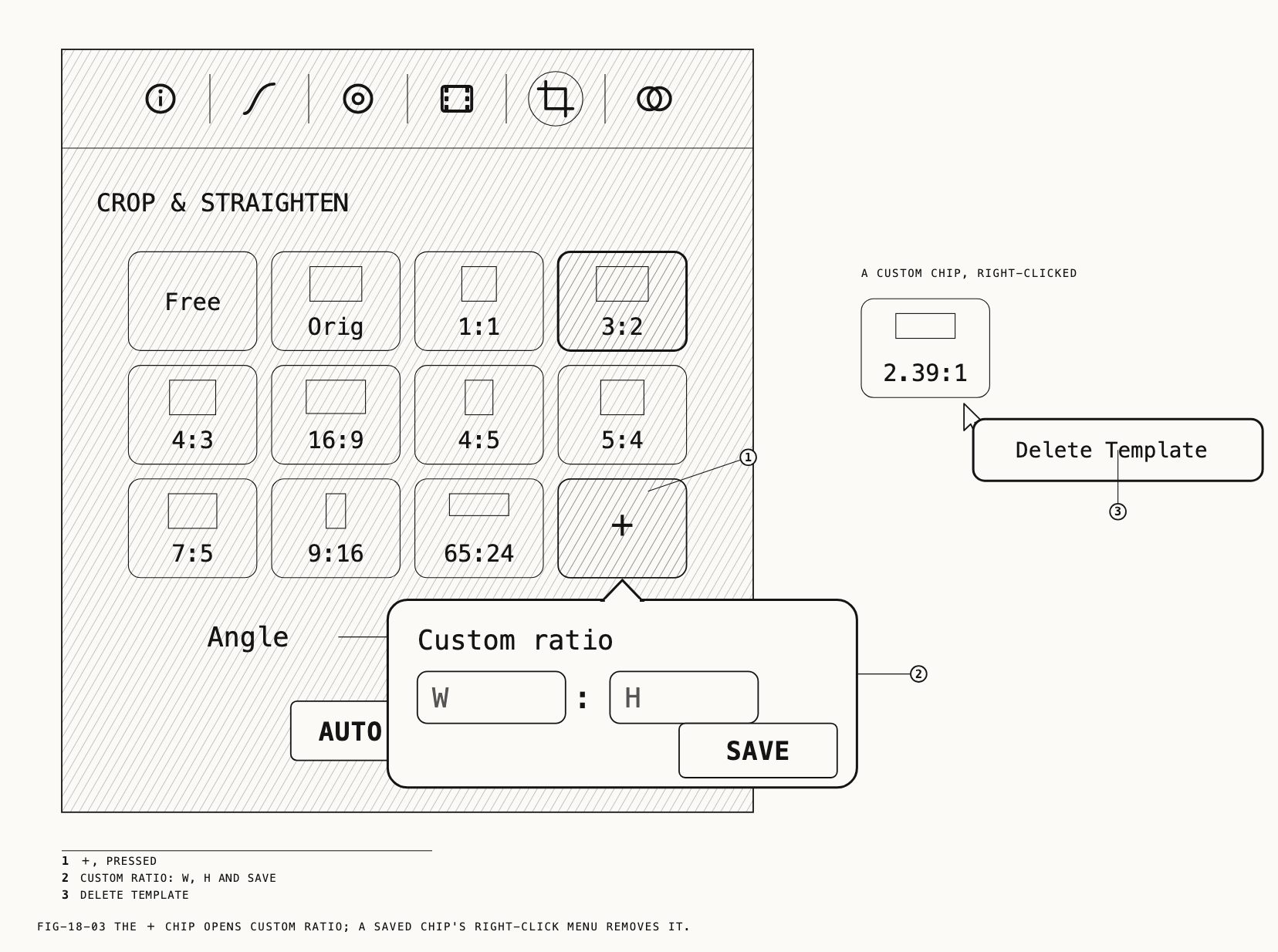
To save a ratio, click +. The Custom ratio popover has two fields, placeholders W
and H with a colon between them, and a Save button that Return also presses.
Saving adds a chip, applies it to the box and keeps it in the catalog, so it is there for
every asset. A ratio that already exists in the list is refused without a message.
Right-click a custom chip for Delete Template.
When the catalog holds kits, the saved ratios are grouped under headings: This catalogue first, then each kit by name. A click on a heading opens or closes its group,
and a heading carries a cloud mark when its kit syncs. Each group has its own +, and a
custom chip’s right-click menu adds Copy to and Move to for moving the ratio between
groups. Kits are covered in Chapter 27.
18.4 Leveling
Straighten with the Angle slider, Auto, the level tool or a drag in the loupe. Each sets the same fine angle, from −45 to +45 degrees. The crop’s center stays
where it was, and the box shrinks only as far as it must to stay inside the frame.
The Angle slider reads the angle to a tenth of a degree, 0.0° at rest. The loupe
previews every movement and the setting is committed when the slider is released, as one
undo step named Straighten. The slider’s own reset button returns it to 0.0°.
Auto, on the row below the slider, levels the picture to the horizon as crop mode
shows it. When no horizon is found the Mac beeps and nothing changes.
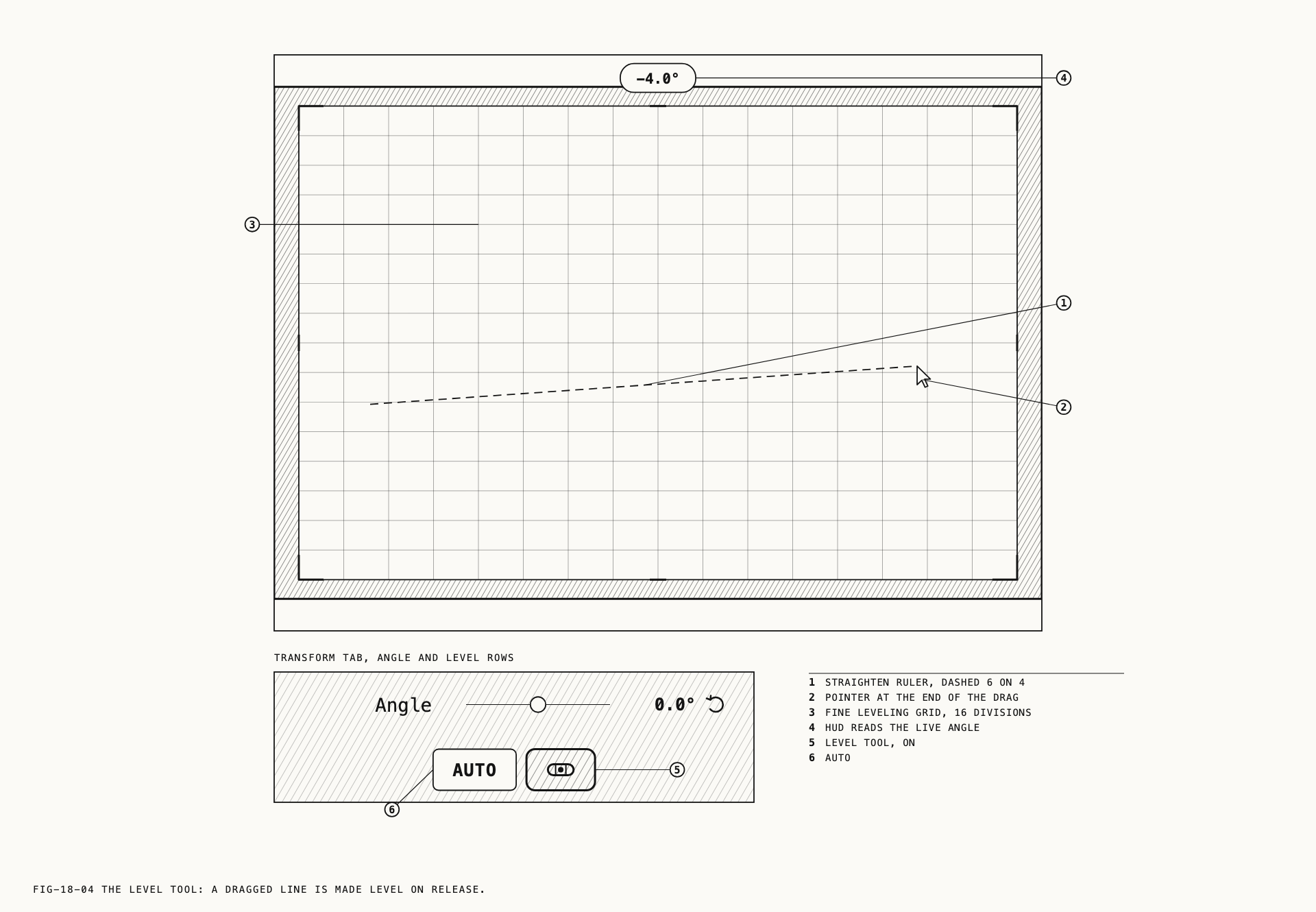
The level tool, the spirit-level button beside Auto, is a toggle. While it
is on, a plain drag anywhere in the loupe traces a dashed line, and on release the
picture is straightened so that line is level: a line near horizontal goes to
horizontal, a line near vertical goes to vertical. A very short drag is treated as a
click and ignored. The toggle switches itself off when crop mode ends. The same drag
works at any time, without the toggle, by holding ⌘.
The rotate zone. Just outside each corner of the box the pointer enters a rotate
zone. Dragging there turns the box about its center through the fine angle, with a slight snap at zero. A dense leveling grid is drawn over the box while the drag lasts
and the pill reads the live angle. The undo step is Rotate Crop.
18.5 Rotating and Flipping
The row of icon buttons under Auto and the level tool turns and mirrors the picture.
The first two rotate the picture a quarter turn counter-clockwise and clockwise, each an
undo step named Rotate 90°. The second two flip it horizontally and vertically, undo
steps Flip Horizontal and Flip Vertical. The fifth is the swap button described in
section 18.3.
Orig follows the turns: after a quarter turn it locks to the turned frame’s ratio.
18.6 Geometry
Where to find it: the Transform tab, under Geometry.
The Geometry section corrects converging lines. The crop box frames the corrected
picture.
| Control | Range | Effect |
|---|---|---|
Vertical | −1.00 to 1.00 | Vertical keystone, for buildings leaning back or forward |
Horizontal | −1.00 to 1.00 | Horizontal keystone, for walls receding to one side |
Amount | 0% to 100% | How much of the correction is applied. Starts at 100% |
Aspect | −1.00 to 1.00 | Stretches the corrected picture on one axis to restore its proportions |
Each slider previews as it moves and commits on release, one undo step named
Adjust Geometry. The reset button at the right of each row (tooltip Reset to default)
returns that slider alone to its starting value.
18.7 Where a Transform Can and Cannot Go
On a clip, one crop applies to every frame. There are no crop keyframes or crop tracking.
Inside a mixer group, a node offers no Transform tab and C does nothing, because a
crop on one branch would misalign it against the other branches and against any mask.
Put the crop on a node after the mixer instead. A node that already carries a transform
keeps its tab so the transform can be removed. Mixers are covered in Chapter 15.
Downstream crops follow. When a crop on one node changes the picture’s geometry and
a node further down the chain also carries a crop, that crop moves so it keeps framing
what it framed before. A notice over the loupe names the adjusted node or nodes, and one
⌘Z undoes both the edit and the adjustment.
Note: a crop or a keystone correction is not carried into an exported LUT or a Verana profile. Chapter 14 lists what travels.
← 17. Grades, Presets and Resources · Contents · 19. Masks →