Healing removes dust, sensor spots, blemishes and small distractions. In Revela every repair is
an item on a Heal node: a spot, placed with a click, or a stroke, painted with a drag.
Each item has a source, the area it borrows from, and the source can be chosen by the
app or by you. The items are edited on the loupe and listed on the Healing tab, and
because they live on a node they can be masked, disabled, copied and undone like any
other edit.
The node’s place on the canvas is Chapter 11; masking it is Chapter 19; what an item does as a clip plays is Chapter 23.
20.1 The Heal Node and the Healing Tab
A heal node is inserted from a card’s menu on the node canvas.
Where to find it: a card’s menu, Insert After ▸ Heal (Chapter 11)
With a heal node selected the inspector offers three tabs: Info, Healing and Mix.
The Healing tab holds the tools; the Mix tab is the node’s mask, covered in Chapter 19.
A card for a heal node is narrow and, once it holds anything, carries a second line,
1 heal or N heals.
The Healing tab is also the switch for heal mode on the picture. While the tab is
showing for a heal node, the loupe draws the heal overlay and clicks on the picture place
items; switch to another tab, or select another node, and the overlay goes away. There is
no key for heal mode, as C and M are for crop and mask; the tab is the only route.
The tab is arranged in three sections, Mode, Healing and Items, with a fourth,
Tracking, that appears on a clip when an item is selected. The first two sections edit the selected item. With nothing selected, they set defaults for the next item.
Note: Healing needs the original. With an original missing or on an offline store the loupe shows the proxy and the heal tools wait until the original is back (Chapter 6).
20.2 Clone and Heal
Where to find it: the Healing tab, Mode
Mode is a pair of icon segments. The first is Clone, the second Heal, and Heal is the
default for a new node.
Clone copies the source area exactly, keeping the source’s own brightness and color. It is the choice when the replacement should look identical to what it copies: a repeating pattern, a hard edge, texture to be duplicated.
Heal keeps the source’s texture but matches its brightness and color to the surroundings of the repair. It is the choice for dust, sensor spots and blemishes on a gradient such as a sky or skin, where a straight copy would show as a patch.
With an item selected, the segments change that item’s mode. With nothing selected they set the mode for the next item placed. An item keeps its own mode from then on, so a node can mix cloned and healed items.
20.3 Size, Feather and Opacity
Where to find it: the Healing tab, Healing
Three sliders follow the same rule as Mode: they edit the selected item, or set the
default for the next one.
| Slider | Range | Default | What it sets |
|---|---|---|---|
Size | 0.2% to 15.0% | 2.0% | The brush radius, as a fraction of the picture’s width |
Feather | 0.0% to 5.0% | 0.5% | How far the edge of the repair blends into its surroundings |
Opacity | 0% to 100% | 100% | How strongly the repair is laid over the original |
Size is measured against the picture, not the screen, so a spot keeps its size on the
picture at every zoom. On the loupe, [ shrinks the brush and ] grows it; the keys set
the node’s default size for the next item and leave existing items alone. The brush
circle under the pointer shows the size before you click.
A feathered spot draws a second, dashed ring outside its circle on the loupe, marking where the blend ends.
20.4 Placing Spots and Strokes
Where to find it: the loupe, with the Healing tab showing
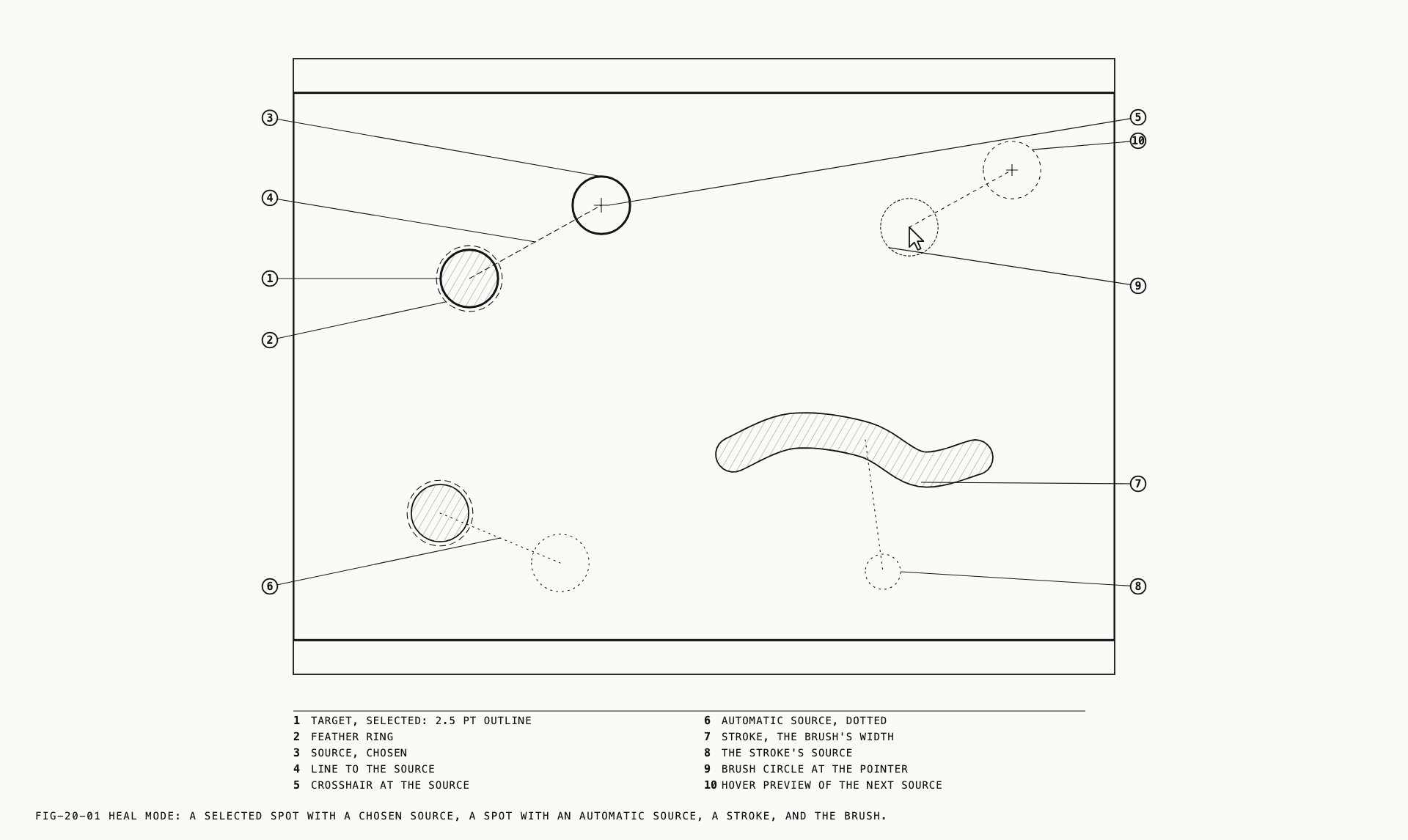
With the overlay armed, a circle the size of the brush follows the pointer. Inside the picture a faint preview also shows where the next item would take its source from: a second circle, a line joining it to the pointer, and a small crosshair at its center. Outside the picture the preview is withheld.
Click on an empty part of the picture to place a spot. Press and drag to paint a stroke;
the stroke takes the brush size and follows the pointer until you release. A press that
barely moves counts as a click, so a slightly shaky click still makes a spot rather than
a tiny stroke. Pressing Esc while the pointer is still down cancels the placement and
nothing is added.
A placed spot is drawn as a tinted circle with its source circle beside it and a line between the two. A stroke is drawn as a tinted path of the brush’s width, with its source circle hanging from the middle of the path. The item you placed last is selected, and a selected item is drawn with a heavier outline than the rest.
A click on an item selects it without moving it. Drag an item’s body to move the whole repair; drag the source circle to move only the source (section 20.5). Clicks outside the picture pan the loupe as usual, so the edges of a zoomed picture are still reachable.
The repair appears after placement; its marker pulses while it is being prepared.
20.5 Choosing the Source
Every item has a source. By default the app picks one, a clean area nearby. An automatic source is drawn with a dotted line in the marker’s tint. You can change the automatic choice.
Drag the source. Take hold of the source circle and drag it. The source moves by the amount you drag, from where it is, so a small correction nudges rather than jumps. After dragging, the source is fixed. Its line becomes dashed white with a crosshair at the source. Moving the item afterwards carries a chosen source with it at the same offset, while an automatic source is chosen again at the new position.
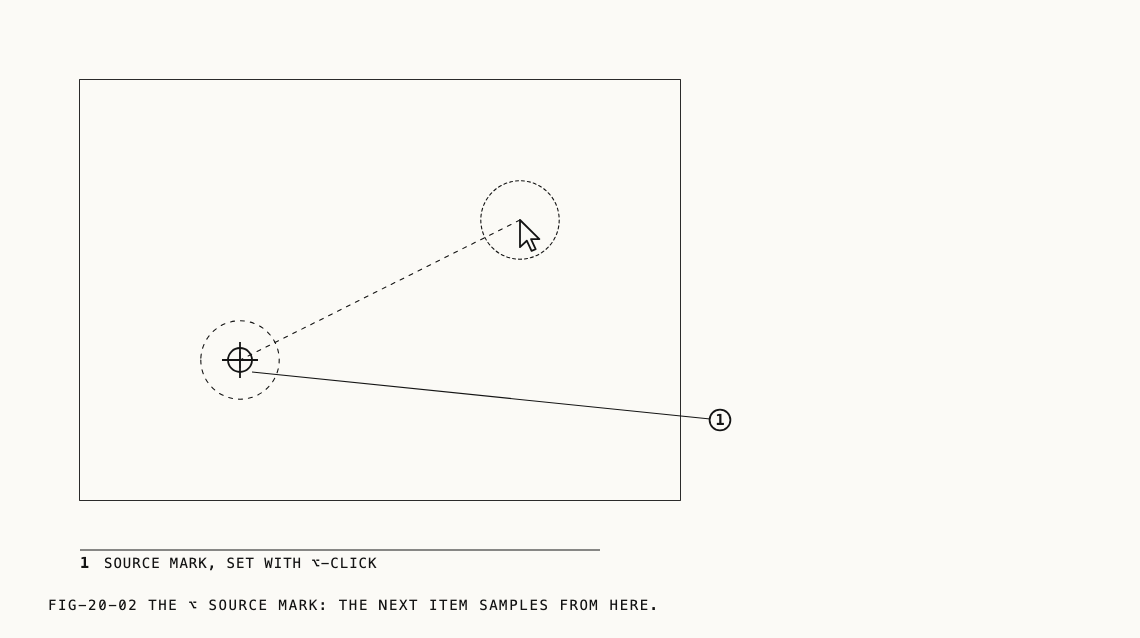
Set the source first. Hold ⌥ and click a clean area of the picture. A circle and
crosshair mark the point, and every item placed from then on samples from there: a spot
takes the marked point as its source, a stroke takes it as the source for its first
point and keeps the same offset along its length. The mark stays until you press Esc
to clear it, so a run of repairs can draw from one clean patch. Items placed this way
start with a chosen source rather than an automatic one.
When the source overlaps the repair. A source overlapping the area being repaired produces little visible change. The
app marks such an item with an amber outline on the loupe and an amber warning glyph on
its row in the items list. The glyph’s tooltip reads This item's source overlaps the area it heals, so the repair is nearly invisible. Drag its source marker to a clean area. Dragging the source clear removes the warning.
20.6 The Items List
Where to find it: the Healing tab, Items
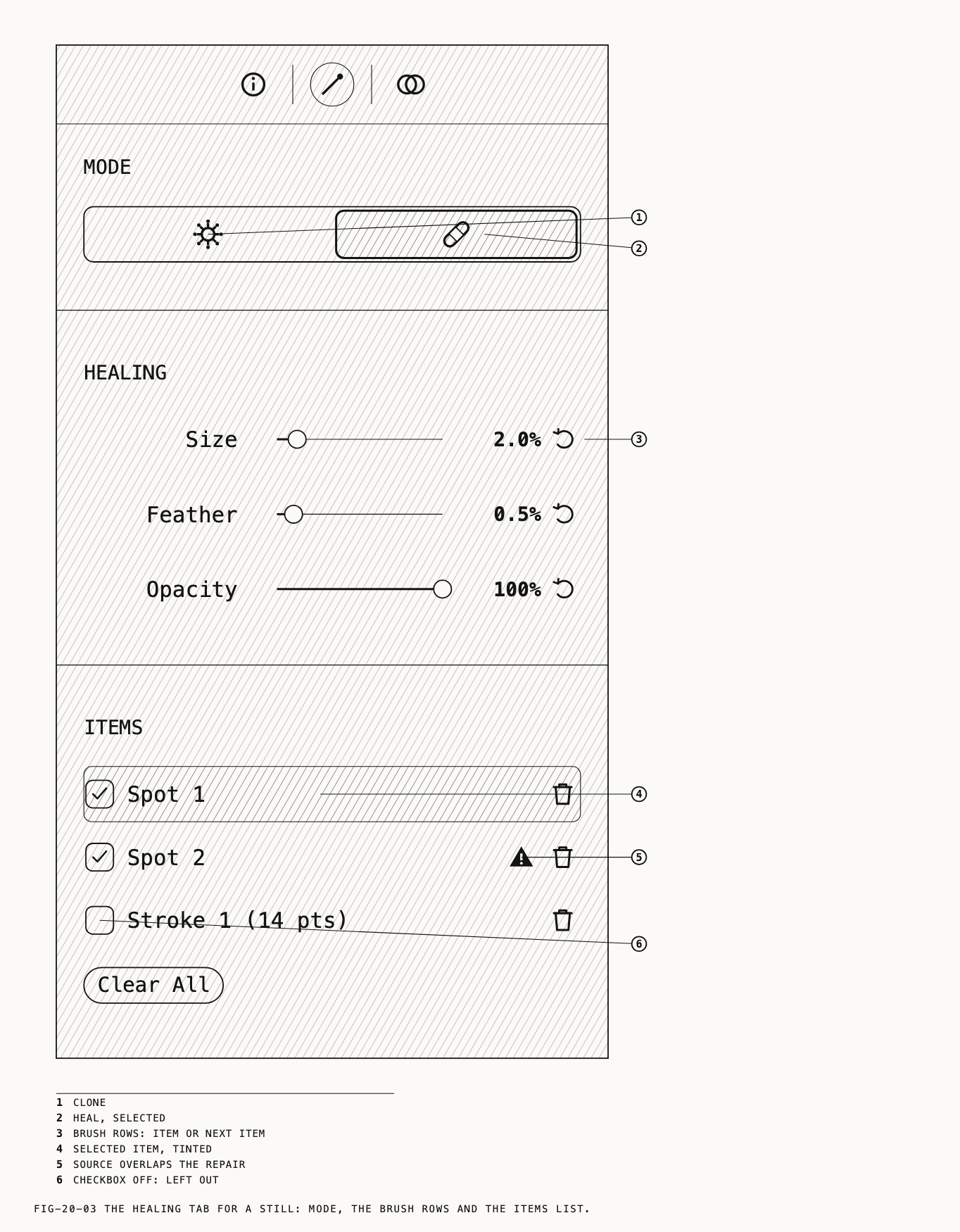
The Items section lists every item on the node, spots first and then strokes, numbered
in the order they were placed: Spot 1, Spot 2, Stroke 1 (14 pts). The number in
brackets after a stroke is its point count. With no items the section reads
No spots or strokes.
Each row carries, from the left, a checkbox, the name, an optional warning glyph and a trash button. On a clip a status chip sits between the name and the glyph, reporting whether the item is static, tracking, tracked, has gaps or has failed; the chips belong to Chapter 23.
Click a row to select the item. The row tints, the item’s outline on the loupe thickens,
and Mode, Size, Feather and Opacity switch to that item’s values. Click the row
again to deselect. Selecting on the loupe and selecting in the list are the same
selection.
The checkbox turns an item off and on. An item that is off has no visible effect or marker in the loupe, but it keeps its place in the list and its settings, so a
repair can be judged with and without one item. The trash button removes the item
outright, as does ⌫ on the loupe while the item is selected. Removing an item
renumbers the ones after it.
Clear All, at the foot of the list, removes every spot and stroke in one step. It
appears only when the list has something in it.
20.7 Keys on the Loupe
These keys work while the Healing tab is showing, except while typing in a text field.
| Key | Effect |
|---|---|
[ / ] | Shrink or grow the brush |
⌫ | Remove the selected item |
Esc | During a drag, cancel the placement. Otherwise: stop a running track (Chapter 23), else deselect the item, else clear the ⌥ source mark |
⇧⌘H | Hide and show the heal markers, to judge the result clean (Chapter 7) |
Esc takes one step at a time, so with an item selected and a source mark set, the first
press deselects and the second clears the mark. Hiding the markers with ⇧⌘H also
deselects, since a hidden marker cannot be dragged; placing a new item or clicking the
picture shows them again.
20.8 Undo, Disable and Reset
Every change on the Healing tab and on the loupe is one step in the undo history, named
for what it did: adding, moving, toggling or deleting a spot or stroke, moving a source,
editing an item, clearing all. Edit → Undo (⌘Z) steps back through them in order. The
inspector stays on the tab you are on while you undo and redo, so the heal overlay stays
up on the Healing tab.
The controls affect different parts of the node:
- The checkbox on a row turns one item off and keeps it.
Clear Allremoves every item and keeps the node’sMode,Size,FeatherandOpacity.Reset Node, on the node’s card menu (Chapter 11), returns the node to new: every item removed, the four defaults restored (Heal, 2.0%, 0.5%, 100%) and the node’s mask removed with it.
Disable Node on the same menu bypasses the whole node without touching its items, which
is the way to compare the picture with and without all of its repairs at once.
20.9 Healing on a Clip
On a clip an item can follow its subject as the clip plays. Select an item and the
Tracking section appears at the foot of the tab, with Follow, Track motion,
Track source, a Status line, the Track transport, Lifetime, On Loss and the
Re-track Item and Reset Tracking buttons; the selected item’s lane is drawn under the
scrubber. Chapter 23 covers these controls for masks, heals and frequency separation.
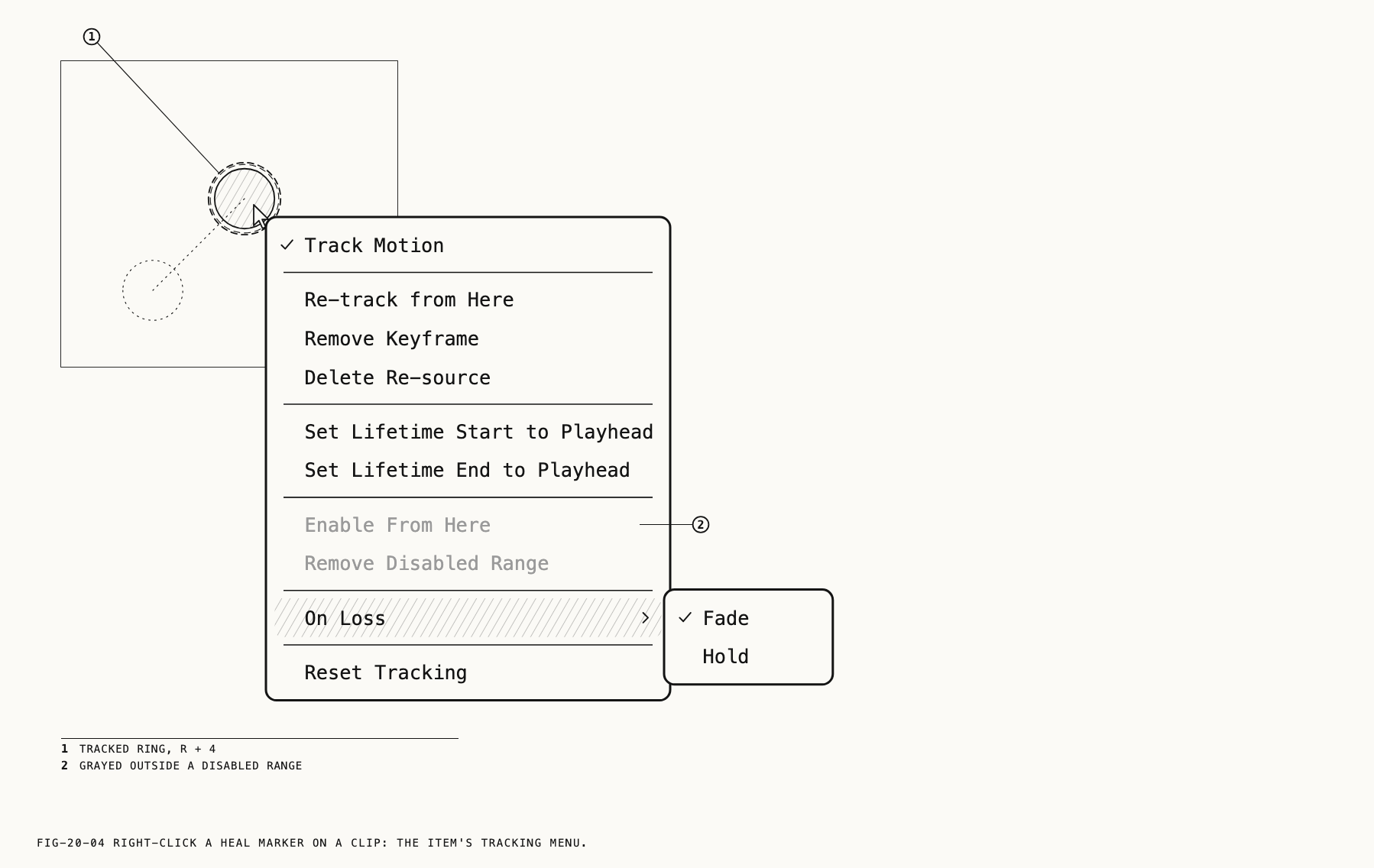
What is specific to a heal item is its menu. Right-click a marker on the picture and the
item’s menu opens with Track Motion first, checked when the item is tracking. After tracking has been enabled at least once, the menu also offers:
Re-track from Here,Remove KeyframeandDelete Re-sourcefor correcting the track.Set Lifetime Start to PlayheadandSet Lifetime End to Playheadfor setting its range.Enable From HereandRemove Disabled Rangefor hidden ranges.On Loss ▸withFadeandHoldfor a lost track.Reset Trackingto reset the track.
Remove Keyframe is grayed unless the playhead is on one of the item’s keyframes,
Delete Re-source unless a re-source lies at or before the playhead, and the two
disabled-range items unless the playhead is inside a disabled range. The loupe’s
ordinary right-click menu (Chapter 7) is withheld over a marker. Each command is explained in Chapter 23.