A frequency separation node lets you retouch broad light and color separately from fine detail. Use the Tone band for uneven light or blotchy color, and the Texture band for pores, hair, grain and fabric. A repair can affect one band without changing the other.
The node is added like any other, from Edit → Insert After → Frequency Separation
or from a card’s menu on the node canvas, and it can be masked. The canvas, the card
and inserting nodes are Chapter 11; masks are Chapter 19. This chapter covers the
Frequency Separation tab, which appears in the inspector while the node is selected,
and what the tab lets you do on the picture.
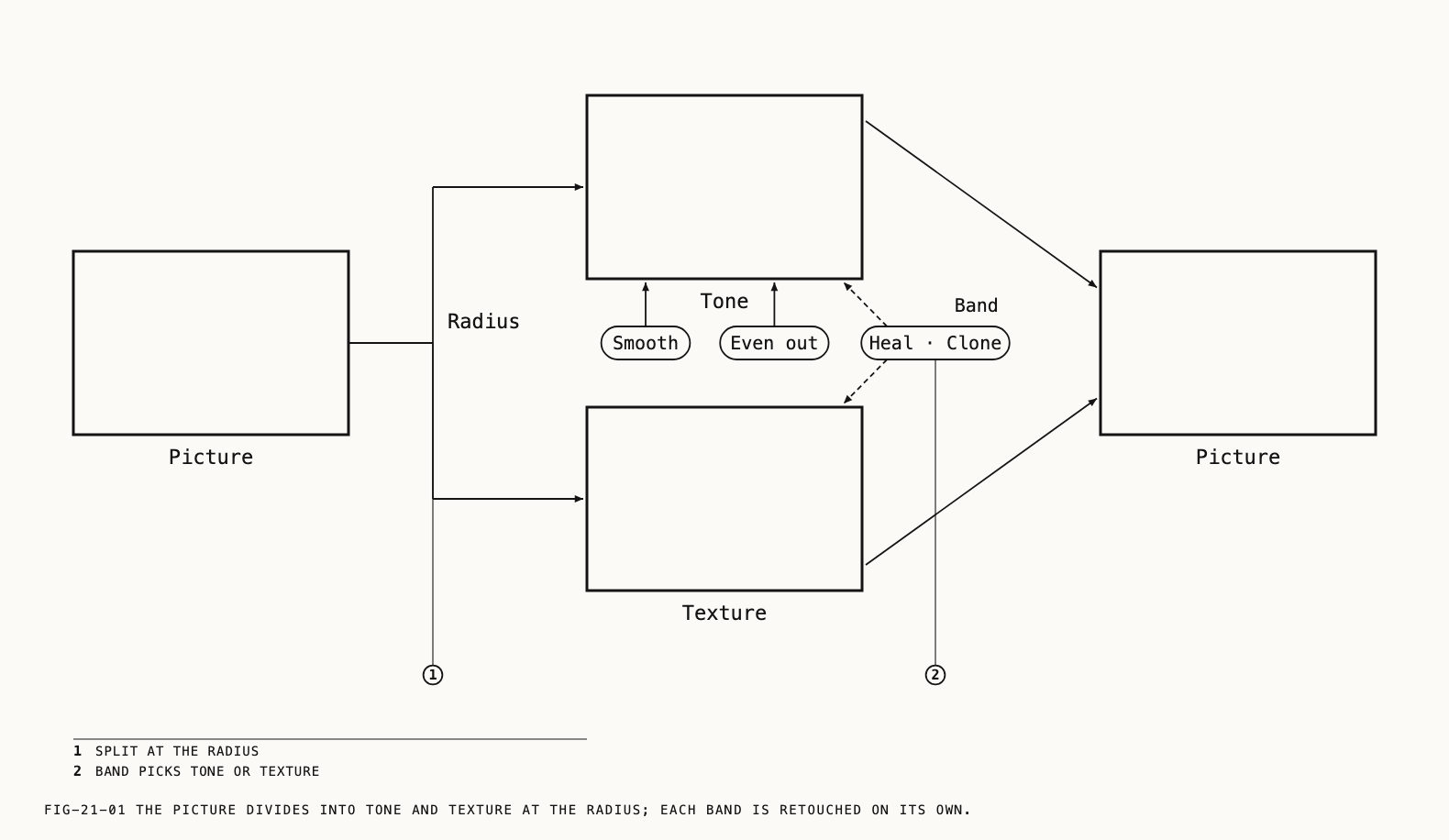
21.1 The Two Bands
Where to find it: the Frequency Separation tab, Separation section.
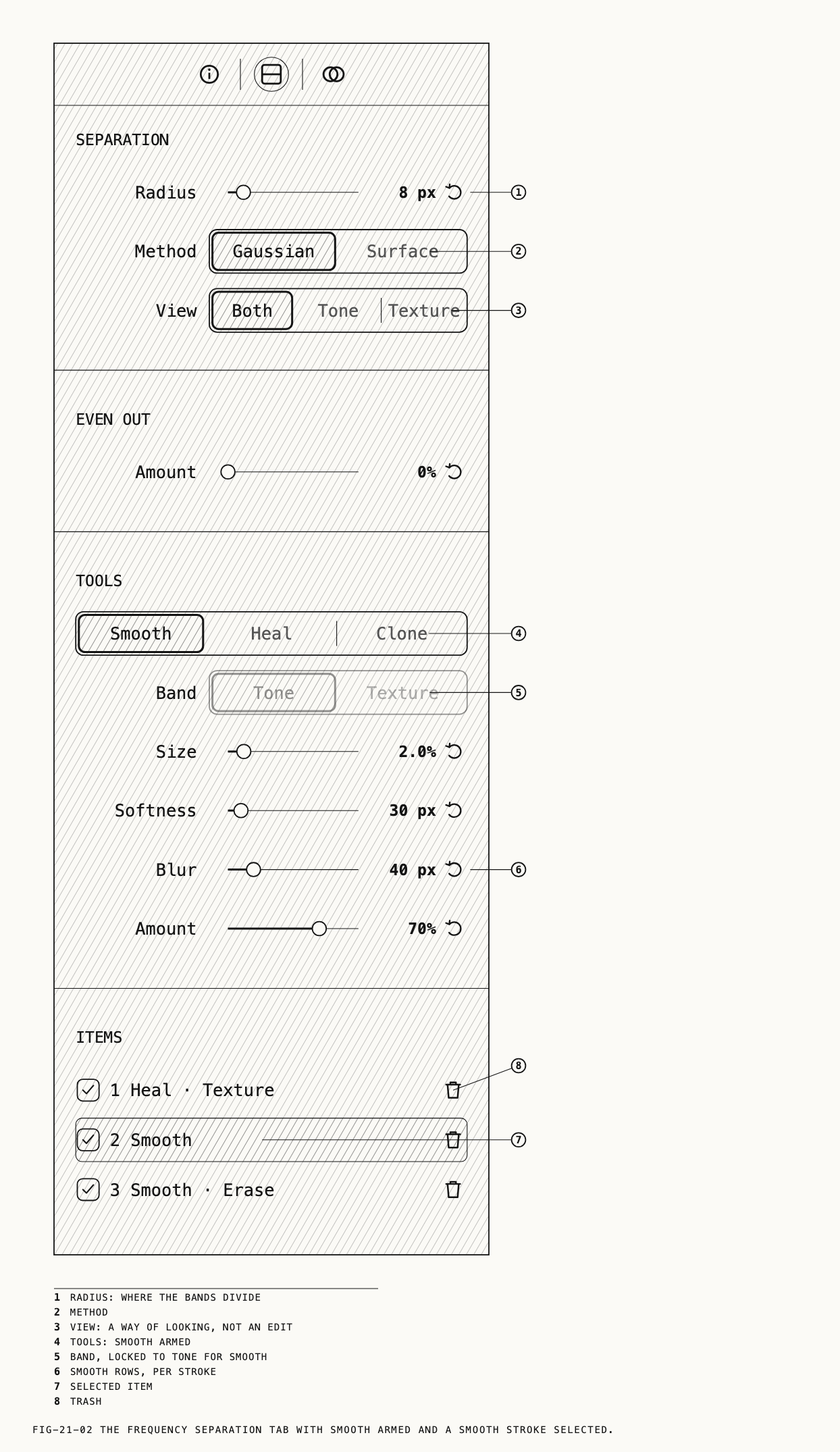
Radius sets the size of detail shown in each band, from 1 px to 60 px at the picture’s native width. A small radius keeps only the finest
detail in Texture and leaves soft skin variation in Tone; a larger radius moves more of
the mid-sized structure into Texture, so that a Smooth stroke on Tone leaves it alone.
For skin work the default is a reasonable start: 8 px on a picture 6,000 pixels wide.
The defaults on this tab scale with the width of the picture, so a smaller picture
shows a proportionally smaller number.
Method has two segments, Gaussian and Surface; Gaussian is the default. The
difference shows when you heal on Texture close to a hard edge, such as the line of a jaw
against a dark background or a lapel against a shirt. With Gaussian the repair can
carry a faint halo of the edge with it; with Surface it does not.
View has three segments. Both shows the finished picture. Tone and Texture show
one band in its place, so you can judge where a blemish lives before deciding which band
to repair, and see what a Smooth stroke has done to Tone without the detail on top of
it. Tone looks like a soft version of the picture. Texture looks like a mid-gray field
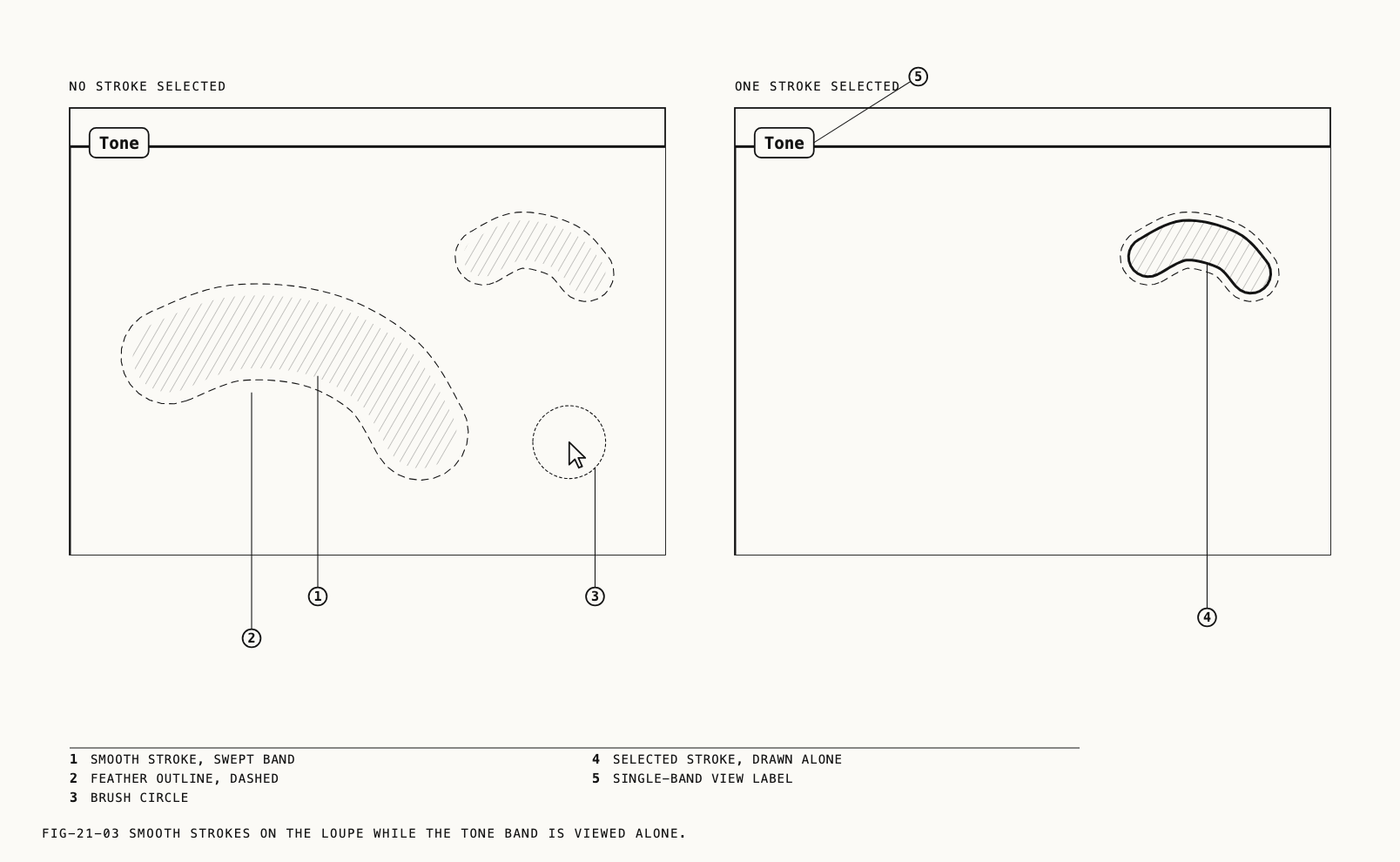
carrying only the detail. While a single band shows, a small Tone or Texture label
is drawn on the loupe.
The view is a way of looking, not an edit: it is not saved with the catalog, it is not
exported, and it clears when you select another node. The keys ⌥1, ⌥2 and ⌥3
switch between Both, Tone and Texture from the loupe.
21.2 Even Out
Where to find it: the Frequency Separation tab, Even out section.
Amount, 0% to 100%, evens out the tone everywhere the node acts. Even out is the
global form of the Smooth tool, which evens the tone under the brush only. Texture remains sharp while the tone becomes more even. Because the slider works on
the whole picture, it is usually combined with a mask on the node’s Mix tab to keep it
to the skin.
21.3 Tools and the Band
Where to find it: the Frequency Separation tab, Tools section.
The tab has three tools, chosen with the Smooth, Heal and Clone segments or with
the keys S, H and C while the tab is active. A new node arrives with Smooth
armed. The rows beneath the segments change with the tool: Smooth has its own four
rows, and Heal and Clone share the brush rows of the Healing tab.
Band decides which band the next Heal or Clone item lands on, Tone or Texture.
It can be changed only while View is Both and a heal tool is armed, and starts
on Texture. Smooth always works on Tone, so the row locks to Tone while Smooth is
armed. A single-band view locks it too: while you are looking at Texture, anything you
place goes onto Texture. Changing the band later means deleting the item and placing it
again.
21.4 Smooth
A Smooth stroke evens the tone under the brush, by an amount you choose, and leaves Texture untouched.
The four rows set the next stroke or edit the selected one.
| Row | Range | What it does |
|---|---|---|
Size | 0.2% to 15.0% of the picture’s width, default 2.0% | The brush radius of the next stroke, or the selected stroke’s radius |
Softness | 0 px to 300 px, default 30 px | How gently the stroke’s edge fades into the untouched picture |
Blur | 1 px to 200 px, default 40 px | How broad the variation the stroke evens out. Larger values flatten more of it |
Amount | 0% to 100%, default 70% | How strongly the stroke evens the tone |
Softness, Blur and Amount belong to each stroke. With a stroke selected, the rows
show its values and moving them edits that stroke alone. With none selected, they set
what the next stroke will carry. A stroke keeps the values it was painted with, so
changing the rows afterwards does not alter strokes already on the picture. Each slider
carries a reset button at its right.
On the loupe. While Smooth is armed a brush circle follows the pointer and a drag
paints a stroke. ⌥-drag erases: an erase stroke removes Smooth from the area it
covers, and it appears in the items list as its own entry. [ and ] shrink and grow
the brush. Clicking an existing stroke selects it; dragging a selected stroke moves it.
Esc deselects the stroke and ⌫ deletes it. The strokes are drawn as outlines on the
picture; while one is selected, only that one is drawn, so you can see its edge
clearly against the rest. ⇧⌘H hides the brush and the outlines while you judge the
result, and any click brings them back.
21.5 Heal and Clone on a Band
Heal and Clone place the same spots and strokes as the Healing tab in Chapter 20,
with the same Size, Feather and Opacity rows and the same gestures on the
picture: click to place a spot, drag to paint a stroke, ⌥-click to set the source
by hand, drag a source marker to move it. The one addition is the Band row: each item repairs only the band on which it was placed.
Use Texture for dirt or stray hairs while keeping the light across the skin unchanged. Use Tone for discoloration where the skin texture is intact. A pimple may need a repair on each band, or one repair with the heal node described in Chapter 20.
Only the items on the chosen band are drawn on the picture, so the markers for Tone and Texture repairs never overlap one another. With one item selected, only that item is drawn, whatever its band.
Heal items that sample from the area they repair are flagged with the amber warning glyph in the items list, as on the Healing tab.
21.6 The Items List
Where to find it: the Frequency Separation tab, Items section.
Every spot, stroke and Smooth stroke on the node has a row, numbered from 1 in the
order heal spots, heal strokes, Smooth strokes. Rows read Heal · Tone, Clone · Texture, Smooth or Smooth · Erase. The checkbox turns an item off without deleting
it, and the trash button removes it. Clicking a row selects the item and arms its own
tool, so the rows above it edit that item; clicking the selected row again deselects
it. The section is absent while the node holds nothing.
21.7 Keys While the Tab Is Active
The tab takes a small set of keys from the loupe while it is active on its node. Three
of them have other meanings elsewhere: S otherwise cycles the split orientation when
a reference is set, C otherwise enters crop mode, and ⌥1 to ⌥3 otherwise apply
pinned tags. While the Frequency Separation tab is active, all three belong to the tab.
| Key | Does |
|---|---|
S / H / C | Arms Smooth, Heal or Clone |
⌥1 / ⌥2 / ⌥3 | View Both, Tone or Texture |
[ / ] | Brush size, for the armed tool |
⌥-drag | Erases, with Smooth armed |
⌥-click | Sets the source for the next heal item, with Heal or Clone armed (Chapter 20) |
Esc | Deselects the Smooth stroke |
⌫ | Deletes the selected Smooth stroke or heal item; on a clip, a selected keyframe diamond first |
⇧⌘H | Hides and shows the editing overlays |
An undo or redo keeps the inspector on the tab that is showing, so the tab and its keys stay active while strokes and items are stepped back.
21.8 On a Clip
On a clip, all spots, strokes and Smooth strokes follow one track for the retouched face or region. The Tracking section at the foot of the tab offers Follow, with Face and Region choices.
Face follow is chosen on its own when a face sits under the retouch at the frame where
you placed it. Re-tracking, keyframes, correcting a drifted frame, the node’s lane on
the scrubber and what happens when the track is lost are covered in Chapter 23.