A Text node draws words over the picture: a title, a caption, a credit, a slate. The
text is part of the picture from that node onward, so it appears in every output whose
path runs through the node, and any node after it acts on the text as it acts on the rest
of the frame. A text node is set up on the Text tab and placed on the loupe, where its
box can be moved, resized and typed into directly.
The node’s place on the canvas is Chapter 11; masking it is Chapter 19.
22.1 The Text Node
Where to find it: a card’s menu, Insert After ▸ Text or Insert Before ▸ Text
(Chapter 11)
A new text node reads Text, set white in Helvetica Neue Bold at about 5% of the
original’s height, centered in the frame. The node is selected as it is inserted, and the
inspector opens on its Text tab. A text node offers three tabs: Info, Text and Mix.
The Mix tab carries the node’s STRENGTH, which fades the whole text at once, and its
mask; both are covered in Chapter 19.
The card is narrow and reads Aa. A small mark in its top-right corner shows whether
the text is single-line or multi-line, and resting the pointer on that mark shows the
beginning of the text in a small panel beside the card.
Where the node sits in the graph decides what acts on the text. A text node placed after the grade is not graded; one placed before an adjustment has that adjustment applied to the text as well. A crop upstream of the node changes the frame the text is placed in, and a single-line text box keeps its own size and shape when that happens.
On a clip the text is drawn on every frame, in the same place and the same style. It does not change over time and does not follow motion.
Every settled change on the Text tab and on the loupe is one step in the undo history,
listed as Edit Text; inserting the node is Insert Text Node. Edit → Undo (⌘Z) steps
back through them, and the inspector stays on the tab you are on while it does. The
words on a text node are included in catalog search (Chapter 5).
22.2 Single Line and Multi-Line
Where to find it: the Text tab, LAYOUT
Enter the text in the first field on the tab. Beneath it, a two-segment icon group sets the line mode: the first segment is single-line, the second multi-line. A new node is single-line.
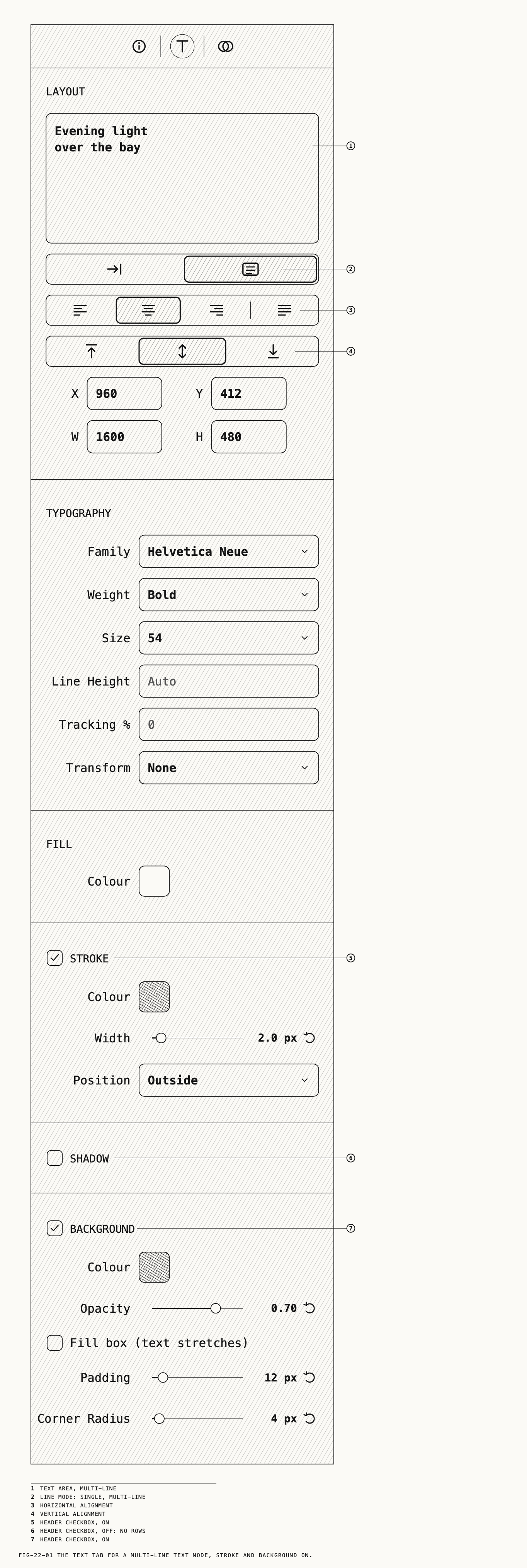
Single-line. The words sit on one line and the box fits itself to them. The text field is one line high. The picture updates as you type, the box growing and shrinking around its center with the type at its set size. The change is kept when you press Return or leave the field. Changing the type, the size, the spacing, the stroke, the shadow or the background refits the box around its center.
Multi-line. The box keeps the size you set, and the words wrap within its width. The text field becomes a taller area in which Return starts a new line; the change is kept when you leave the area. Two further icon groups appear under the line mode. The first sets the horizontal alignment (left, center, right, justify), the second the vertical alignment within the box (top, middle, bottom). Both start centered.
Switching from multi-line back to single-line turns every line break into a space.
22.3 Position and Size
Where to find it: the Text tab, LAYOUT
Two rows under the alignment controls set the box’s position and size: X and Y for its
top-left corner, W and H for its width and height. All four are in pixels of the
picture as it reaches the text node, so a crop earlier in the graph changes the frame
they count from. Typing a value and pressing Return moves or resizes the box. X and Y
accept negative values, which place the box partly beyond the left or top edge of the
picture.
On a single-line box, W and H follow the text. Typing a new width or height
stretches the words to it, as a ⇧-drag does on the loupe (section 22.6), until the next
change that refits the box.
22.4 Type
Where to find it: the Text tab, TYPOGRAPHY
| Control | What it sets |
|---|---|
Family | Every font family installed on this Mac, in alphabetical order |
Weight | The styles of the chosen family, by the names the font gives them (for Helvetica Neue, Light, Medium, Bold, Condensed Bold and others); italic styles are not offered |
Size | The type size, in pixels of the picture at the node. Choose from 8 to 480 or type any value |
Line Height | A multiple of the font’s normal line spacing, such as 1.2. Empty reads Auto. Applies to multi-line text only |
Tracking % | Extra space between letters, as a percentage of the type size. 0 is the font’s own spacing; negative values tighten |
Transform | None, Uppercase, Lowercase, or Capitalize, which capitalizes the first letter of every word and sets the rest in lowercase. The words you typed are kept as typed |
Tracking % is letter spacing. It has nothing to do with the motion tracking of
Chapter 23.
Note: Fonts come from the Mac. A catalog opened on a Mac without the chosen family draws the text in the system font until the family is installed there.
22.5 Fill, Stroke, Shadow and Background
Where to find it: the Text tab, FILL, STROKE, SHADOW and BACKGROUND
FILL holds one color swatch, Colour, the color of the letters. Every swatch on the tab
works the same way: click it and the Colors window opens with an opacity slider. The
picture follows the color as you pick it, and the choice is kept when the Colors window
closes or when you click another swatch.
The other three sections each carry a checkbox in their header. A section is off until its box is ticked; ticking it reveals its rows with the defaults below, and unticking it removes the effect and discards its settings.
| Section | Rows | Defaults |
|---|---|---|
STROKE | Colour; Width, 0.0 px to 20.0 px; Position: Outside, Center or Inside | Black, 2.0 px, Outside |
SHADOW | Colour; Blur, 0.0 to 50.0; Offset X and Offset Y, −50.0 to 50.0; Opacity, 0.00 to 1.00 | Black at 60%, 4.0, 0.0, 2.0, 0.60 |
BACKGROUND | Colour; Opacity, 0.00 to 1.00; Fill box (text stretches); Padding, 0 px to 100 px; Corner Radius, 0 px to 50 px | Black, 0.70, off, 12 px, 4 px |
A stroke drawn Outside thickens the letters, one drawn Inside stays within them, and
Center straddles the outline. Shadow blur and offsets are in pixels of the picture;
positive offsets move the shadow right and down. A section’s Opacity and its color’s opacity both affect visibility. The default shadow at 0.60 is fainter than its color swatch alone suggests.
The background is a plate behind the text. With Fill box (text stretches) off, the
plate hugs the words with Padding on every side. With it on, the plate fills the whole
text box edge to edge, Padding is grayed, and on a single-line box the words stretch to
fill the box as drawn and the box no longer refits itself to them.
22.6 The Text Box on the Loupe
Where to find it: the loupe, with the Text tab showing
While the Text tab is showing for a text node, the loupe draws the text box over the picture: a dashed outline with eight square handles, one at each corner and one at the middle of each side. The text itself is drawn in the picture with every effect, exactly as it will export. Switch to another tab, or select another node, and the box goes away. There is no key for this mode: the tab is the only route.
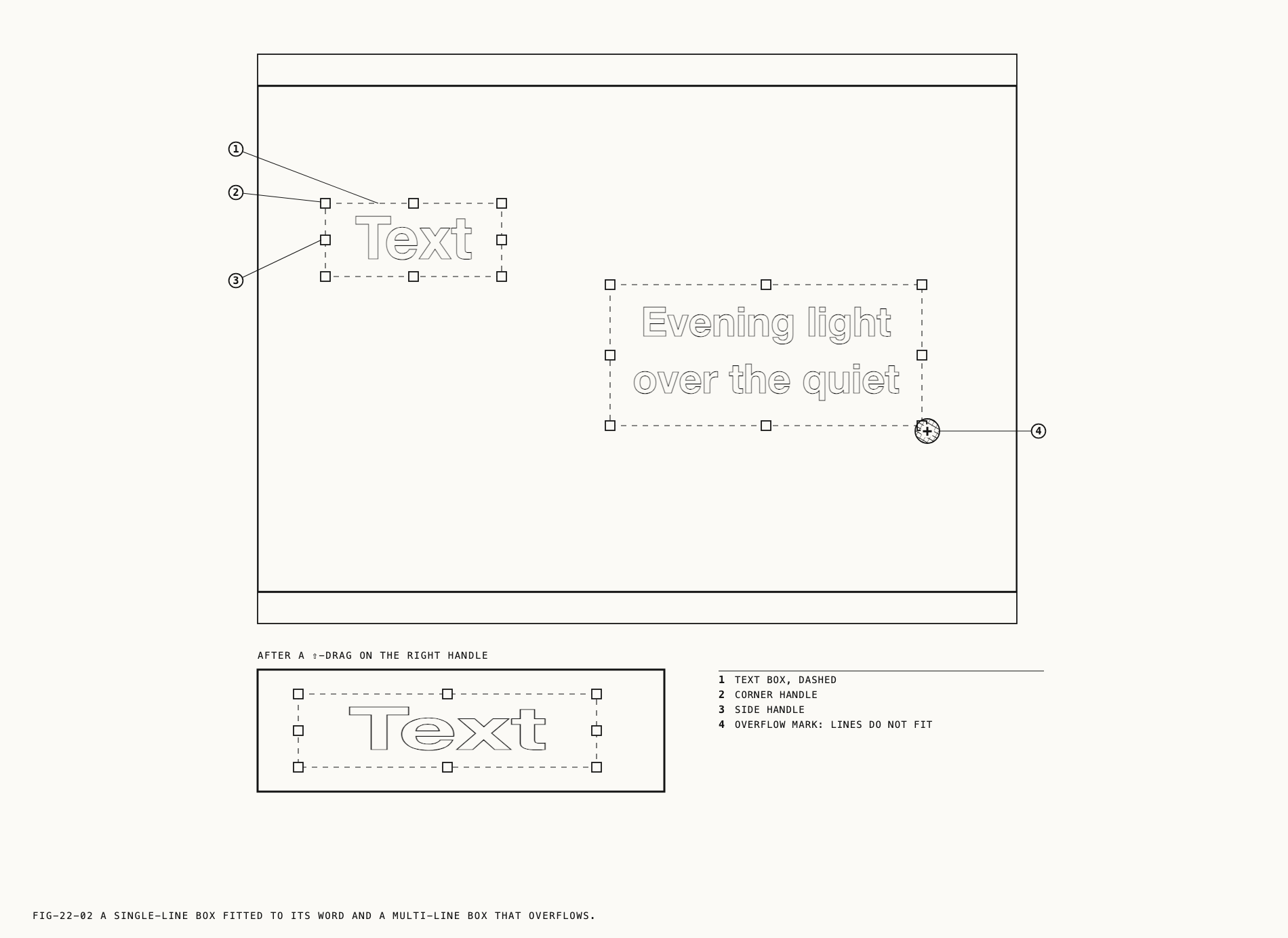
Drag inside the box to move it. A dragged box stays inside the picture. Drag a handle to resize:
- Single-line. The box keeps its proportions and the type scales with it, so
Sizeon the Text tab changes as you drag. Hold ⇧ while dragging to stretch the box freely; the words stretch with it. - Multi-line. The box resizes freely and the type keeps its size; the words rewrap to the new width.
The text box has a minimum width and height.
The overflow mark. When multi-line text does not fit its box, a red circle with a
white + appears at the box’s bottom-right corner. The lines that do not fit are not
drawn. Enlarge the box, reduce Size or Line Height, or shorten the words until the
mark goes away. Single-line text never overflows, since its box fits the words.
⇧⌘H hides the box and handles to show the text alone, and pressing it
again brings them back. While the box is hidden it cannot be dragged or double-clicked
(Chapter 7).
22.7 Editing on the Picture
Double-click inside the box to type straight into the picture. A blinking caret appears at the end of the text and the dashed outline stays to frame it. The words are drawn as they will export while you type, and a single-line box grows and shrinks around its center with every keystroke, so the letters keep their size and shape.
| Action | Effect |
|---|---|
| Click inside the box | Places the caret |
| Drag inside the box | Selects a run of characters |
| Double-click a word | Selects the word |
← / → | Move the caret one character; with ⇧, extend the selection |
⌫ / ⌦ | Delete before or after the caret, or the selection |
Edit → Select All (⌘A), Cut (⌘X), Copy (⌘C), Paste (⌘V) | As in any text field. Pasting into single-line text turns line breaks into spaces |
Return | Single-line: keeps the edit and stops editing. Multi-line: starts a new line |
Esc | Stops editing without keeping the change |
| Click the picture outside the box | Keeps the edit and stops editing |
Input methods for other scripts work as they do in any text field. On a clip, ← and
→ move the caret rather than stepping frames (Chapter 9). The up and down arrows do
not move the caret between lines. Selecting another node or another asset keeps the
edit before moving on.
22.8 Disabling and Resetting
Where to find it: right-click the card, Disable Node or Reset Node; or Edit →
Disable Node (⌘D) (Chapter 11)
Disable Node takes the text out of the picture and keeps every setting; the item reads
Enable Node while the node is off. Reset Node puts the node back to new: the word
Text in white Helvetica Neue Bold at about 5% of the original’s height, centered, with
stroke, shadow and background off, and any mask removed.
← 21. Frequency Separation · Contents · 23. Tracking on Video →