Revela keeps one catalog per Mac, and each catalog keeps its originals in its own store. Nothing in a catalog reaches another Mac on its own. To work on the same folders from two Macs, both catalogs connect to a repository: a folder Revela makes and manages in a place both Macs can reach. One catalog shares folders and kits through the repository; another adds them. The repository then keeps them the same in each connected catalog.
This chapter covers the repository itself. Putting a folder or a kit into a repository, what travels through it, transfers, conflicts, the sync log and the status bar lines that report syncing are covered in Chapter 27.
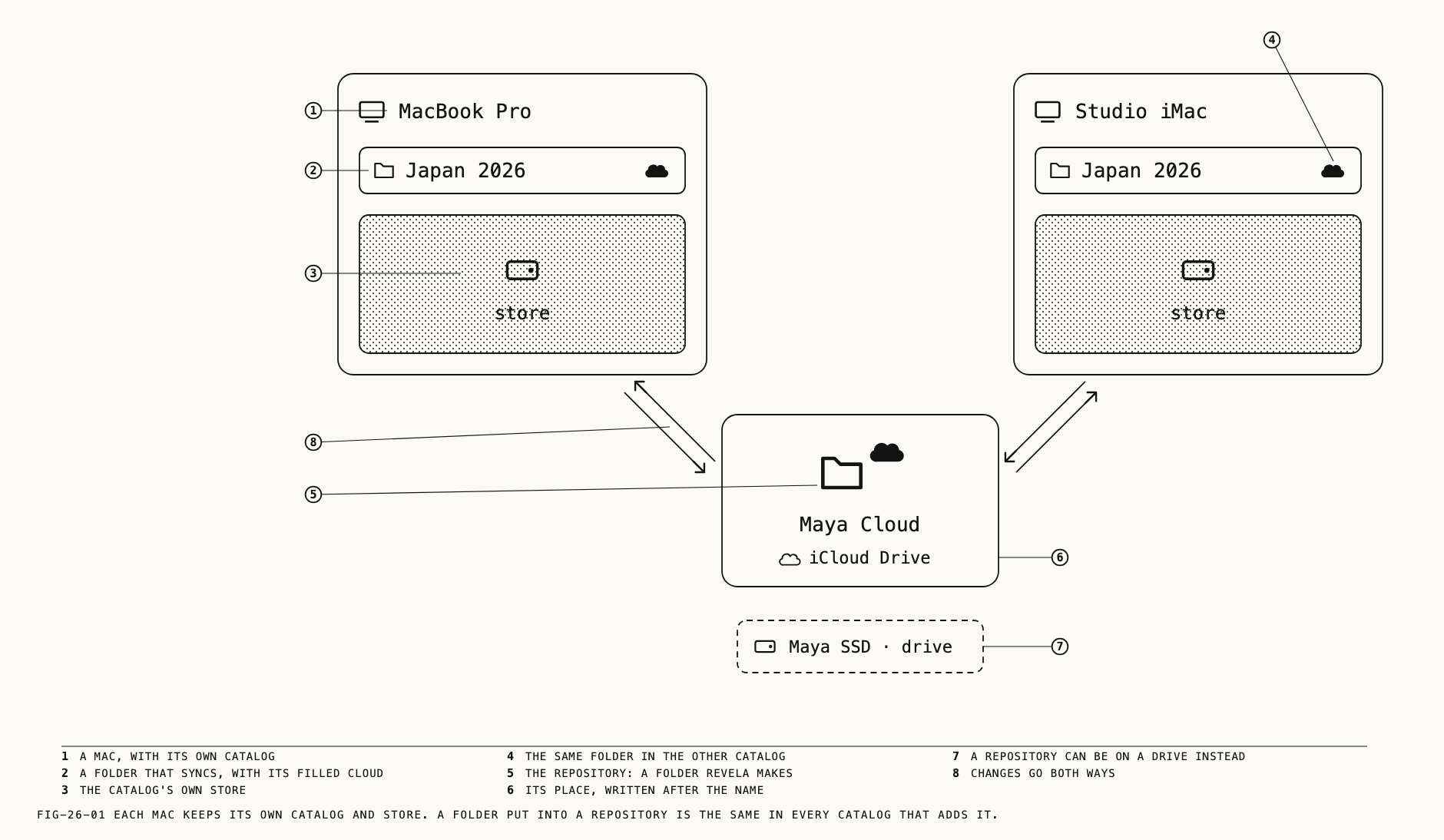
26.1 What a Repository Is
The app states the model in one line, on the New repository sheet: A repository is the only thing that syncs. Any catalogue can connect to it.
A repository is a named folder in a place you choose. Revela manages its contents; do not put files into it yourself. Connecting leaves the catalog file and its store where they are. Other connected catalogs can add the folders and kits shared through the repository. Once a folder is in a repository, its edits, ratings and subfolders are the same in every catalog that has added it. A folder in a repository carries a cloud mark on its sidebar row; the mark, its shapes and what each catalog keeps of the folder are covered in Chapter 27.
Wherever the app lists a repository it writes the kind of place after the name. The kinds are:
| Written as | The place |
|---|---|
iCloud Drive | The repository is in iCloud Drive |
| the service’s name | The repository is in another sync service’s folder |
<volume> · drive | An external drive, named by its volume |
<volume> | A network share, named by its volume |
this Mac | This Mac’s own disk |
One place can hold several repositories, and a Mac can use several at once. A repository may be on this Mac’s disk, but another Mac can reach it only if the disk is shared.
Drives formatted for both Mac and Windows are refused as a place for a repository. The refusal and its wording are in section 26.5.
26.2 Where Repositories Are Reached
Everything in this chapter starts from one of these places.
| Route | Opens |
|---|---|
Catalogue → Repositories | The Repositories sheet (section 26.3) |
The status bar’s Sync ▾, at its right end while nothing is in progress | The Repositories sheet |
The + on the sidebar’s Locations row, under its Repositories group | New Repository and Connect to a Repository |
The Locations sheet (Catalogue → Locations) with a repository selected | Show in Finder, Rename… and Repositories… |
A repository’s row under Locations in the sidebar | A click shows its photos; a right-click opens its menu (section 26.4) |
Catalogue → Repositories is enabled while a catalog is open. Its neighbors in the
menu, Sync Log and Notifications, are covered in Chapter 27.
26.3 The Repositories Sheet
Where to find it: Catalogue → Repositories
The sheet is titled Repositories and refreshes itself while it is open.
Under the title, one line counts the catalog’s originals: <n> of <m> originals in this catalogue are also in a repository. When some are not, the line continues <k> are only in your store <store>: <folder> (<n>) and <folder> (<n>), listing the folders by
store; photos that are in no folder are listed under the catalog’s own name.
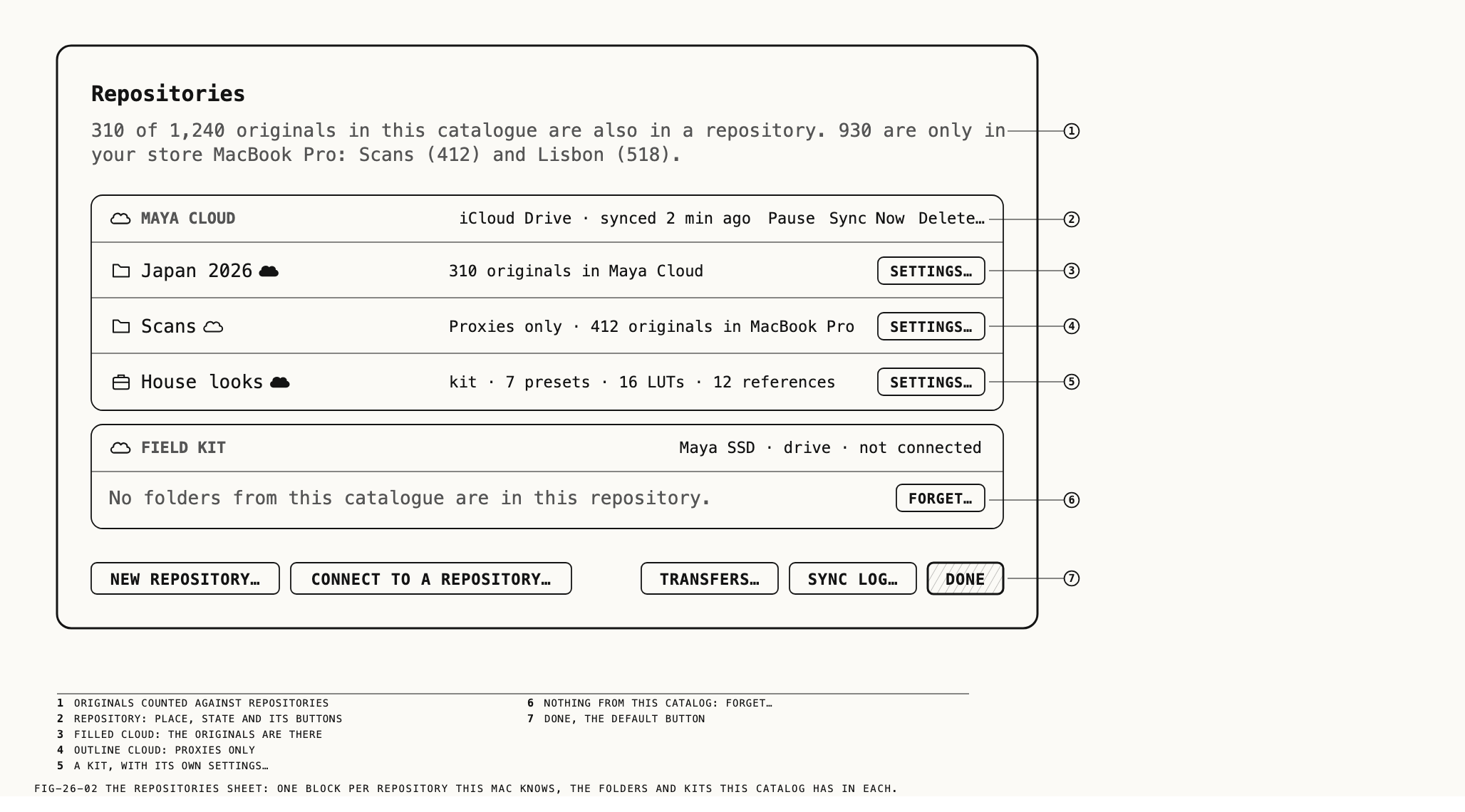
Below the count line is one block per repository this Mac knows. Repositories this catalog has folders or kits in come first. Each block opens with a header row: a cloud glyph (gray while the repository is offline), the repository’s name in capitals, and a state line that begins with the kind of place.
| State line | Meaning |
|---|---|
<place> · synced 2 min ago | Reachable; the last full pass was then |
<place> · not synced yet | Connected, but no pass has completed |
<place> · paused | Paused with Pause |
<place> · offline, last synced 2 h ago · 3 changes waiting | Its drive or share is away; changes wait (gray) |
<place> · can't reach: <reason> | It should be reachable and is not (amber) |
<place> · deleted | In its 30 days after Delete… (section 26.7) |
<place> · not connected | This catalog has nothing in it |
A connected repository’s header carries three buttons: Pause (or Resume once
paused), Sync Now and, in red, Delete…. All three are off while the repository is
deleted. A repository that reads can't reach adds Choose… beside them, which is
covered in section 26.8.
Pause stops syncing through that repository for every folder and kit this catalog has
in it; the status bar then reads <repo> is paused · N changes waiting with its own
Resume. Sync Now syncs immediately instead of waiting for the next check
(Chapter 27).
Under the header, one row per folder this catalog has in the repository: a folder
glyph, the name, its cloud, a line reading <n> originals in <repo>, or <n> of <m> originals in <repo> so far while originals are still uploading, or Proxies only · <n> originals in <store>, and a Settings… button that closes this sheet and opens the
folder’s Sync Settings sheet (Chapter 27). A folder that is still arriving from the
repository reads Arriving: waiting for <repo> to finish syncing it, with no cloud and
no button.
Kits follow the folders, each with a briefcase glyph, a filled cloud, a line such as
kit · 7 presets · 16 LUTs · 12 references and its own Settings… (Chapter 27).
A repository this catalog has nothing in shows one line, No folders from this catalogue are in this repository., with a Forget… button (section 26.4).
The bottom row holds New Repository… and Connect to a Repository… on the left, and
Transfers…, Sync Log… and Done on the right. Transfers… and Sync Log… are
covered in Chapter 27. The sheet lists catalogs rather than Macs. It has no control for removing a Mac.
26.4 The Repository Row in the Sidebar
Where to find it: the sidebar’s Locations section
Under Locations, this Mac’s store is listed first, then one row per repository this
catalog has a folder or kit in, in name order, then any other stores. A repository’s row
shows a blue cloud glyph and its name, with a detail after it only when something is
wrong: offline in gray, can't reach in amber, or deleted. Clicking the row shows
the photos of this catalog’s folders in that repository in the browser.
Right-clicking the row opens its menu.
| Item | Enabled | What it does |
|---|---|---|
Sync Now | Always | A full pass for that repository |
Pause or Resume | Always | As in the Repositories sheet |
Rename | While the repository is reachable | The Rename sheet, below |
Show in Finder | While reachable and its folder is known | Reveals the repository’s folder in the Finder |
Show in Repositories | Always | The Repositories sheet with this repository first and outlined |
Forget | Only while this catalog has nothing in it | The Forget sheet, below |
While Forget is off, a gray line under it says why: <folder> syncs through it, or
<A> and <B> sync through it. The menu ends with a dimmed Delete that does nothing;
deleting is done from the Repositories sheet (section 26.7).
Renaming. The Rename sheet is titled Rename the repository "<repo>". Its Name
field holds the current name, and Rename is off while the field is empty. The new
name shows in every catalog that uses the repository: on this Mac at once, on other
Macs the next time they sync with it. The folder on disk is not renamed, so a
repository and its folder can carry different names after a rename; the Finder shows
the folder’s name, Revela shows the repository’s.
Forgetting. Forgetting takes a repository off this Mac’s list without touching it.
The sheet is titled Forget "<repo>" on this Mac? and says so: the repository leaves
the list for every catalog on this Mac, nothing is deleted, its files stay where they
are, and any catalog can connect to it again through Connect to a Repository… and
Choose Another…. A second line warns that another catalog on this Mac that still
syncs through it will show it as can't reach until it is chosen again there. Forget
is the default button. A catalog that still has folders in the repository cannot forget
it; the menu shows the item off, and the Repositories sheet offers Forget… only on a
block that reads not connected.
26.5 Making a Repository
Where to find it: Catalogue → Repositories → New Repository…, or the sidebar’s Locations + → New Repository
The sheet is titled New repository and opens with the line quoted in section 26.1.
It has two forms. Opened from the Repositories sheet, the Locations + or a kit
sheet, it asks only for a name and a place and ends with Cancel and Create. Opened
from a folder’s Sync sheet (Chapter 27), it adds a section What it keeps for <folder>
with that sheet’s two choices, and its button reads Create and Sync. When this Mac
knows no reachable repository, the Sync sheet opens in this second form at once.
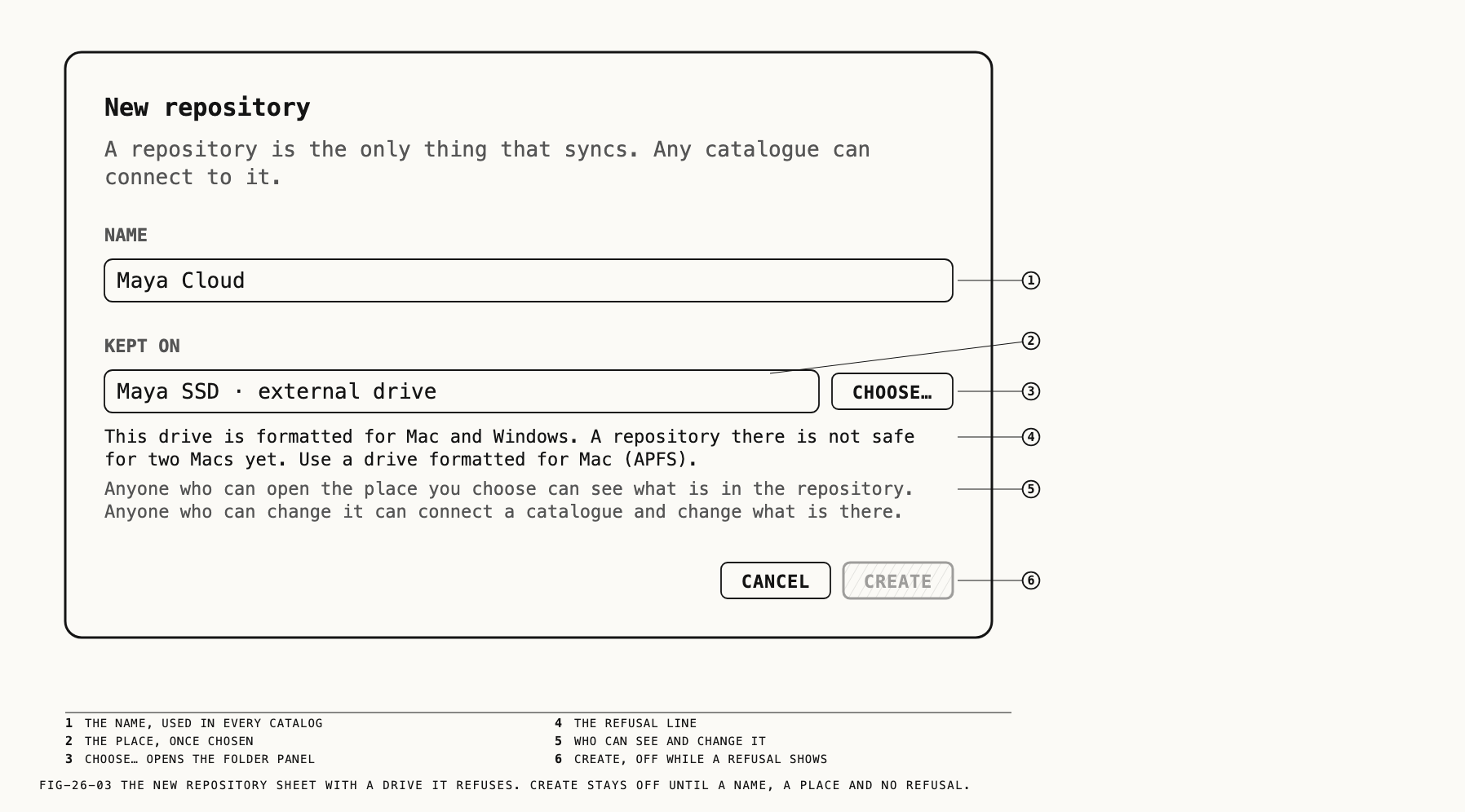
The name you type is the repository’s name everywhere: in every catalog that connects to it, on every Mac.
Kept on reads Choose where to keep it in gray until a place is chosen with
Choose…. The system folder panel opens with the line Choose where to keep the repository "<name>". Revela makes a folder named <name> inside the place you choose.
and its button reads Choose. Once chosen, Kept on shows the place: <volume> · external drive, iCloud Drive, the service’s name, the share’s volume, or this Mac.
Under it, a small line states who can see the repository: Anyone who can open the place you choose can see what is in the repository. Anyone who can change it can connect a catalogue and change what is there. A repository has no access control of
its own; the place’s permissions are its permissions.
The place is checked as soon as it is chosen, before anything is made. Two refusals
appear as a line under Kept on, and the create button stays off while one is shown.
| Refusal | When |
|---|---|
There is already a folder named "<name>" on <place>. Choose another place, or another name. | The place holds a folder of that name that is not empty |
This drive is formatted for Mac and Windows. A repository there is not safe for two Macs yet. Use a drive formatted for Mac (APFS). | The drive is formatted for both Mac and Windows |
The create button is on only once a name is typed, a place is chosen and no refusal is shown. Creating makes a folder with the repository’s name inside the chosen place (a slash or a colon in the name becomes a hyphen in the folder’s name) and adds the repository to this Mac’s list. A new repository holds nothing and syncs nothing until a folder or a kit is put into it, which is Chapter 27.
The repository pop-up on a folder’s Sync sheet lists this Mac’s repositories, followed by New Repository….
26.6 Connecting from Another Mac
Where to find it: Catalogue → Repositories → Connect to a Repository…, or the sidebar’s Locations + → Connect to a Repository
A second Mac joins by connecting its own catalog to the repository and choosing what to
take from it. The Connect sheet is titled Connect to a repository and reads Choose the repository, then the folders and kits you want in this catalogue.
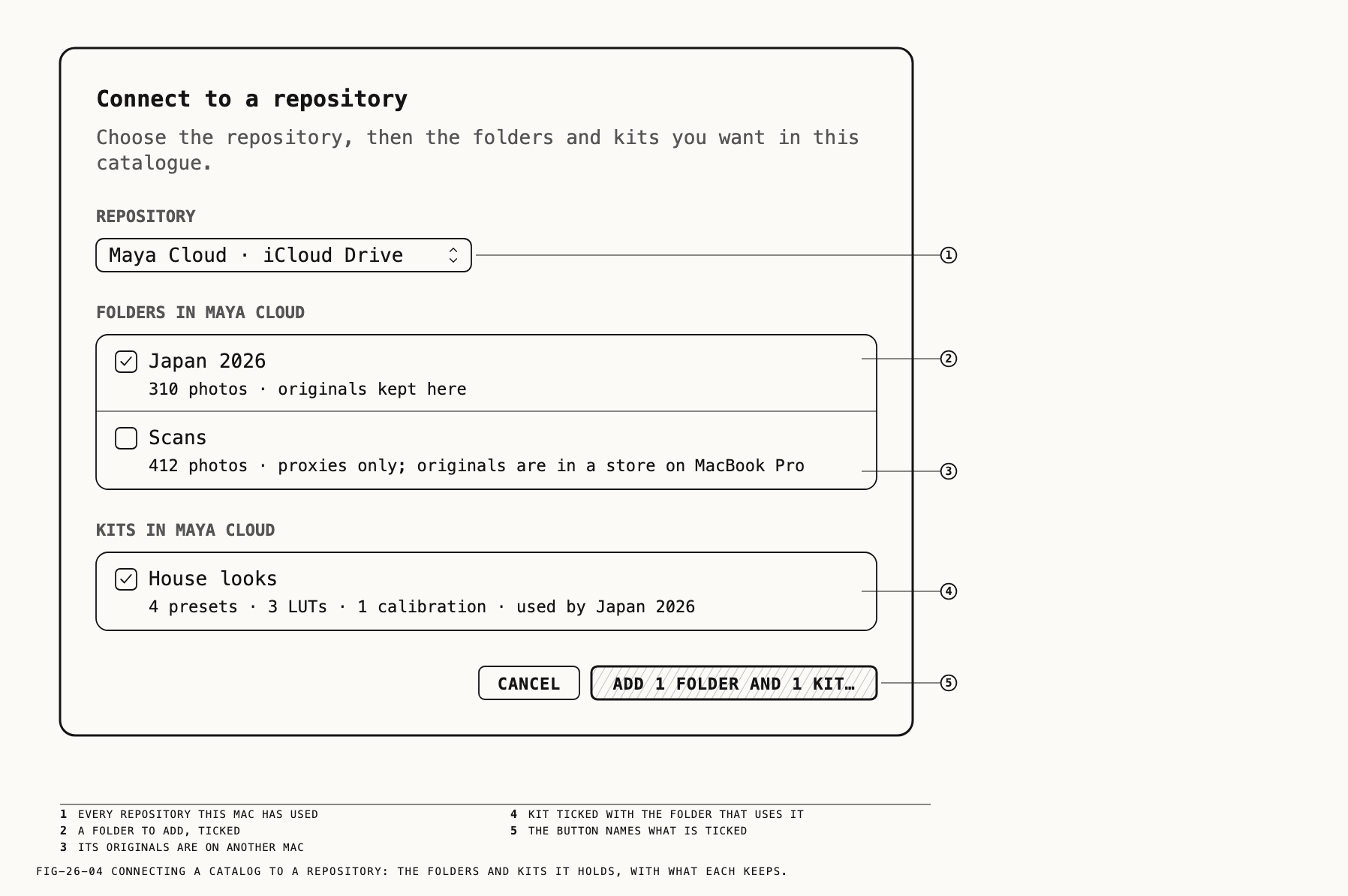
The Repository popup lists every repository this Mac has used, each as <repo> · <place>; one that cannot be reached is grayed with · offline after it. The popup
ends with Choose Another…. On a Mac that has not used the repository, click Choose Another… and select its folder. A folder that is not a usable repository is
refused with an alert, and the sheet stays open.
| Alert | Body |
|---|---|
"<folder>" isn't a Revela repository | Choose the folder that has the repository's name, or make a new repository with New Repository…. |
"<folder>" was made by a newer version of Revela | Update Revela to use this repository. |
"<folder>" is on a drive formatted for Mac and Windows | A repository there is not safe for two Macs yet. Use a repository on a drive formatted for Mac (APFS). |
Once a repository is chosen, its contents are listed under two headers, each shown only
when it has something to list. FOLDERS IN <REPO> holds a checkbox per folder with a
detail: <n> photos · originals kept here, or <n> photos · proxies only; originals are in a store on <Mac>. A folder this catalog already has is ticked, disabled and
marked already in this catalogue. KITS IN <REPO> holds a checkbox per kit with its
contents and origin, such as 4 presets · 3 LUTs · 1 calibration · from <Mac>. Ticking
a folder also ticks the kits its photos are graded with, and the kit’s detail then ends
· used by <folder>.
The button names what is ticked: Add (off) with nothing, then Add 2 Folders…, Add 1 Kit or Add 1 Folder and 1 Kit…. Kits are added at once, since a kit is kept whole.
Folders go through one more sheet.
The Add sheet. It is titled Add "<folder>", or Add "<a>" and "<b>" for several,
and reads You get them as they are in every other catalogue that has them: same subfolders, edits and ratings. Its one section, Originals in this catalogue, asks how
much of the folder this catalog should keep on this Mac, with the size of each choice
on the right once it has been read.
| Choice | Detail line | What it means |
|---|---|---|
Proxies now, originals when I edit a photo | Suggested. You can change this later, per folder. | Browsing and rating never download an original; the first edit of a photo does |
All originals | Everything the repository holds, kept up to date in your store <store>. | Every original the repository has is downloaded, and kept current |
Thumbnails only | Everything else only when you open a photo. | Opening a photo fetches its proxy; the first edit fetches its original |
The first choice is preselected. Add confirms. The folders arrive at the top level of
this catalog’s folder list with the same cloud they carry elsewhere; thumbnails come
first, then proxies, then originals according to the choice. While a folder is still
arriving, its row in the Repositories sheet reads Arriving: … and the folder takes no
drops. The choice can be changed later, per folder (Chapter 27). Adding is refused, with
the sheet left open, when the repository is offline or cannot be reached (section 26.8).
Nothing is ever added by itself. When a connected repository gains a folder this catalog
does not have, the catalog’s row in the sidebar shows a badge, <n> new, and choosing
the folder from that row’s menu opens the Add sheet for it (Chapter 27).
26.7 Deleting a Repository
Where to find it: Catalogue → Repositories, the Delete… button on the repository’s
block
Deleting a repository stops syncing through it in every catalog and, after 30 days, moves its files to the Trash. The 30 days are a window in which any catalog that uses it can restore it. The sheet is refused when the repository cannot be reached.
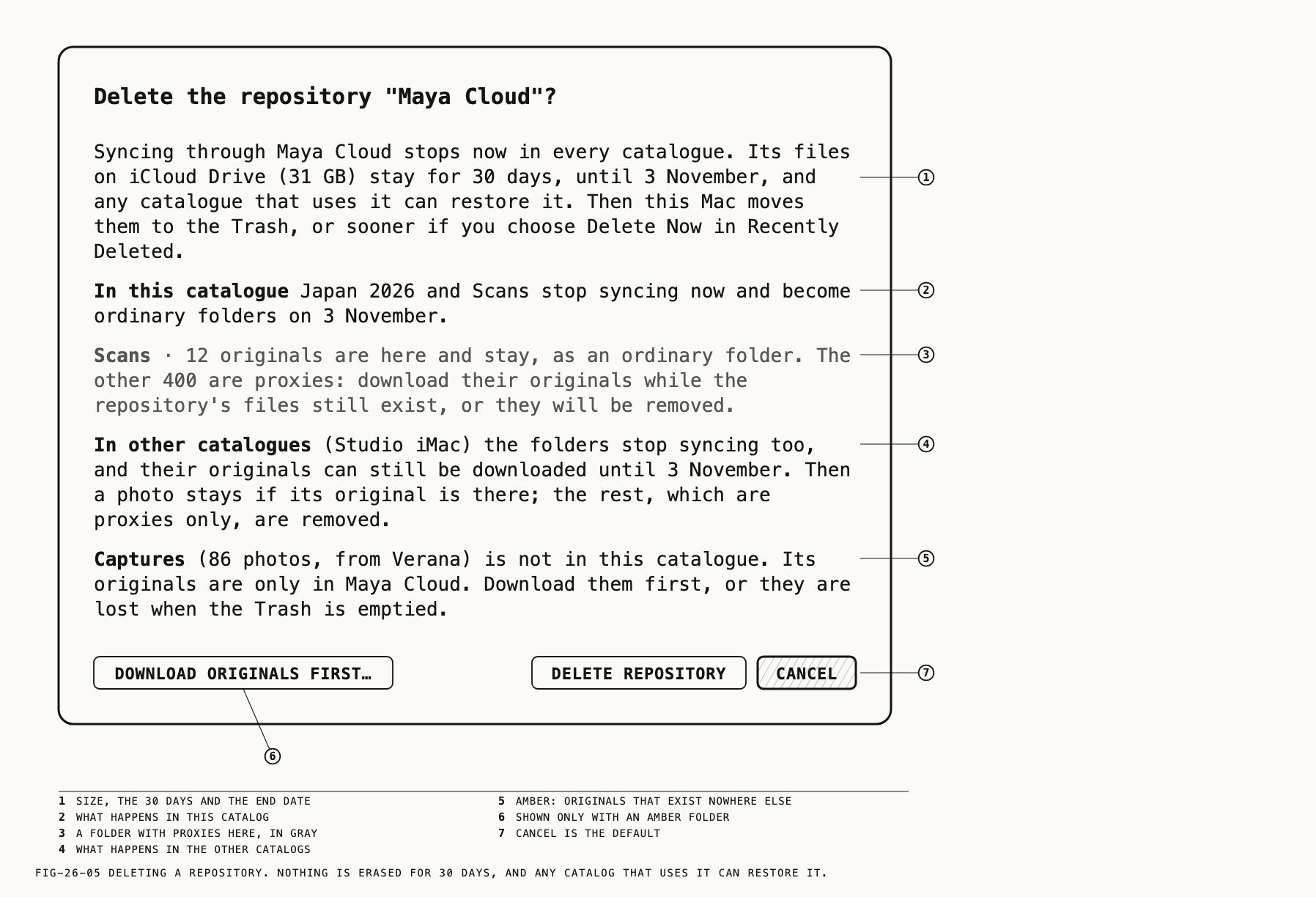
The sheet is titled Delete the repository "<repo>"?. Its first paragraph states the
terms: syncing through the repository stops now in every catalog; its files, with their
size (counting… until read), stay in place for 30 days until a named date; any catalog
that uses it can restore it in that time; then this Mac moves the files to the Trash,
or sooner with Delete Now in Recently Deleted.
Two headed paragraphs then say what happens on each side. In this catalogue names the
folders that stop syncing now and become ordinary folders on the end date, and whether
all their originals are already in your store. A folder whose photos are partly
proxies here gets its own gray line: how many originals stay, and how many proxies need
their originals downloaded while the repository’s files still exist, or they will be
removed. In other catalogues names the other catalogs. Their folders stop syncing too
and can still download originals until the end date. After it, a photo whose original
is there stays; the rest, proxies only, are removed.
Two kinds of line are amber because they name originals that exist nowhere else. One is a folder that is in the repository but in no catalog on this Mac: its originals are only in the repository and must be downloaded first, or they are lost when the Trash is emptied. The other is a kit that no catalog has added, whose files are only in the repository.
The buttons are Delete Repository and Cancel (the default), with Download Originals First… added when an amber folder is listed.
The 30 days. During the window the repository’s rows read deleted in the sidebar
and the Repositories sheet, its folders’ clouds turn gray, and Pause, Sync Now and
Delete… are off. Nothing more goes into its folders; edits made here wait, and
originals can still be downloaded from it.
Recently Deleted lists the repository as a row named <repo> with the detail
repository · deleted here today (or repository · deleted in <catalogue> elsewhere),
a badge counting the days left as <n> d, and two buttons, Restore and Delete Now.
Delete Now is on only in the catalog that deleted it; elsewhere a footnote says so
and names that catalog. The status bar reads
<repo> was deleted · 30 days to restore it here and <repo> was deleted in <catalogue>, today on other Macs, each with Show; the bell carries the same news
(Chapter 27).
Restore. Restore, from any connected catalog, brings the repository back for
everyone. The restoring catalog sees <repo> restored · syncing again in every catalogue; the others get a bell item, <repo> was restored in <catalogue>, with
Connect, which opens the Connect sheet with that repository chosen so its folders can
be added again.
Delete Now. The sheet is titled Delete <repo> now?. It states that the files are
moved to the Trash now, that the repository’s folders become ordinary folders in every
catalog, and that this can be undone in the Finder until the Trash is emptied. It then
lists in amber every catalog that has not seen the deletion, with the proxies whose
originals it will no longer be able to download, and any folder that is in no catalog
at all. The buttons are Delete Now and Cancel (the default).
After 30 days the deleting catalog does the same by itself. Either way the end is
reported as <repo> was deleted · its files are in the Trash, or, when the files were
on a share and stay there, · its files stay on <volume>, with Show in Finder where
there is a folder to show.
What another catalog sees. On another Mac, Show on the status bar line or the bell
opens a sheet titled The repository "<repo>" was deleted. It names the catalog that
deleted it and when, and the date until which any catalog can restore it, then says per
folder whether its originals are here and it stays as an ordinary folder, or it holds
proxies only and goes on the end date. The buttons are Restore <repo>, Remove the <n> Proxies when there are any, and Download <n> Originals (the default) when any can
still be fetched, or OK. Any command on a folder of a deleted repository is refused
with this same sheet.
26.8 Offline and Can’t Reach
An unavailable repository is marked offline or can’t reach, depending on the cause.
Offline is a repository whose drive or share is away. It is reported in gray:
offline on the sidebar row, offline, last synced 2 h ago · 3 changes waiting on the
Repositories sheet, and <repo> is offline · 4 changes waiting in the status bar.
Nothing is wrong. Everything done locally still works, and the changes wait; they sync
as soon as the drive mounts or the share is reachable again. The folders keep their
cloud shape meanwhile.
Can’t reach is a repository that should be reachable and is not: its folder was
moved, renamed or deleted, or the place can be opened but the repository cannot. It is
reported in amber, with the reason after it on the Repositories sheet: can't reach: <reason>. The block gains a Choose… button, which opens the system folder panel with
the line Choose the folder of the repository "<repo>". Revela checks it is the same repository before using it. Picking the right folder makes the repository reachable
again; picking another folder is refused with the Connect sheet’s alerts
(section 26.6). The same state follows forgetting it on one catalog while another on the
same Mac still syncs through the repository; Choose… there points it back.
Commands that need the repository now are refused rather than queued. The sheet you
were in stays open, and an alert says what happened: <repo> is offline with Connect <volume> and try again. Nothing has been changed., or Can't reach <repo> with the
reason, or Nothing has been changed. when there is none. In this chapter those
commands are Delete…, connecting and adding, and renaming, which is off while the
repository is unavailable. The commands of Chapter 27 that are refused the same way are
listed there. Stopping and removing a folder are allowed while a repository is away, and
their sheets say what will happen either way (Chapter 27).
A repository in its 30 days after deletion refuses every command with the sheet of section 26.7.
26.9 Repositories on Other Screens
Two screens that belong to Chapter 6 carry lines about repositories.
The Locations sheet (Catalogue → Locations) lists each repository with the kind
repository · iCloud Drive or repository · <volume>, its contents as Japan 2026, Scans · 31 GB, and its state as synced 2 min ago, offline or can't reach: <reason>. Selecting one shows a heading of the repository’s name over <place> ▸ <repo>, a sentence such as 31 GB on iCloud Drive. This catalogue has Japan 2026 (originals there) and Scans (proxies only) in it., and three buttons: Show in Finder
and Rename… while it is reachable, and Repositories…, which opens the sheet of
section 26.3.
File → Catalogue Info counts the catalog’s originals against its repositories:
1,190 of 2,120 originals are also in a repository: 310 in <repo> and 880 in <repo2>.,
then which folders in which store hold the rest, and <repo> keeps only proxies of <folder>. where that is so. A catalog with nothing in a repository reads None of this is in a repository., with a reminder that a copy of the catalog file holds none of the
originals, and that putting folders in a repository is how they get a second place.
← 25. Exporting · Contents · 27. Sync Folders, Kits and Transfers →