Chapter 26 explains what a repository is, how one is made, and how a second catalog connects to it. This chapter covers what goes through a repository: folders, kits, and the originals, proxies and edits that travel with them. It also covers the marks the window shows while things move, the confirmations that warn before files are removed, and the Sync Log that records what other catalogs changed.
A sync folder stays in your catalog, with its originals in your store. The repository holds a copy of what you chose to put there, and every other catalog that adds the folder gets the same subfolders, ratings and edits. Nothing is ever added to a catalog by itself, and nothing is ever erased without a sheet that says where the last copy is.
27.1 Making a Folder Sync
Where to find it: right-click a folder in the sidebar → Sync This Folder
The item appears on an ordinary folder that is not inside a sync folder and does not hold one. Sync takes a folder with its subfolders, so a subfolder is never offered on its own.
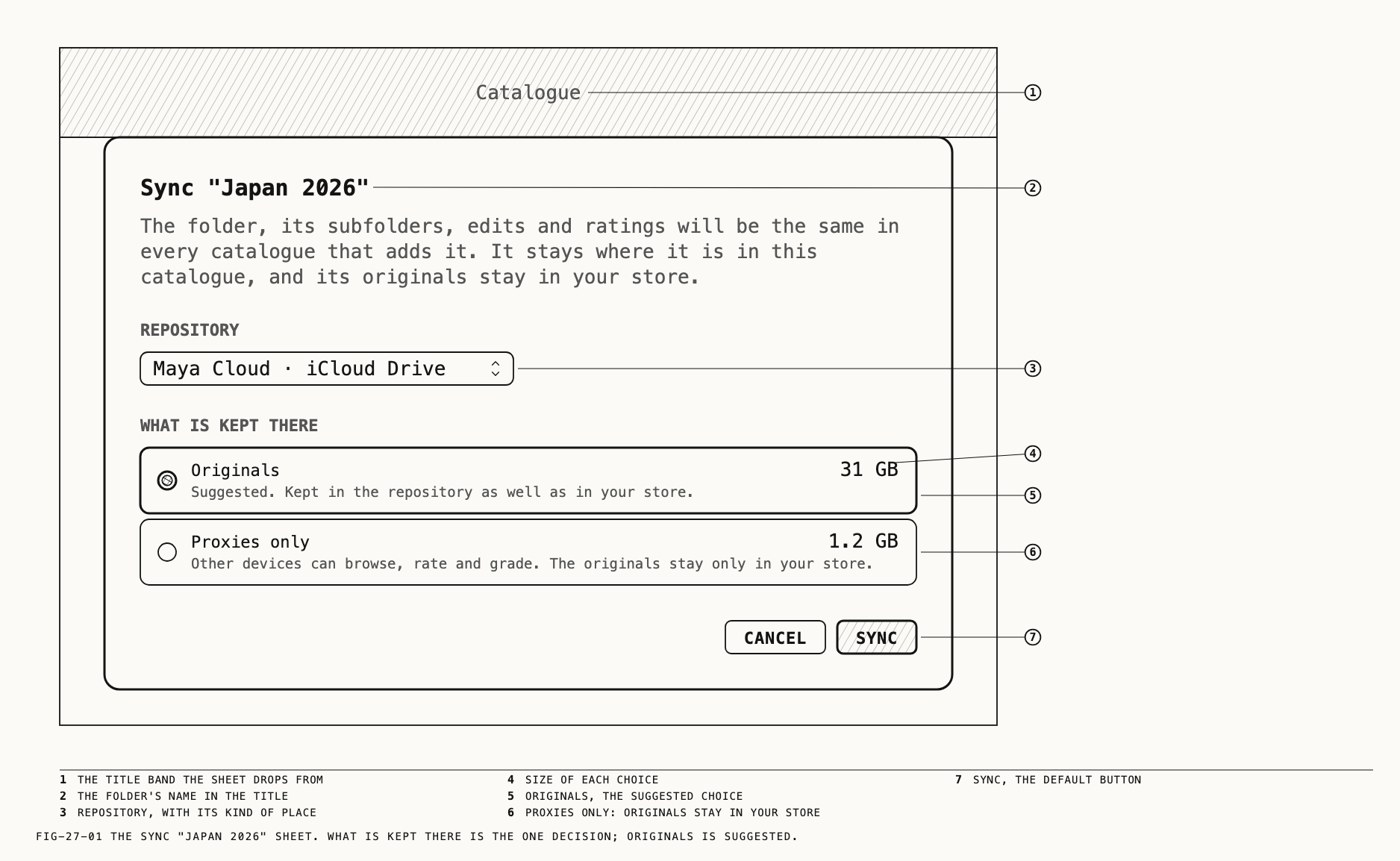
The sheet is titled Sync "<folder>". Its first sentence states what sync does: the
folder, its subfolders, edits and ratings will be the same in every catalog that adds it,
the folder stays where it is in this catalog, and its originals stay in your store.
The Repository popup lists every repository this Mac knows, each with the kind of
place it is kept on (iCloud Drive, a drive, a share, or this Mac). A repository
whose drive is away is grayed and marked · offline. The last entry, New Repository…,
turns the sheet into the New repository form of Chapter 26 with a Create and Sync
button. If this Mac knows no reachable repository, the sheet opens in that form at once.
What is kept there chooses whether the repository holds originals:
| Choice | What the repository holds | The cloud on the folder |
|---|---|---|
Originals | Every original, as well as the proxies, edits and ratings. Other catalogs can download the originals. This is the suggested choice. | Dashed until every original has arrived, then filled |
Proxies only | Proxies, edits and ratings. The originals exist in your store and nowhere else. | Outline |
Each choice shows its size once the folder has been read. While Proxies only is
chosen, a box under the choices says the folder will sync with an outline cloud and that
its originals stay only in your store; you can change this at any time.
Sync is the default button and stays off until the sheet has finished reading the
folder.
Resources the folder uses. If photos in the folder are graded with LUTs, presets or
calibrations that are in no kit in the chosen repository, a second sheet appears before
anything syncs. It is titled <folder> uses <n> resources that are not in <repo>. Under
Used in <folder>, not in a kit in <repo> it lists each tool with its kind, how many
photos use it, and where it is now (This catalogue, a kit’s name, or not here). Under
Put them in a kit in <repo> a popup offers the repository’s kits and New Kit…. The
buttons are Cancel, Sync Without Them, and the default Add <n> to <kit> and Sync.
A new repository has no kit, so its popup offers New Kit… only; that asks for a name
and makes the kit when the folder syncs. Kits are covered in 27.5.
Syncing without them is allowed. Another catalog then shows those photos without the missing tool, and the status bar reminds you with a line of its own (27.10).
What happens after Sync. The folder keeps its place in the sidebar. Proxies are
made for every photo; PearlaRAW clips get none, so another catalog sees their thumbnail
until it downloads the original. The status bar reads Uploading <folder> · n of m
while the originals go up, and you can keep working. If the repository cannot be reached
when you press Sync, the sheet stays open and reports it (27.12).
Once the folder is in the repository, other catalogs add it from the Connect sheet (Chapter 26) and choose how much of it to keep on their own Mac.
27.2 What the Sidebar and the Browser Show
The folder’s menu. Right-clicking a folder shows items by its state:
| Folder | Items |
|---|---|
| An ordinary folder | Sync This Folder |
| The sync folder itself | Sync Settings, Stop Syncing, Keep Here, Remove from This Catalogue |
| A subfolder inside a sync folder | A gray line, In "<folder>", which syncs to <repo> |
| A folder holding a sync folder | A gray line, Contains "<folder>", which syncs to <repo> on its own |
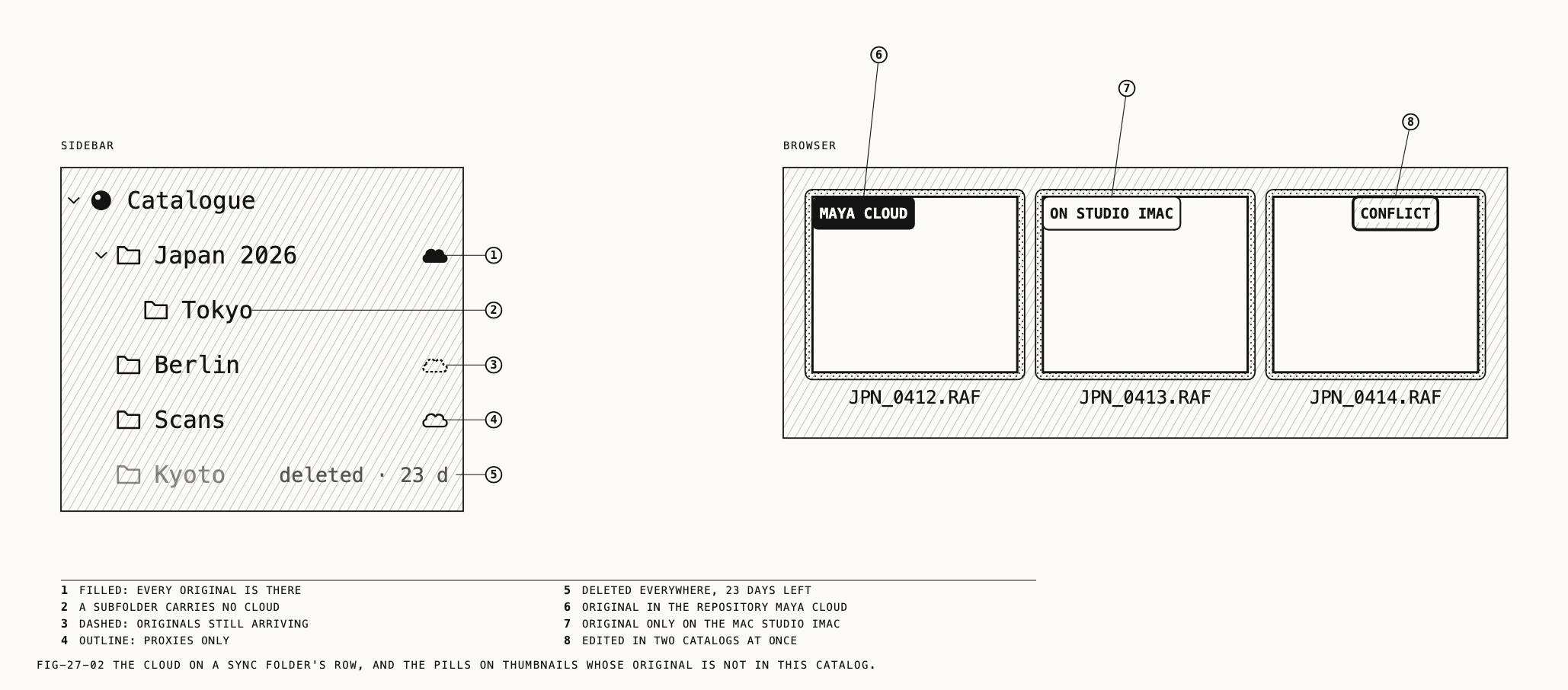
The cloud. A sync folder carries one blue cloud on its sidebar row; subfolders carry none. The cloud’s shape is the same in every catalog that has the folder, and it keeps its last shape while the repository is away. Hovering over the cloud spells out the state.
| Shape | Meaning |
|---|---|
| Filled | The repository keeps originals and every one of them is there |
| Dashed | The repository keeps originals and some have not arrived |
| Outline | The repository keeps proxies only; the originals are in one store |
| Gray | The repository was deleted and is in its 30 days (Chapter 26) |
A sync folder that was deleted in every catalog stays in the sidebar, dimmed, with the
text deleted · <n> d until its 30 days end. Selecting it shows a prompt in the grid
pointing to Restore Folder in Recently Deleted. The catalog’s own row gains a badge,
<n> new, when a repository it is connected to has folders this catalog has not added
(Chapter 26).
Amber is reserved for things that need you: a repository that should be reachable and is not, a conflict, a sync error, or a pending delete that would erase an only copy. An unplugged drive is gray.
Pills on thumbnails. A photo in a sync folder whose original is not in this catalog carries a pill at the corner of its thumbnail:
| Pill | Meaning |
|---|---|
<REPO>, in blue | The original is in that repository. It downloads when you edit the photo, or with Download |
ON <MAC>, in gray | The original is only in a store on that Mac. No repository has it |
NOT HERE, in gray | No repository has the original, and this catalog has not learned which Mac does. It usually learns after the next full check |
CONFLICT, in amber | Two catalogs edited the photo at once (27.8) |
OFFLINE, in gray | The original is in one of this catalog’s own stores, and that store is not connected (Chapter 6) |
The loupe. The same tag heads a banner over the loupe, with two lines. With a proxy
here and the original in a repository, the lines read Showing the proxy. Limited grading: raw settings, Heal, Mask and export need the original. and The original (<size>) downloads when you edit., with a Download button. The inspector tabs that
need the original say so: Needs the original. It downloads when you edit. When the
folder keeps Proxies now, originals when I edit a photo (27.3), the first edit starts
the download by itself. The loupe, pill and inspector update when the download finishes.
Other situations change the second line: the original is downloading, with its progress; the original is only in a store on a named Mac, which must upload the folder’s originals first; the proxy is being updated because the raw settings were changed on another Mac, and grading waits for the new one; a clip has no proxy, so grading needs the original; or the folder keeps thumbnails only and the proxy is on its way.
Download is also in the grid’s right-click menu for a selection. Only photos a
repository holds are queued. If the repository is away, an alert says so and nothing is
queued.
The Info tab. For a photo in a sync folder the Info tab (Chapter 5) adds three
sections. Original counts the places the original can be verified in right now
(In 2 places, In 1 place now) and names them. Uses lists each tool the grade needs
with its kit or not here. Repository gives the repository’s name and kind of place,
the folder path, the last change and who made it, and Keeps proxies only where that
applies.
Filters. View → Filter ▸ has a Sync group: In One Place Only, Original Not Here and Conflicts. The first is what the status bar’s count opens (27.10).
27.3 Sync Settings
Where to find it: right-click a sync folder → Sync Settings, or Settings… on the
folder’s row in the Repositories sheet.
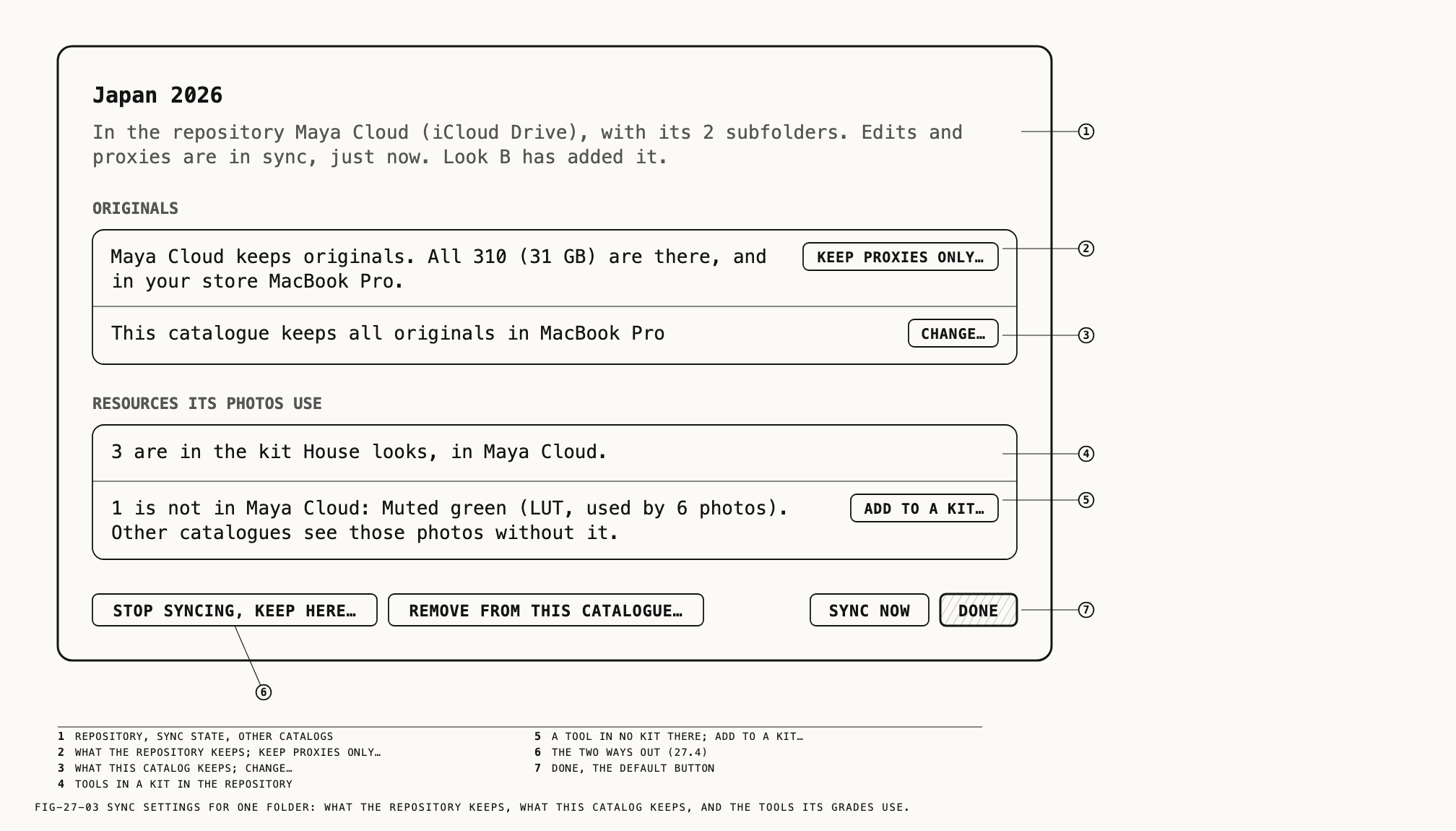
The sheet is titled with the folder’s name. The line under it says which repository
the folder is in, with its kind of place and subfolder count, whether edits and proxies
are in sync and how long ago, and which other catalogs have added it (No other catalogue has added it yet. when none has).
Originals. The first line states what the repository keeps, with counts and
sizes: <repo> keeps originals. All <n> (<size>) are there, and in your store <store>.,
or how many are there so far and that the rest are uploading, or <repo> keeps proxies only. with where the originals are. Beside it is one of two buttons.
Keep Proxies Only… erases the folder’s originals from the repository and keeps them
in your store. It is offered only in the catalog that holds all of the folder’s
originals, and only while the repository is reachable; otherwise it is off with a gray
reason. Its sheet, Keep only proxies of "<folder>" in <repo>?, says the originals are
erased from the repository and stay in your store. In other catalogs, a photo whose
original was already downloaded keeps it; the rest show from their proxies with the gray
ON <MAC> pill. In bold, the sheet says the folder’s originals are afterwards only in
your store. The cloud becomes an outline and the status bar counts them as in one place
only. You can upload them again at any time. The buttons are Keep Proxies Only and the
default Cancel. This and deleting the repository are the only two commands that erase
files from a repository.
Upload Originals… is the reverse. Its sheet, Upload the originals of "<folder>"?,
says how many originals upload from your store and at what size. You can keep working during the upload. The cloud stays dashed until every original arrives, then becomes filled. When some originals are in a store on another Mac, that Mac uploads them
the next time it syncs. The buttons are Cancel and the default Upload Originals.
When the repository cannot be reached, an alert says the originals can be uploaded when
it can, and nothing has changed.
The second line reads This catalogue keeps …, naming the level this catalog chose when
it added the folder. Change… opens Originals of "<folder>" in this catalogue, where
the three levels are offered again:
| Level | What this catalog downloads |
|---|---|
Proxies now, originals when I edit a photo | Nothing for viewing and rating; the first edit of a photo downloads its original. The suggested choice |
All originals | Everything the repository holds, kept up to date in your store |
Thumbnails only | A proxy when you open a photo; the original when you first edit it |
Only this catalog changes; other catalogs keep what they chose. Choosing less later
stops new downloads but never deletes what is here. To take the folder out of this
catalog, use Remove from This Catalogue… (27.4). The button is Change, off until a
different level is chosen.
Resources its photos use. Shown when the folder’s grades use any. One line per
kit (<n> are in the kit <kit>, in <repo>.) and, for tools in no kit in the repository,
<n> is not in <repo>: <name> (<kind>, used by <n> photos). Other catalogues see those photos without it. with an Add to a Kit… button that opens the resources sheet of
27.1 in its second form, Add <n> to <kit>.
The foot of the sheet carries Stop Syncing, Keep Here… and Remove from This Catalogue… on the left (27.4), and Sync Now and the default Done on the right.
27.4 Stopping and Removing
Where to find it: right-click a sync folder, or the foot of the Sync Settings sheet.
Two commands end syncing for this catalog. Stop Syncing, Keep Here
keeps the folder in this catalog as an ordinary folder. Remove from This Catalogue
takes it out of this catalog, and may take it out of every catalog. Those are the
folder’s menu items; the Sync Settings sheet carries the same two as buttons, Stop Syncing, Keep Here… and Remove from This Catalogue….
Stop Syncing, Keep Here. The sheet, Stop syncing "<folder>"?, first says the
folder becomes an ordinary folder in this catalog with its originals in your store.
What follows depends on the repository:
- If the repository keeps the originals, or this catalog holds none of them, the folder
stays in the repository for the other catalogs that have it. Buttons:
Cancel,Stop Syncing. - If the repository keeps proxies only and this catalog holds the originals, stopping
closes the folder for everyone: in bold, the folder will be removed from the
repository and from every other catalog that has it, because the originals are yours.
A gray line suggests uploading the originals first, and a third button,
Upload Originals First…, does that. - If the repository is away, the sheet says it cannot tell whether other catalogs have the folder. When the drive is next connected, the folder stays if another catalog has it and is removed from the repository if none does.
An upload in progress is canceled, and the sheet says so. A photo whose original was never downloaded stays as a proxy-only photo with its gray pill. Syncing the same folder again later makes it a new folder in the repository.
Remove from This Catalogue. The sheet is titled Remove "<folder>" from <catalogue>?. The folder is always removed from this catalog. The sheet explains whether it will also be removed elsewhere and offers choices according to the repository’s state.
When no other catalog uses the folder, the sheet is one paragraph: the folder is removed,
its photos go to Recently Deleted for 30 days, then they are erased from this Mac and
from the repository. The buttons are Cancel and Remove.
When other catalogs use it, the sheet offers two choices. Only from <catalogue>, chosen
when the sheet opens, removes the folder, its photos and their space on this Mac; the
repository keeps the folder because the others use it. From every catalogue removes it
here, from each named catalog and from the repository; the photos wait 30 days in
Recently Deleted.
When the only originals are on this Mac, Only from is off, with a gray note that the
other catalogs could never get them and that you should upload them first or use
Stop Syncing, Keep Here…. Under From every catalogue, in amber:
Their only originals are on this Mac. After 30 days they are erased. Nothing is chosen
until you choose.
When the repository is away, a heading says it is offline and the other catalogs cannot
be checked. From every catalogue takes effect when the repository is next connected.
Only from removes the folder, its photos and their downloaded files from this catalog
and its store; photos you copied out earlier are untouched. From every catalogue is a
delete everywhere, with the 30-day holding described in 27.11.
Two sheets that arrive from elsewhere. Another catalog can remove this one from a
folder. The status bar then reads <folder> no longer syncs from this catalogue with
Show, which opens This catalogue was removed from "<folder>". It says which catalog
did it and when, that changes made here since then reach no one while changes made
elsewhere still arrive, and offers Stop Syncing, Keep Here…, Remove from This Catalogue… and the default Later.
When another catalog stops syncing a proxies-only folder whose originals it holds, the
folder is closed for everyone. The bell reports <folder> was removed from <repo> with
Show, which opens "<folder>" was removed from <repo>. It names the catalog and the
time, says the repository kept only proxies so the folder was removed from every
catalog, and says where the originals and every edit synced before that moment now are.
Two boxes follow when they apply. One counts the changes made here that had not synced
and are lost with the proxies. The other counts the photos you imported here, which stay
with their originals in your store, in an ordinary folder of the same name. Several
closed folders show their sheets one after another.
27.5 Kits
A kit holds presets, LUTs, references, crop templates and calibrations. A kit kept in a repository is the same in every catalog that adds it; a kit
kept This catalogue only is a private grouping that never leaves. Tools in no kit come
first, with no heading, in the resources panel’s type tabs and in its Kits tab; menus
that offer them as a place name them This catalogue. The resources panel itself is
covered in Chapter 17; references in Chapter 8.
Where to find it: the resources panel’s Kits tab, and the + button’s Kits group.
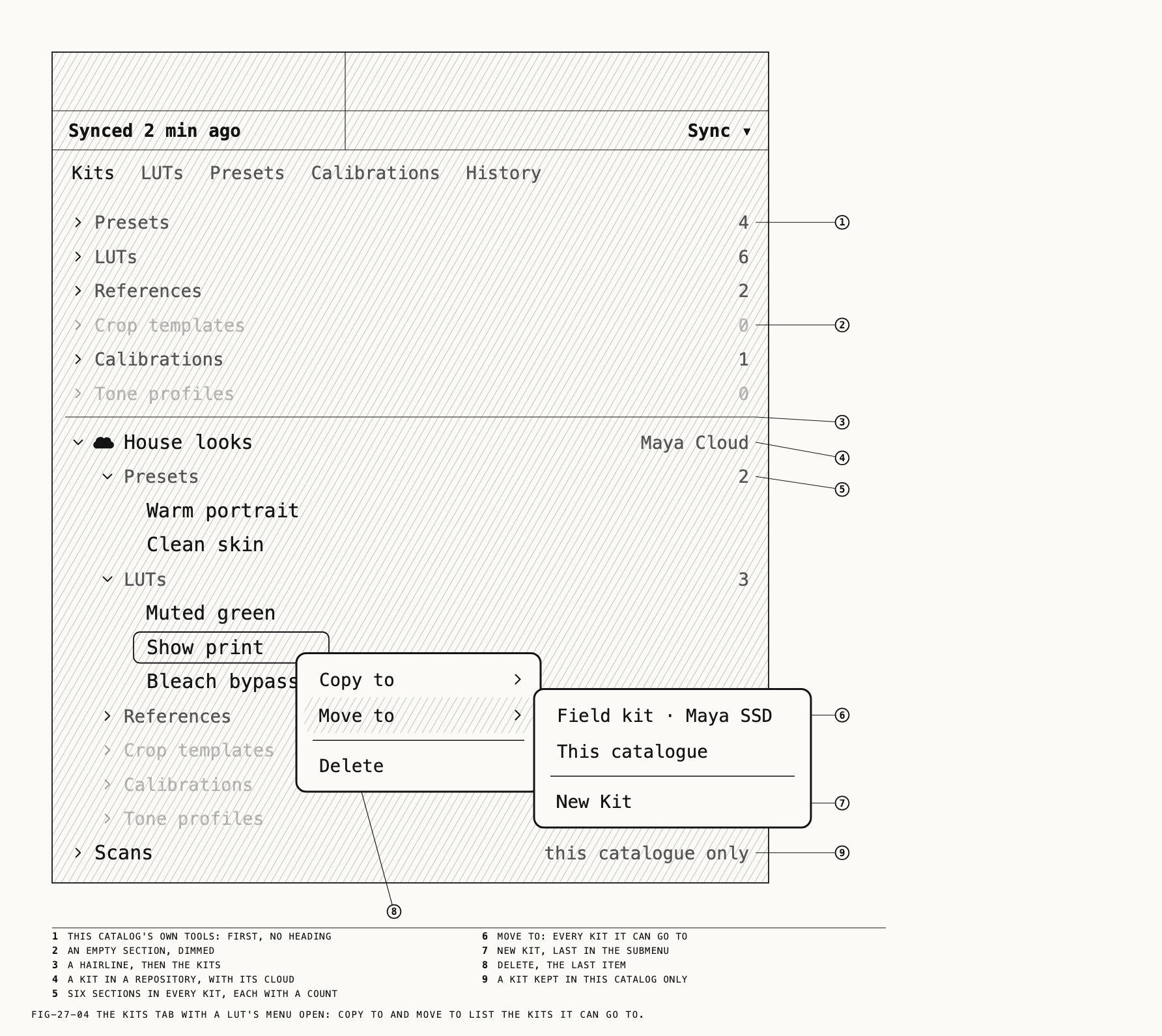
Kits show up wherever their tools do. In the type tabs (LUTs, Presets,
Calibrations) each kit is a group after this catalog’s own tools, with a cloud when it
is in a repository. In the Kits tab each kit has six sections in the order Presets,
LUTs, References, Crop templates, Calibrations, Tone profiles; a section with
nothing in it is drawn gray. Kits are also groups under the sidebar’s References row,
among the crop template chips of the Transform tab (with the line
Saved in <kit> · syncs to <repo>), in Catalogue → Use Reference ▸, and rows in the
Repositories and Connect sheets (Chapter 26). A kit still arriving reads
arriving from <repo>…; a private one reads this catalogue only.
Making a kit. The + button’s Kits group offers New Kit and Add a Kit from a Repository. The first opens the New kit sheet: a Name, a Kept in popup listing
each repository with its kind of place, This catalogue only, and New Repository….
From the + menu the sheet also offers a tick, Put everything in this catalogue into it, with a detail line counting what moves and its size. Create is off until the kit
is named. Add a Kit from a Repository opens the Connect sheet at its kits list
(Chapter 26); a kit is added at once and keeps everything.
Putting tools in and taking them out. Right-click a tool in a type tab, in the
Kits tab, or on a crop chip. Copy to ▸ and Move to ▸ list every kit it can go to
as <kit> · <repo> (or the kit’s name alone for a private kit), then This catalogue,
then New Kit. Dragging a tool onto a kit group does the same, and the label before
the drop says what will happen: Move "<tool>" to <kit> · it will sync to <repo>, with the 1 LUT it uses, or Copy "<tool>" to <kit> with a + mark.
Moving a tool into a kit preserves it as the same tool. A preset moved into a kit in a repository takes with it the LUTs and calibrations
it uses, when they are this catalog’s own. A tool may be in several kits. Leaving a kit in a repository creates a new copy of the tool. Copy to keeps the original in the kit. Move to also deletes the original from the kit in every catalog, after confirmation. A kit still
arriving, or one in a deleted repository, takes no drop.
That sheet is Move "<tool>" out of <kit>?. It explains that a tool leaving a synced
kit becomes a new one, removed from the kit in every catalog and kept here as a copy.
When photos are graded with it, the sheet counts them, here and in every catalog that
has the folder, says they will be shown without it because the copy is a new tool, and
adds To keep those photos as they are, copy it instead. with a Copy Instead button.
Move is the default only when no photo loses anything. Edit → Undo (⌘Z) brings the
kit’s tool back and removes the copy.
Deleting from a kit. Delete, the last item of the same menu. For a tool in a
synced kit the sheet, Delete "<tool>" from <kit>?, says the kit is in the repository
and the tool is removed in every catalog that has it. A preset adds Photos already graded with it keep their look.; a LUT or calibration counts the photos
here that will be shown without it; a reference waits 30 days in Recently Deleted in
every catalog that has the kit. The button is Delete in Every Catalogue, and the
delete can be undone. A tool under This catalogue is deleted as any other.
Kit Settings. Right-click a synced kit’s heading for Kit Settings. The sheet
carries the kit’s name, a line naming its repository, its sync state and which catalogs
have added it, a section In this kit with its counts and size, and the buttons
Stop Syncing, Keep Here…, Remove from This Catalogue… and Done. The two left
buttons follow the pattern of 27.4. Stopping keeps the kit’s tools in this catalog, in
no kit, and says whether the kit stays in the repository for others or is removed.
Removing offers Only from <catalogue> and From every catalogue; it counts the photos
here graded with the kit’s LUTs that will be shown without them, and holds the kit’s
references 30 days in Recently Deleted. When a tool’s only copy is on this Mac,
Only from is off and an amber warning says the copy is deleted.
References by kit. Right-click the sidebar’s References row for Show References and New References Go Into ▸, which lists This catalogue and each
<kit> · <repo> with the current choice ticked. This is this catalog’s own setting and
never syncs. Saving a reference into a kit shows the toast Reference saved in <kit> · syncs to <repo>. A reference’s Info tab gains a Kit section with its name and
repository, and says whether the photo it was taken from is in this catalog.
Catalogue → Use Reference ▸, also on the loupe’s right-click menu, lists references
by group, This catalogue then each <kit> · <repo>, with the one in use ticked. It is
enabled while a photo is open in the loupe.
A photo graded with a tool that is not here. The thumbnail carries no mark. The
loupe banner’s tag reads LUT NOT HERE and the lines say which tool the photo is shown
without, which kit it is in, and which repository holds that kit, with an Add <kit>
button; the photo is shown with the tool again when the kit arrives. When the tool is
only in the catalog on another Mac, the banner says so and has no button: put it in a
kit in the repository from that Mac. A different tag, LUT MISSING, means a LUT used by the grade cannot be applied, because it was deleted, moved out of a kit or is
unreadable; the banner names the LUT and the node it was used in, one line per LUT.
27.6 Moving Photos Between Folders
Where to find it: drag in the sidebar or the browser, or Catalogue → Move to Folder ▸.
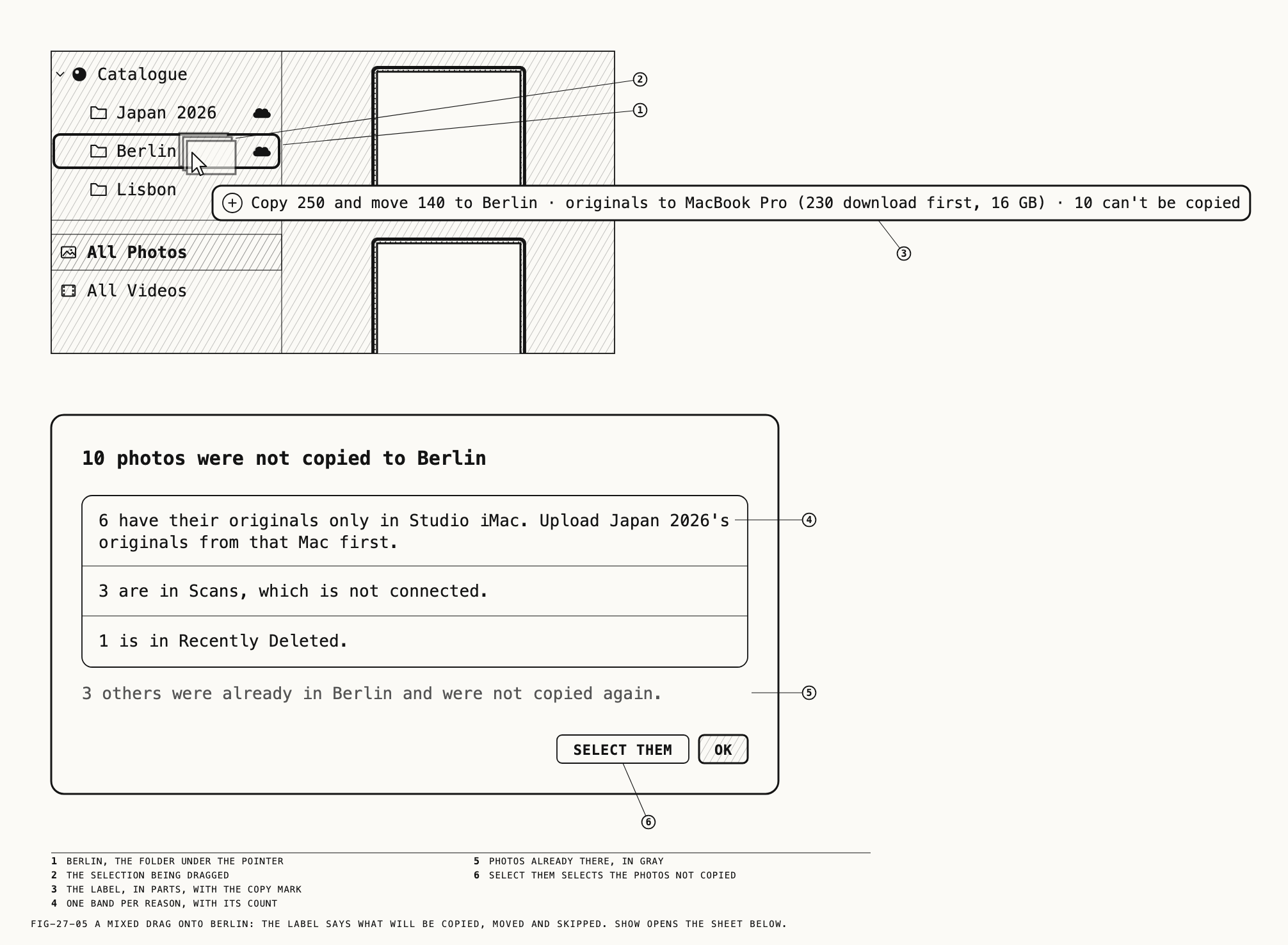
Inside one sync folder and its subfolders a drag is an ordinary move. Moving into or out of a sync folder can instead make a copy, and the drag label is the only warning, so read it before you drop. A copy makes new photos with their edits and ratings and puts their originals in this catalog’s store, downloading them first when they are not here; no link is kept to the source. No drag ever moves an original between stores.
| Drag | Result | Label |
|---|---|---|
| Photos from a sync folder to a folder with no cloud, or between two different sync folders | Copy | Copy 4 photos to <folder> · originals to <store>, with (230 download first, 16 GB) when some are not here |
| Photos from a folder with no cloud into a sync folder | Move; they join the repository | Move 4 photos to <folder> · they will sync to <repo> |
| A mixed selection | Per photo | One label in parts: Copy 250 and move 140 to <folder> · originals to <store> (230 download first, 16 GB) · 10 can't be copied |
| A folder with no cloud into a sync folder | Move; it becomes a subfolder and syncs | Move <folder> (64 photos) into <folder> · it will sync to <repo> |
| A subfolder out of its sync folder, or into another sync folder | Copy of its tree | Copy <folder> (120 photos) into <folder> · originals to <store> |
| A sync folder among folders with no cloud | An ordinary move; its place is this catalog’s own | None |
| A sync folder into another sync folder | Refused | <folder> syncs on its own. A synced folder can't go inside another one. |
| Onto a folder still arriving | Refused | <folder> is still arriving. It takes photos once it has finished syncing. |
| Onto a folder in Recently Deleted | Refused | <folder> takes no photos now |
A copy skips photos in Recently Deleted and photos whose originals are unavailable. This includes originals on disconnected stores, on unavailable repositories, or held only elsewhere. The label counts them as <n> can't be copied. A move into a sync
folder whose repository is away is allowed and waits.
While a copy runs, the status bar reads Copying 250 photos to <folder> · 40 of 230 downloaded (13 GB left) with Cancel. Cancel keeps the copies already finished and
drops the one under way; a new folder that received no copies is removed. The result is
a toast, 250 copied and 140 moved to <folder>, with · 10 not copied and a Show
button when some were skipped. Show opens 10 photos were not copied to <folder>,
one band per reason with its count (originals only on a named Mac, in no repository, in
a store that is not connected, on a repository that is offline, or in Recently Deleted),
a gray line for photos that were already in the destination, and the buttons
Select Them and OK.
If the store lacks room for the originals, an alert, There isn't room in <store>,
says how much the copy needs and how much is free, and nothing is copied or moved.
Catalogue → Move to Folder ▸ does the same work from the menu. When the result is not
a plain move it asks first, in a sheet titled Copy 250 and move 140 to <folder>?,
Copy 4 photos to <folder>? or Move 4 photos to <folder>?, with one bold-led
paragraph per part and the counts of what cannot be copied and why. The buttons are
Cancel and Copy and Move, Copy or Move.
27.7 Transfers
Where to find it: the Repositories sheet → Transfers…, or click a status bar line
that reads Uploading … or Downloading ….
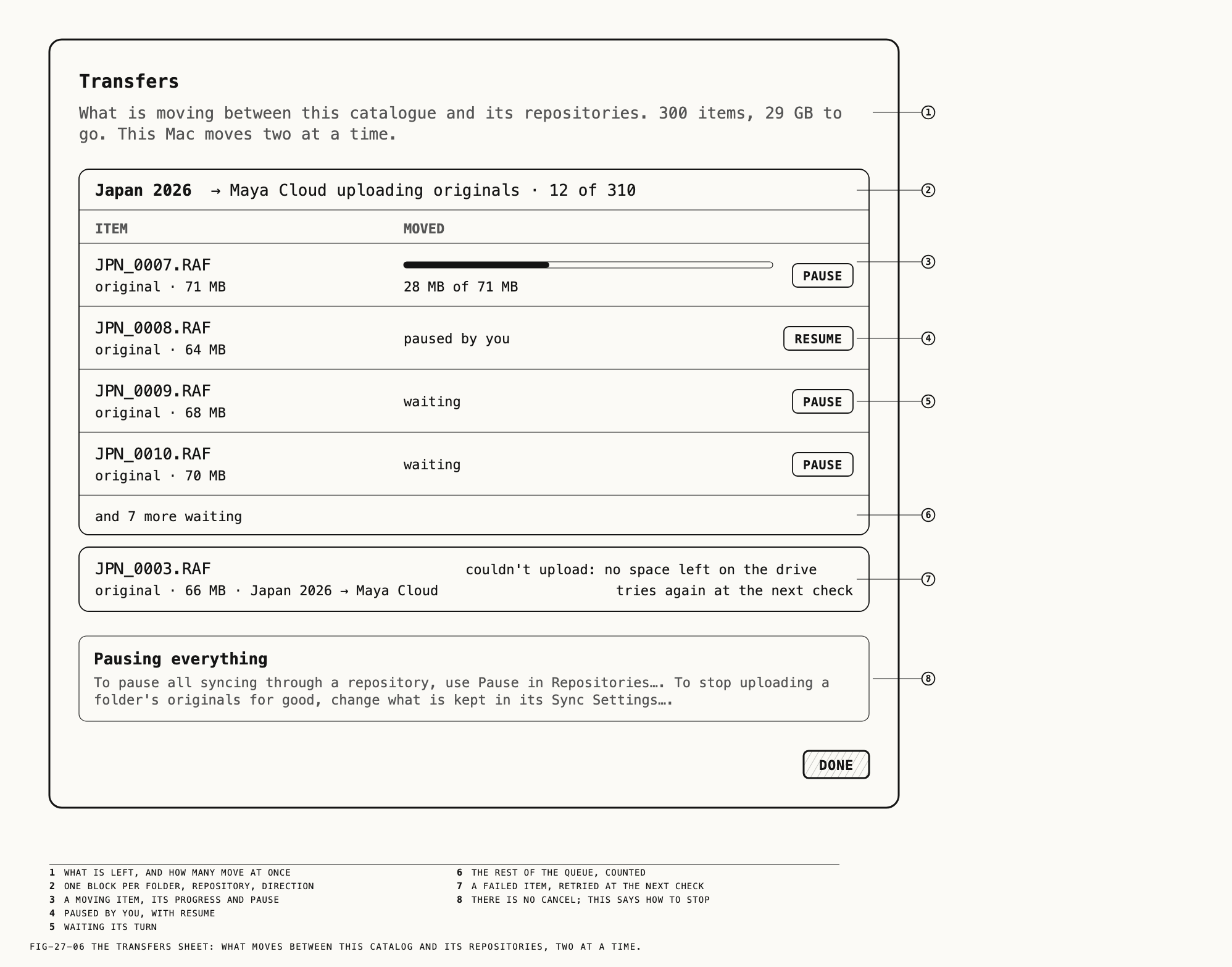
The Transfers sheet shows what is moving between this catalog and its repositories.
Its first line counts the items and the size still to go, and states that this Mac
moves two at a time. One block per folder, repository and direction is headed <folder> → <repo> uploading originals · 12 of 310 (an arrow the other way and downloading for
a download; proxies, thumbnails, LUTs or references for those). When the
repository is away the heading reads waiting for <repo> instead.
Under the column heads ITEM and MOVED, each row carries the file’s name with its
kind and size, and in the second column a progress bar with 28 MB of 71 MB, or
waiting, paused by you, waits for the drive, or couldn't upload: <reason>. Each
item has its own Pause or Resume; a failed item shows tries again at the next check instead. Failed items follow the blocks, each naming its folder and repository.
There is no Cancel button. The
box at the foot, Pausing everything, points to the two controls that do stop things:
Pause in the Repositories sheet for everything through one repository, and Keep Proxies Only… in Sync Settings to stop uploading a folder’s originals for good.
Syncing pauses by itself on battery, in Low Power Mode, on a limited or metered network,
while importing or verifying, and when the Mac is about to sleep. It checks at once on
wake and when a drive mounts. Sync Now in the Repositories sheet forces a pass.
27.8 Conflicts
Ratings, flags, labels and tags never conflict: when two catalogs change the same one,
the later change stands, and the value it replaced is listed in the Sync Log with
Revert. A conflict arises only when two catalogs edit the same photo at about the same
time. Both versions are kept. The newer edit is current everywhere; the other is kept,
on the other Mac, as an entry labeled Conflict from <Mac>, <time>.
The photo carries the amber CONFLICT chip. The loupe banner reads <Mac> edited this photo at the same time; both versions are kept. with Resolve…. The status bar reads
<n> photos were edited in two catalogues at once with Resolve…, which opens the
first. The grid’s right-click menu offers Resolve Conflict, and the Conflicts
filter lists them all.
Where to find it: Resolve… on the loupe banner or the status bar, or right-click a
photo → Resolve Conflict.
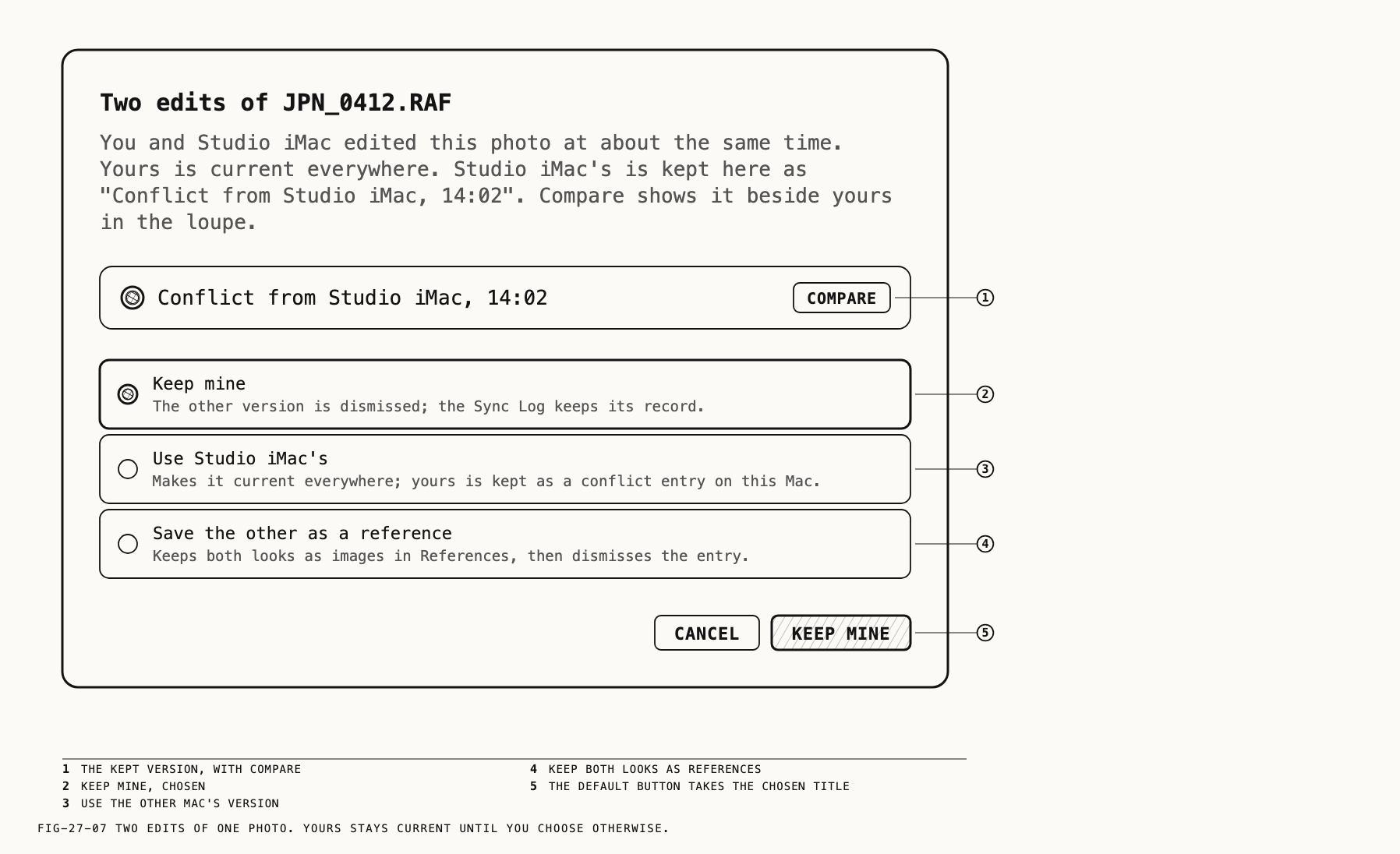
The sheet is titled Two edits of <filename> (or 3 edits of …). Its line says that
you and the other Mac edited the photo at about the same time, that yours is current
everywhere, and that the other is kept here under its label. Each kept version has a
band with a radio and a Compare button, which shows that version in the loupe’s
reference slot beside the current one (Chapter 8). Three choices follow:
| Choice | Effect |
|---|---|
Keep mine | The other version is dismissed; the Sync Log keeps its record |
Use <Mac>'s | Makes it current everywhere; yours is kept as a conflict entry on this Mac |
Save the other as a reference | Keeps both looks as images in References, then dismisses the entry |
The buttons are Cancel and the chosen title.
Note: The conflict sheet and the banner name the other side by its Mac, while every other line in this area names the catalog.
27.9 The Sync Log
Where to find it: Catalogue → Sync Log, or Sync Log… in the Repositories sheet, on
a status bar error line, or Sync Log at the foot of the bell’s panel.
The Sync Log is a window, one per catalog, with two tabs. Changes from other catalogues lists every value another catalog replaced and every conflict, each with its
time, the folder and file, and a detail. A replaced value reads like Rating: <Mac>'s 5 stars replaced <Mac>'s 3 stars and has a Revert button; afterwards its detail reads
reverted. A conflict has Open, which selects the photo and opens its sheet. A
folder-wide entry sums many changes in one line. Fields named in the log are Rating, Flag, Label, Favorite,
Folder, Deleted, Name, Note and Caption.
Problems (Problems · <n> when there are any) lists sync errors with what happens
next: retries automatically, retries when space appears, retries once fixed or
download again to retry. A file that is in the repository’s folder but not one Revela
put there is listed as ignored, with a Reveal button that shows it in Finder.
The empty states read No changes from other catalogues yet and No problems. The
foot carries Export as Text…, which saves the log as one line per entry, and the note
Conflicts, replaced values and problems are kept 90 days.
27.10 The Status Bar and the Bell
The status bar (Chapter 2) reports sync activity. At rest it shows the last
sync time, then the count <n> originals in one place only (underlined; a click filters
the grid to In One Place Only) or every original is also in a repository, and
Sync ▾ at the right end, which opens the Repositories sheet. An activity line replaces
the facts while it lasts. When several messages apply, warnings take priority, followed by activity, current status, the last result and idle information.
| Line | Button |
|---|---|
Can't reach <repo> (amber) | Show |
<n> photos were edited in two catalogues at once (amber) | Resolve… |
<n> sync errors: <latest message> (amber) | Sync Log… |
<folder> no longer syncs from this catalogue (amber) | Show |
<n> deleted in <catalogue> · only originals are here (amber) | Show |
<n> erased elsewhere · originals here for 7 days (amber) | Show |
Uploading <folder> · 12 of 310, Downloading <folder> · 12 of 310 (1.1 GB left) | A click opens Transfers |
Copying 250 photos to <folder> · 40 of 230 downloaded (13 GB left) | Cancel |
Syncing paused on battery (or in Low Power Mode, on a limited network, on a metered network, while importing, while verifying) · 4 changes waiting | |
<repo> is paused · 4 changes waiting | Resume |
<repo> is offline · 4 changes waiting | |
Waiting for <repo> to finish syncing <folder> | |
<n> erased · 2 GB freed here · <repo>: 2 GB when connected | |
<repo> synced · 2 GB freed · 12 changes in · 3 out | |
<repo> was deleted · 30 days to restore it, <repo> was deleted in <catalogue>, today, <repo> was restored in <catalogue> | Show |
After the first fact: 1 LUT used in <folder> is not in <repo> | Show (opens Add to a Kit…) |
After the first fact: New in <repo>: <folder> (<n> photos) | Show |
Results of your own actions (a restore, an erase, the copy of 27.6, a repository restored) are toasts over the loupe, in the same words.
What happened elsewhere is a bell item. The bell (Chapter 2) shows the unread count;
its panel, also at Catalogue → Notifications, has All and Unread filters, New
and Earlier groups, Mark all as read, a Clear per item, and Clear all and Sync Log at the foot. Every item concerns syncing:
| Item | Detail | Button |
|---|---|---|
New in <repo>: <folder> (<n> photos) | Who synced it; you can add it to this catalog | Add (opens Connect with the folder ticked) |
<folder> was removed from <repo> in <catalogue> | Whether your proxies were removed or the folder stays as an ordinary folder | Show (27.4) |
<folder> was deleted in <catalogue> | Its <n> photos are in Recently Deleted for 30 days | Show |
<repo> was deleted in <catalogue> | The time, and 30 days to restore it | Show (Chapter 26) |
<repo> was restored in <catalogue> | Its folders can be added again | Connect |
<repo> was deleted · its files are in the Trash (or that they stay on the drive) | Its 30 days ended today | Show in Finder |
<n> photos erased from <folder> | Where and when they were deleted; their 30 days ended | |
<repo> synced · 2 GB freed · 12 changes in · 3 out | After it was away |
A button changes to Added, Shown or Connected once used. Opening the catalog
row’s right-click menu marks the new-folder items read.
27.11 Deleting in a Sync Folder
Where to find it: Edit → Delete (⌘⌫), or ⌫ in the grid.
A delete in an ordinary folder goes to Recently Deleted with an Undo toast (Chapter 6). A delete that touches a sync folder opens a sheet instead, because it reaches every catalog that has the folder.
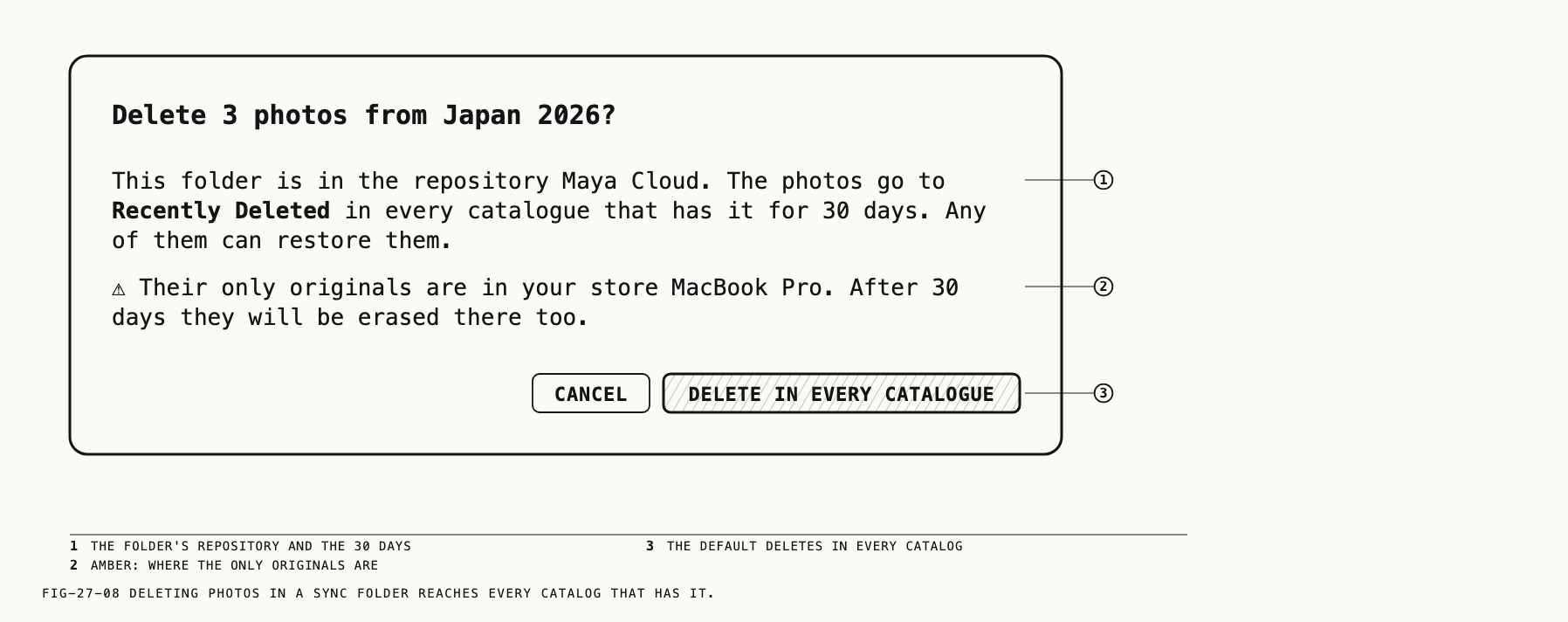
For photos in one sync folder the sheet is Delete 3 photos from <folder>? (counts say
photos, videos or both). It says the folder is in the repository, that the photos go to
Recently Deleted in every catalog that has it for 30 days and any of them can restore
them, and that after 30 days they are erased everywhere they are kept, including the
repository. When some of the photos have their only original in one place, that last
sentence turns amber and names the place: your store, another catalog, or no repository,
with the Mac still unknown. The buttons are Cancel and the default Delete in Every Catalogue.
A selection from several folders is titled Delete 6 photos? and has one bold-led
paragraph per folder: synced parts as above, plain parts with this catalog’s own
Recently Deleted window. The default is Delete in Every Catalogue when any part is
synced, otherwise Move to Recently Deleted.
A subfolder. Deleting a subfolder of a sync folder asks Delete the folder "<folder>"? and offers two outcomes, each applied in every catalog: Remove Folder Only keeps its photos and moves them up into the sync folder (the default), and
Delete Folder and <n> Photos sends them to Recently Deleted for 30 days. Deleting the
sync folder itself is Remove from This Catalogue… with From every catalogue (27.4);
the folder stays listed for 30 days as deleted · <n> d, and Restore Folder in
Recently Deleted brings it back everywhere.
Recently Deleted. Deleted photos of a sync folder show a banner over the loupe:
20 photos from <folder>, deleted here today. 30 days left. They still take 14 GB in <store> and 14 GB on <repo>. with Restore (or Restore Folder) and Delete Now.
Delete Now is on only in the catalog that holds the originals; elsewhere a footnote
says which catalog that is.
When another catalog deleted photos whose only originals are here, the banner carries an
amber ONLY COPY pill. It says the originals are in your store and will be erased on a
named date, with Restore All (or Restore Folder) and Delete Now. The status bar’s
amber line and an amber dot on the sidebar’s Recently Deleted row stay for the whole 30
days.
If this Mac was away for the whole window, the banner says the 30 days passed while it
was away and that the originals are kept here until a date seven days on, with Recover
and Erase Now. A restore that came too late is listed as Permanently deleted on <Mac> while <Mac> restored it: <file>. with Recover, which makes a new
photo in the folder Recovered from the original still in your store; its ratings and
edits do not come back.
Delete Now on synced photos asks Delete <n> photos now?, lists where the files are
erased from (your store and the repository, each with its size) and ends This cannot be undone. A mixed selection is refused with Delete Now isn't available for all of these, which offers to select the ones whose originals are here.
The Info tab of a deleted photo leads with a Deleted section: From, By, Days left, Erased elsewhere, Kept here until, and Only in for the original.
Note: The Settings window’s Library tab lets you choose how long Recently Deleted
keeps photos of ordinary folders. Under it the line Folders in a repository always keep deleted photos for 30 days, on every Mac. states the rule this chapter describes; the
setting does not apply to sync folders.
27.12 When a Repository Is Away
A repository on a drive or share that is not mounted is offline, in gray. Every local
action still works and waits: edits, ratings, moves into the folder. The status bar
reads <repo> is offline · <n> changes waiting, the cloud keeps its shape, and the Info
tab counts one place fewer. Changes sync as soon as the drive mounts. A repository that
should be reachable and is not is can't reach, in amber, with a reason; Choose… in
the Repositories sheet points Revela at its folder again (Chapter 26).
Commands that need the repository now are refused, never queued. The sheet stays open
and reports <repo> is offline with Connect <volume> and try again. Nothing has been changed., or Can't reach <repo> with the reason. These are Sync, adding a folder,
Download, Upload Originals…, Keep Proxies Only… (shown off with its reason),
renaming a repository and Delete… on one, and copying out a photo whose original is
not here. Stopping and removing a folder are allowed while the repository is away, and
their sheets say what happens either way (27.4). A folder still arriving
refuses drops and imports. A deleted repository refuses every command with the sheet
described in Chapter 26.
← 26. Repositories · Contents · 28. Menus and Keyboard Shortcuts →