A log recording holds the range the sensor captured in a form that survives grading. Contrast is compressed and highlight information is kept rather than thrown away, which produces a flat, desaturated picture on screen and a file with room to move afterwards. It is the setting for material that will be graded, and for material that has to be cut alongside footage from another camera.
The chapter rests on one distinction. The profile you select decides what is written to the file. The monitoring method decides only what you see while you shoot. The two are set on the same page and they do not affect one another: no monitoring choice reaches the recording.
15.1 Reaching the Log Page
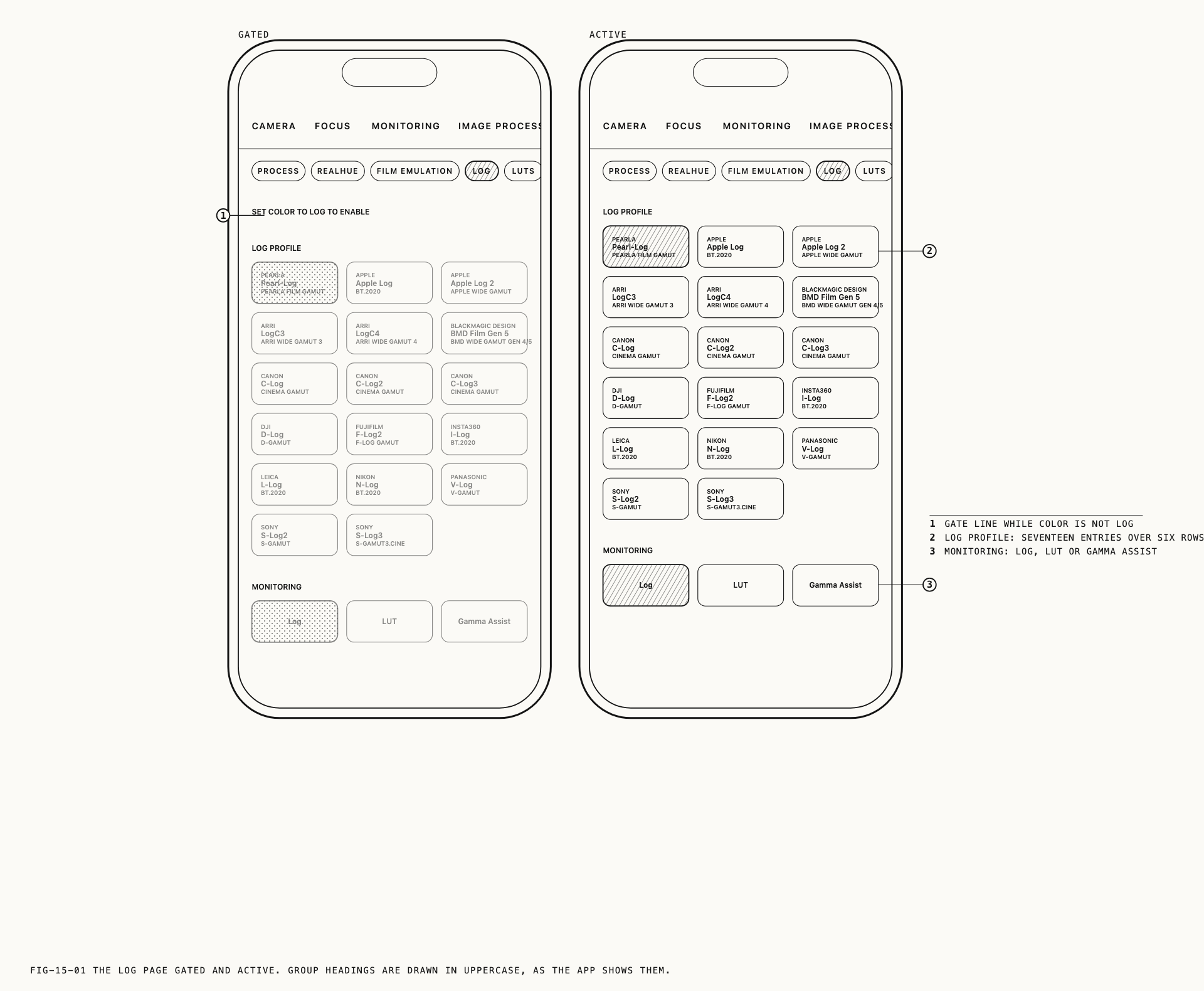
Log is not a page you switch on directly. It becomes available once the Color setting
is set to Log, and until then the Log page shows SET COLOR TO LOG TO ENABLE in place
of its controls, with both of its option groups inactive.
Where to change it: Settings → Image Processing → Process.
Color is the master image processing setting and is covered in Chapter 13. Two points
from there matter here. It is held separately for photo and for video, so setting it in
one capture mode leaves the other as it was. And a custom profile, while active,
overrides it: the Log page then reports CONTROLLED BY PROFILE followed by the profile’s
name, displays the configuration that profile is using, and accepts no changes. Custom
profiles are covered in Chapter 17.
Log applies to stills as well as video. Both capture modes carry the page, and each keeps its own profile and its own monitoring method.
Where to change them: Settings → Image Processing → Log.
15.2 Choosing a Log Profile
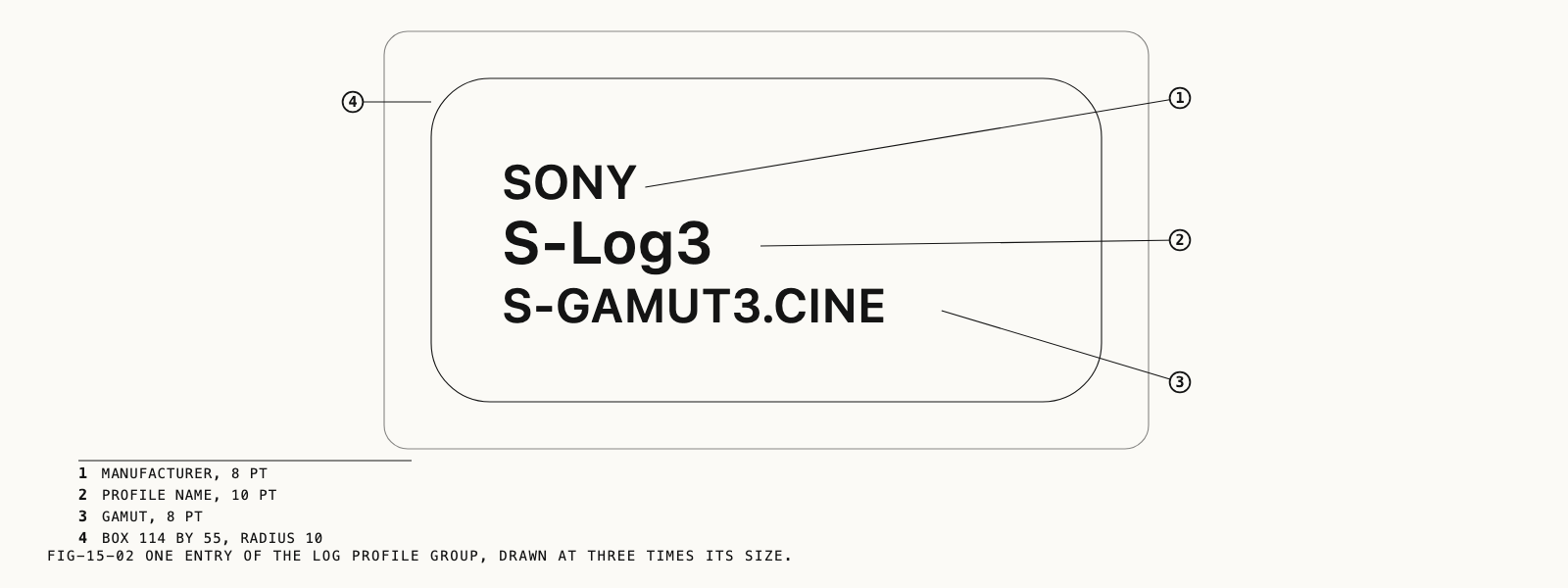
Log Profile lists eighteen encodings. Each entry names the profile, with the
manufacturer it belongs to above it and the gamut it carries beneath. Pearl-Log heads
the list, and the manufacturers follow in alphabetical order.
Pearl-Log is Pearla’s own log encoding and the default. It is built for the
device and for the rest of Verana, and it is the profile to leave in place for work you
are grading yourself.
The other seventeen exist for compatibility. Select the one your job already runs on: the profile the other cameras on the shoot are recording in, or the profile the grade, the LUT set or the delivery specification was built around. Choosing it at capture means the material arrives in the form the rest of the pipeline expects, rather than needing a conversion first.
All eighteen are available on every supported device. The list does not change from one iPhone to another.
The gamut named beneath each profile is its color space. Color space is covered in Chapter 14.
15.3 The Eighteen Profiles
Listed in the order the picker uses.
| Manufacturer | Profiles |
|---|---|
PEARLA | Pearl-Log |
APPLE | Apple Log, Apple Log 2 |
ARRI | LogC3, LogC4 |
BLACKMAGIC DESIGN | BMD Film Gen 5 |
CANON | C-Log, C-Log2, C-Log3 |
DJI | D-Log |
FUJIFILM | F-Log, F-Log2 |
INSTA360 | I-Log |
LEICA | L-Log |
NIKON | N-Log |
PANASONIC | V-Log |
SONY | S-Log2, S-Log3 |
Where a manufacturer has more than one, the profiles are separate encodings rather than revisions of a single one, and a grade built for one is not correct for another. Match the name exactly to whatever you are working against.
15.4 Monitoring a Log Signal
A log image is correct in the file and difficult to read on a screen. Flat contrast makes exposure hard to place by eye and makes a lit scene look wrong at a glance, which is a problem when a client or a director is watching over your shoulder. Monitoring offers three ways to view it.
| Value | What the viewfinder shows |
|---|---|
Log | The signal as it is being recorded, flat |
LUT | The image previewed through a lookup table you have chosen |
Gamma Assist | A corrected image, produced without a lookup table |
Log is the honest view. Nothing stands between you and the recording, which is what you
want when you are judging clipping with the waveform monitor or with false color. Both
tools read the recorded signal rather than the preview, so they remain accurate under any
of the three. The waveform monitor and false color are covered in Chapter 6.
LUT previews the shot through a table from your LUT library, which is the setting to
use when the grade already exists, or when someone needs to see roughly the finished
picture on the day. While it is selected the Log page carries a line beneath the group
naming the table in use, reading MONITORING LUT followed by its name. If no table has
been chosen the line reads NO LUT SELECTED · CHOOSE ONE ON THE LUTS TAB instead, and
the viewfinder continues to show the flat signal. Importing tables, selecting one, and
baking one into the recording are covered in Chapter 17.
Gamma Assist produces a corrected preview without needing a table at all. Contrast and
color come back to something recognizable, so you can light, focus and frame against a
normal-looking image, and it takes no setup and no library. It is the practical choice
when you are shooting log for the latitude rather than for a grade that has already been
designed.
15.5 What Reaches the File
All three monitoring methods are viewfinder treatments. The recording stays log in every case, encoded in the profile selected above.
This is worth stating flatly for Gamma Assist, because the viewfinder under it looks
like a finished picture rather than a log one. Nothing about that correction is written
to the file. Whatever the screen shows, what lands on disk is the log profile you chose,
and the material comes back with its full latitude intact.
Note: there is one control that does change the recording, and it is not on this page. Bake LUT into Image, on the LUTs page, writes the monitoring table into the capture rather than into the preview. It is a delivery setting rather than a monitoring one, and it is covered in Chapter 17.
Note: Pearla’s own raw formats keep the sensor data and store the log choice alongside it, so a profile selected at the shutter can be changed when the file is opened afterwards. Chapter 13 states the rule and Chapter 19 covers doing it.
15.6 After the Shoot
Verana records the profile with the capture. Opening it in Revela Lite shows the encoding named in full, with its manufacturer, so a clip is never ambiguous about what it holds once it is off the phone. Revela Lite is covered in Chapter 19.
A log file is an intermediate, not a deliverable. It is meant to be graded, whether in
Revela Lite or in a desktop application, and it needs the transform or the LUT that
belongs to its profile applied at the end of that process. This is the reason the profile
name matters: S-Log3 footage graded as though it were V-Log will not come back
correctly, and the two look similar enough on a small screen that the mistake is easy to
make.
Where the work does not need grading, Verana can hand you a finished picture instead. Baking a LUT into the recording is covered in Chapter 17, and exporting a graded or processed version is covered in Chapter 20.
For grading Pearl-Log outside Verana, a Pearl-Log to Rec.709 conversion LUT can be saved to Files from the Help tab and loaded into your grading application.
Where to find it: Settings → Help, under Conversion LUT.
← 14. Pearla Wide Gamut and Color Space · Contents · 16. Film Emulation and Film Texture →