Two color spaces are involved in every capture. Verana works in one of them, Pearla Wide Gamut, which is fixed and has no controls. You choose the other, the output color space, and it decides what the finished file is prepared for.
Chapter 13 covers the Color setting, which decides how the image is rendered. This chapter covers what carries that image and what it is delivered as. Log capture changes what the output color space setting is doing, and is covered in Chapter 15.
14.1 The Working Color Space
Pearla Wide Gamut is Pearla’s working color space. Verana works in it throughout, and there is nothing to set. It is wide enough to hold every color a camera can record, so nothing is clipped before you choose a delivery space.
Every space Verana can deliver in sits inside Pearla Wide Gamut. The destination therefore narrows the image only when the finished file is written, so a wide destination has color available to use rather than color already discarded before you chose it.
Pearla Wide Gamut is also common to Pearla’s other applications. A capture that moves from Verana into Revela is not being re-interpreted on the way, which is what allows a grade built in one to hold in the other.
On the Log page each profile is listed with the gamut it belongs to. Pearl-Log’s reads
PEARLA FILM GAMUT, the gamut Pearl-Log records in. Log profiles are covered in
Chapter 15.
14.2 From Capture to Delivery
With Color set to RealHUE, what Verana produces is the calibrated image described in
Chapter 13, carried in Pearla Wide Gamut and converted to the output color space you
selected when the file is written. The calibration is what makes the image accurate. The
output color space is what makes it readable: it is the description that travels with the
file and tells whatever opens it next how the image should be shown.
A mismatch does not break the file, it shifts the picture. A photograph prepared for one space and opened as another is the usual explanation for color that looked correct in the viewfinder and wrong on a laptop.
Photo and video are set separately, and each lives with the rest of its capture settings rather than on the Image Processing tab. The two lists are different because the destinations are different.
14.3 Photo Color Space
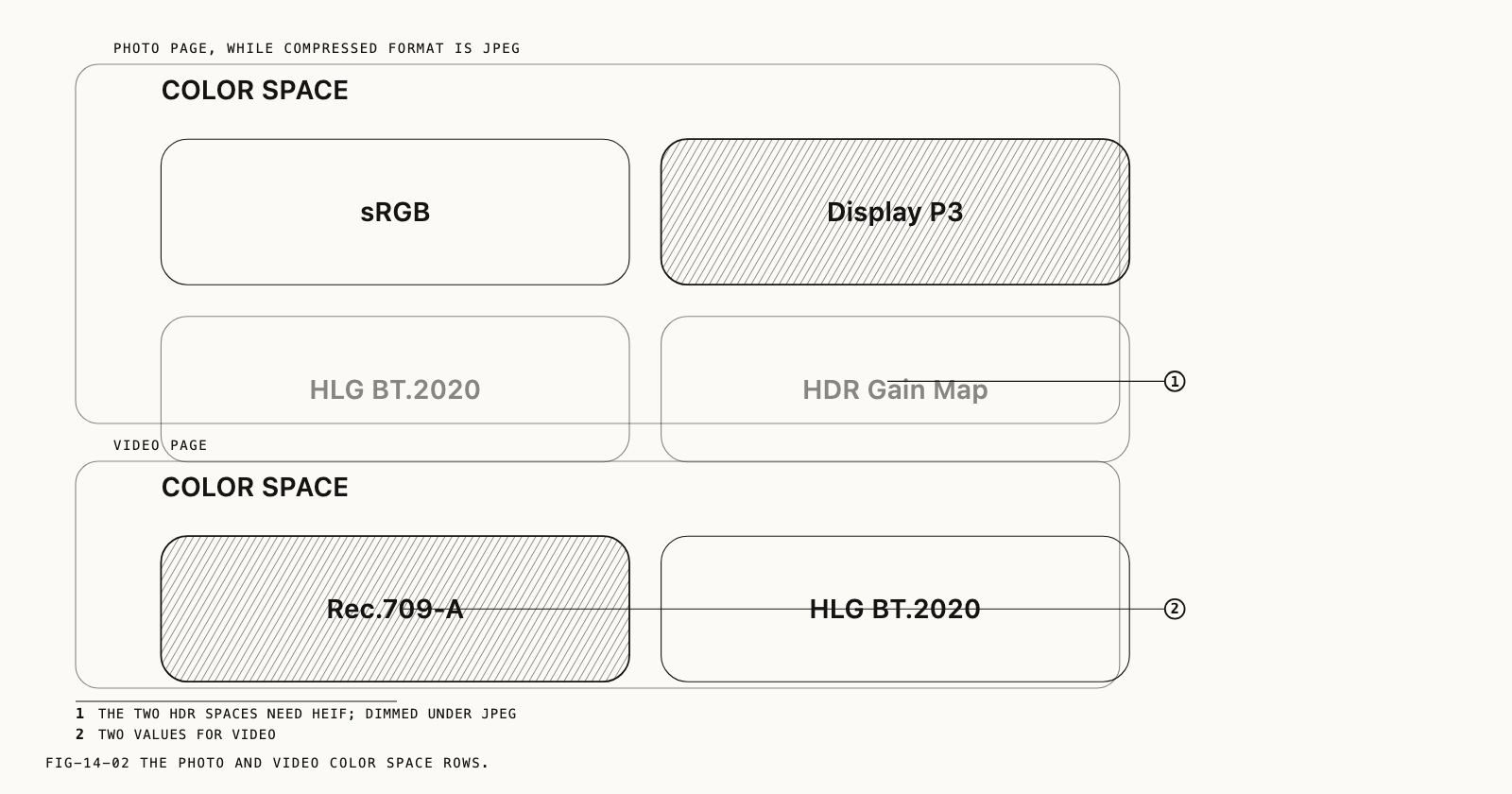
Color Space on the Photo page offers four values.
Where to change it: Settings → Camera → Photo, under Color Space.
| Value | Use it for |
|---|---|
sRGB | The widest compatibility, and the default. The safe choice for the web, for a client, or for any destination you do not control |
Display P3 | Wider color for Apple displays and for editors that respect it. The better choice when the picture is staying inside a color-managed workflow |
HLG BT.2020 | High dynamic range delivery, for a display that can show it |
HDR Gain Map | A file that opens as a standard image where HDR is not supported and as HDR where it is, matching the behavior of the iPhone’s own camera |
The two HDR values need HEIF. While Compressed Format is set to JPEG they are grayed
out, and switching the compressed format to JPEG with one of them selected returns
Color Space to sRGB. Compressed formats are covered in Chapter 7.
HLG BT.2020 commits the file to HDR. On a display or an application that cannot show it,
the image looks washed out or oddly contrasted, and there is no fallback. HDR Gain Map
carries both presentations in one file and is the safer of the two when you do not know
where the photo is going.
14.4 Video Color Space
Color Space on the Video page offers two values.
Where to change it: Settings → Camera → Video, under Color Space.
| Value | Use it for |
|---|---|
Rec.709-A | Standard delivery, and the default. Correct for most editors and most destinations |
HLG BT.2020 | High dynamic range delivery, matching the iPhone’s own HDR video |
Rec.709-A is the conventional choice for anything going into an edit alongside other
cameras. HLG BT.2020 is worth selecting when the whole chain from the recording to the
screen is prepared for HDR, and worth avoiding when any part of it is not.
14.5 What the Setting Does Not Decide
The output color space governs a delivered file. Three cases fall outside that, and each is a common source of confusion.
Log recordings and log stills. A log capture is delivered in its log encoding, so the output color space setting does not change what is written. It still applies while you monitor a log signal through a LUT, and it applies to the delivered file when a LUT is baked into the image rather than used for monitoring. Monitoring is covered in Chapter 15 and baking in Chapter 17.
Raw captures. A raw file is not committed to a delivery space at the shutter. Verana records the settings that were in use with every capture, and for Pearla’s own raw formats both the Color value and the output color space can be chosen again when the file is opened afterwards. Chapter 19 covers that.
The compressed companion. When a capture produces both a raw file and a compressed one, the setting applies to the compressed file, which is the one that has to stand on its own wherever it is sent. Output formats are covered in Chapter 7.
Note: A custom profile holds the Color setting while it is active, as described in Chapter 13. It does not hold the output color space, which stays under your control whichever profile is loaded.